Dragon's Dogma: Dark Arisen

Dragon's Dogma: Dark Arisen

37 ratings
Fixing corrupted save files from a "Different" version of the game
By Hoss
A possible fix for corrupted save files from "different" versions of the game.
   
Award
Favorite
Favorited
Unfavorite
Intro
If you have been playing on a "different" version of the game, switched over to the legal steam version, you may find your save file "corrupted", unable to load it in the steam version. It's not actually corrupted.
1. Locate your "corrupt" save file
The file is called "DDDA.sav". It may be in different locations depending on the installation methods used. For me, it was in the game installation folder. Easist way to find it is to navigate to the game installation folder and search for DDDA.sav using your file explorer.
2. Create a new, fresh save with the steam version
Make sure you have the "corrupt" DDDA.sav backed up to a safe location.

Navigate to

C:\Program Files (x86)\Steam\userdata\###YourIDHere###\367500\remote

  • Delete the DDDA.sav if there is one there.
  • Load up the game, start a new game and let it save.
  • Close the game and go back to the location described above.
  • Create a new folder somewhere (Desktop, etc.) and copy the newly created DDDA.sav to the folder.
  • Rename your old "corrupt" DDDA.sav to something else so you know which is which and they are not overwritten.
  • Copy the corrupt one to the same folder.
3. Modify the old DDDA.sav
Download this wonderful tool:
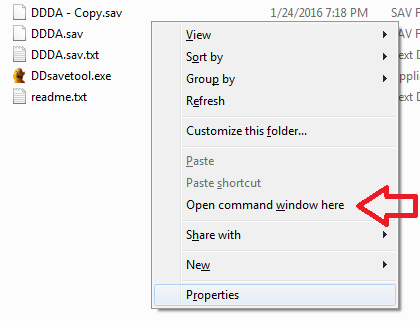
And place the .exe in the folder with the save files.Open a command window at the location of the folder. Hold down shift and right click to bring up the option.
  • Run these two commands:
    ddsavetool -u DDDA.sav
    ddsavetool -u oldDDDA.sav

  • You should now have two text files in the folder,
    DDDA.sav.txt
    oldDDDA.sav.txt

  • Open DDDA.sav.txt with a text editor.
  • Bring up the find function of the text editor (ctrl+f). Enter the following:
    mSteamID
  • This should find the line
    <u64 name="mSteamID" value="###yournumbershere###"/>
  • Copy the value, i.e. ###yournumbershere###

  • Open oldDDDA.sav.txt.
  • Bring up the find function of the text editor (ctrl+f). Enter the following:
    mSteamID
  • This should find the line
    <u64 name="mSteamID" value="###differentnumbers###"/>

  • Paste the value, ###yournumbershere###, replacing the ###differentnumbers###.
  • Save the file.

  • Move the new file out of the folder.
  • Rename the old file to "DDDA.sav.txt"

  • Bring up the command window again.
  • Run (on the old file, now renamed):
    ddsavetool -r DDDA.sav.txt

  • Copy DDDA.sav from the folder and paste it back into the game save location, overwriting the one thats there:
    C:\Program Files (x86)\Steam\userdata\######\367500\remote
Congratulations, you are done. Hopefully that worked.
23 Comments
playmen 28 Mar, 2024 @ 10:59am 
ty man!
Some 21 Aug, 2020 @ 10:51am 
nice!
Some 21 Aug, 2020 @ 10:51am 
If it is still corrupted after doing this (ie. if you had a pirated version previously) I had to use SAVE AS on my text document to make sure it was a ".TXT" file instead of a ".XML" file BEFORE using the "ddsavetool -r DDDA.sav.txt" command.
SafeStyleUKman 24 Dec, 2019 @ 8:40am 
I dont have a \Steam\userdata\###YourIDHere###\367500\ folder...... :(
OSSAMAXIMUS 30 Nov, 2019 @ 3:47pm 
it works!! thanks you very much
OSSAMAXIMUS 30 Nov, 2019 @ 12:50pm 
I don't understand why it don't work for me, i did exactly what is written.
ander2712 20 Sep, 2019 @ 4:55am 
Thank you very much ... very useful.
:D
Luanciel 12 Jul, 2019 @ 9:04am 
Thank you man, 80 hours of gameplay saved O_O
Mister Bones 10 Feb, 2019 @ 6:02pm 
I didn't exactly follow the instructions; once I read what the issue was the download and the two commands were more or less self-explanatory. Quick and easy solution regardless, thanks mate.
Baximus 25 Apr, 2018 @ 12:23am 
It worked! Thank you so much! Too bad the old save file was really old, but still, it worked!