Borderlands® 4

Borderlands® 4

42 ratings
From Laggy 50 FPS to Solid 120 FPS + Input Fixes
By J
Laggy? Stuttering? Controls feel like they’re underwater? This guide provides fixes to some of the most common issues.
2
   
Award
Favorite
Favorited
Unfavorite
Outline
This guide walks you step-by-step through some tweaks that may improve Borderlands 4’s performance, responsiveness, and stability. Personally, this took my game from ~40 fps on average to 120-140 fps at the cost of negligible visual quality.
  • In-game graphics settings for maximum FPS
  • Modding guide to enable Frame Generation on 30-series cards
  • Engine.ini tweaks to remove heavy fog and optimise lighting
  • Nvidia control panel settings for smoother frames
  • Windows optimisations that actually matter
  • Input lag fixes (mouse smoothing OFF for real this time)
  • Optional: deeper system tweaks for advanced users
It is a combination of guides you can find on forums such as Reddit, Nexus Mods, and Steam.
In-Game Graphics Settings
Start here. These settings are intended to balance visual clarity with maximum performance.

Visuals (Basic)
  • Display Mode: Fullscreen
  • Vertical Sync: Off
Visuals (Advanced)
  • Upscaling Method: DLSS*
  • Upscaling Quality: Balanced
  • Scene Capture Quality: Full Resolution
  • Frame Generation: On*
  • HLOD Loading Range: Medium
  • Geometry Quality: Medium
  • Texture Quality: High
  • Texture Streaming Speed: High
  • Anisotropic Filtering: 8x (Lower to 4x or 2x if needed)
  • Foliage Density: Medium
  • Volumetric Fog: Low (Major FPS impact)
  • Volumetric Cloud: Low
  • Volumetric Cloud Shadows: Disabled
  • Shadow Quality: Medium
  • Directional Shadow Quality: Low
  • Lighting Quality: Medium
  • Reflections Quality: Low
  • Shading Quality: Medium
  • Post-Process Quality: Low
  • Motion Blur Quality: Off

*Note: If you are not using the "dlssg-to-fsr3" mod (see Section 2), use FSR instead of DLSS for 3000-series and older cards
Enable Frame Gen on 30-Series Cards (Mod)
DLSS Frame Generation is usually locked to 40-series cards. Since I have a 3000 series graphics card, I use this mod to enable Frame Gen via FSR 3 while keeping DLSS upscaling.

  1. Download: dlssg-to-fsr3-0.130 (Universal) from Nexus Mods.
  2. Link: https://www.nexusmods.com/site/mods/738?tab=files
  3. Install: Copy the two .dll files from the download folder.
  4. Paste: Navigate to your game folder and paste them here: Steam/steamapps/common/Borderlands 4/OakGame/Binaries/Win64
  5. Windows Setting: Go to Settings > System > Display > Graphics > Default Graphics Settings.
    • Ensure Hardware-Accelerated GPU Scheduling is ON.
    • Restart your PC.
Engine.ini Tweaks (Fog & Lumen)
Borderlands 4 has a beautiful map, but the fog and Lumen lighting are FPS killers. We are going to disable the fog and tweak the lighting using settings from P40L0X's Ultimate Engine Tweaks.

  1. Locate the file: Documents\My Games\Borderlands 4\Saved\Config\Windows
  2. Open: Engine.ini (If missing, check for GameUserSettings.ini but usually it is Engine.ini).
  3. Edit: Scroll to the very bottom and paste the following block. You can pick and choose, but this is the recommended list for performance:
    [SystemSettings] r.fog=0 r.VolumetricFog=0 r.MotionBlurQuality=0 r.Depth0fFieldQuality=0 r.LensFlareQuality=0 r.Shadow.Virtual.Enable=1 r.Lumen.HardwareRayTracing=1 r.Lumen.Reflections.HardwareRayTracing=1 r.Lumen.ScreenProbeGather.HardwareRayTracing=1 r.LumenScene.DirectLighting.HardwareRayTracing=1 r.BloomQuality=0 r.FilmGrain=0
  4. Save the file and set it to Read Only (Right-click file > Properties > Check "Read-only").
Credit to P40L0X on Nexus Mods for the Lumen tweaks.
Nvidia & Driver Settings
Control Panel
  1. Low Latency Mode: On.

Nvidia Control Panel
As usual, you should update your drivers and ensure you are on the latest versions. However, the "Secret Sauce" for Stuttering (Nvidia only) is increasing the shader cache size, which improves stability:
  1. Open Nvidia Control Panel.
  2. Go to Manage 3D Settings.
  3. Select the Global Settings tab (or Program Settings if you only want to change it for BL4).
  4. Find Shader Cache Size.
  5. Set this to 100 or 100 GB.
  6. Apply.


Windows Optimisation
Game Mode
  • Game Mode: On
  • Power Mode: Balanced

Game Bar
  • General Rule: Go to Gaming > Game Bar and turn "Allow your controller to open Game bar" to OFF.
  • EXCEPTION: If you have a 7900X3D, 7950X3D, 9950X3D, or 9900X3D, you actually want Game Bar ON (it helps with core parking).
Disable Mouse Smoothing (Input Lag Fix)
"Why don't devs allow us to have nice things?" Let's fix the mouse feel.

Step A: Create Input.ini
  1. Go to: Documents\My Games\Borderlands 4\Saved\Config\Windows
  2. Create a new text file and name it Input.ini.
  3. Paste the following:
    [/script/engine.inputsettings] bDisableMouseAcceleration=1 bViewAccelerationEnabled=0 bEnableMouseSmoothing=0 RawMouseInputEnabled=1
  4. Save and set to read only.
Step B: The "Just to be Sure" Fix
  1. Open GameUserSettings.ini in the same folder.
  2. Add this to the bottom:
    [/script/engine.inputsettings] EnableMouseSmoothing=False ViewAccelerationEnabled=False
Fixing post-update stutter (clearing cache)
If, after updating the game, you suddenly experience stuttering or lag, it could be that your driver cache needs a wipe.

Originally posted by dev.epicgames.com:
You can use the command line argument -clearPSODriverCache to force-clear the driver cache, which we recommend for testing the first-time startup experience of your game.

Clear Driver Cache
  1. With Borderlands off, go into your game library and find Borderlands 4
  2. Open the properties of the game
  3. Head into Launch Options
  4. Put the following into your launch arguments: -clearPSODriverCache
  5. Close the modal window and launch the game, wait for it to validate the shaders.
  6. Play around for about 5-10 minutes, consider fast-travelling to different areas to load up shaders.
  7. Save and quit the game.
  8. Repeat the above steps, but remove the launch argument you previously added.

Resources
If you're anything like me and are sceptical of running some random launch arguments you find on the internet, you can refer to this guide[dev.epicgames.com] from Unreal Engine documentation, which outlines exactly what the setting does.
Optional: Disable Control Flow Guard (CFG)
Disabling Control Flow Guard (CFG) is a legitimate, "hidden" optimisation trick often used by power users, particularly for games built on Unreal Engine (like the Borderlands series). This helped in Borderlands 3 and seems to help here, too.

CFG is a platform security feature in Windows designed to combat memory corruption vulnerabilities. It places tight restrictions on where an application can execute code from, specifically by validating indirect code calls. So, before you carry out this optional change be aware that:

  • By disabling CFG, you are removing a layer of protection against "buffer overflow" attacks from BL4, which shouldn't be an issue.
  • If your graphics card is the bottleneck (e.g., playing at 4K resolution on an older card), this tweak will do absolutely nothing. It only helps when the CPU is the limiting factor.
How to do it:
  1. In Windows Search, type "Exploit Protection" (should be under System Settings)
  2. Click Program Settings (it's a tab) > Add program to customise.
  3. Chose exact file path and locate Borderlands4.exe (in OakGame/Binaries/Win64).
  4. Once added, press "Edit" which should open the game's program settings
  5. Scroll down a bit to Control Flow Guard (CFG).
  6. Check the "Override system settings" and toggle it to OFF.
  7. Hit Apply.

NEVER disable this globally. You should never turn off CFG for your entire Windows system. That leaves your browser and OS vulnerable to web-based attacks.
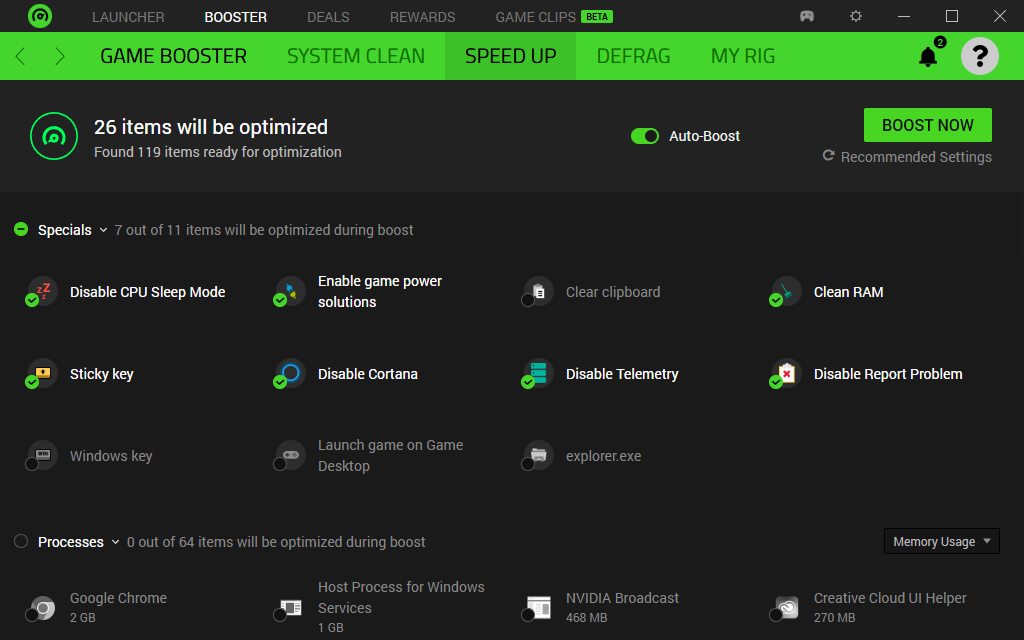
Optional: Razer Cortex's "Game Booster" + Manual Steps
For those of you unaware, Razer Cortex: Game Booster[www.razer.com] is a free utility that optimises your PC for gaming by temporarily shutting down non-essential background processes, freeing up RAM and CPU resources for smoother gameplay and higher FPS.

I mark it as optional because:
  • The "boost" it provides is negligible compared to the other steps.
  • Technically, you could do these "boosting" steps without installing Razer Cortex. And that's exactly what we do further down ;)
Razer Cortex: Game Booster
  1. Open Razer Cortex
  2. Switch to the "BOOSTER" tab
  3. Switch to the "GAME BOOSTER" sub-tab
  4. Press "BOOST NOW"

Without Razer Cortex
To replicate the functionality of Razer Cortex's "Game Booster" without installing the software, you can use Windows built-in tools, Registry tweaks, and PowerShell scripts.

Razer Cortex automates changing Windows settings and stopping non-essential services to free up resources, but it comes with ads and so much bloat that I don't blame you for not wanting to download it 🙄.

Here is a breakdown of how to achieve each optimisation that it provides, followed by an All-In-One PowerShell Script you can use if you're tech-savvy (and I think if you're doing the above steps, you are)

Power & CPU
Razer creates a custom power plan. You can do this by enabling the "High Performance" or "Ultimate Performance" plan in Windows.
  1. Open the Command Prompt as an Admin.
  2. Type the following command:
    powercfg -duplicatescheme e9a42b02-d5df-448d-aa00-03f14749eb61
  3. Go to Control Panel > Power Options and select Ultimate Performance.

Cleaning
  • Clipboard: Run the following command in the command prompt:
    cmd /c "echo off | clip"
  • Explorer.exe - This toggles the desktop shell (taskbar, icons) off to save RAM. Please be careful before running this command, as it will remove the typical Windows UI you might use. I recommend only running it once you're in-game, or at least have Steam open.
    taskkill /f /im explorer.exe
    To restore: Press Ctrl+Shift+Esc (Task Manager) -> File -> Run new task -> type explorer.exe

Annoyances
  • Sticky Keys: Go to Settings > Accessibility > Keyboard and toggle off "Sticky Keys".
  • Windows Key: The best way to do this without software is to turn on Windows Game Mode (Settings > Gaming > Game Mode), which prevents accidental Windows key presses from minimising games.

Background Noise
These require Registry edits or Service changes. So please don't carry these out unless you know what you're doing with the registry and services!
  • Telemetry: Stop the "Connected User Experiences and Telemetry" service (DiagTrack).
  • Cortana: Can be disabled via Group Policy or Registry.

Without Razer Cortex: PoweShell Script
You can save the following code as a PowerShell script (e.g., GameBoost.ps1). This script automates many of the steps above.

Warning: These scripts modify system services. While safe, you can always create a System Restore Point[support.microsoft.com] before running optimisation scripts. Seriously, don't run scripts from the internet without thoroughly reading them and understanding what they do. If you're at all uncomfortable with running these scripts, you can always follow the steps above to "pick and choose" your boosts :)

The "Game Booster" Script
<# .SYNOPSIS A lightweight "Game Booster" script to replicate Razer Cortex features. Run as Administrator. #> Write-Host ">>> Initializing Game Booster Protocol..." -ForegroundColor Green # 1. CLEAR CLIPBOARD Write-Host "[-] Clearing Clipboard..." Set-Clipboard $null # 2. POWER SETTINGS (High Performance) Write-Host "[-] Setting Power Scheme to High Performance..." # This finds the High Performance GUID and activates it $p = powercfg -l | Select-String "High performance" if ($p) { $id = $p.ToString().Split()[3] powercfg -s $id } # 3. DISABLE STICKY KEYS (Registry Tweak) Write-Host "[-] Disabling Sticky Keys shortcut..." $path = "HKCU:\Control Panel\Accessibility\StickyKeys" # "506" is the default string for off/disabled in some configurations, # strictly disabling the shortcut requires changing the Flags value. Set-ItemProperty -Path $path -Name "Flags" -Value "506" # 4. STOPPING TELEMETRY & REPORTING SERVICES Write-Host "[-] Stopping non-essential background services..." $services = @( "DiagTrack", # Connected User Experiences and Telemetry "WerSvc", # Windows Error Reporting Service "SysMain", # Superfetch (Optional: Good for SSD longevity, frees RAM) "WSearch" # Windows Search (Indexing uses CPU) ) foreach ($service in $services) { if (Get-Service $service -ErrorAction SilentlyContinue) { Stop-Service -Name $service -Force -ErrorAction SilentlyContinue Write-Host " -- Stopped $service" -ForegroundColor Yellow } } # 5. DISABLE CORTANA (Registry) Write-Host "[-] Disabling Cortana..." $cortanaPath = "HKLM:\SOFTWARE\Policies\Microsoft\Windows\Windows Search" if (!(Test-Path $cortanaPath)) { New-Item -Path $cortanaPath -Force | Out-Null } Set-ItemProperty -Path $cortanaPath -Name "AllowCortana" -Value 0 # 6. OPTIONAL: KILL EXPLORER (The "Game Desktop" feature) # Uncomment the lines below if you want the script to kill the desktop UI (Taskbar/Icons) # Write-Host "[-] Restarting Shell for RAM release..." # taskkill /f /im explorer.exe # Write-Host " -- Explorer killed. Type 'explorer.exe' in Task Manager to bring it back." Write-Host "----------------------------------------------" Write-Host ">>> BOOST COMPLETE. READY TO GAME." -ForegroundColor Cyan Write-Host "----------------------------------------------" Start-Sleep -Seconds 3

The "Restore" Script (Important)
If you use the script above, you will eventually want to return the computer to normal work mode (enable search, telemetry, balanced power). You can use this script to undo the changes.
Write-Host ">>> Restoring System Settings..." -ForegroundColor Cyan # 1. Restore Power Plan (Usually Balanced) powercfg -restoredefaultschemes Write-Host "[-] Power plan restored to defaults." # 2. Restart Services $services = @("DiagTrack", "WerSvc", "SysMain", "WSearch") foreach ($service in $services) { Start-Service -Name $service -ErrorAction SilentlyContinue Write-Host " -- Started $service" } # 3. Enable Cortana Set-ItemProperty -Path "HKLM:\SOFTWARE\Policies\Microsoft\Windows\Windows Search" -Name "AllowCortana" -Value 1 # 4. Ensure Explorer is running if (!(Get-Process explorer -ErrorAction SilentlyContinue)) { Start-Process explorer.exe } Write-Host ">>> System Restored." -ForegroundColor Green Start-Sleep -Seconds 3

That should be it for this section! Again, if you've followed the previous sections, your FPS should already be at a good enough level not to need these changes, but if you're running a low-end PC or laptop, they're likely the very last things you could try to give yourself a slight boost.
6 Comments
noxx 3 Dec @ 5:05am 
you know the game is absolute abysmal d*gsh*t when people need to do all this to still play at a bad frame rate
Mr. Torpedo, M.Sc. 30 Nov @ 11:36am 
Can't recommend to turn CFG off to get a few fps in one application. Don't compromise your security.
Mikron 25 Nov @ 12:08pm 
this is great dude thanks
AdeptuS AnonyMouS 24 Nov @ 5:55pm 
I have a 3080 and use a lot of these tweaks instead of your Engine.ini I use one from Nexus. I get about 140/60Base I think the devs have finally been fixing performance, the last update really helped. I looked over your guide you give good and simple instruction's for people that may not know what to do. Thumbs UP! I might recommend adding to use Process Lasso it great & have been using it for a long time.
Your Average Military Dude 22 Nov @ 4:48pm 
Damn it. you win again randy. looks like im gonna use my borderlands 4 refund money to buy the game again. i sure hope this works
Bats 21 Nov @ 9:46pm 
10/10 Solid. FIxed my MAD LAG to a solid 100+ fps. I was almost contemplating not playing anymore, tried this guide, and now the game is playable.