HELLDIVERS™ 2

HELLDIVERS™ 2

60 ratings
[HOW-TO] How to patch faster HellDivers 2
By xЛамдай
This guide will help all the boys that are experiencing issues of patching helldivers2 (slow patch speed)
7
4
3
4
   
Award
Favorite
Favorited
Unfavorite
The real reason behind slow Helldivers 2 Updates
Introduction
When Helldivers 2 patches take forever to install, it’s easy to blame the developers or the game itself.

I used to do the same until I discovered what was actually going on.

Here’s the deal: when Steam downloads a patch, it stores the temporary files in a specific “downloading” folder before applying the update.

How does this happen?

It comes down to this: if your PC has more than one drive, and you’ve installed some games on a secondary drive (like an HDD), Steam might be using the wrong drive to store those temporary files even if the game itself is installed on your SSD.

If both Steam and Helldivers 2 are installed on your SSD, then ideally the patch files should be downloaded to the SSD as well (which usually results in much faster patching).

But if the patch files are being written to a different drive (like an HDD), the process will be much slower.

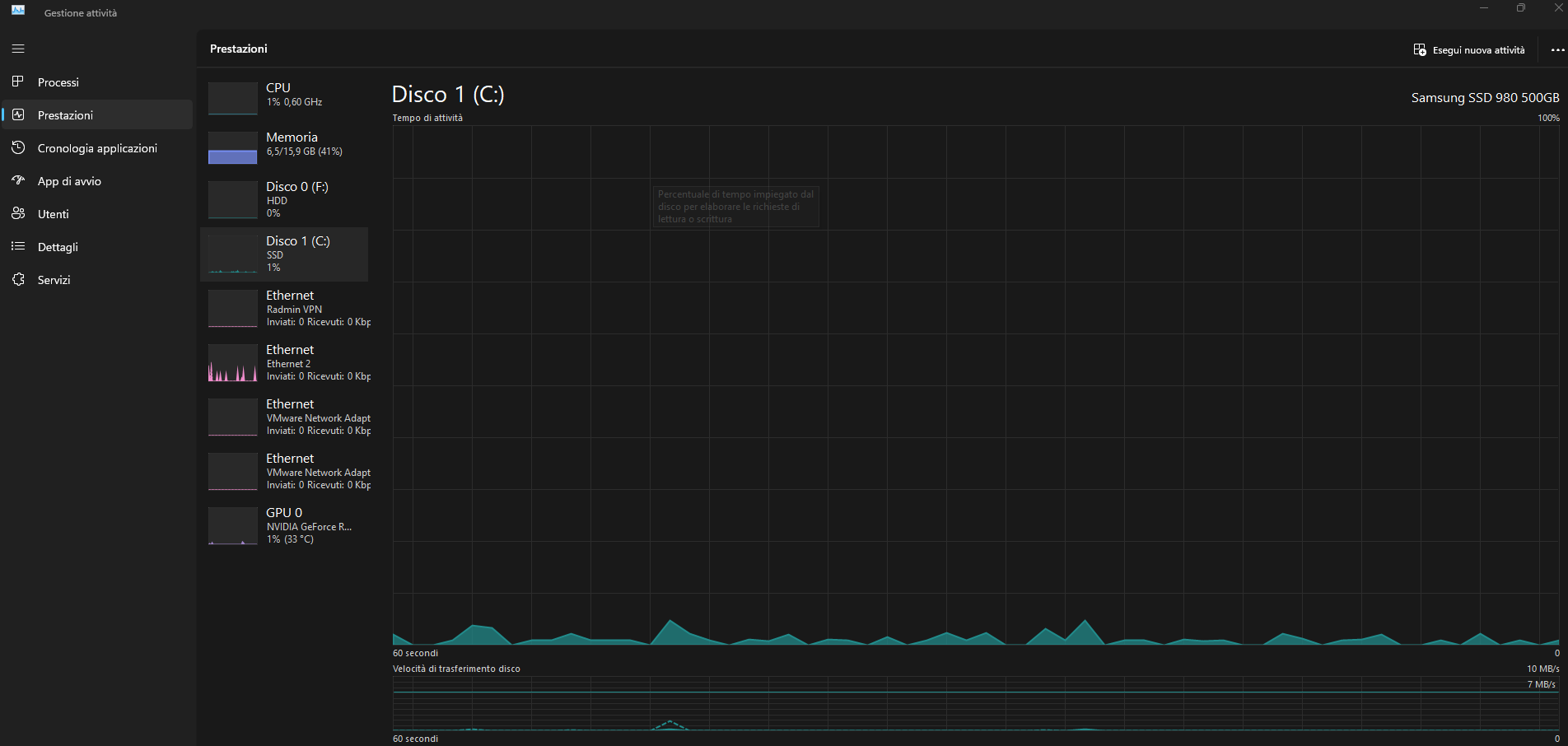
How to check where Steam is downloading patch files:
  • Open Task Manager
  • Go to the “Performance” tab
  • Start downloading the Helldivers 2 patch
  • Watch which disk has the highest usage

That’s the disk Steam is currently writing the patch data to.

For example, in my case, I noticed Steam was using my HDD (Drive F:) even though the game was installed on my SSD.
By the time I took the screenshot, I had already finished patching but the process helped me identify the issue.

Fixing patch speed - METHOD 1
METHOD 1

1) Pause the patch and completely close Steam.

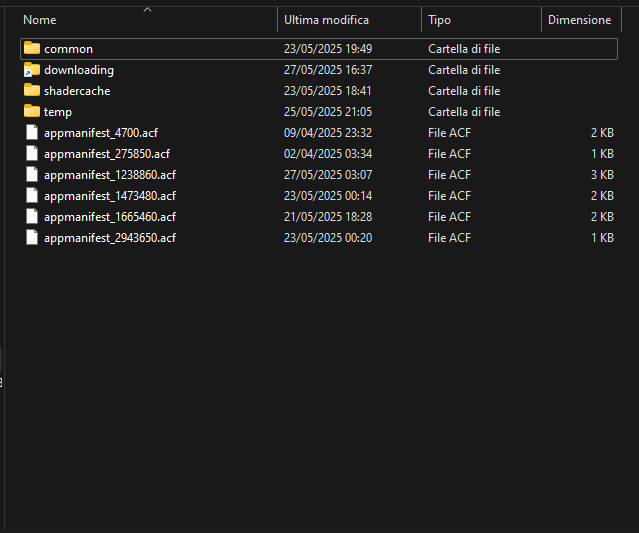
2) Open the downloading folder located in your HDD library (commonly inside a folder named SteamLibrary on another drive).


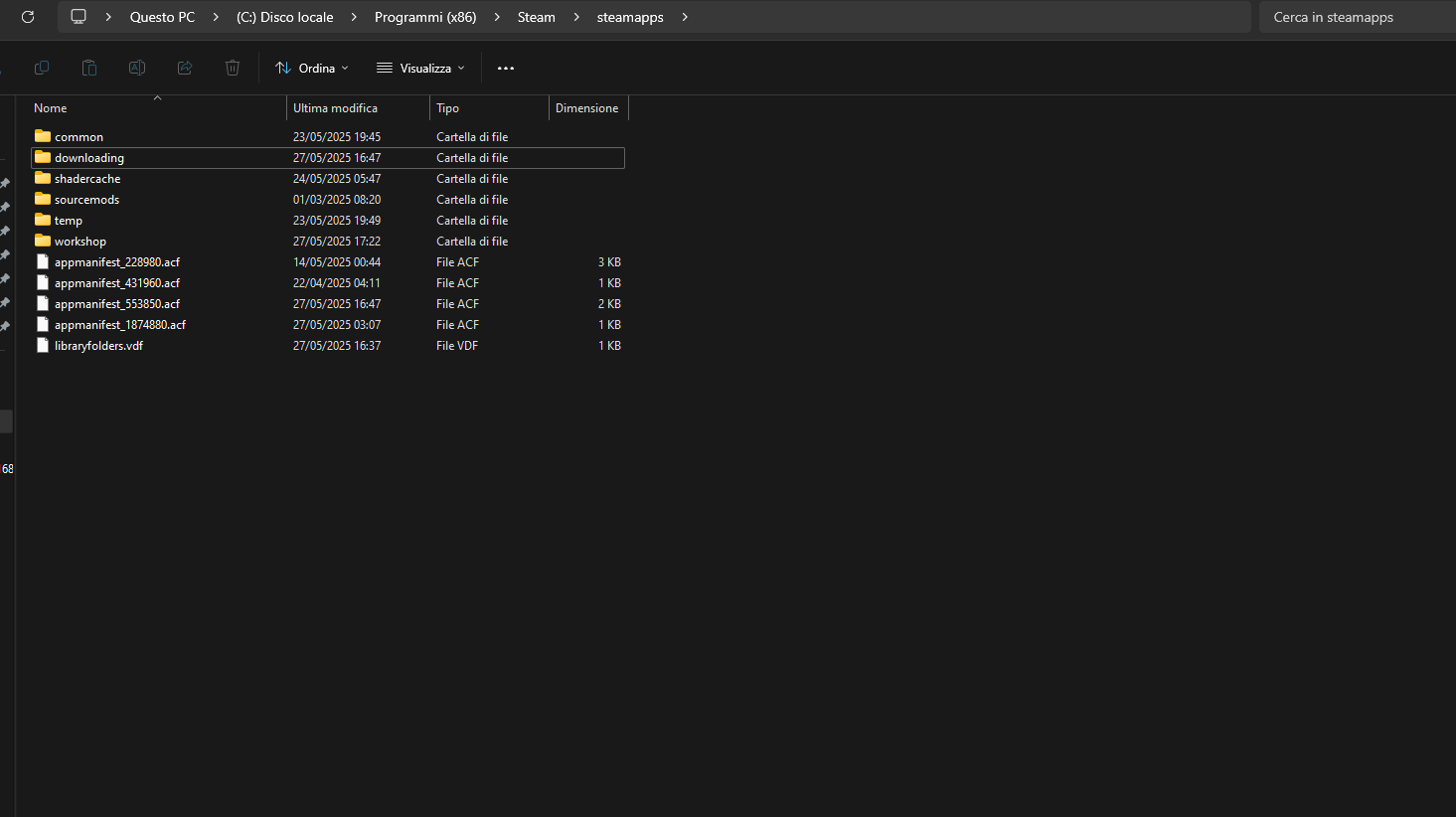
3) Open the original downloading folder in your SSD where Steam is installed.


4) Cut all the files from the downloading folder on your HDD and paste them into the one on your SSD (the original Steam folder).

5) Delete the “downloading” folder from the HDD

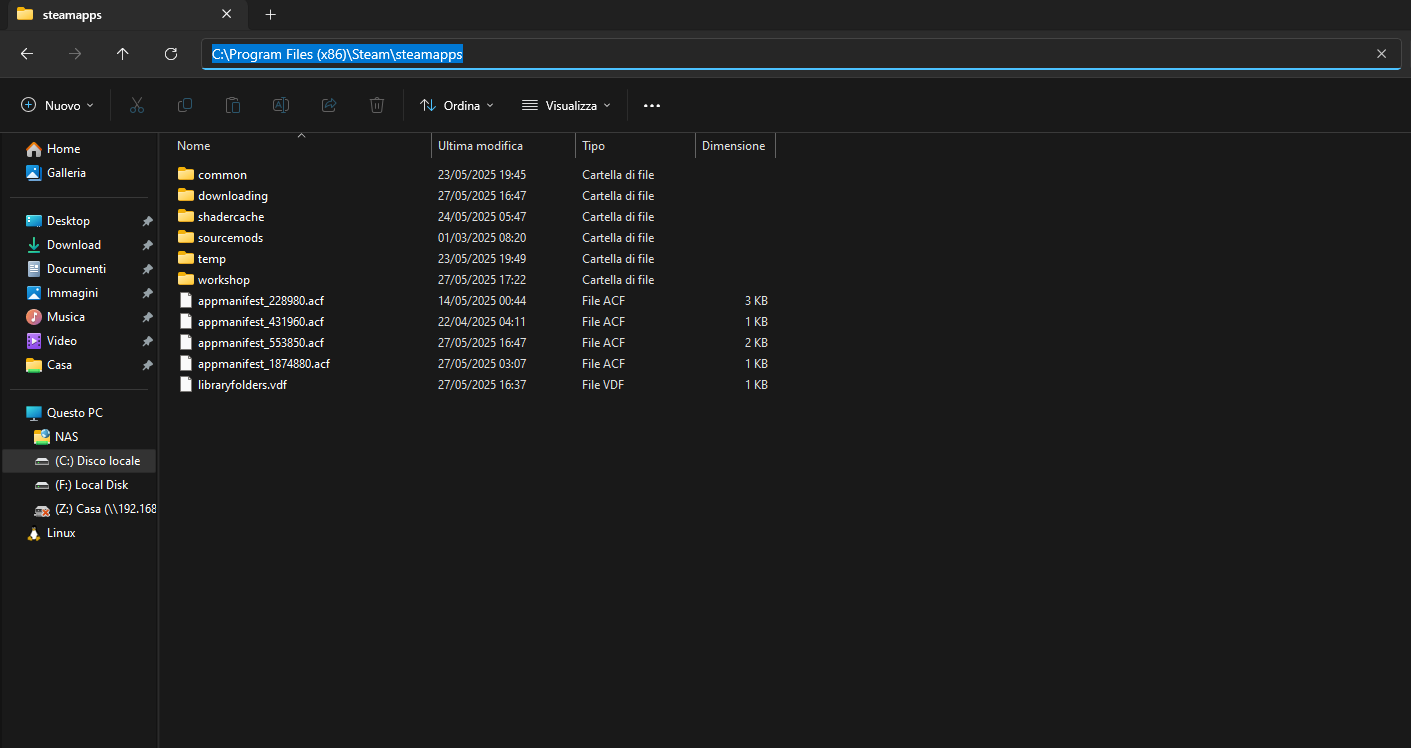
6) Copy the directory paths of both folders (HDD and SSD) and keep them noted.

(To copy the path, click on any empty space in the address bar and copy the text.)

You should see something like this:


Once you've done this, follow the following instructions:

1) Open Command Prompt as Administrator

2) Type the following command, replacing the paths in quotes with your own:

mklink /D "[HDD_PATH]\SteamLibrary\steamapps\downloading" "C:\Program Files (x86)\Steam\steamapps\downloading"

Example:

mklink /D "D:\SteamLibrary\steamapps\downloading" "C:\Program Files (x86)\Steam\steamapps\downloading"

This creates a symbolic link between the HDD's downloading folder and the SSD's one. Steam will now treat the HDD path as if it's writing directly to the SSD — drastically improving patch speeds.


Once you did all the steps, try reopening Steam and check out if patch speed is fixed!

How do I remove it after I've installed the patch?

To remove the symlink safely after you've done the update, within the command prompt make sure to use the following command inside of the HDD Steam Library folder:

rmdir "[HDD_Path]\SteamLibrary\steamapps\downloading"

In this way you'll make Steam forget about the symlink between SSD and HDD.


You'll need to manually create the normal folder "downloading" in order to make it work like it was before the symlink.
Fixing patch speed - METHOD 2
METHOD 2
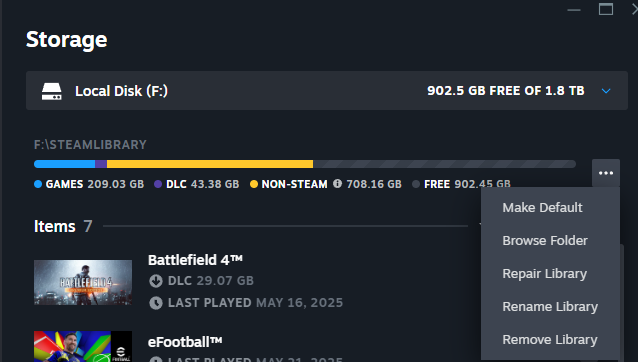
Remove the HDD from your Steam settings (Steam->Settings->Storage->select your HDD from dropdown menu > Click on dots icon > Remove Library) before updating the game.

Here is a screenshot of what you should see:


This way Steam will "forget" that drive and be forced to use any other drive available. This will NOT uninstall the games on the drive you just removed, simply add back the drive with Add Drive and all the games on that drive will pop right back.

Originally posted by author:
Credits to: SlowCrocodile
Pros and Cons by using [METHOD 1]
Pros
Cons
Faster patching (files are written to SSD, improving update speed)
Double disk usage when downloading to HDD (temp files go to SSD first)
Better disk performance (SSDs handle random read/write much better)
SSD space consumption even when downloading to HDD
No impact on installed games (only affects temporary downloads)
Increased SSD wear from large game downloads
Easily reversible (just delete the symlink)
May confuse Steam or users if paths are misconfigured
Works transparently for Steam (no need to change download settings)
Potential permission or disk access issues if SSD is full or fails


BE AWARE, METHOD 1 SHOULD BE USED AS TEMPORARY SOLUTION AND NOT AS PERMANENT!

Recommended Practice:

Use the symlink temporarily only when needed (e.g. during large patches), and remove it afterwards if you plan to download games to the HDD.

Pros and Cons by using [METHOD 2]
Pros
Cons
Forces Steam to use a working drive
Requires manual re-adding of the HDD
Non-destructive: games are not uninstalled
May confuse users unfamiliar with Steam Storage settings
Quick and easy workaround
Temporary fix — may need repeating after future updates
No data loss
Not ideal for users with only one drive
DISCLAIMER
Any errors encountered are not related to this guide or the fixes it provides.

Use this guide only if you feel confident. I am not responsible for any damage to your operating system or PC in any form.


Originally posted by author:
xLamday
27 Comments
xЛамдай  [author] 7 Dec @ 3:45pm 
You got the point Maralo. I'll update the guide, adding the step how to remove the temporary symlink safely.
maralo 7 Dec @ 1:09pm 
Why is the guide missing the step to remove the temporary symlink if it's recommended? How do I succesfully remove a symlink without deleting the files themselves?
orikazen 3 Dec @ 9:19am 
thanks so much for the guide!! :luv::luv:
Darkmatter1998 2 Dec @ 11:05am 
Hey thnx, this was really usefull!
xЛамдай  [author] 2 Dec @ 8:56am 
Hello Mishmash, glad this guide has helped you. Answering to your question: well, you could "reset" the download that's already started by closing steam, go into the downloading folder of the corresponding storage disk and delete the folder that appears when you download an update. Although I never did such thing so I dont know what the result can be.

Thanks guys for the positive reviews, love yall :)
mishmashmarsh 2 Dec @ 4:47am 
This has helped so much, I can now see the bottleneck with method 2, on my SSD but it's using my regular hard drive.
Question: How would I reset/cancel a download that's already started? Or is that not an option.
Iphone 4s 2 Dec @ 3:11am 
method 1 worked properly & first try! had my paths alittle different in cmd but turned 1.2hr patch into 10minutes! only got my main ssd for windows/games & HDD for spare work and offload games
xЛамдай  [author] 24 Oct @ 12:39pm 
Hello Trebs, method 1 should work properly. Are you sure did follow all the instructions provided into the guide?
Trebs 24 Oct @ 11:08am 
im unable to remove my HDD library for method 2 and method 1 didnt help, is there any other work around?
Frank 9 Sep @ 7:04pm 
Also, make sure you're on the proper servers lol. I was on Seoul (used to be a fix) and doubled my speeds switching back.