Dragon Age™: The Veilguard

Dragon Age™: The Veilguard

Not enough ratings
How to use mouse and keyboard on Steam Deck
By Jace's Sanctum
The devs have for some reason disabled mouse and keyboard access when playing on Steam Deck. This is how to fix it.
   
Award
Favorite
Favorited
Unfavorite
Go to "Properties"
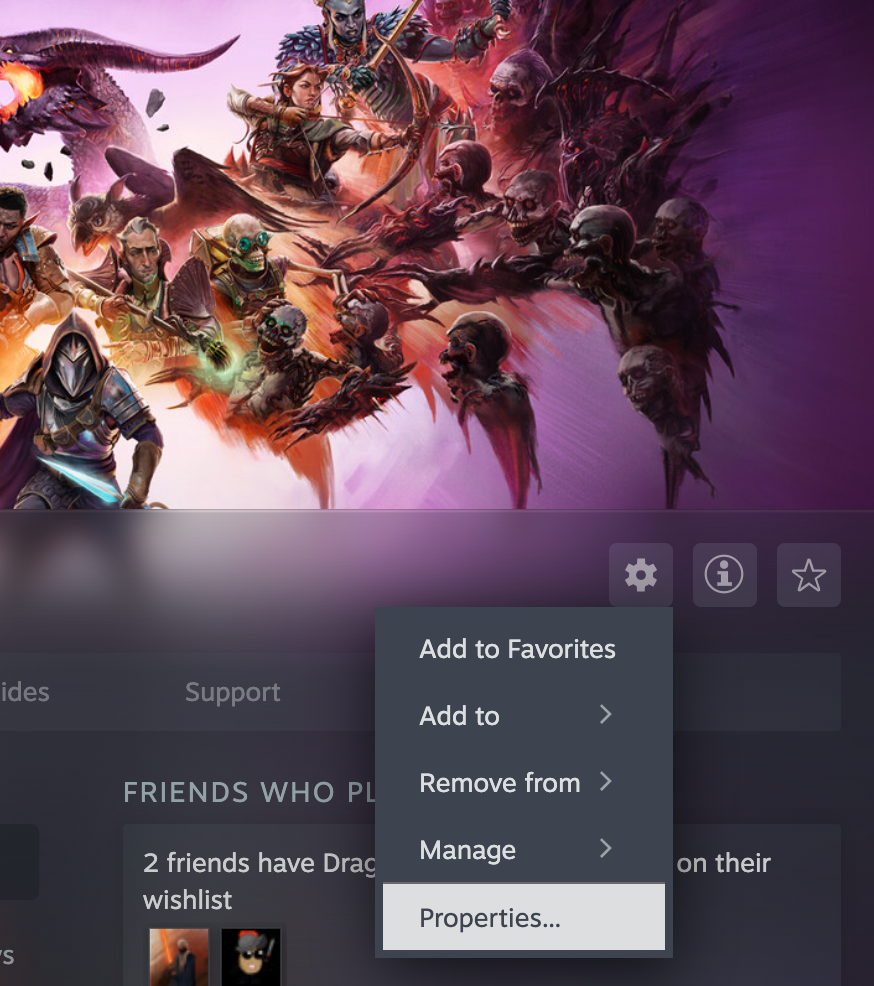
Access Dragon Age the Veilguard in your Steam library, then click the cog icon on the left of the screen. In the dropdown menu that opens, there will be a button that says "Properties". Click it.
Edit Launch Options
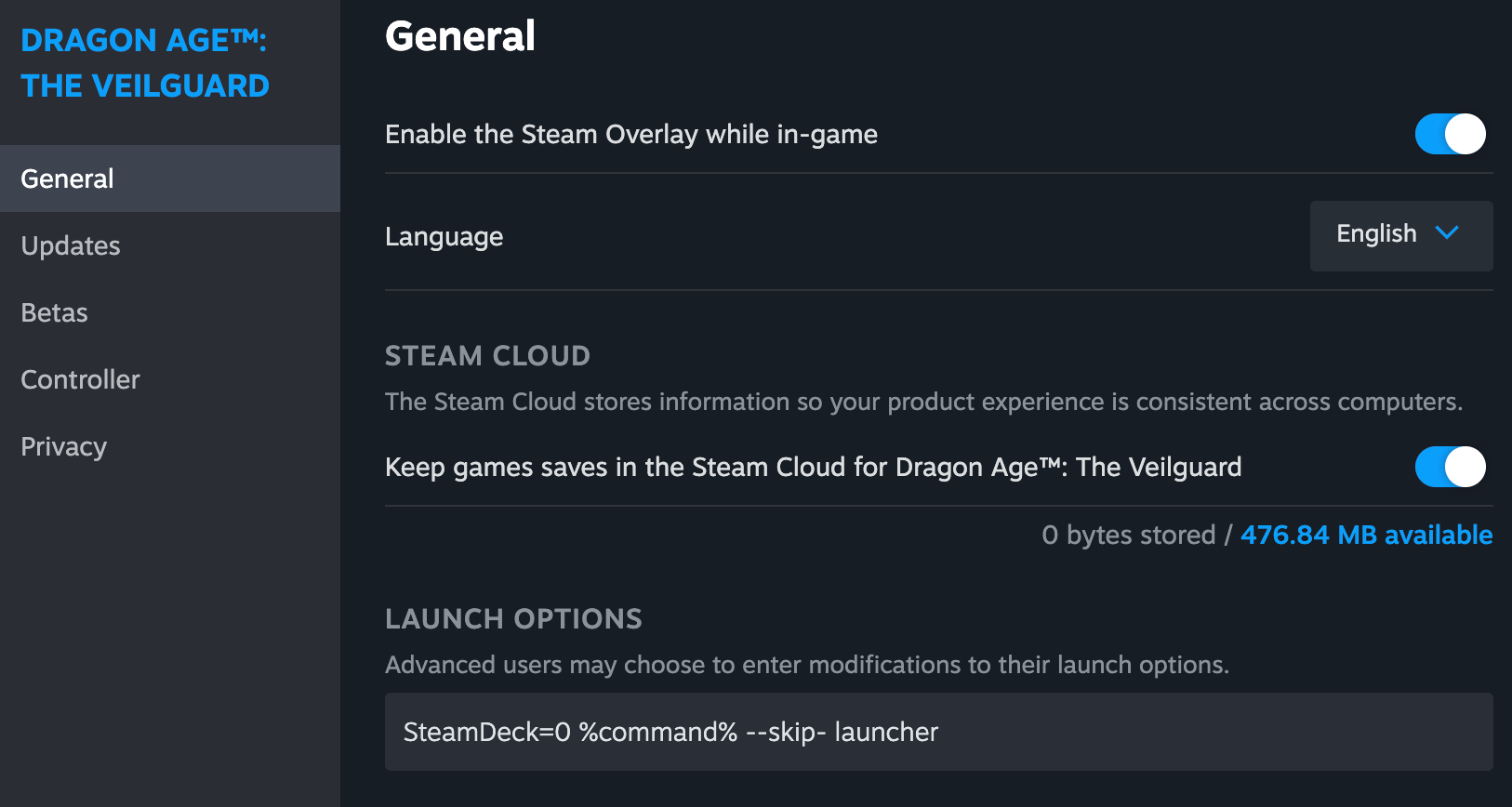
The General Properties section will open. At the bottom of this is a subsection labeled "Launch Options" with an editable text box. Paste the following:

SteamDeck=0 %command% --skip- launcher


This will enable you to use mouse and keyboard when you play!
5 Comments
Jace's Sanctum  [author] 2 Nov, 2024 @ 3:09pm 
@khzm I found that the thing that initially was making the game look really bad for me was the Upscaling option in the display settings. Turn that off and switch to low Antialiasing instead for a much cleaner look.
Kirahie 2 Nov, 2024 @ 4:59am 
I wish I had seen this earlier, thank you so much. Giving it a shot
khzm 1 Nov, 2024 @ 7:25pm 
Thank you! for this you just made my night. On another note, how well does your game run on the steam deck? I have the early version with an LCD screen and I can run the game but omg the graphics are horrible, how did you optimize your set up and does it look any better? could you post your graphic options how you did. Thank you
Jace's Sanctum  [author] 31 Oct, 2024 @ 1:06pm 
No problem! Baldur's Gate 3 has a similar issue, so when I tried out the fix for that game here and it worked, I knew I had to share so that a bunch of people wouldn't be stuck in limbo on launch day.:DAI_Mage:
Mirdaturtle 31 Oct, 2024 @ 12:36pm 
Thank you for this! I was tearing out my hair.