Dragon's Dogma: Dark Arisen

Dragon's Dogma: Dark Arisen

25 ratings
Automated Save Game Backup
By MonkInsane
Just a quick rundown on how to create a script to automatically backup your DDDA savegames.
2
   
Award
Favorite
Favorited
Unfavorite
Intro
If you have like me run into a save game corruption issue - you've most likely experienced the horro of losing hours of progress by having to start the game all over again.

No longer.

This is just a Quick guide on how to set up a powershell script that does 2 things:

1. Runs the game.
2. remains active while the game is running - periodically backing up the save file to a specified location.

The script will exit after the game closes automatically.
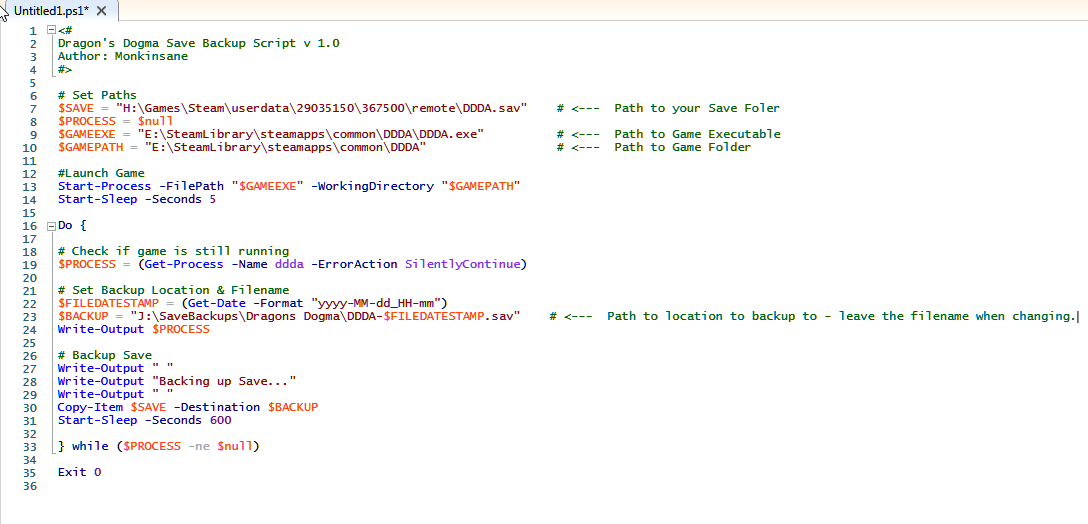
The Script
<#
Dragon's Dogma Save Backup Script v 1.0
Author: Monkinsane
#>

# Set Paths
$SAVE = "H:\Games\Steam\userdata\29035150\367500\remote\DDDA.sav"
$PROCESSNAME = "ddda"
$GAMEEXE = "E:\SteamLibrary\steamapps\common\DDDA\DDDA.exe"
$GAMEPATH = "E:\SteamLibrary\steamapps\common\DDDA"
[int]$SAVEINCREMENT = 600
[int]$COUNT = 0

# Launch Game
Start-Process -FilePath "$GAMEEXE" -WorkingDirectory "$GAMEPATH"
Start-Sleep -Seconds 5

Do {

# Check if game is still running
$PROCESS = (Get-Process -Name $PROCESSNAME -ErrorAction SilentlyContinue)

# Set Backup Location & Filename
$FILEDATESTAMP = (Get-Date -Format "yyyy-MM-dd_HH-mm")
$BACKUP = "J:\SaveBackups\Dragons Dogma\DDDA-$FILEDATESTAMP.sav"

# Backup Save
Write-Output " "
Write-Output "Backing up Save..."
Write-Output " "
Copy-Item $SAVE -Destination $BACKUP

if ($PROCESS -ne $null) {

do {
$PROCESS = (Get-Process -Name $PROCESSNAME -ErrorAction SilentlyContinue)
sleep 1
$COUNT = $COUNT + 1
} while (($PROCESS -ne $null) -and ($COUNT -ne $SAVEINCREMENT))

[int]$COUNT = 0

}

} while ($PROCESS -ne $null)

Exit 0
Instructions for Script
1. Open Powershell ISE (Search on Start) and paste script into new file.
2. Set $SAVE variable to Save file location.
3. Set $GAMEEXE to Game EXE path & $GAMEPATH to Root folder of game installation.
4. Set $SAVEINCREMENT to how often you would like it to backup your saves (in seconds - 600 for 10 minutes - for example)
5. Create Folder where u want saves backed up.
6.Set $BACKUP to path created above - keep the \DDDA-$FILEDATESTAMP.sav though.
7. Save script and run it to launch game as well as backup saves.

Conclusion
And that's that.

Easy as pie.

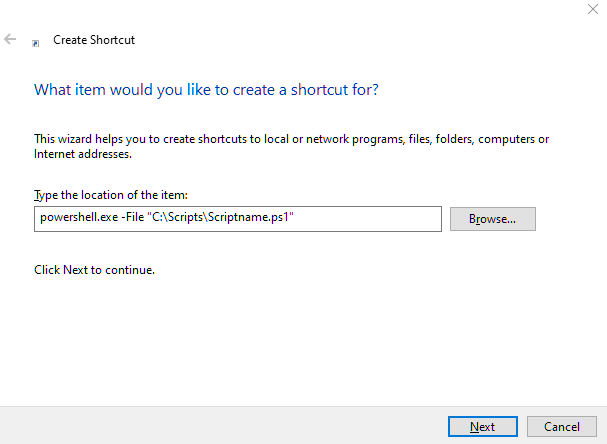
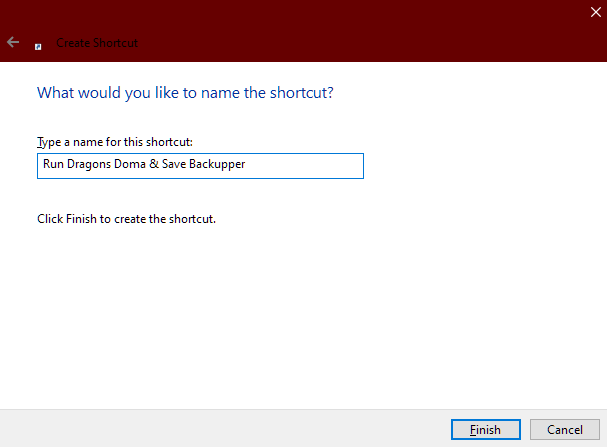
To Execute the script - you can either right-click it and click "run with powershell" or create a shortcut using this as the app to launch: powershell.exe -File "C:\Scripts\Scriptname.ps1"


5 Comments
SourSout 24 May, 2023 @ 5:47am 
Thanks man:praisesun::kovacsmile:
MonkInsane  [author] 23 May, 2023 @ 3:50am 
Ah, LOL

I probably did that years ago - and forgot about it. Glad it's working. Happy dragon hunting Arisen. :steammocking:
SourSout 22 May, 2023 @ 8:56pm 
I solved it and now the shortcut works perfectly. I had to go to my Windows Settings>For Developers> and all the way at the bottom you have to make sure that allow local PowerShell scripts is check marked.
MonkInsane  [author] 22 May, 2023 @ 1:54am 
Strange, shortcut works on my end - Win 10 22h2. But yeah, you can just launch script via right-click instead of shortcut.

You could also try putting the full path to powershell.exe in the "location of the item" screen.
SourSout 12 May, 2023 @ 11:41pm 
I can not get the shortcut to launch it for the life of me but script works.:buzzed: