CardMaker

CardMaker

Not enough ratings
An (Almost) Complete Guide To Translating A Mod
By kupan
A description of the process I used to translate existing mods into English.
   
Award
Favorite
Favorited
Unfavorite
Intro
This guide will attempt to walk you through how I have had success translating existing mods into English in a way that the mod maker can easily add to their mod. Before we go any further I would like to share credit where it is due.

Newbee the author of the Overlord mod for making c_Tsen.gd and showing me how it was used. This was a game changer because it allowed the entire translation to exist in one file that can be easily added to the mod and change the text to English when the game is set to English without having to modify ANY of the existing mod or it's native Chinese.

菜鸟级炎火村猎人 the author of the All Magic mod for doing a wonderful write up of how to change font and font size of text in a mod. This was CRITICAL for most mods to even have a chance to exist in English because of the limited text space and the fact that English takes more characters than Chinese to say the same thing. As of first writing this I am still playing with this since they only released the write up 11 hours previous.

This guide could not exist, or would not be NEARLY has helpful without either of them being so helpful and freely sharing their knowledge and expertise.

Everything from here on is just how I set things up, and what has worked for me. Every step can be changed to suit yourself and what makes you comfortable.

The files you will be working with are *.gd files. They are just normal text files really and should be able to be opened in any text editor.
Setting up
To start with, the programs I use are:

Notepad++ [notepad-plus-plus.org]
This is a pretty good text editor. You can use basically any text editor but I like this one for a couple of reasons. It has RegEx in it's search which is very helpful later. It can open multiple tabs in the same window. It can do search across all open tabs, and save them all at once. It has a built in spell check and tab completion.

Xsearch[www.easexp.com]
A file search program that supports searching for text in any file within a branching folder. This makes it easy to find all files that have a particular word or phrase in them.

Any web browser.

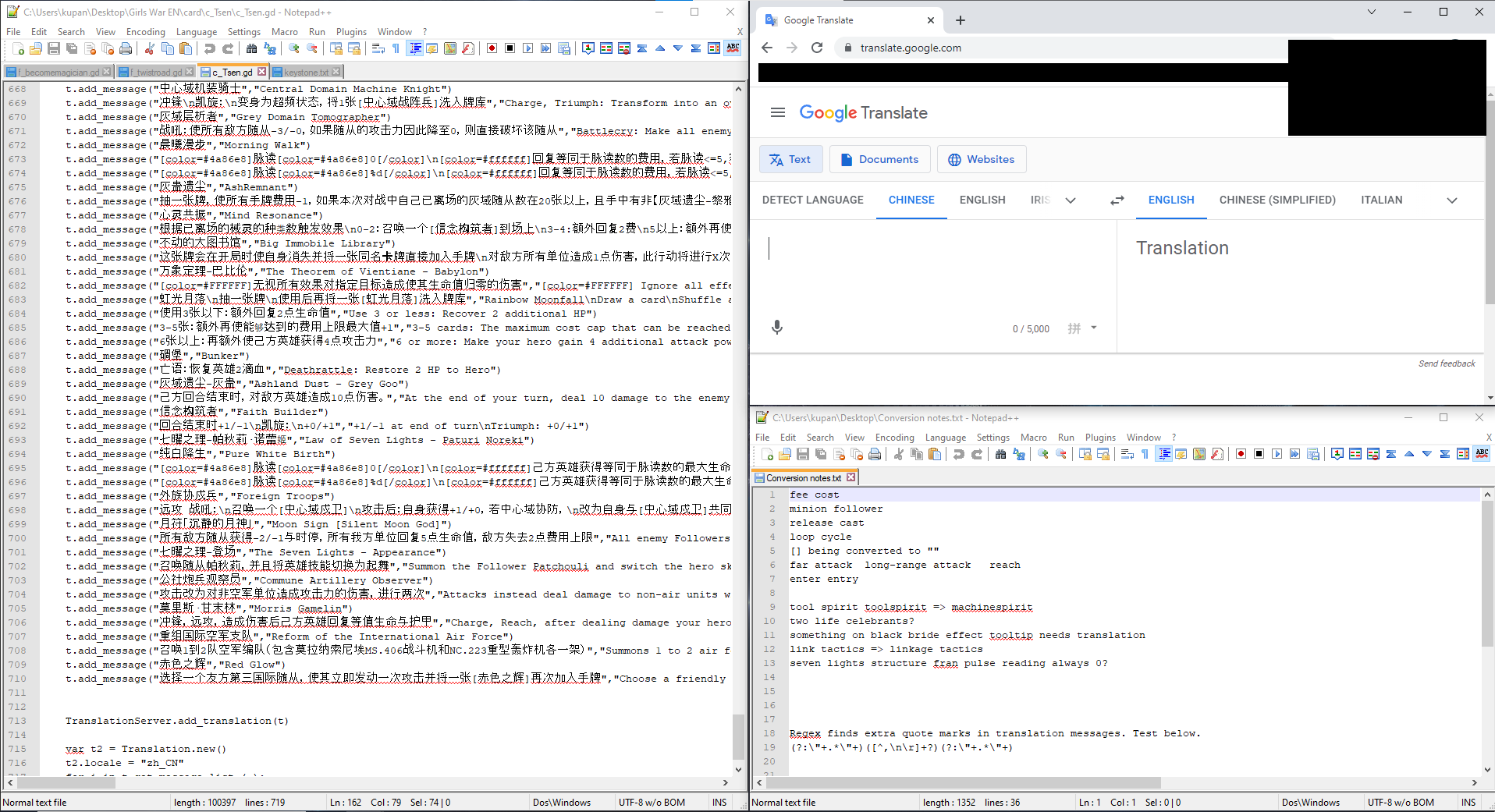
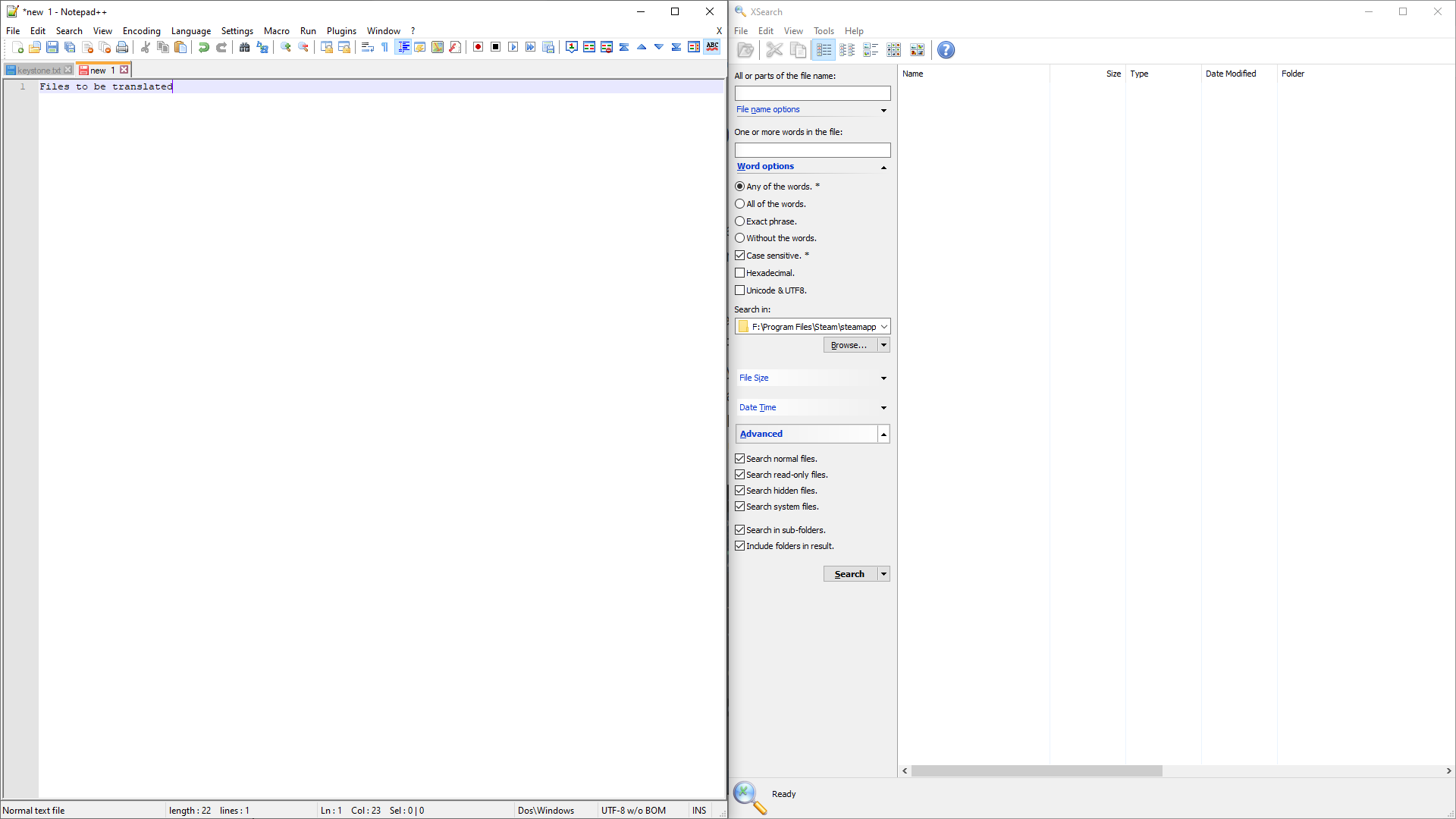
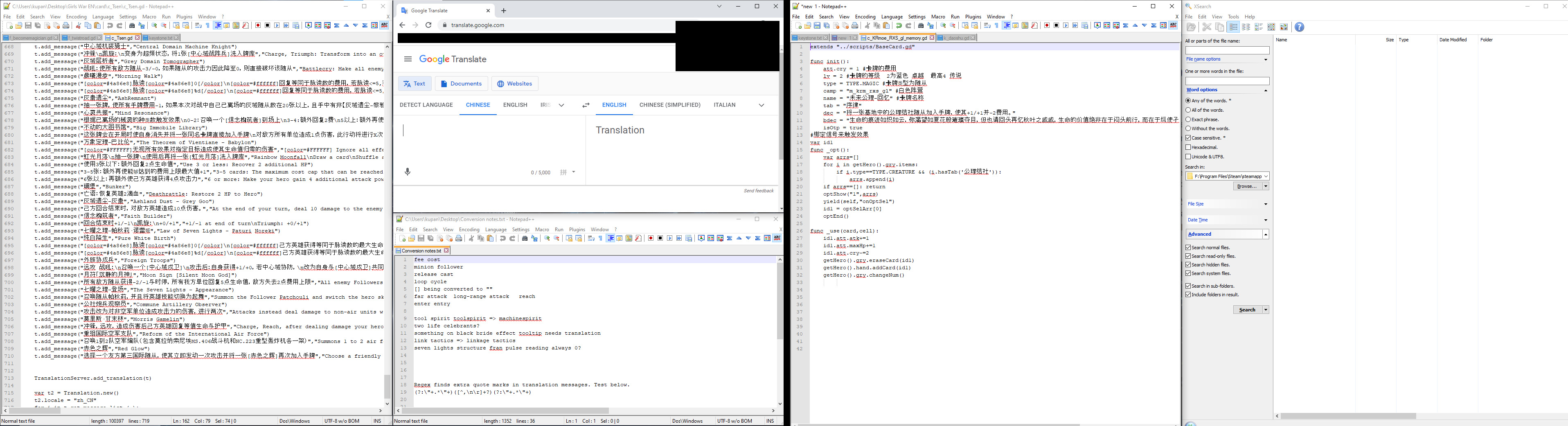
I personally have multiple monitors, so your set up might look a little different.
In monitor 1 I have the translation file and a notes file open in Notepad++, and google translate open. If you have windows 10 you can drag windows to the middle of a side to have them size for half that side of the monitor, or the corners for a quarter of the screen in that corner.


In the 1st (left) monitor I put 2 Notepad++ windows and google translate.


In the 2nd (right) monitor I have a Notepad++ window for all the to be translated files, and xsearch open.


Take a copy of the mod folder twice somewhere convenient. One will be for original text and the second is a scrap folder to make translation easier. The reason we do this is because the translation file will take any text that is exactly the same and replace it with the text you input so it needs the exact original mod message. The scrap folder is to help with consistency. You will have a lot off places where the same chinese word will be translated slightly differently. If you do a mass copy replace for key words throughout the scrap version of the mod you will have a much easier time with the translation using the correct key words in descriptions and effects.

You will also need to have a file you to put the finished translations. Make a file called c_Tsen.gd and keep it somewhere safe. Inside of this file you will want to copy paste the following.
extends Card func init(): isUsable = false var t = Translation.new() t.locale = "en_US" t.add_message(" "," ") t.add_message(" "," ") t.add_message(" "," ") t.add_message(" "," ") TranslationServer.add_translation(t) var t2 = Translation.new() t2.locale = "zh_CN" for i in t.get_message_list ( ): t2.add_message(i,i) TranslationServer.add_translation(t2)
What to translate
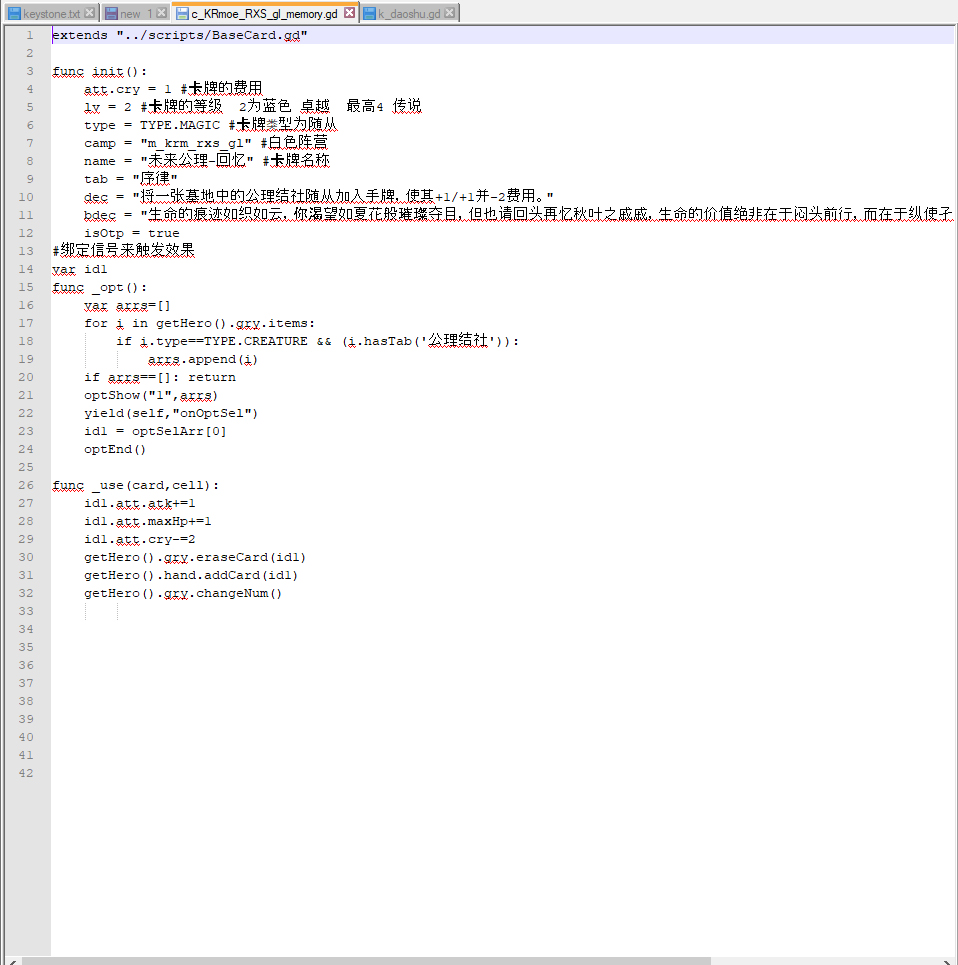
So let's look at a normal *.gd card from the Girl's War mod.So what is everything here?

The first thing to know is that anything after a # that isn't inside a pair of quotes is a comment left my the mod maker and can be ignored for translation. It will NOT appear anywhere in game. An example of this is left after the att.cry on line 4 and shows up regularly.

Conveniently for us, the scripting language these files use is English so we can be concerned with just the Chinese text that isn't behind a #.

Line 8 is the name. What is in the quotes is the name that will appear on the top of the card.
Line 9 is the type of the card. It is what will show up between the picture of the card and the main text or effect of the card. The trick here is that many types will be a single 'word' in Chinese with no white space but translate to something like 'magic of the world' in English. For the types to work properly it seems they have to not have whitespace so you will have to compromise with something like 'MagicOfTheWorld'.
Line 10 is the main text or the ability text of the card.
Line 11 only shows up on some cards, the bdec is the little scroll that shows up on some cards and has the paragraph long flavor texts. This is not common, and I haven't seen it have any mechanics or effect text since you can't see it in combat.

Those are the main fields to translate in a card. But what about line 18? It has Chinese that isn't behind a #. Well that is the programming for actually making the card work. In this case it is searching for the type of a card. When we have all the types in the auto translation file it should take care of that for us automatically.

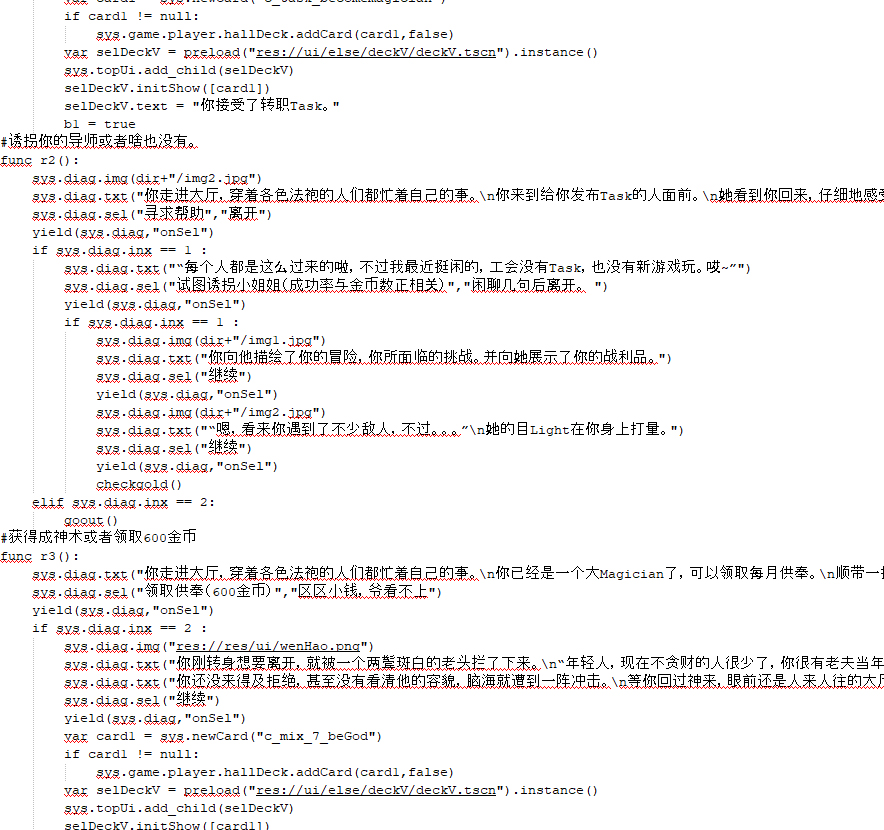
Some cards will have more information. Events in particular can have large blocks of text hidden in the programming for the event, so you will have to dig that text out and translate it too. Just look for text that is inside of "s but not ones inside of 's and you should be ok. An example from the All Magic mod's event looks like this.In this case anything inside of a "s after a sys.diag command should be translated to translate the event.

Skills and their effects will have a name and dec field, but no type or bdec.
Work Flow
This is an example of how I do my work flow while translating.
At every stage where a translation takes place, take a moment to clean it up. If you want all types or names to be capitalized, do it early. Playing with the translation names to make them sound correct when they first appear can save some time and effort later.

So this is my starting set up.

I start with the Modfolder/skill folder to start. The reason for this is because this is where they generally store the keywords that have the tooltips next to the card, so you need them to be translated correctly and consistently throughout the mod.

Open XSearch and fill in the 'All or parts of the file name:' field with '*.gd' without the 's. Set the "Search in:" to my scrap mod folder/skills and click 'Search'. This will return a list of all files with the gd extension inside the skills folder. You can do this just fine with a normal 'My Computer' search of the folder, but I will have XSearch open anyways for later.

Select all the results in XSearch and click and drag them into the Notepad++ window next to it. Now you have all the files open at once. You can go through them opening them one at a time, but for the couple dozen MB of memory I prefer to have them all open. That way I can close a tab when I am done with it and not be able to lose my place.

Now copy the text inside "s from the name field and then paste to your conversion notes in the small Notepad++ in the lower right of the left monitor. Now Paste it in the first part of the C_tsen.gd on the left most Notepad++ in the first set of "s of a t.add_message command. Paste it again to google translate and get the translation. Paste the translation in the second set of "s of the same t.add_message from before. Paste it again to the conversion notes either with some whitespace or a tab between it and the Chinese version.
You can see examples of what the T.add_message should look like from line 8 and down on the picture above.

The reason we are keeping these names saved is because sometimes they are part of compound words in names and descriptions and we need an easy way to convert those back to full Chinese to get google to tell us a good translation. An example of this was there was a skill "Poison" in a mod. I had translated poison for every card to keep the keyword consistent but a card had Poison in the name. Google translate ended up returning something like "Poison Xie Long" Instead of "Venomous Dragon" If a translation with partial English doesn't make sense, replacing the English word with the Chinese original word again USUALLY fixes the problem.


So now we have the skill's name translated in the C_Tsen.gd and a copy of both the English and Chinese version saved in our conversion notes. The next thing to do is to translate the dec field of the skill using a new t.add_message command. There is no reason to keep the dec in our conversion notes.

Now go back to XSearch expand the Word Options by clicking on the arrow to the right of it and set the following settings:
'All or parts or parts of the file name:' *.gd
'One or more words in the file:' Whatever you had from the name field translated from the skill
Check 'Exact Phrase.'
Uncheck 'Case Sensitive.'
Check 'Unicode & UTF8'
'Search in' The scrap mod folder. Not the skills folder the base scrap mod folder.

Now search. This will return all files that contain the keyword you just translated. Open a new Notepad++ window and drag and drop them all into it. You can also use the window for c_Tsen.gd if you want, but then it will try to translate the untranslated portion you need in that file.
Press CTRL + H.
In 'Find what:' put the Chinese version of the skill name.
In 'Replace with:' put the English skill name.
Click the 'Replace All in All Opened Documents' button. This will replace that skill name keyword in all the files opened in just that one window of Notepad++, which will not mess with the other window's c_Tsen translation.
Push CTRL + SHIFT + S to save all open documents.
Open the File menu in the upper left and click Close All.

You now have that skill name consistently translated across your entire scrap folder, so when you translate from that to you c_Tsen.gd it will always be correct.

Repeat for all skills.

The next portion of the mod I hit is looking for a scripts folder in the mod. Usually found in modfolder/card/scripts or modfolder/card/AMscripts or some similar variant. You want to look through all the files there because there is often a list of all the card and monster types in a single line somewhere in there. Repeat the same steps as a skill name with all the types. Card effects will be confusing later if you let something like 亚人 be subhuman some places and demihuman others when the game treats them all the same.
So for every type you will be:
Translating them in c_Tsen.gd
Keeping the Chinese and English versions in your conversion notes.
Replacing those types across all files that have them in your scrap mod folder.

When you are done with all the skills and scripts being translated it is time to start in on the cards.
The mods usually break the cards up by what camp they are part of. I like to do one camp at a time. Grab all the gd files from a camp from your scrap mod folder and open them in the right monitor's left Notepad++. Open all the same gd files from that camp but from the ORIGINAL version in a Notepad++ on the right monitor in the right side where XSearch is in my example.

You want to use the original text for the first part of the t.add_message command in c_Tsen.gd because the workshop mod doesn't have the scrap mod's partial keyword translation.
You want to use the scrap mod's text for putting into google to translate because it DOES have the keywords translated for consistency.

Work your way through the cards, then the rest of the folders in the mod until you have all events, heroes, treasures and everything translated.

Congratulations, you are almost done.
Clean up
The first thing to clean up in your c_Tsen.gd file is to check for extra quote marks. Any extra quote marks in the t.add_message commands WILL cause it to fail.
In the Notepad++ with your c_Tsen.gd push CTRL + F.
In 'Find what:' copy paste the next line into it.
(?:\"+.*\"+)([^,\n\r]+?)(?:\"+.*\"+)
Now look in the lower left where it says 'Search Mode' and select 'Regular expression'
Push find next. If nothing comes back you are good. If something does come back that line it found has extra quote marks in it and needs to be fixed.

This problem comes from 『 』,「 」,“,‟,”,〝,〞 and a variety of other punctuation that the mod makers have used to put quotes into the game that are not taken as quote marks by the game, but that google 'helpfully' puts into normal quotation marks that ARE used by the game to tell what the command is doing.


If you want to test that regular expression you can add lines like :
t.add_message("asfd"hh"gasdf","")
t.add_message("","asfdasfdasfd"gg"asfdasfd")
t.add_message(""ff"","")
t.add_message("",""ss"")
to your c_Tsen.gd and run the regular expression to see what it does.


The next thing to be cautious of is that some card names will appear in other card's description or effect. That will take some manual review to find and replace accurately. Usually a little attention while play testing and just CTRL + F find the wrong text and fix it in c_Tsen.gd will fix them very quickly and easily.

Put your c_Tsen.gd file in modfolder/card/c_Tsen
You will have to make that folder the first time. Keep a copy of you c_Tsen.gd outside of the workshop modfolder to keep it from being erased on a mod sync. I personally like to unsubscribe from the mod after I have copied it to the game's installfolder/mods and then test it from there. That way updates can't mess with you.
You can now play test the mod. Good luck!

If you are done, all the translation should be in c_Tsen.gd and the scrap mod folder can be deleted.

How to change font size (Credit to 菜鸟级炎火村猎人)
菜鸟级炎火村猎人 Made a very nice write up[drive.google.com] about how to implement the ability to change the font and font size used on cards. To my knowledge this is the only way to make font smaller to fit on the card. I have not done much with this so I will leave the section in 菜鸟级炎火村猎人's words. The files they mention are in the download linked.

From the readme of his write up[drive.google.com]:

STEP ONE: Prepare an English font file in format TTF. This type of file can be find in every font website. STEP TWO: Create a font configuration file in format TRES, it's very eazy. I had put a simple in folder "c_aaaaa". ######## (HERE ARE THE CONTEXT IN THE TRES FILE){ [gd_resource type="DynamicFont" load_steps=2 format=2] # this line no need to change [ext_resource path="./test.ttf" type="DynamicFontData" id=1] # this line is the path of TTF file. If the TTF FILE and TRES FILE are in the same folder, just write like the example is OK. [resource] # this line no need to change size = 42 # this is the size of font. outline_size = 3 # this is the outline thickness of font. outline_color = Color( 0.243137, 0.215686, 0.164706, 1 ) # this is the outline color of font. In parentheses are RGB color values, they are RED, GREEN, BLUE, ALPHA. values from 0 to 1. use_mipmaps = true # this is anti-alias. if false , it will be fuzzy when in big font size use_filter = true #the same as above line extra_spacing_space = 0 #Extra spacing at the top extra_spacing_space = 0 #Extra spacing at the top. You can think of it as line spacing extra_spacing_char = -6 #The space between each letter extra_spacing_space = 0 #Extra spacing at the top font_data = ExtResource( 1 ) # this line no need to change } #you can open the TRES file by notepad.exe ######## STEP THREE: quote the font file in card's dec line for example: dec = "[font=%s]Battle Cry: add +5 arm to self. [/font]"%[(Steam.getItemInstallInfo(2632175877).folder+"/card/afont/c_afont_1/keyText.tres")] #it is very long. but it is eazy to understand. It consists of three parts " [font=%s] [/font]" , "The original text" , "path of file" here are two way to quote the path of file: First one is use the path of mod, every mod has its install path ,so if you put the font file in the mod, just use the way in example, after the symbol "+" is follows the specific location of font file. Second way is creat a tool card, the game will set the card's path in its "dir". we can call its dir to get the folder path. To use this way , you need put the font file and configuration file in the folder of tool card. this tool card must be named with a name that is in the front of all cards when sorting by name. such as "c_aaaaa" to make sure that this tool card will be loaded first. now the "path of file" can be write as %[data.card.infoDs.c_aaaaa.dir+"/keyText.tres"] the two way above have different applications. It's depends on U. if you can't understand the words above. Here are an example in the folder, the font i'm using is not fittable, you should find a better one.