MONSTER HUNTER RISE

MONSTER HUNTER RISE

Not enough ratings
Troubleshooting Monster Hunter Rise
By アンジェル
About the Elder Dragon-class Issue and How to Deal with It
   
Award
Favorite
Favorited
Unfavorite
Quickstart
1. Restart your PC
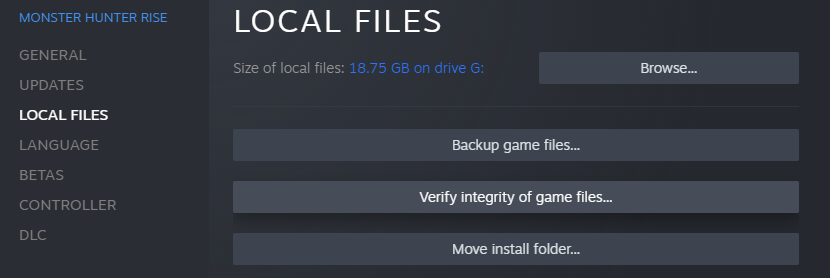
2. Verify the game's files integrity
3. Use Display Driver Uninstaller
4. Reinstall DirectX


Every troubleshooting starts with ensuring that all game files are properly available

These mentioned steps haven taken care of the most common issues which are mentioned within the Monster Hunter Rise community throughout the forums. For more details check also the official recommended way to handle troubleshooting matters.
Official Handling


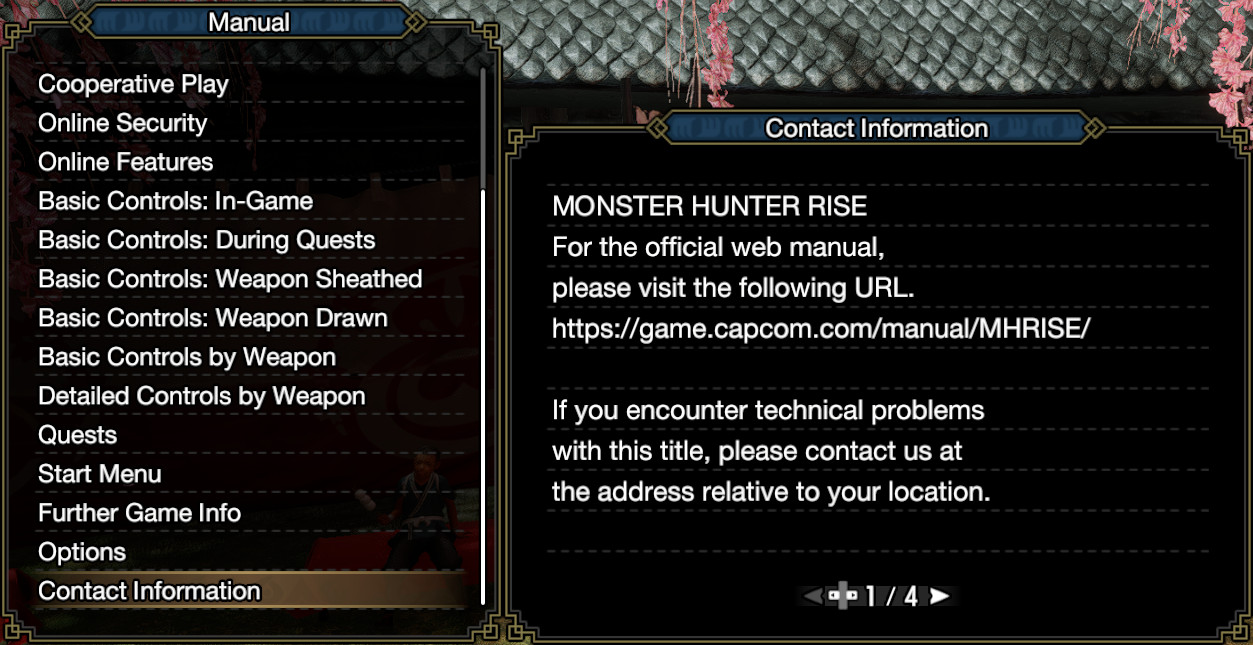
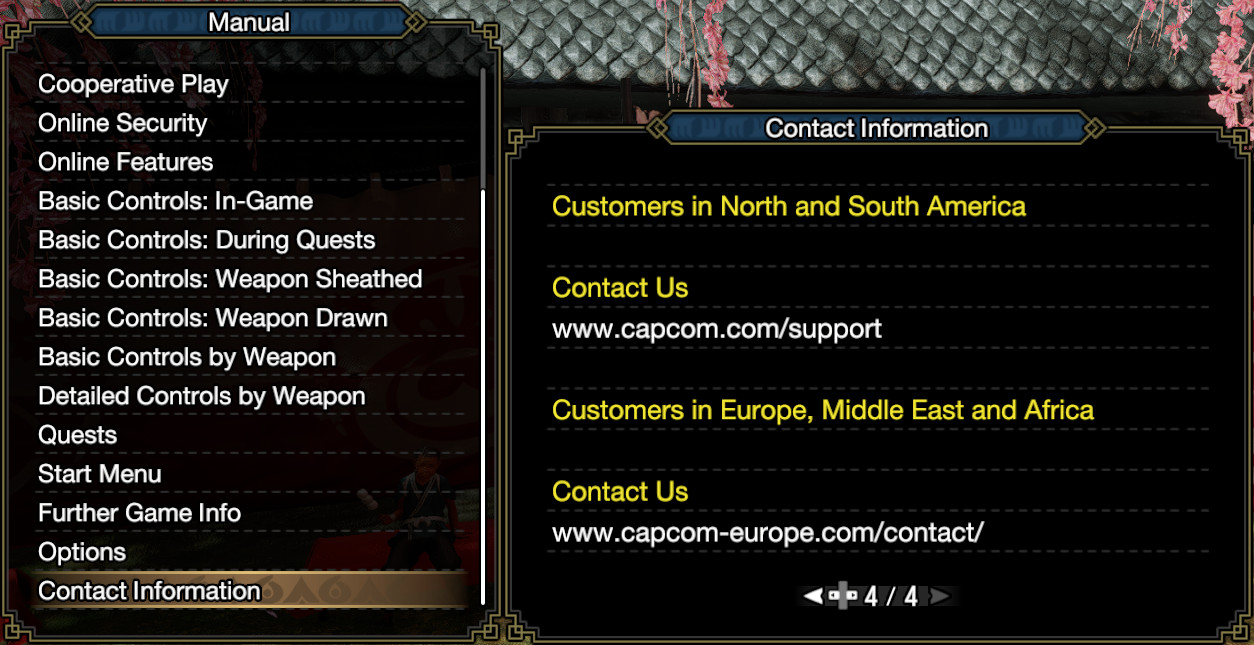
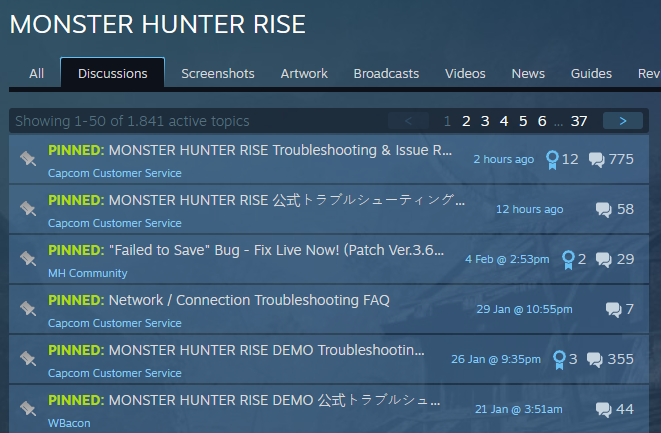
By the time when this guide was written there were three pinned threads which can be considered as helpful towards troubleshooting, with two of them being pseudo clones. You can get into touch with Capcom Customer Support with ease

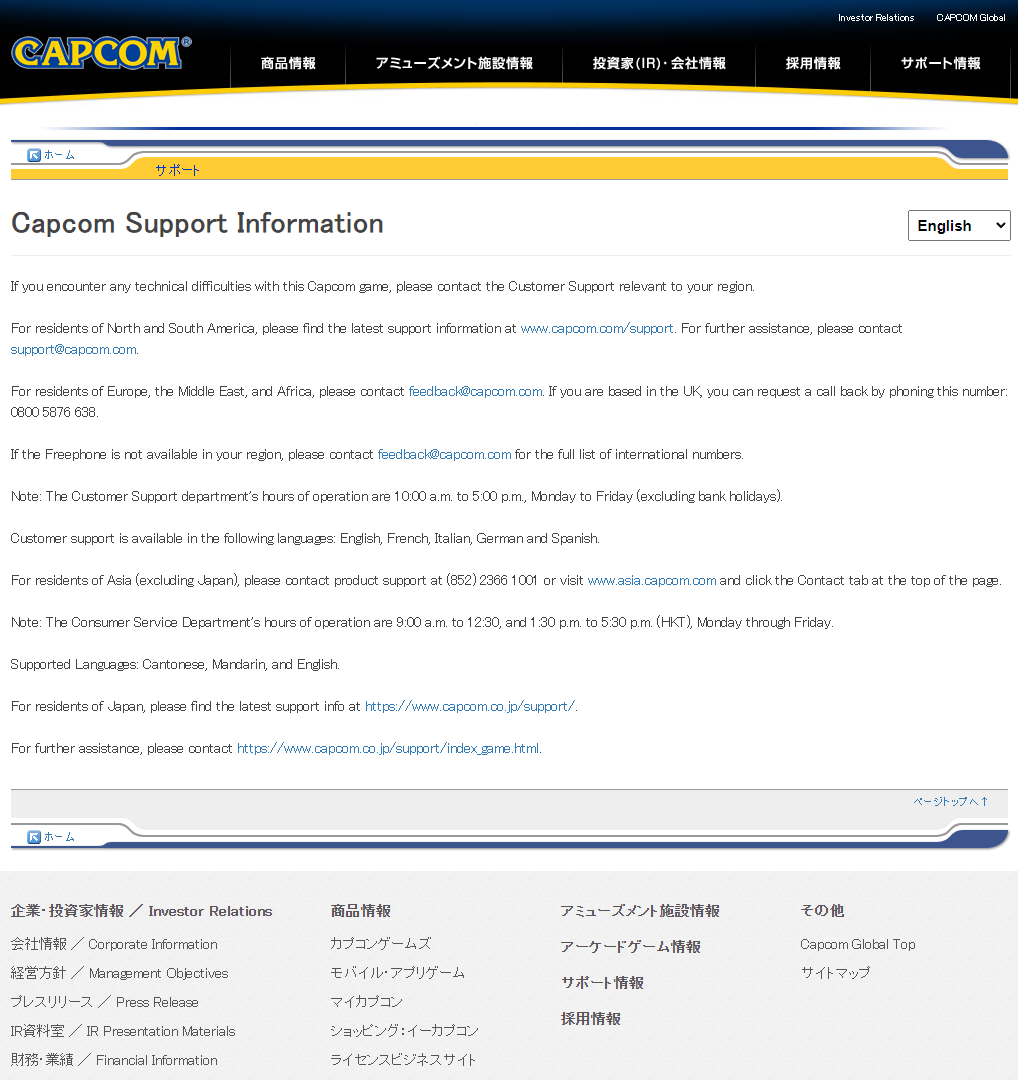
" For technical support and general queries, please send an email to [email protected] "

For further information on their contact details please check their websites for up to date addresses and phone numbers.

https://www.capcom.com/

Their Steam Customer Support Account says


" Official support account for Capcom USA. Send us an e-mail at [email protected] ! Or, you can open a Customer Service Ticket by going to www.capcom.com/support and clicking "Contact Us". European users can e-mail [email protected] for all customer support inquiries.

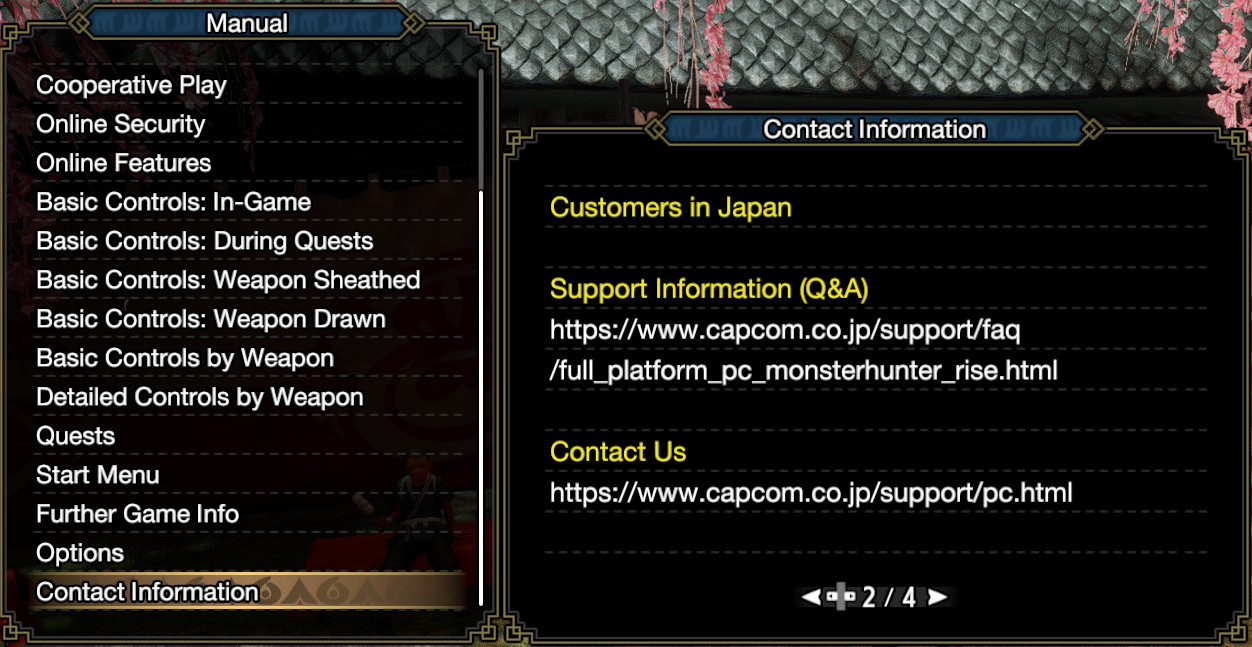
Japanese users can visit http://www.capcom.co.jp/support/pc.html for all customer support inquiries.

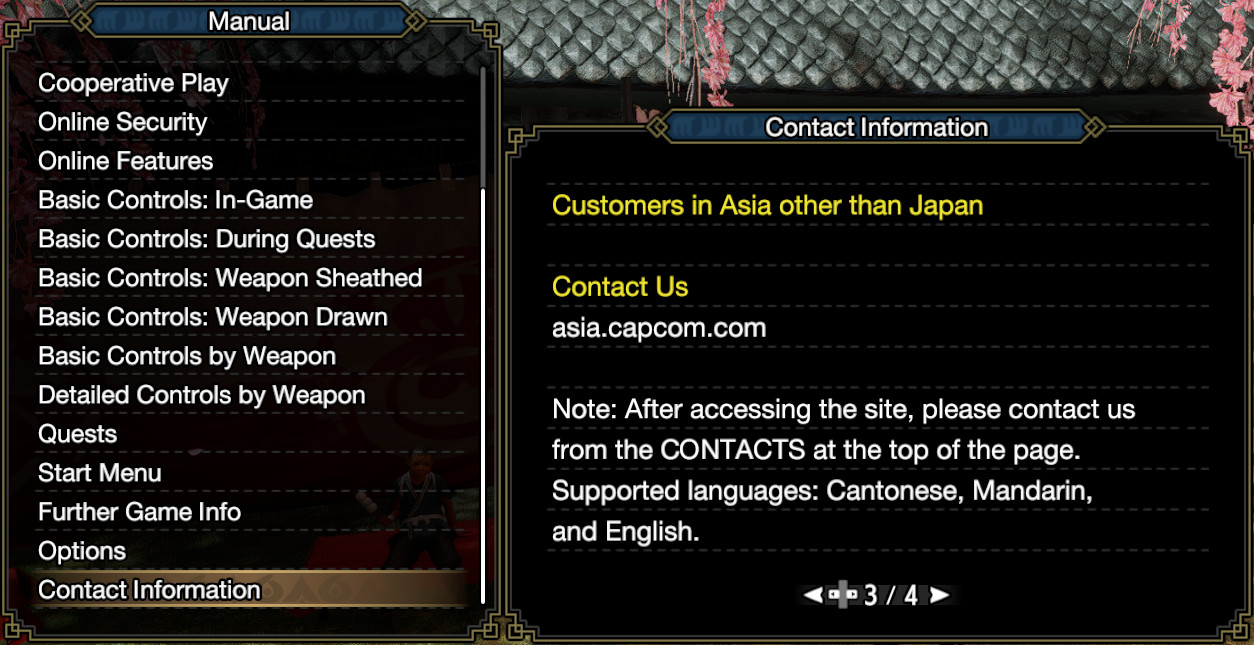
Users in Asia can e-mail [email protected] for all customer support inquiries. "


The official guidance threads on the forums are:

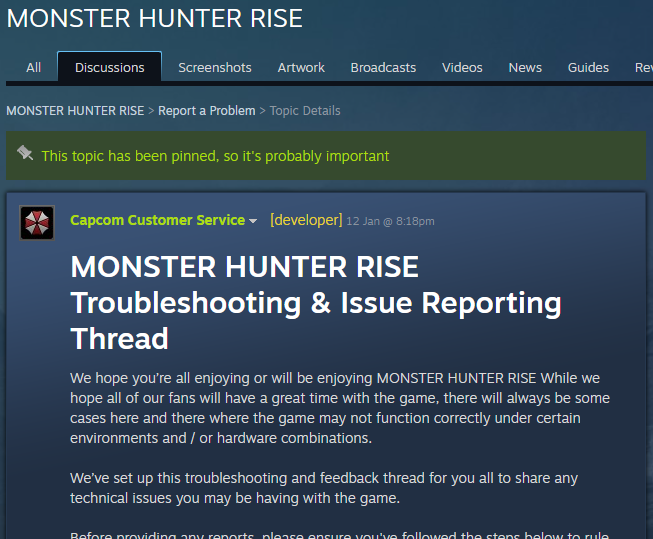
MONSTER HUNTER RISE Troubleshooting & Issue Reporting Thread

Which you can find here
https://steamproxy.com/app/1446780/discussions/1/3202622816412103096/
https://steamproxy.com/app/1446780/discussions/0/3202622816412099140/
(Reference Material 1)

and

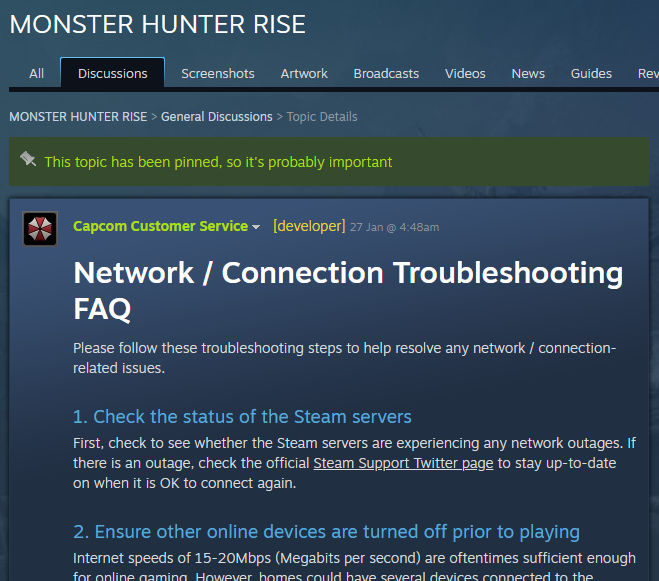
Network / Connection Troubleshooting FAQ
https://steamproxy.com/app/1446780/discussions/0/4772128648793147515/
(Reference Material 2)

You can find copies of those threads by the end of this guide for reference matters.


https://www.capcom.co.jp/support/contact/
Foreword
If you are a veteran, you do not need this.

If you are looking for an universal solution to your issue, you will not find it with this guide.
I recommend you go the path of the official handling instead, since that kind of expectation would be entirely misplaced here.

This guide is a collection of tips, tricks, mostly hints to serve PC users with inspiration.
Inspiration about things they might have missed or not thought about when they tried to make the game work.

There is no universal solution as there are countless of combinations of PC components and external devices and influences which all (can) have an affect to your personal PC experience. Even if this guide would try to attempt addressing the most common issues, it would still be enough to fill a phone book, considering that even the most exotic constellation might be a common sight in certain areas and regions of the world e.g. the common usage of unlicensed and cracked versions of a popular operating system.

I will never forget the ridiculous sight of an anti-virus app displaying over 250+ different threats on such a PC, or the nasty IP changing trojan(s) which prevented such users from getting actual treatment for their PCs.

The stuff I have collected and written down here for you is always under the assumption that your PC is working and handled correctly. If you cannot ensure that, I rather would recommend you playing the game on console to liberate you from any troubleshooting of issues which are in most cases caused by questionable user behaviour.

You can tell by this foreword that inexperienced "PC users" have gotten on my nerves with their unreasonable hate comments. Towards those I say: spare us both the time if you are one of those - just go contact Capcom Customer Support, as you will not get anything out of this.

As I am not getting anything out of this, and unlike some employed and paid customer support I am spending my vacant time here to share this, I can at least vent some anger here about ungrateful "community members".

Last but not least: to those who claim they already did "everything":
If you did "everything" and it still does not work, then you actually did not do everything.
1. Getting Started
Please do not forget basic stuffs like restarting your PC and verifying your game's files after every update. There are plenty of cases where it fixed issues like what was described as "infinite loading at start".


Here is the official manual how you do verify your game's files:
https://support.steampowered.com/kb_article.php?ref=2037-QEUH-3335

It sounds as banal as "have you turned your PC off and on again?"

But the number of community forums threads affirming that it actually helped speak for themselves.

"How so?", you wonder ~ it might be DRM and/or graphics card(s) related.
Imagine it somewhat similar like when you need to restart a game for certain achievements to trigger. Sometimes the "counter" or the "check procedure" have hiccups and will not appear during your ongoing session until you actually triggered a manual restart by yourself.
2. Common Graphics Issue
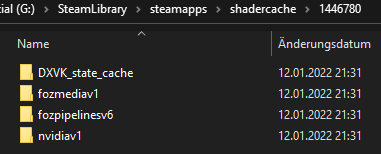
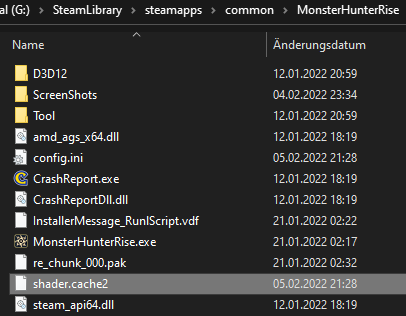
Shaders related issues can be fixed by deleting the relevant files and verify your game's files again. That will force the game and your graphics card(s) to compile them again - hopefully fixing any issues in the process.

You can find them here:
..Steamsteamappsshadercache1446780 <--- all folders


..SteamsteamappscommonMonsterHunterRise <--- shader.cache*


OR in your Steam Library folders if you used individual pathing and additional folders throughout your hardware.

As a matter of course: make sure to use the latest drivers.
In doubt: make use of the Display Driver Uninstaller.
https://www.guru3d.com/files-details/display-driver-uninstaller-download.html

The latest Nvidia drivers you can find here
http://www.nvidia.com/Download/index.aspx

The latest AMD drivers you can find here
https://www.amd.com/en/support

Trivia
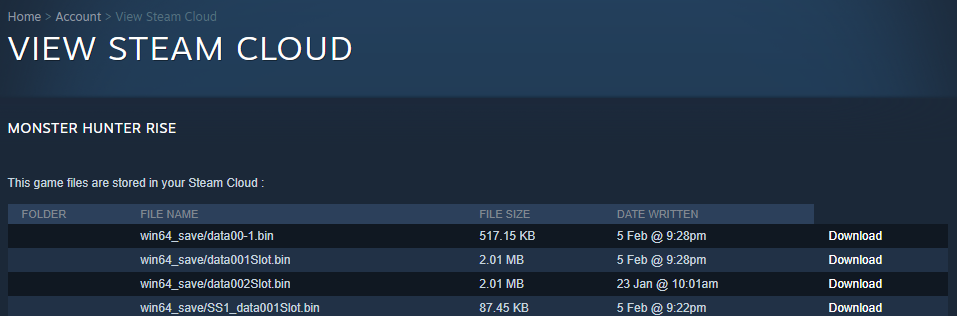
The "1446780" number stands for "Monster Hunter Rise" within the Steam environment. You will find it everywhere related to the game, from the store page to the remote storage aka Steam Cloud services.
Graphics Stuttering
There are many approaches I have read about, and from my personal opinion nearly all of them are valid approaches and worth to give it a try.

Why so many?

Because it goes down to your personal very individual gaming system.
Unlike with console there are countless combinations for PCs which make troubleshooting so difficult to begin with. Here are some of the most promising approaches:

Start with reinstalling related drivers using Display Driver Uninstaller
https://www.guru3d.com/files-details/display-driver-uninstaller-download.html

People are not tired to repeat it again and again for good reasons. The more updates and patches a PC is experiencing, the more likely it is collecting "leftover files" which might cause "unforeseeable" issues in the future. Also there is always the risk of having undetected corrupted files to begin with.

Set the game to use your graphics card(s) in high performance mode
(Windows 10 Settings -> Display -> Graphics Settings -> Select App -> Select Mode)

Increase game's priority in Task-Manager

These two suggestions are based on the fact that you can run multiple apps at once. A lot of background apps you might not even know about. Many of young PC users even forget about most obvious apps like discord or Nvidia Geforce Experience, alongside many more background apps known and suspected to cause issues.

Disable Steam Overlay for the game

Adjust VRAM to match your actual RAM
https://mcci.com/support/guides/how-to-change-the-windows-pagefile-size/

Disable Control Flow Guard
with Windows Defender's Exploit Protection or check for something similar with your security software of choice

Same for Controlled Folder Access
(Virus & Ransomware Protection), Memory Integrity (Device Security / Core Isolation)

These two suggestions have been made in regards of the anti-tampering-software which comes with Monster Hunter Rise. While it is unlikely to happen, it cannot be outruled that certain file access can cause the anti-tampering-software to go haywire, leading to stuttering and worse.

Disable auto-save

A surprising number of good feedbacks in regards of this workaround. It seems that on low-end-PCs the auto-save might cause unexpected issues which affects even the graphics. Known for affecting framerates by 10%-20% at certain points.

Adjust ingame dynamic shadows and other values
(like FPS cap and resolution) while using vsync etc.; the game is highly sensitive in that regards as if it seemingly works with profile patterns - changing a single thing manually there can cause chain reactions for better or worse - keep that in mind and adjust accordingly.

A lot of the mentioned issues so far are suspected to be caused by the DRM software, namely specifically Denuvo. I cannot tell. I am not affected at all by any issues mentioned or experienced by others. But clearly some approaches on the matter which are working are addressing that aspect directly.

Also, I personally recommend to you, that if your system is at the lower end, to consider investing in more actual RAM and a fast storage. That solved similar issues of this kind for me with Monster Hunter: World, despite I have met the requirements with ease. From my personal point of view it might be that the minimum requirements mentioned on the store page are "too generous", making the game seemingly run well on lower-end-PCs despite it does not.

https://steamproxy.com/steamstore/app/1446780
3. Save Game Loss
This part is available in a much more extensive version as a Spin-Off
https://steamproxy.com/sharedfiles/filedetails/?id=2743342837
===================================================

If you have save games issues a la "game starts blank", but you made a backup before, do like this

a) Start a new game with a new save.

b) Close the game

c) Override the new save game you made with the backup.

d) Start the game again and make a proper save with the overridden save game.

e) Restart the game.

If you did everything correct, the game should now accept your backup as "new current save game".

Your save game is located here

Remote:
https://steamproxy.com/steamstore/account/remotestorageapp/?appid=1446780

Local:
..SteamuserdatayourID1446780remotewin64_save

If you did not make a backup, check your remote storage aka Steam Cloud before panicking ~ and it is recommended to turn off Steam Cloud when you apply this workaround. Just do not forget to turn it on again once the applied save file is working fine again.

Trivia
For unknown reasons a lot of players tried to apply a step by step manual provided by Capcom Customer Support which is entirely unrelated, to restore their save games. The manual in question can be found here:

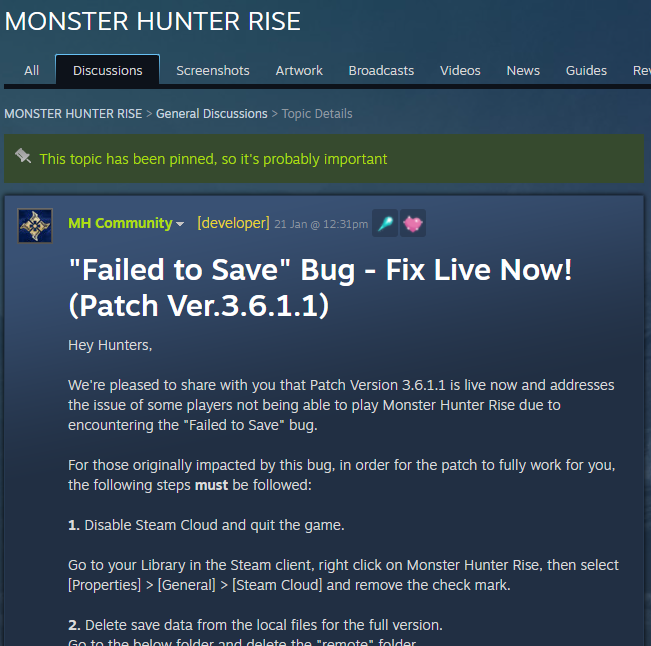
"Failed to Save" Bug - Fix Live Now! (Patch Ver.3.6.1.1)
https://steamproxy.com/app/1446780/discussions/0/3196993949750018709/

and here

https://steamproxy.com/games/1446780/announcements/detail/3123810455799967152

That manual is only to be used when you were affected by the initial save game issue, being unable to play the game at all. In any other cases it might erase your save game alongside with any hopes to restore it.
4. Make Backups
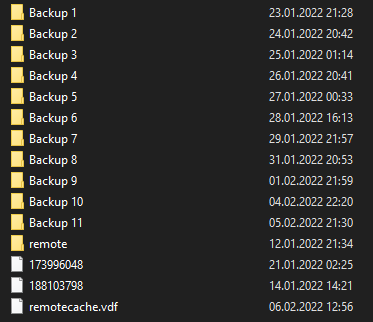
I recommend highly, due to current circumstances, to make regular backups of your save games. You can easily set it up as synchronised folder with a third party free cloud service app. If you allow the save of multiple versions of a file, that would create for you a "hardened" backup in comparison to Steam's default cloud storage.

But also: manual backups will do too!

As a reminder, you can find your save game files here

Remote
https://steamproxy.com/steamstore/account/remotestorageapp/?appid=1446780


Local
..SteamuserdatayourID1446780remotewin64_save
(replace the yourID part with your personal Steam ID-code)

5. Do The Routines
Not so long ago regular ScanDisk sessions and defragmentations were a given. I recommend to you highly not to forget about them. Especially when encountering issues like with the save game matter, ScanDisk can unmask and eventually help you out with unseen storage issues.

Especially do not forget about having your security app run routine checks as well!

For everything else check also

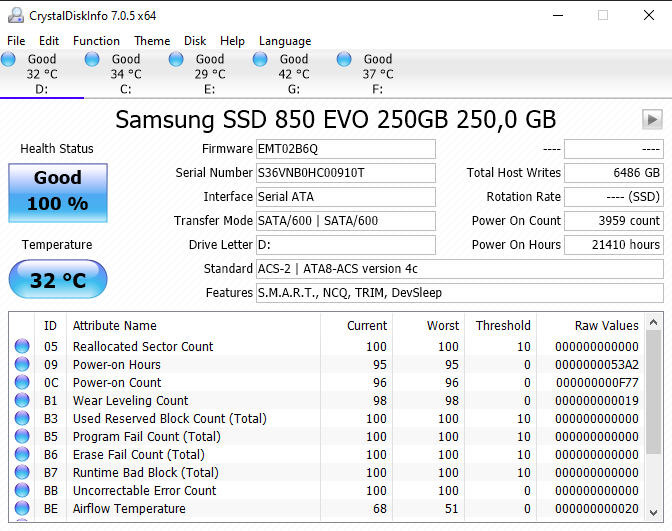
CrystalDiskInfo - Check your Storage for possible issues
https://portableapps.com/apps/utilities/crystaldiskinfo_portable
It can always be the case that there are hardware issues you do not know about, and by coincidence a game just reveals them without actually causing them.


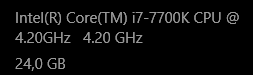
CPU-Z - System Profiler
https://portableapps.com/apps/utilities/cpu-z-portable
Helpful for people who want to help you so you can share details about your system's specification.

GPU-Z - Graphics Cards Specific
https://portableapps.com/apps/utilities/gpu-z-portable
As above with CPU-Z but for graphics cards

Revo Uninstaller - Mostly you do not need this...
https://portableapps.com/apps/utilities/revo_uninstaller_portable
... but it is great for reinstalls to be sure that a game leaves no leftovers you do not know about. CCleaner and XPAntiSpy used to be default tools to get rid of leftover files which can cause issues.
Encore: Check for Updates Manually!
People loves to claim they have everything up to date. It might be that they rely too much on automatic functions. In most cases I have observed and gotten the feedback that a manual prompt of updates might trigger additional updates which have been missed before.

Imagine that like with your smartphone ~ you have often a "rollout plan" where certain smartphones are updated in batches, unless there is a manual user prompt. A manual user prompt often triggers a released update instantly instead of having it later, down the road according to the provider's "rollout plan".

I have had that issue myself, with Nvidia taking care of things properly, but Microsoft missing on an Intel Iris Graphics driver for reasons I do not fully understood. It almost killed my graphics card with overheating. Since then I am especially careful with issues related to the Intel Iris drivers.

In addition to graphics cards drivers and OS updates, make also a fresh reinstall of DirectX and Visual C++ Redistributables to be on the safe side ~

DirectX
https://www.microsoft.com/en-us/download/details.aspx?id=35

Visual C++ Redistributables
https://www.microsoft.com/en-us/download/details.aspx?id=53840
6. Connection Issues
With Power Comes Responsibility
Like when hosting a party, the one with the more and better resources will have an easier time to do so. Consider it common sense that the one with the better gaming PC and better internet connection should be the one to host.

In Windows 10 you can easily check on the relevant system specifications by going for the Settings -> System -> Information


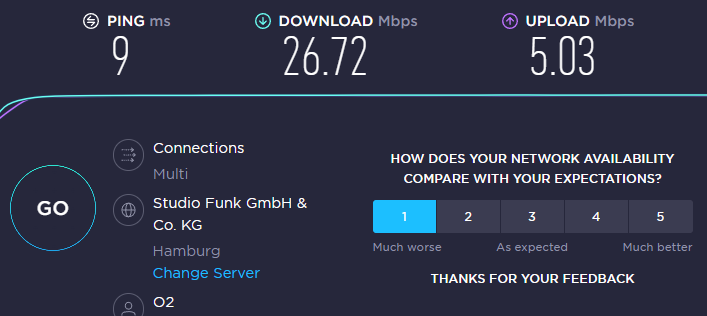
If you need to look up your internet speed performance, which consist of download and upload value, Speedtest by Ookla is considered a popular and reliable free to use service

https://www.speedtest.net/


Extra
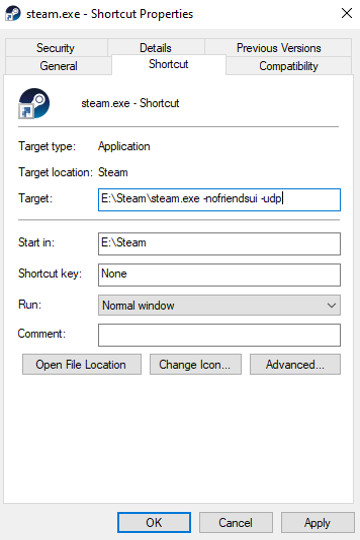
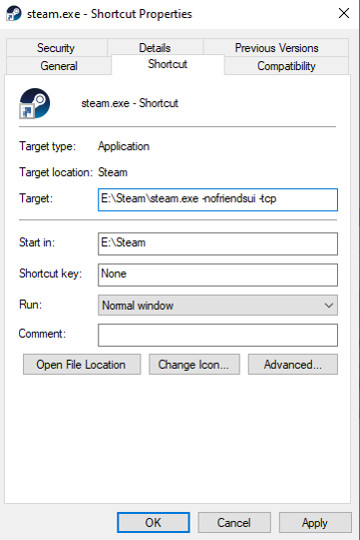
There were also some suspicions about Steam's newer WebSocket technology interfering with Steam's friendlist compatibility and therefore the matchmaking with Monster Hunter Rise. A possible solution would be starting the Steam client with launch parameters which enforces it to use the UDP/TCP, by adding
-nofriendsui -udp
or
-nofriendsui -tcp


You might need to delete the config cache before it takes effect ..Steamconfigconfig.vdf

While this workaround seems meaningful, Steam has also deployed several client updates since the release of Monster Hunter Rise, which are supposed to address this specific issue.
Therefore make sure your Steam client is up to date.

Common Issues

Some common issues which can affect your internet connection and are often overlooked by beginners are
6. a) Wi-fi Issues
Especially in urban areas it has become a big problem with many overlapping networks in close proximity. And seemingly the majority of users are unaware of the issue, for most of them still use the default settings of the wi-fi devices provided by their internet service provider.

Have a look at this situation as an example. The graphics only show detected routers in close proximity around an apartment in an urban house.


Used channels in the same house / floor by number of routers with 2Ghz


Used channels in the same house / floor by number of routers with 5Ghz

Conclusion: 5Ghz wi-fi is recommended for good reasons.
But not every device supports it.

Trivia
You might wonder: why not just pick a different, less occupied channel? Well... the default devices from the internet service providers come per default with auto-select-best... Another origin of connection issues - ever-changing-jumping-channels-devices...

Therefore you will see it is often recommended among gamers to use an ethernet cable connection. That does not only negate the issue of overlapping networks, but also counters possible interferences by other devices (smart devices, microwaves, emergency radio etc.) and architectural matters.

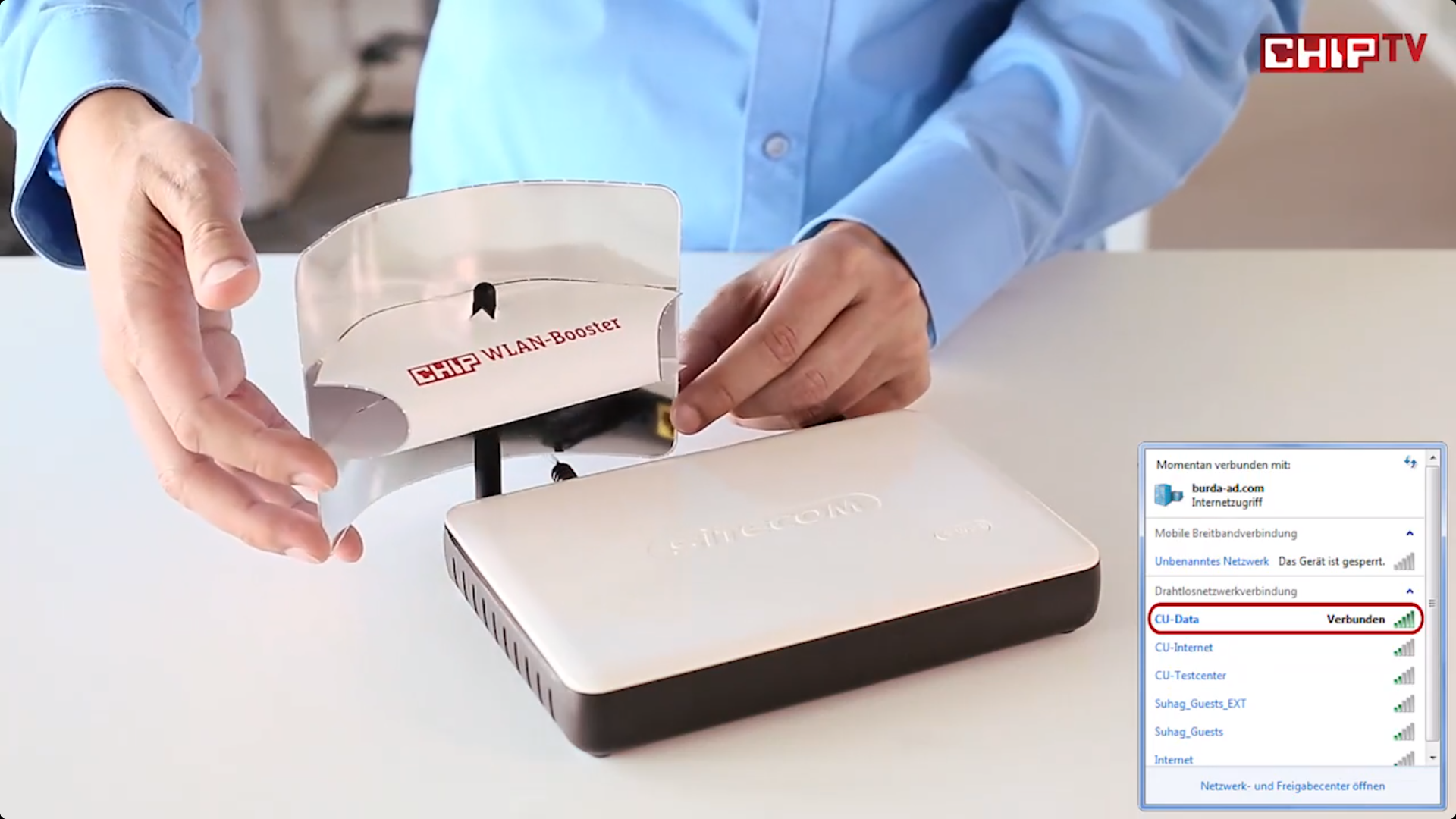
If cable is not an option, please consider wi-fi enhancers like repeaters and those devices which make use of your home's power grid. A simple enhancer you can make by yourself can already be a big boon (tested in a 200+ years old house with multiple apartments).

https://www.chip.de/downloads/WLAN-Verstaerker-zum-Selberbauen_35747900.html


That might look silly, but it has surprised everyone whom I recommended it - all you need is paper or cardboard, glue and aluminium foil

By my personal experience: repeaters and power grid connection are definitely worth their money. Mesh internet wi-fi via inbuilt smart devices might be the future.
6. b) Third Party Apps / Users
It happens more than often that some background apps decide "it is time for an update". Especially Windows has a bad habit on doing update downloads in the background without any notification. Webspace apps like Dropbox and alike which synchronise by themselves are another source of issues.

In addition to that people like to "forget" all kind of third party apps which affect their system's performance. Whether it is their internet security which not only can throttle internet speed, but also can block it entirely, or other stuff like discord or running multiple separate gaming platform clients.

The less apps you have running, the more your gaming system can focus on the game at hand and deliver better performance.

And if you have a shared internet connection, please keep in mind: when someone else is using it, you might end up at the lower end. Especially with the default setups of many wi-fi devices which prioritise media (Netflix, Disney+, etc.) over gaming. Even if you have a high download speed per default, you might suffer from the matter simply because the device takes care of your gaming data with much lower priority.

Do not forget to check on all that whenever you are experiencing connection issues!
7. Rare Issues
Blutooth
Additional input devices often comes with additional third party software in order to use them. Make also sure to check always if the issue you experiencing persist by unplugging all unnecessary devices from your PC.

One worth mentioning are blutooth devices which have seemingly often created issues for the game by users having additional active inputs without knowing. Check also the Steam Controller Support section.

Trivia
Especially third party apps like Logitech's GHub seems often to have issues when a game is recently released and it happened to be a game which stresses input devices a lot (especially fighting and action games, but also racing games). Often the only solution available would be to bring it to the app's developers' attention so it can be patched and updated with a fix.

Keyboard
When you play with keyboard, please keep in mind that especially older and office models can and will have issues with games which can be demanding on certain combinations of inputs. That is why gaming keyboards exists which prevent "ghosting" and alike. Thankfully they are nowadays cheaper than office keyboards, so they have become a recommended buy.

Multi-Display-Setup
Some issues are caused by a non-native-support of the game of multiple displays. Try deactivating one display should you use such a gaming setup.

Storage
Some issues could be observed when host is loading the game from a slow (and external) (hard) drive / storage device. Nowadays Solid State Disks have become so cheap, I can highly recommend it for anyone who play games often on their system to use one. The difference in performance is noticable and significant. In even rarer cases an issue can be caused by the devices controller.

Third Party Apps which came with the PC / Components
I have mentioned third party apps before, but not all are that obvious and visible. ASUS mainboards e.g. have an inbuilt tool called GameFirst VI to improve network connections.

Originally posted by ASUS:
GameFirst VI is an integrated network tool, designed for ASUS ROG products for network optimization. It can effectively reduce network delay, minimize in-game lag, and also create the best network environment for players.

It just happens that when Monster Hunter Rise is loading an online quest or needs too long to load, that mentioned tool might consider the needed network connection for the app to be dead or unused. The app then starts allocating the resources elsewhere. Sounds familiar to wi-fi devices like routers? Well, it is working with a very similar principle. It is worth to know your system.
8. Mods
Use mods at your own risk.
There is no official support for that.
In doubt: ask the mod author, as a matter of course.

Keep in mind, that with such a sensitive anti-tampering-software for digital rights management like Denuvo, even the slightest modification can make your game unplayable. A lot of players did not expect to have issues with ReShade to mention a very common example which lead to several crashes at release.
Checklist
To give people an idea of how hellish troubleshooting can be, but also to help me not repeating myself so often with people can looking this thing up here.

Does your Steam account has the license to use the game? (Family Share)
Do you meet the minimum requirements as mentioned on the store page?
Did the game work for you before?
Have you turned your gaming system off and on again?
Have you restarted your gaming system and OS? (special Windows behaviour)
What OS are you using? (Be specific for even with Windows there are big differences)
Have you made a backup of your save game(s)?
Have you verified the game's files integrity?
Have you restarted your gaming system after verifying?
Are you running the game from a fast storage?
Do you have a good relative amount of virtual RAM?
Are you running the game in compatibility mode as administrator?
Have you turned off autosave?
Have you turned off overlays? (all of them: Steam, discord, Nvidia, Xbox, etc.)
Have you installed your graphics card(s) drivers fresh with Display Driver Uninstaller?
Have you installed DirectX anew?
Have you manually prompted OS updates?
Have you cleared any third party apps which might cause issues? (ASUS, Acer e.g.)
Have you overclocked your gaming system?
Are you using overclocking related tools?
Have you unplugged all external devices to your gaming system except mouse and keyboard?
Have you experienced any power supply unit related issues?
Have you activated high performance mode for the game?
Game mode on or off?
Have you unplugged any additional displays?
Have you deleted the shader files to prompt another compile?
Have you restarted your gaming system after freshly installing drivers?
Have you tried reducing the FPS cap and other graphics settings to match the game's profiles?
Have you whitelist the game with your security suit?
Have you turned off stuff like Control Flow Guard and/or Controlled Folder Access and Memory Integrity checks?
Have you checked on your storage and RAM health?
Have you really turned off any third party apps like blutooth tools?
Are you using a cable connection to the internet?
Have you tried using a VPN?
Have you tried a different security app? (Trial versions suffice for the test)
Last but not least: is your mainboard up to date?

As a matter of course you will not find any mod related questions within the checklist. People who make modifications with their game (ReShade, etc.) know what they are doing and that there is no support. For obvious reasons I am also not asking whether you are using a legal version of your OS.
Troubleshooting is Hell


The biggest issue with general error codes, which are provided by the game, is usually something like this:

Imagine you are driving a car, and the engine starts to make sounds and it stops entirely.

All you know at that moment is that it did make sounds.

In another case the the car engine exploded - it made also a sound.

You have two cases where the cars' engines made sound and it stopped working for both.
But they are entirely different cases.

For the first we cannot even be sure if it was the engine which has issues to begin with. Probably not even for the second if you consider all possibilities like you would with a PC.

Maybe it was the wrong fuel?
Maybe a user put this and that in the wrong pipe?
Maybe some user just thought the sound was from the engine but it was actually something else?

Start imagine a user goes with their car to a mechanic and starts by saying "its the engine", and the mechanic would only check that.

An error code can be like that, and indicating that the graphics card had issue, but we would not know if e.g. it is caused due to power fluctuations by a defective PSU (very, very very exaggerated).

Helping people with troubleshooting is like some sort of hell, from my point of view. I have high respect towards service agents who have to deal with all kind of customers and users. Among those there are plenty with questionable behaviour which are ranging from "probably pretending not ever have read their PCs user manual before" to "ungrateful and arrogant beyond measures".

In my region a usual price rate for troubleshooting a defective PC would be one Euro per minute. Thinking of all the difficult customers and users I think it is more than fair. Even cheap at some point...

Especially those who claim they did everything bother me a lot. Like, when they did everything, that would include buying a new PC and still having the issues, considering that would be the logical result if you replace all possible source of issues within a PC. And even then: buying a new PC and putting it next to the old one without actually using it, will not fix any issue either. That is what it looks like using terminology to determine "one did everything"...
EXTRA
In at least two confirmed cases a clean install of the OS lead to a solution. I can only assume that in those cases the amount of leftover files and littering has grown so much, that unexpected issues started to be caused by unknown sources.
Interesting Forums Threads
Two forums threads which got my attention

Gaming Services: Possible Cause and Workaround for the game randomly freezing, then recovering after a minute or two.
https://steamproxy.com/app/1446780/discussions/0/3196993949757161739/

Originally posted by Matt F:
I've seen a few posts here and there about intermittent freezing, but nothing that covers what I've found, so hopefully this is helpful to someone.

Monster Hunter: Rise has an issue where the game will freeze when you disconnect a device from your computer. Most people experience this when their controller disconnects, however, some people experience freezes without any devices seemingly disconnecting from their computer.

Turns out, if you have an Xbox Play Anywhere game installed on your computer, you may have a service installed that randomly mounts a virtual drive to your computer, then eventually unmounts it.
This counts as a device being removed unexpectedly.

The drive is listed as "XVD" in Device Manager and the service is "Gaming Services" in your services. Since the virtual drive is not always mounted, you may need to show hidden devices in Device Manager to see if you're getting these drives mounted and unmounted. Alternatively, just have Device Manager open while playing MH:R and scan for hardware changes when you inevitably freeze.

My workaround for this was to uninstall the Gaming Services service from my computer. This is by no means what the solution to this issue should be, as MH:R should just be able to handle when a device is added or removed on your computer without freezing, but for now, you can open powershell as admin and use the following to remove the service:
get-appxpackage Microsoft.GamingServices | remove-AppxPackage -allusers

As a note, this service will likely get reinstalled if you continue playing an Xbox Play Anywhere game, so this can't really be a viable solution in the end for a lot of people, but it at least should be able to work as a temporary workaround.

Annoyingly, the service mounts new virtual drives each time, so you can't just disable or uninstall the drives and the service automatically reenables itself if you disable it, so uninstalling the service fully is the only solution I found for this.

TL;DR - "Gaming Services" service mounts and unmounts virtual drive occasionally, which freezes the game due to a device being disconnected.
Uninstalling the service is a workaround.

a definitive solution for crashing after one quest. try it out!
https://steamproxy.com/app/1446780/discussions/0/3202622816427058118/

Originally posted by Kim:
i did everything under the sun to fix it and i knew it was the game or something so.

first things first, download REframework on nexus mods, good tool and you can use as fov slider, vr etc.

https://www.nexusmods.com/monsterhunterrise/mods/26

copy dinput8.dll and paste to mh rise main folder. next time you boot up the game a little menu will pop up at your top left, just click on the x to close it. (if your mouse cursor bugs on screen just alt tab 2 times) this fixed for me and have been playing normally since then. hope this helps!

(thanks to the mh streamer fishnothing that showed me this)
PC Issues: Recommendation
Experienced users and experts can ignore this recommendation.

There are some fairly cheap upgrades for PC which can make a huge difference in overall performance. Not in regards of graphics or processing. But running the game from an internal SSD or having a RAM upgrade to a minimum of 16 GB (better 24GB and more) counter not only loading issues, but make many games run much smoother. Players often describe related issues as "stuttering" or "freezes" - especially during loading or auto-save sequences - , despite the game is running well the rest of the time. You might want to consider an upgrade, especially with those kind of components having become very cheap these days.

Not everyone considers themselves being a "nerd". I personally find the term offensive, especially when used on people who have "some" knowledge with PC. It is a matter of fact that information technology has become so easy nowadays, that most people do not bother with many stuff which are nowadays considered "nerd" stuff. Even when it is about simple things like why a 4MP camera is better than 2MP. Or why not.

To tackle PC issues in an easy way I like to recommend to you TuneUp Utilities. Nowadays owned by AVG and therefore known as AVG TuneUp. It is an easy to use tool which I consider great for anyone who has not much knowledge about Windows optimisation. With my high end PC I am hardly ever using it anymore, but I do appreciate still what it can do for weaker PCs and especially users who are not accustomed to PC "stuff".

It shows you background apps and helps you to put them down. Among many other things which might help fixing PC issues and improve performance. You might be surprised to see what you might have overlooked before. A lot of its features can be done without it. But to get the idea it is worth to take upon the free trial.

Last but not least: do not underestimate the dangers of malware.
Keep your system up to date and trigger manually a virus scan/rootkit scan.
I have seen PCs with 250+ virus alerts and hidden trojans and bitcoin mining apps - only you can save yourself from such. Also, those PCs often were slowed down by 50% and more because of them...
Reference Material 1 Part 1/3
MONSTER HUNTER RISE Troubleshooting & Issue Reporting Thread

We hope you’re all enjoying or will be enjoying MONSTER HUNTER RISE While we hope all of our fans will have a great time with the game, there will always be some cases here and there where the game may not function correctly under certain environments and / or hardware combinations.

We’ve set up this troubleshooting and feedback thread for you all to share any technical issues you may be having with the game.

Before providing any reports, please ensure you've followed the steps below to rule out problems with your PC, Steam, or the game’s files:

Troubleshooting Guide

1. Check the game’s system requirements

Please make sure you meet the minimum requirements for the game, outlined on the bottom of the game’s Steam Store page; if you do not meet the minimum requirements for the game, this may result in poor framerate, or the game not running.

If you do meet the minimum specifications but not the recommended specifications, you may want to try turning down the graphics settings, if you haven't already.

Some high end integrated graphics chips and modern laptop integrated GPUs may work, but have not been tested, nor are they officially supported by Capcom. If you’re using a laptop with a dual GPU dedicated graphics card and integrated graphics processor, we recommend disabling your integrated graphics via the BIOS settings prior to launching the game. For more information on accessing your BIOS, please see your laptop/motherboard manufacturer manual.

If you’re using a multi-GPU setup such as NVIDIA’s SLI or ATI’s Crossfire technologies, we recommend experimenting with disabling these settings, as they may cause compatibility issues with the game.

Capcom does not warrant nor officially provide technical support for PCs that do not meet the official, minimum system requirements.

2. Add the game’s folder and files to your anti-virus program’s exception / exclusion list

Some launching issues may be attributed to certain Anti-Virus software preventing the game executable from launching due to a false-positive error. We recommend users add all of the following files and folders to the Anti-virus and Firewall exclusion list to prevent this issue. If these files and folders were already added previously, try removing them from the exclusion list and re-adding them.

Note: To quickly access the following folders, press Windows Key + R then copy and paste the folder URL below.

MonsterHunterRise.exe Default Location:
C:Program Files (x86)SteamsteamappscommonMonsterHunterRise

Steam.exe Default Location: C:Program Files (x86)Steam

Steam AppData Default Location: C:Users%USERNAME%AppDataLocalSteam

For a guide on adding exceptions to your anti-virus software, please visit one of the following links:

  1. Windows Defender[support.microsoft.com]
  2. Malwarebytes[www.malwarebytes.com]
  3. Avast Antivirus[www.avast.com]
  4. AVG Antivirus[support.avg.com]
  5. Kaspersky Anti-Virus[support.kaspersky.com]
  6. Webroot SecureAnywhere[www5.nohold.net]
  7. McAfee Antivirus (Steam Support guide)
  8. Bitdefender*[www.bitdefender.com]
  9. ESET[support.eset.com]
  10. Norton[support.norton.com]
  11. Trend Micro[docs.trendmicro.com]

*For Bitdefender, you will need to also add the game’s .exe file to the program’s Whitelist. To do this, follow these steps:

  1. Open Bitdefender
  2. Go to the Protection tab
  3. Click “View Feature”
  4. Click the gear icon inside the “Advanced Thread Defense” box
  5. Select “Add applications to the whitelist”
  6. Browse and navigate to the .exe file
  7. Once the .exe file is added, close Bitdefender and relaunch the game

3. Give administrator privileges to Steam and the game

Some users can get the game running properly by running Steam.exe in administrator mode. This can be done by right-clicking on the .exe file and selecting “Run as administrator.” If that doesn’t work, try running the game’s .exe file in administrator mode as well.

4. Update your Video/Graphics Drivers and Windows Operating System

Try updating your video card drivers, as oftentimes outdated drivers can cause a variety of issues ranging anywhere from in-game graphical problems, to the game not starting, and more.

For the latest Nvidia drivers, click here[www.nvidia.com].
For the latest AMD drivers, click here[support.amd.com].

Additionally, please ensure that Windows Update has been run and that all the latest updates have been installed on your operating system.

If you still experience issues, you may want to try performing a clean installation of the video driver set. This will remove any extraneous driver DLL files or game profiles that existed with the previous driver installation.

To do a clean video driver install, many enthusiasts use a third-party program called Display Driver Uninstaller[www.guru3d.com] (DDU), which completely removes components that were part of the original driver installation package.

Run DDU and uninstall old video driver.
Install the latest OEM video card driver and reboot your PC.
Run the latest DirectX installer package[www.microsoft.com] and reboot your PC.

IMPORTANT! Please don't forget to reboot Windows upon completing a video driver installation. This will help reinitialize the driver and the graphics card using the new driver.
Reference Material 1 Part 2/3
5. Check your graphics driver settings & computer power settings

To reiterate, some high end integrated graphics chips and modern laptop class discrete GPUs may work, but have not been tested, nor are they officially supported by Capcom. Laptops with dual GPUs, such as an Intel Integrated Graphics Processor + Nvidia Dedicated Graphics Card, may need additional configuration in the event the integrated processor is overriding the dedicated graphics drivers.

If using a dual Nvidia / Intel GPU, follow these steps:

  1. Install the latest Intel integrated drivers[downloadcenter.intel.com]
  2. Reboot your PC
  3. Open Nvidia Control Panel
  4. Click 'Manage 3D Settings'
  5. Go to 'Program Settings' and then select the game (if it is not in the list you can add it manually by clicking 'Add')
  6. Scroll down to 'Power Management Mode'
  7. Set it to 'Prefer Maximum Performance' / ‘High Performance Processor’ instead of 'Adaptive'
  8. Close Nvidia Control Panel and launch the game

If using a dual AMD “Switchable Graphics” GPU, follow these steps:

  1. Open AMD Catalyst Control Center
  2. Under “Switchable Graphics”, select the High Performance section and select the game (if it is not in the list you can add it manually by clicking 'Browse')
  3. Click ‘Apply’
  4. Close AMD Catalyst Control Center and launch the game

Additionally, double-check your desktop / laptop’s power settings by performing the following:

  1. If using a laptop, ensure the charger is connected
  2. Open Control Panel
  3. Select Power Options
  4. Select “Change Plan Settings”
  5. Select “Change advanced power settings”
  6. From within the dropdown menu, select “High performance” and click ‘Apply’ then ‘OK’
  7. Launch the game

6. Update DirectX

We recommend downloading and running the DirectX End-User Runtime Web Installer[www.microsoft.com] to ensure DirectX is fully up to date.

7. Update your Windows Media Player codecs

Certain cutscene segments use video playback which relies on Windows' default Media Player codec.

If you're experiencing video playback issues during cutscenes or unable to launch the game, please try installing Microsoft's Media Feature Pack[support.microsoft.com]. Certain Windows editions, particularly in EU territories and Korea, may not have Windows Media Player and its codec preinstalled.

If you have separately installed another codec, there may be compatibility issues with certain video codec which may cause video corruption issues during gameplay. If you're using a different codec besides Media Feature Pack, please ensure the codec is configured so it does not run under Media Foundation.

8. Verify the game’s cache in Steam

Try verifying the game's cache in Steam. You can do so by following the steps outlined in this Steam support article (reposted below). This may find missing or damaged files that need to be repaired, even if you've just installed the game. You may also try temporarily disabling your anti-virus while verifying the cache or launching the game, as on occasion anti-virus programs may flag games or the files necessary to play them as a virus.

To verify the game’s cache, follow these steps:

  1. Restart your computer and launch Steam
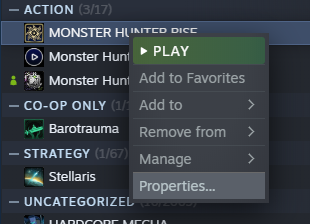
  2. From the “Library” section, right-click on the game and select “Properties” from the menu.
  3. Select the “Local files” tab and click the “Verify integrity of game files...” button.
  4. Steam will verify the game's files - this process may take several minutes.
  5. Important: One or more files may fail to verify. This is normal for most Steam games. The files that fail to verify are local configuration files that should not be replaced as part of this process. You can safely ignore this message.

This process allows the Steam client to scan every single file you downloaded for this game, verify checksum of each, and compare that against the file manifest data on Steam's content server. If the file is missing or has a different checksum value, you will receive a message stating "X files failed to validate and will be reacquired." What this means is that some files have either been deleted, or may have been corrupted. Click “Close,” and Steam will automatically download and / or replace the problematic files.

If you still experience visual / audio-related issues or crashes, please provide the detailed information below.

A) Your System Specs

  1. CPU name & model
  2. Name / model of the desktop or laptop (if available)
  3. Graphics card / chip model and the amount of VRAM
  4. Video driver version number
  5. System memory size
  6. OS version (Windows 7, 8, 10, 64-bit/32-bit, etc. Please make special note in your specs if you are running Windows "N" and "K" editions that do not come with Windows Media Player.)
  7. Anti-virus software name and version
  8. Your monitor and/or HDTV model number (if using multiple displays, please provide all make and model numbers)
  9. HDMI cable brand and model number (if available). Please confirm whether your HDMI cable is certified or compatible with 4K and HDR.
  10. Your region (continent and/or country)

A good deal of this information, such as the graphics card model and VRAM, are available by running a DxDiag report.

To create a DxDiag report:

  1. Open a "Run" dialog in Windows. This can either be done by typing "run" into Start Search, or by holding the Windows key and pressing "R." (Either method works in Windows 7, 8, 8.1, and 10.)
  2. Type "dxdiag" (with or without quotes) into the box that comes up.
  3. From the DirectX Diagnostic Tool window, wait for the tool to gather the information it needs, then click "Save All Information..." which will ask you to save a text file, named "DxDiag.txt" by default. Save this file somewhere where it will be easy to find, then attach it in your response.

B) Your Graphics Settings

Your graphics settings for the game can be found in the config.ini file, located in the game’s installation folder. Open the file using a word processor such as Notepad or Wordpad and copy and paste the text found inside.

C) If a crash report is generated, please attach it.

Crash reports may be generated when the game crashes.
If crash reports are generated, please send them to us. The folder where the crash report is saved will be displayed when the save is complete.

D) Give as many details about your issue as possible

Please share your specific issue and the location(s) where you’re experiencing the issues – for example, if you’re having problems with the framerate, is it happening constantly, or is it during certain modes, during gameplay, etc.? The following information can greatly help as well:

Have you confirmed you’ve met at least the minimum system requirements for the game (See Step 1 in the Troubleshooting Guide)?
Where and when did the issue occur?
What were the character(s) doing when this issue occurred?
Did the issue resolve itself when you rebooted the game?
Please also attach any screenshots or video of your issue, preferably via a Dropbox[www.dropbox.com], Google Drive[steamproxy.com/google-com/js], or OneDrive[www.onedrive.live.com] link.
Reference Material 1 Part 3/3
F) Detailed reproduction steps, if consistently reproducible

The more detailed info you can provide, the quicker the error can be attempted to be reproduced and investigated.

Thank you for your patience and support!

Best Regards,

Capcom Customer Support

Please note that this thread is only for posting issues with the game and specifications for MONSTER HUNTER RISE; in the interest of staying on-topic, any extraneous discussion or derailment may be removed.
Reference Material 2
Network / Connection Troubleshooting FAQ

Please follow these troubleshooting steps to help resolve any network / connection-related issues.

1. Check the status of the Steam servers
First, check to see whether the Steam servers are experiencing any network outages. If there is an outage, check the official Steam Support Twitter page to stay up-to-date on when it is OK to connect again.

2. Ensure other online devices are turned off prior to playing
Internet speeds of 15-20Mbps (Megabits per second) are oftentimes sufficient enough for online gaming. However, homes could have several devices connected to the internet at one time. If the home uses the internet for other things like streaming music, watching movies, and working from home, this can all put a strain on your bandwidth. We recommend ensuring other devices using the internet at home are turned off while playing online.

3. Reboot your PC and refresh your modem and router
Try exiting the game and rebooting your PC, as well as refreshing your modem and router connection by unplugging both devices for a few minutes, then re-plugging the modem, followed by the router. If other devices, such as another PC/Mac or smartphone are also connected and being used on the network, please disconnect or refrain from using them while playing online.

If using a router or CTU with a UPnP function, please confirm whether this function is ON. If it is OFF, please turn it ON and try connecting online again. Please also ensure that packet filtering is turned off on both your router and with your Internet Service Provider.

If there are 2 routers being used, we recommend putting one of these routers in Bridge Mode. For more information on this mode, we recommend consulting your router’s manual.

*If you are unsure of the appropriate setting regarding port opening and UPnP function, please contact your router manufacturer/provider.

Finally, additional PPPoE settings may be required for your modem and/or router. For further details, please check with your Internet Service Provider.

4. If using WiFi, switch to a wired Ethernet connection
A wired Ethernet connection is recommended when playing Monster Hunter: World online. If you are already connected via Ethernet, try connecting the Ethernet cord from your PC directly to the modem, thereby bypassing your router.

5. Check your Windows Firewall and Anti-virus settings
Some launching issues may be attributed to certain Anti-Virus software preventing the game executable from launching due to a false-positive error. We recommend users add all of the following files and folders to the Anti-virus and Firewall exclusion list to prevent this issue.

Please check here for more details.

6. Check your NAT (Network Address Translation) settings
Issues with connecting to a match online could be related to the NAT settings of your network. Network connections at universities / college dormitories, for example, generally impose some form of strict NAT (Network Address Translation) type which can cause issues with connecting to some online games. If you have strict NAT settings, you may have difficulty connecting to online game servers. We recommend double-checking the NAT settings for your PC to determine which type is set.

PC NAT settings can be found by accessing your modem / router’s menu. For more information on accessing this menu, please contact your modem / router manufacturer.

NAT Type 1 (Open) – You are either not behind a router/firewall or you have DMZ enabled. This NAT type shouldn’t run into any issues while gaming, however this may cause security issues.
NAT Type 2 (Moderate) –Your console is connected properly and you shouldn’t run into any issues.
NAT Type 3 (Strict) – You may be able to connect online and perform downloads/updates but other functions may not work as intended.

7. Forward the necessary ports on your router
If you haven’t yet already, we recommend Steam users forward the following ports on their router. For a handy guide to port-forwarding, please click this link. Please also contact your Internet Service Provider to ensure they are not blocking any of the following ports.
PC/Steam

The ports in this Steam guide should be forwarded for Steam users (reposted below).

To log into Steam and download content:
  • HTTP (TCP port 80) and HTTPS (443)
  • UDP 27015 through 27030
  • TCP 27015 through 27030

Steam Client
  • UDP 27000 to 27015 inclusive (Game client traffic)
  • UDP 27015 to 27030 inclusive (Typically Matchmaking and HLTV)
  • UDP 27031 and 27036 (incoming, for In-Home Streaming)
  • TCP 27036 and 27037 (incoming, for In-Home Streaming)
  • UDP 4380

Dedicated or Listen Servers
  • TCP 27015 (SRCDS Rcon port)

Steamworks P2P Networking and Steam Voice Chat
  • UDP 3478 (Outbound)
  • UDP 4379 (Outbound)
  • UDP 4380 (Outbound)
Reference Material 3 Part 1/2
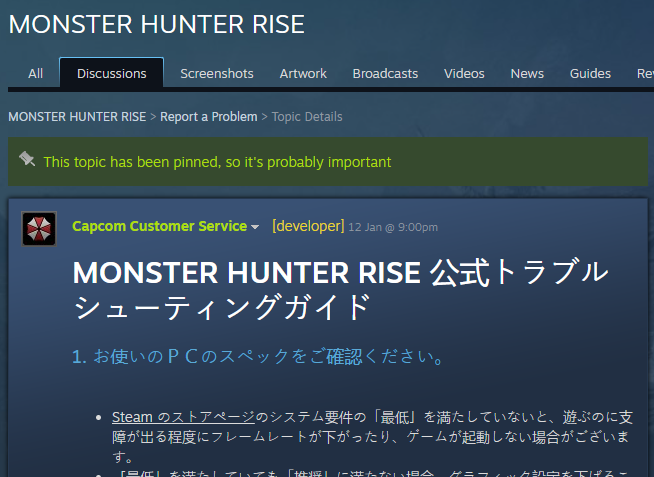
MONSTER HUNTER RISE 公式トラブルシューティングガイド

1. お使いのPCのスペックをご確認ください。

  • Steam のストアページのシステム要件の「最低」を満たしていないと、遊ぶのに支障が出る程度にフレームレートが下がったり、ゲームが起動しない場合がございます。
  • 「最低」を満たしていても「推奨」に満たない場合、グラフィック設定を下げることをお試しください。
  • いくつかのハイエンド統合グラフィックスチップと最新のラップトップ統合GPUは動作するかもしれませんが、テストされていません。これらは、正式にカプコンによってサポートされていません(※例外として「Iris Xe グラフィックス」については、正常に動作することを確認済みです)。デュアルGPU専用グラフィックスカードと内蔵グラフィックプロセッサを搭載したラップトップを使用している場合は、ゲームを起動する前にBIOS設定で内蔵グラフィックを無効にすることをお勧めします。 BIOSへのアクセスに関する詳細は、ノートパソコン/マザーボードの製造元のマニュアルを参照してください。
  • NVIDIAのSLI や AMD (ATI) の Crossfireテクノロジなどのマルチ GPU 設定を使用している場合は、ゲームの動作に問題が生じる可能性があります。ゲームが動作しない場合は、これらの設定の無効化をお試しください。
  • 弊社はシステム要件の「最低」を満たしていない PC に対し、技術サポートを正式に提供いたしかねます。

2. お使いのアンチウイルスソフトに、このゲームに関係しているファイルやフォルダを、除外リスト等に設定してください。

ゲームが起動しない原因として、アンチウイルスソフトによる誤検知の可能性がございます。
この可能性を回避するには、以下のファイルとフォルダを全てウイルス対策やファイアウォールの除外リストに追加してください。
以前に追加されている場合は、一旦削除して再度追加をしてください。

MonsterHunterRise.exe (デフォルトのフォルダ C:Program Files (x86)Steamsteamappscommon MonsterHunterRise )
Steam.exe (デフォルトのフォルダ C:Program Files (x86)Steam )
Steam AppData (デフォルトのフォルダ C:Users%USERNAME%AppDataLocalSteam )

除外リストへの設定の方法については、お使いのアンチウイルスソフトのガイドをご確認ください。

Windows Defender[support.microsoft.com]
Malwarebytes[www.malwarebytes.com]
AVG Antivirus[support.avg.com]
McAfee Antivirus (Steam Support guide)
ESET Internetセキュリティ[eset-support.canon-its.jp]
Norton[support.norton.com]
ウィルスバスタークラウド[esupport.trendmicro.com]
カスペルスキー[support.kaspersky.co.jp]
マカフィーリブセーブ[service.mcafee.com]
ZERO スーパーセキュリティ[www.sourcenext.com]
ZERO ウィルスセキュリティ[www.sourcenext.com]
アバスト[support.avast.com]
PC Matic[pcmatic.jp]
Bitdefender(*1)[www.bitdefender.co.jp]
Webroot[www5.nohold.net]
G DATA Internet Security[help.gdatasoftware.com]

KINGSOFT Internet Security 2017については、「右上の三本線アイコン→詳細設定→安全保護→除外設定」から設定できます。

*1 マニュアル内、以下のページを参照ください
   フォルダ/ファイルの除外:60、61、62、103、104、105
   プロセスの除外:108、109

3. Steam やゲームの実行ファイルに管理者権限を付与してください。
管理者モードで Steam を起動することによりゲームが正しく実行できる場合もあります。
Steam.exe ファイルに対して右クリックして「管理者として実行」をすることにより、Steam を管理者モードで実行できます。

うまくいかない場合は、ゲームの実行ファイル(MonsterHunterRise.exe)を管理者モードでの実行をお試しください。

4. お使いのグラフィックボードのドライバーを最新にしてください。
お使いのグラフィックボードのドライバーを最新にしてください。
古いバージョンのドライバーをお使いの場合、ゲームが起動できなかったり、突然ゲームが止まる、グラフィックの表示が乱れたりする等の様々な問題に繋がる場合がございます。
Nvidia のグラフィックボードの最新ドライバーは コチラ[www.nvidia.co.jp]より入手してください。
AMD のグラフィックボードの最新ドライバーはコチラ[www.nvidia.co.jp]となります。

あわせて Windows の最新の更新プログラムが適用されていることもご確認ください。

それでも問題が解決しない場合は、グラフィックボードのドライバーのクリーンインストールをお試しください。
お使いの環境で余分となっているドライバDLLファイルやゲームプロファイルが残っている事により問題が発生している可能性があるので、これを解消するためとなります。

クリーンなグラフィックボードのドライバーのインストールを行うために、Display Driver Uninstaller (DDU)[www.guru3d.com]と呼ばれるサードパーティ提供プログラムを使用される方が多いです。
これにより元のドライバインストールパッケージの一部であったコンポーネントを完全に削除します。

DDUを実行して、古いグラフィックボードのドライバーをアンインストールします。
最新のOEMグラフィックボードのドライバーをインストールして、PCを再起動してください。
最新のDirectXインストーラパッケージ[www.microsoft.com]を実行して、PCを再起動してください。

重要!
グラフィックボードのドライバーを更新・インストールが完了したら、必ず Windows を再起動して下さい。
最新のグラフィックボードのドライバーによって、グラフィックボードを再初期化が行なわれます。

5. グラフィックドライバーの設定、PCの電源設定の確認をして下さい。

一部のハイエンドの統合グラフィックチップと最新のラップトップクラスのディスクリートGPUは動作する可能性がありますが、テストは行われていません。また、カプコンは正式にサポートしていません(※例外として「Iris Xe グラフィックス」については、正常に動作することを確認済みです)。
Intel内蔵グラフィックプロセッサ+ Nvidia専用グラフィックカードなどのデュアルGPUを搭載したラップトップで、内蔵プロセッサが専用グラフィックドライバを無効にしている場合は、追加の設定が必要になることがあります。

・Nvidia / Intel のデュアル GPU をお使いの場合

  1. 最新の Intel 統合ドライバーをインストールしてください。https://downloadcenter.intel.com/ja/ より入手できます。
  2. PC を再起動します。
  3. Nvidia コントロールパネルを開きます。
  4. 'Manage 3D Settings' をクリックします。
  5. 'Program Settings' を選択し、このゲームを選択します。(リストに無い場合は Add をクリックして手動で登録してください)
  6. 'Power Management Mode' の項目を選択します。
  7. 'Adaptive' から 'Prefer Maximum Performance' / ‘High Performance Processor’ に設定しなおします。
  8. Nvidia コントロールパネルを閉じてゲームを再起動します。

・デュアル AMD “Switchable Graphics” GPU をお使いの場合

  1. AMD Catalyst Control Center を開きます。
  2. “Switchable Graphics” から High Performance を選択し、このゲームを選択します。(リストに無い場合は Browse をクリックして手動で登録してください)
  3. Apply をクリックします。
  4. AMD Catalyst Control Center を閉じてゲームを再起動します。

・上記に加えて、以下の手順で、お使いの PC の電源設定をご確認ください。

  1. [ラップトップをお使いの方] 充電機に繋がっていることをご確認ください。
  2. コントロールパネルを開きます。
  3. 「電源オプション」を選択します。
  4. 「高パフォーマンス」を選択します。
  5. ゲームを再起動します。

6. DirectX を更新してください。
コチラ[www.microsoft.com]から最新の DirectX エンド ユーザー ランタイムをインストールして、完全に最新になっている事を確認してください。

7. Windows Media Player コーデックを更新してください。
一部のWindows SKUでは、Windows Media Playerと動画再生に必要なコーデックがインストールされていない可能性があります。このコーデックがインストールされていないと、ゲームが起動できない恐れがあります。

コチラ[support.microsoft.com]からMedia Feature Packを入手し、インストールしてください。

コーデックを別途インストールしている場合一部のコーデックと相性の問題が発生する場合があります。

Media Feature Pack以外のコーデックにつきましては、Media Foundationで動作しないように設定してください。
Reference Material 3 Part 2/2
8. Steam のゲームキャッシュの検証をしてください。
Steamでゲームのキャッシュを確認してみてください。
ゲームをインストールしたばかりの場合でも、不足しているファイルや破損しているファイルを修復する必要がある場合があります。
場合によっては、ウイルス対策プログラムがゲームに必要なファイルをウイルスとして認識する場合があるので、うまくいかない場合は、キャッシュの検証中またはゲームの起動中にウイルス対策を一時的に無効化してください。

ゲームのキャッシュを検証する手順は下記の通りです。

  1. コンピュータを再起動してSteamを起動してください。
  2. 「ライブラリ」からゲームを右クリックしてメニューから「プロパティ」を選択します。
  3. [ローカルファイル]タブを選択し、[ゲームファイルの整合性を確認...]ボタンをクリックします。
  4. Steamはゲームのファイルを検証します。この処理には数分かかる場合ああります。

重要:1つ以上のファイルが検証に失敗する可能性がありますが、これはほとんどのSteamゲームで見られます。
検証に失敗したと指摘されているファイルは、このプロセスの一部として置き換えてはいけないローカル設定ファイルです。このメッセージは無視してかまいません。

このプロセスにより、Steamクライアントは、このゲーム用にダウンロードしたファイルを1つ1つスキャンし、それぞれのチェックサムを確認し、それをSteamのコンテンツサーバー上のファイルマニフェストデータと比較します。

ファイルが見つからないか、異なるチェックサム値を持つ場合は、「Xファイルの検証に失敗したため再取得されます」というメッセージが表示されます。
表示された場合、いくつかのファイルが削除されたか、または壊れている可能性があります。
[閉じる]をクリックすると、Steamは自動的に問題のあるファイルをダウンロードし直します。

それでもクラッシュや、画面・音声で問題が発生する場合は、以下の情報をお知らせくださいませ。

(A) PC のスペック
  1. CPU 名とモデル・型番
  2. デスクトップまたはラップトップの名前・モデル
  3. グラフィックカードのモデルと VRAM サイズ
  4. グラフィックドライバーのバージョン
  5. システムメモリサイズ
  6. OS のバージョン (Windows7, 8, 10。64bit か 32 bit か。) Windows Media Playerに付属していないWindows "N"および "K"エディションを実行している場合はその旨を記載してください。
  7. ウイルス対策ソフトウェアの名前とバージョン
  8. あなたのモニターおよび/またはHDTVモデル番号(複数のディスプレイを使用する場合は、すべての製造元とモデル番号を入力してください)
  9. HDMIケーブルのブランドとモデル番号(ある場合)。お使いのHDMIケーブルが4KおよびHDRに準拠しているかどうかを確認してください。
  10. あなたの地域(大陸および/または国)

グラフィックカードモデルやVRAMなど、この情報の大部分はDxDiagレポートを実行して入手できます。

DxDiagレポートを作成するにはWindowsで「ファイル名を指定して実行」ダイアログを開きます。これは、検索開始に「run」と入力するか、Windowsキーを押しながら「R」を押すことで実行できます。 (どちらの方法もWindows 7、8、8.1、10で動作します。)

表示されたボックスに「dxdiag」と入力します。

DirectX診断ツールウィンドウから、必要な情報が収集されるのを待ってから、[情報をすべて保存]をクリックします。デフォルトで "DxDiag.txt"という名前のテキストファイルを保存するように求められます。このファイルを分かりやすい場所に保存してから、添付してください。

(B)あなたのグラフィック設定
ゲームのグラフィック設定は、ゲームのインストールフォルダにあるconfig.iniファイルにあります。
メモ帳やワードパッドなどのテキスト編集アプリケーションでファイルを開き、内部にあるテキストをコピーして貼り付けてください。

(C) クラッシュレポートが生成された場合は、添付してください。
本タイトルは、ゲームがクラッシュした際にクラッシュレポートが生成される場合があります。
クラッシュレポートが生成された場合は、それらをお送りください。クラッシュレポートの保存先フォルダは、保存完了時にツール画面上に表示されます。

(D) 発生している現象について、なるべく具体的にお伝えください。
具体的な問題と問題が発生している場所を共有してください。
たとえば、フレームレートに問題がある場合、それは常に発生しているのか、それとも特定のモードの間、ゲームプレイ中なのかなどの状況をお知らせください。

以下につきましてお伝えいただけますと、調査をよりスムースに行うことができます。

  • ゲームの最低システム要件を満たしていることを確認したのか(トラブルシューティングガイドの手順1をご確認ください)。
  • 問題はいつどこで発生したのか。
  • 問題が発生したとき、キャラクターは何をしていたのか。
  • ゲームを再起動したら、問題は解決したのか。

問題のスクリーンショットやビデオがありましたら、できればDropbox[www.dropbox.com]Google Drive[www.google.com]、またはOneDrive[onedrive.live.com]にアップしていただき、リンクをご提供ください。

(E) 必ず再現する、あるいは再現頻度が高い場合、詳細な再現手順

提供いただきました詳細な情報が多いほど、エラーの再現と調査を迅速に行うことができます。
Reference Material 4
"Failed to Save" Bug - Fix Live Now! (Patch Ver.3.6.1.1)

Hey Hunters,

We're pleased to share with you that Patch Version 3.6.1.1 is live now and addresses the issue of some players not being able to play Monster Hunter Rise due to encountering the "Failed to Save" bug.

For those originally impacted by this bug, in order for the patch to fully work for you, the following steps must be followed:

1. Disable Steam Cloud and quit the game.

Go to your Library in the Steam client, right click on Monster Hunter Rise, then select [Properties] > [General] > [Steam Cloud] and remove the check mark.

2. Delete save data from the local files for the full version.
Go to the below folder and delete the "remote" folder.

C:\Program Files (x86)\Steam\userdata\(User ID)\1446780\

*Be careful not to delete the wrong folder!
It is advised you copy the folders to another location before deleting them just to be safe.


3. Launch the game and create new save data.

4. Quit the game, and enable the Steam Cloud function you disabled in step 1.

5. The next time you launch the game, select "Upload to the Steam Cloud" in the dialogue window that appears.

Full details on the patch, including image references for the above steps, can be read HERE[Ver.3.6.1.1].

Thanks again for your patience and support whilst we investigated and fixed this issue.

See you in Kamura!
Reference Material 5
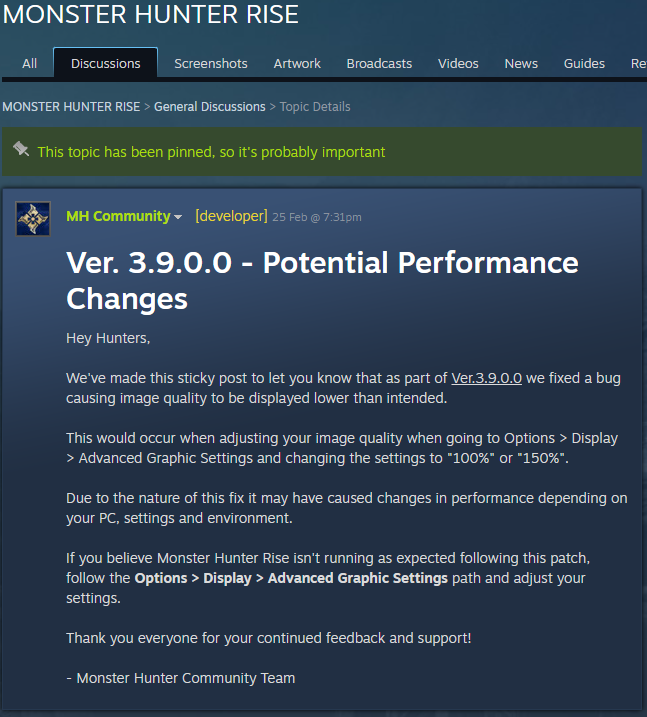
Ver. 3.9.0.0 - Potential Performance Changes

We've made this sticky post to let you know that as part of Ver.3.9.0.0 we fixed a bug causing image quality to be displayed lower than intended.

This would occur when adjusting your image quality when going to Options > Display > Advanced Graphic Settings and changing the settings to "100%" or "150%".

Due to the nature of this fix it may have caused changes in performance depending on your PC, settings and environment.

If you believe Monster Hunter Rise isn't running as expected following this patch, follow the Options > Display > Advanced Graphic Settings path and adjust your settings.

Thank you everyone for your continued feedback and support!

- Monster Hunter Community Team
Reference Material 6
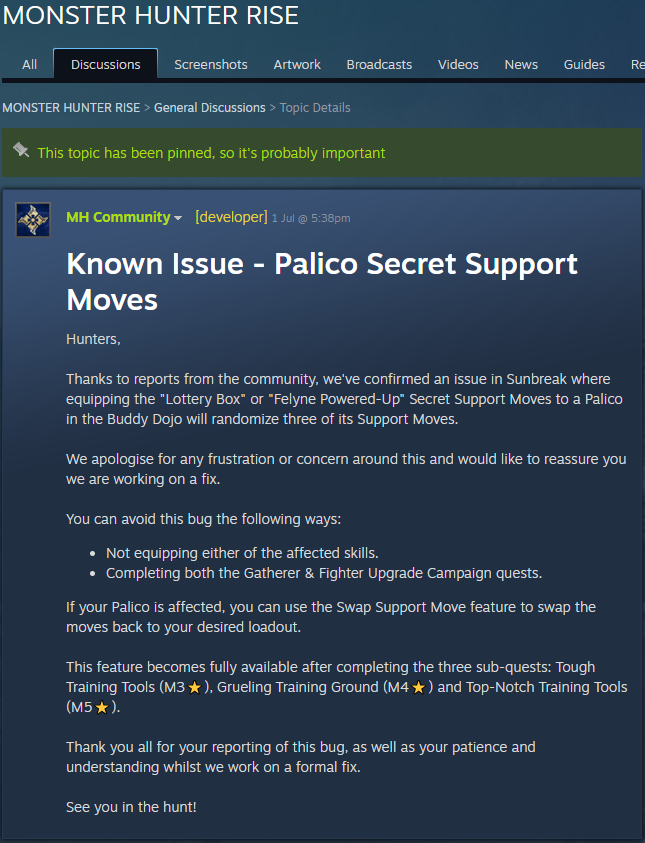
Known Issue - Palico Secret Support Moves

Hunters,

Thanks to reports from the community, we've confirmed an issue in Sunbreak where equipping the "Lottery Box" or "Felyne Powered-Up" Secret Support Moves to a Palico in the Buddy Dojo will randomize three of its Support Moves.

We apologise for any frustration or concern around this and would like to reassure you we are working on a fix.

You can avoid this bug the following ways:
  • Not equipping either of the affected skills.
  • Completing both the Gatherer & Fighter Upgrade Campaign quests.
If your Palico is affected, you can use the Swap Support Move feature to swap the moves back to your desired loadout.

This feature becomes fully available after completing the three sub-quests: Tough Training Tools (M3⭐️), Grueling Training Ground (M4⭐️) and Top-Notch Training Tools (M5⭐️).

Thank you all for your reporting of this bug, as well as your patience and understanding whilst we work on a formal fix.

See you in the hunt!
Reference Material 7
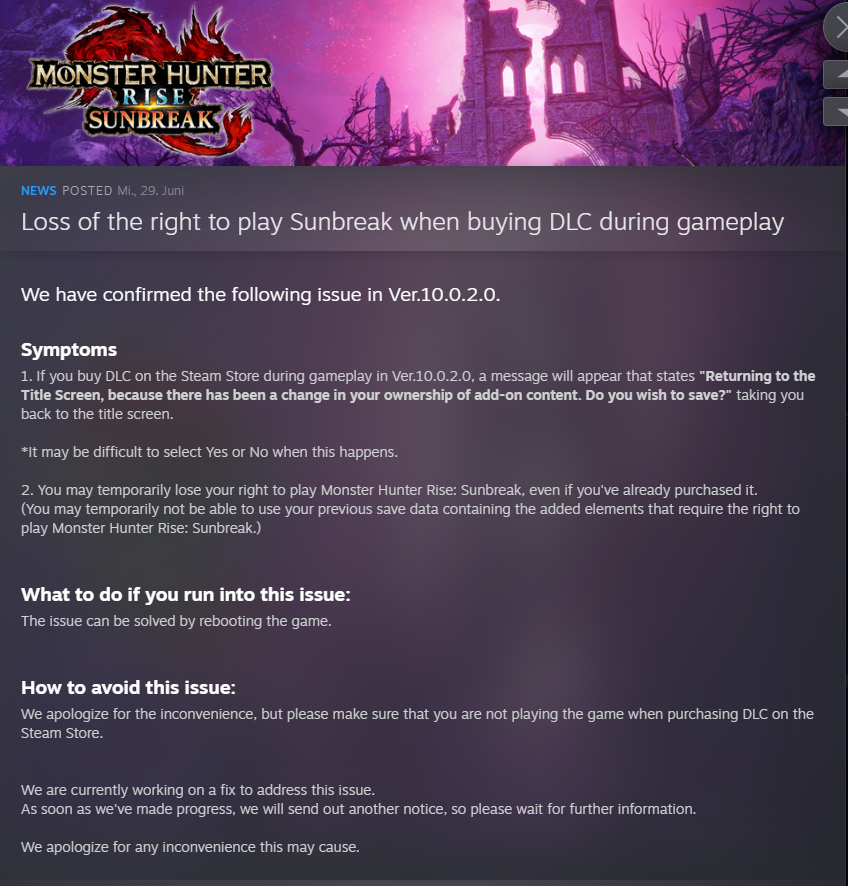
Loss of the right to play Sunbreak when buying DLC during gameplay

We have confirmed the following issue in Ver.10.0.2.0.

Symptoms
1. If you buy DLC on the Steam Store during gameplay in Ver.10.0.2.0, a message will appear that states "Returning to the Title Screen, because there has been a change in your ownership of add-on content. Do you wish to save?" taking you back to the title screen.

*It may be difficult to select Yes or No when this happens.

2. You may temporarily lose your right to play Monster Hunter Rise: Sunbreak, even if you've already purchased it.
(You may temporarily not be able to use your previous save data containing the added elements that require the right to play Monster Hunter Rise: Sunbreak.)


What to do if you run into this issue:
The issue can be solved by rebooting the game.


How to avoid this issue:
We apologize for the inconvenience, but please make sure that you are not playing the game when purchasing DLC on the Steam Store.


We are currently working on a fix to address this issue.
As soon as we've made progress, we will send out another notice, so please wait for further information.

We apologize for any inconvenience this may cause.
About the Sources
"Okay, I have to ask: why the extensive documentation of the sources?"

Everybody can look them up if they want.
They are publicly available.
They are easy to access.
They are easy to understand.
They are what the official representatives of Capcom provide.

So why am I presenting or rather safekeeping them here with this guide?

The reply would be "for self-defense".

There is nothing new in what I wrote as troubleshooting hints for people to use. In fact nearly everything is already covered in one way or another, some even better, by the official forums posts. And yet people seem to ignore them or worse. Like with the checklist the one trying to help players have put plenty of efforts to give the hints to troubleshoot. But a lot of customers do not respect that by various means. Keeping the resources like this is similar to ~ "I told you so".
About this Guide
Hold up a minute!
So if basically everything I have mentioned in this guide is more or less already covered by the pinned forums threads by Capcom Customer Support - what is this guide for?

As mentioned at the beginning: it serves as an inspiration and is a collection of information which can be helpful for troubleshooting and understanding why certain questions are asked the way they are asked.

Mainly however it serves as reference work for future issues. It is also somewhat an attempt to make it clearer to people that troubleshooting is no easy task, especially due to the countless possibilities. After getting so many hateful comments which shows arrogance and people being ungrateful I am inclined to leave everything to the officials and the paid customer support agents by Capcom. They have it not easy.

I hope this guide makes it also clear, that a lot of people should probably consider sticking with consoles, rather than trying PC gaming if they have the wrong mindset.

One of the many comments which bother me most "I do not have that issue with any other game" unnerves me more than it should be. To give you an analogy which meets the current Zeitgeist, it would be like long-term-conditions after vaccinations. Just because an issue appears now, does not mean it did not exist before. It might just be triggered to show itself. Most likely it would appear anyroads later on, regardless whether it is caused by the vaccination or not. And even if it got triggered by the vaccination - better that way than by the actual sickness which endangers you.

I see the analogy fitting perfectly in storage device issues. With a lot of people not treating their PC with enough care, there could be always an issue. It just happens that with Monster Hunter Rise you have a more "sensitive" app, in comparison to others. It could be as well that it just happened that a certain defective sector in your storage has been addressed by installing the new game. That is no reason to me to blame the game. And that is what most user complaints are: a symptom of an issue they have had before, regardless whether it is with Monster Hunter Rise or not.

"I do not have that issue with any other game" means nothing to me, aside from the fact that not every game is the same. And I assure you, in more than 99% of the cases, all the kind of issues players are reporting on the forums can be tracked back to bad user handling. While those who understand how their PC work and treating them well have hardly any issues they cannot treat by themselves.

Thankfully the game is also available for the Nintendo Switch ~