VUP
Not enough ratings
How to use VUP Leap Motion capture?
By VUP Official
You can realize real-time tracking of arms and fingers through VUP's Leap Motion capture.
For Leap Motion capture, VUP supports "desktop mode" and "HMD neck hanging mode".

Remeber :VUP only supports the third generation of Leap Motion!

This article will tell you how to use VUP Leap Motion capture.
   
Award
Favorite
Favorited
Unfavorite
Part 1 Settings for Leap Motion
VUP only supports the third generation of Leap Motion!

1. Download the configuration driver
Download[course-1259765984.file.myqcloud.com]

2. Plug in Leap Motion

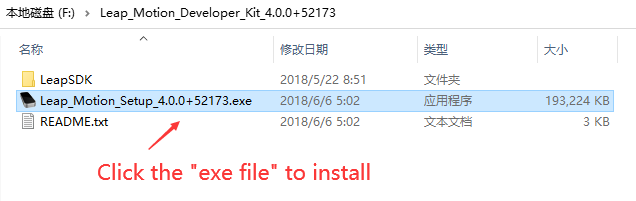
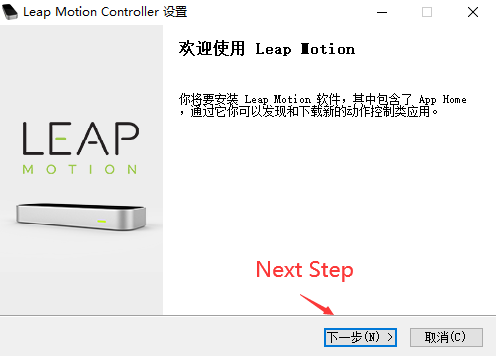
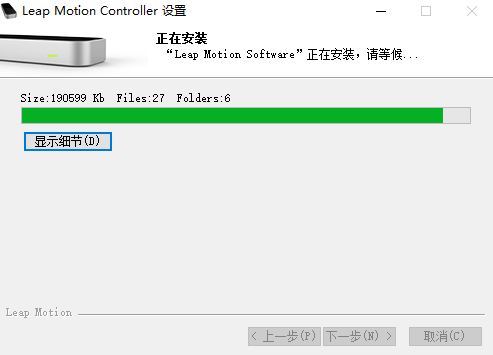
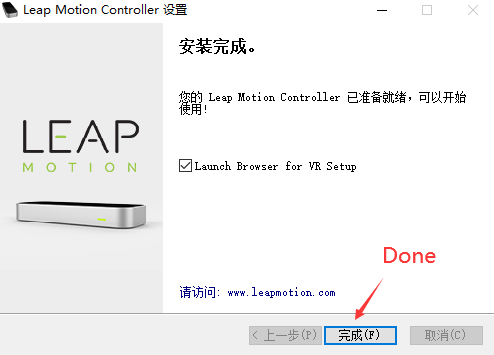
3. Install the configuration driver
Follow the prompts to install


4. After finishing the installation, the leapmotion icon will appear in the taskbar.

Double-click this icon to enter the leapmotion setting interface
As shown below
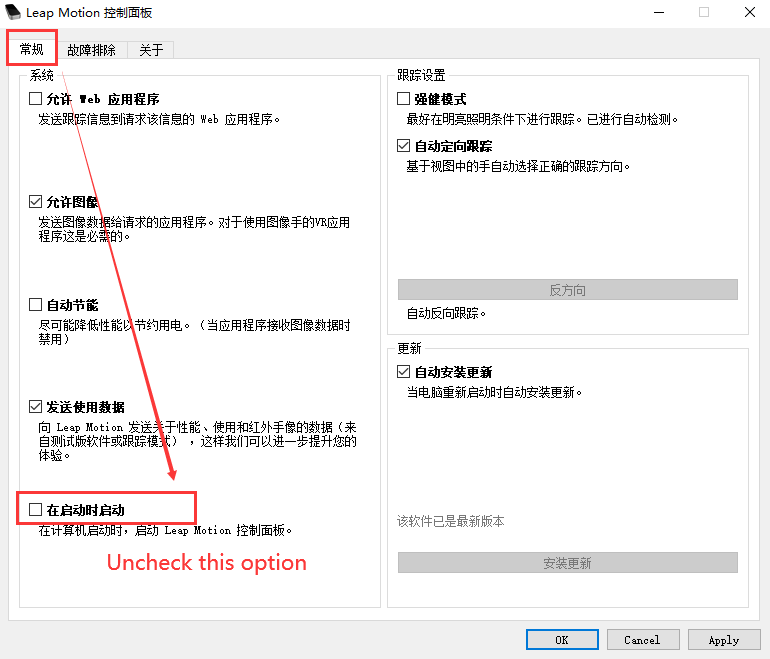
(1) Click the tab【常规】 -> Uncheck the option of 【在启动时启动】

As shown below
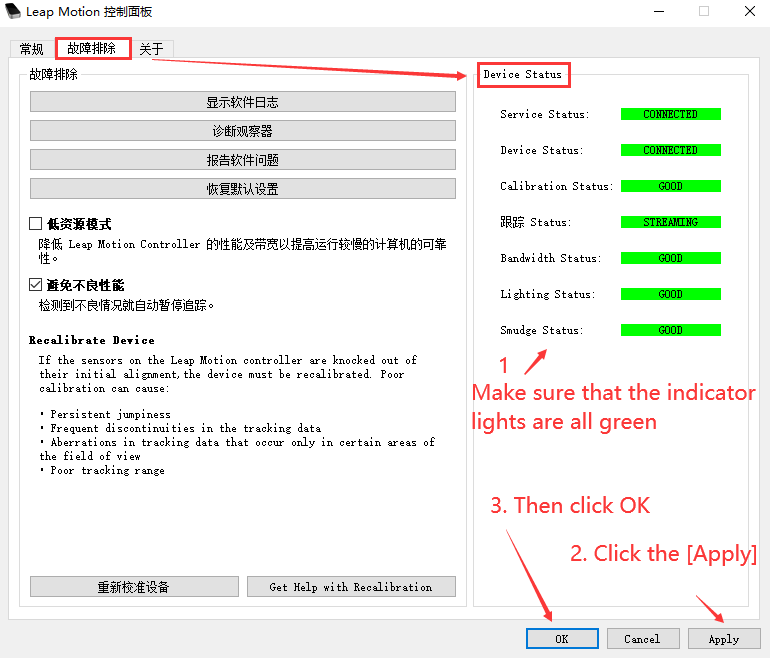
(2) Click the tab【故障排除】 -> Make sure that the indicator lights under 【Device Status】 are all green -> Click Apply -> Click OK

Part 2 Settings of Leap Motion in VUP
For Leap Motion capture, VUP supports "desktop mode" and "HMD neck hanging mode".
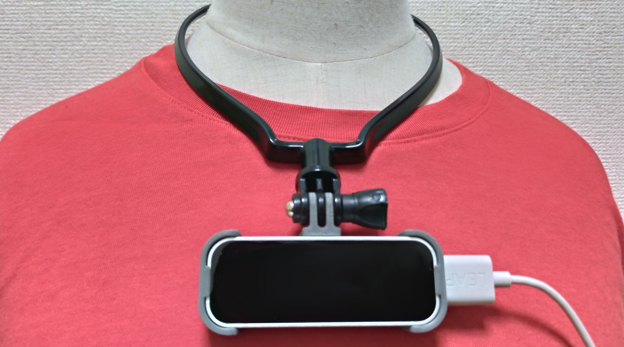
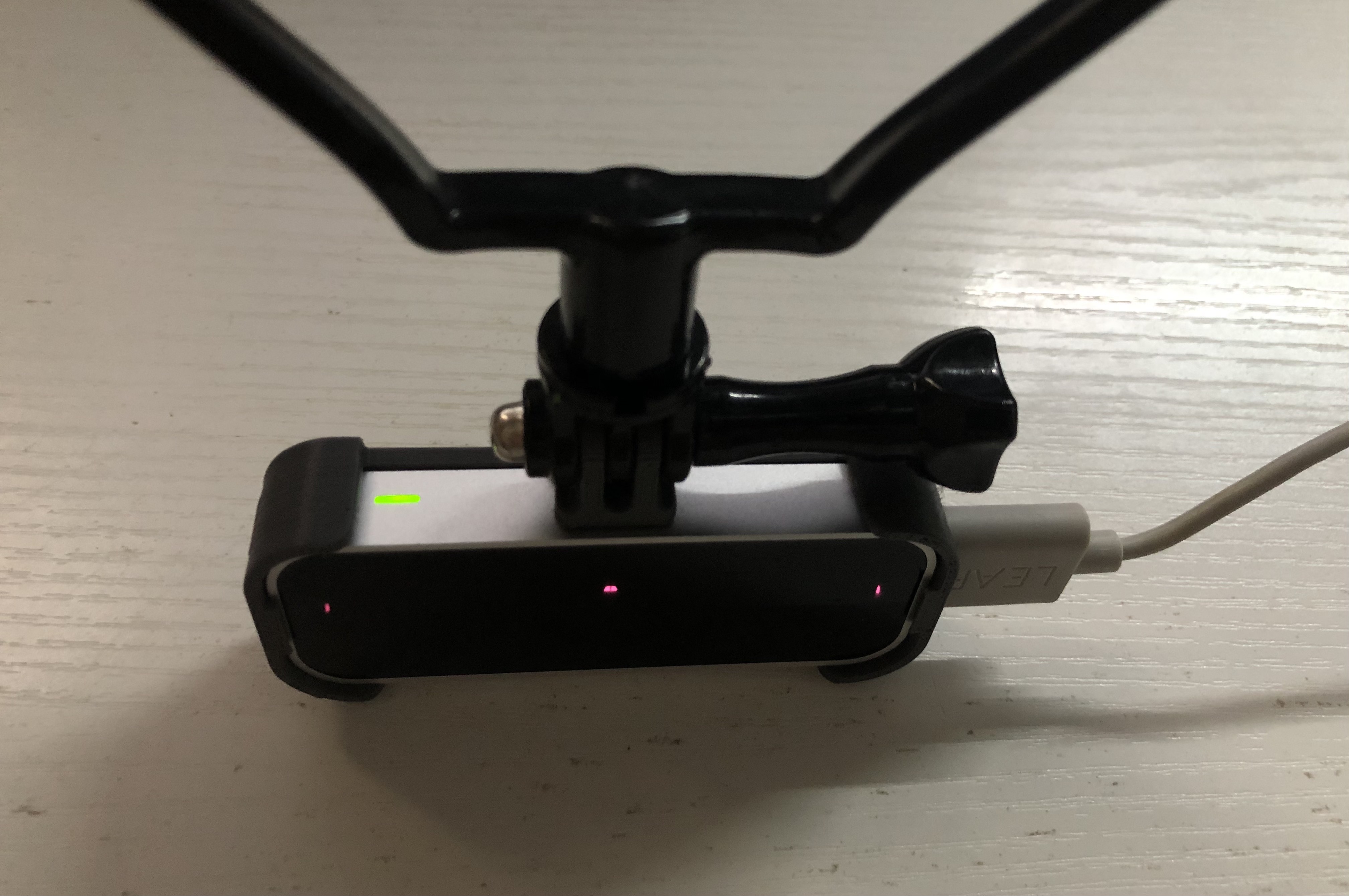
For HMD mode, you can prepare a hanging neck device to fix Leap Motion.
For example, as show in the picture below.

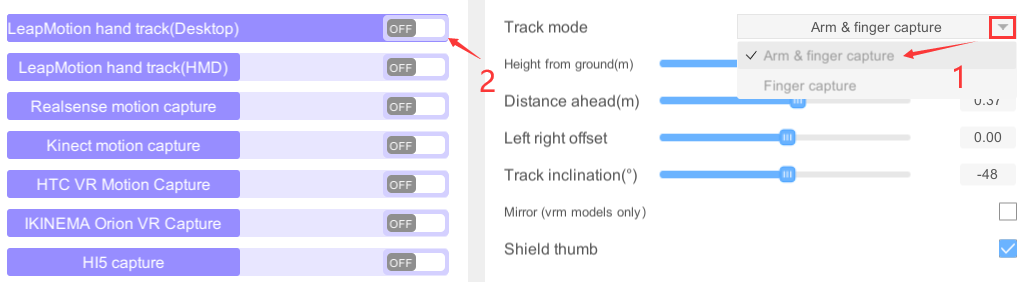
1. Customize the capture mode and enable Leap Motion capture

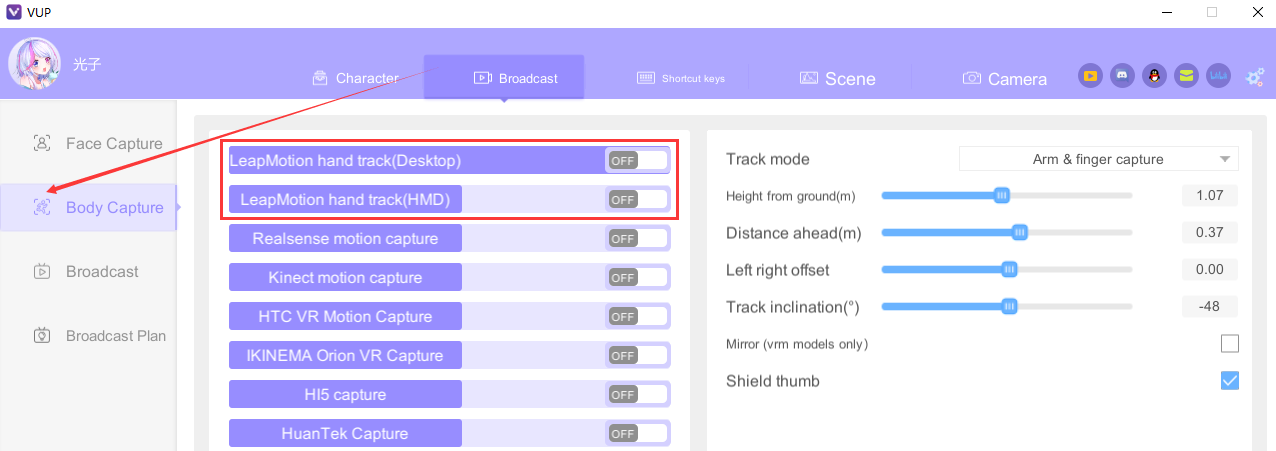
(1) Finger capture: select this mode, only capture your fingers in real time.
(2) Arm & finger capture: select this mode, not only can track your fingers in real time, the arms can also be tracked in real time.
Click 【OFF】 on the right side of 【Leap Motion hand track】to enable Leap Motion capture.

* Notes
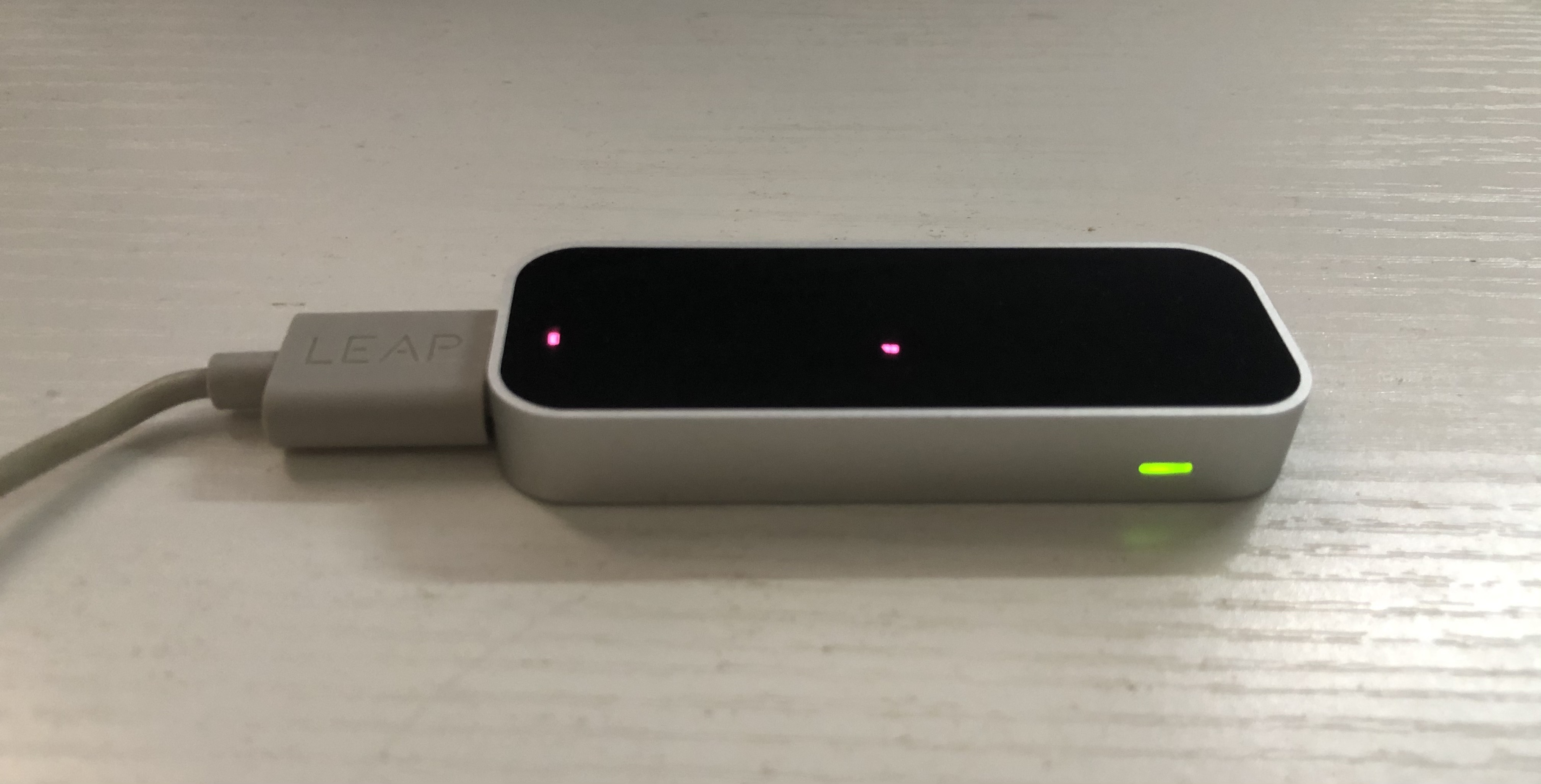
  • For better tracking, when using Leap Motion capture of the desktop mode, please lay Leap Motion flat on the desktop, with the yellow indicator facing you and the yellow indicator to the right (as shown in the figure below)
  • For better tracking, when using Leap Motion capture of the HMD model, please place the side with the yellow indicator light upwards (as shown in the figure below)


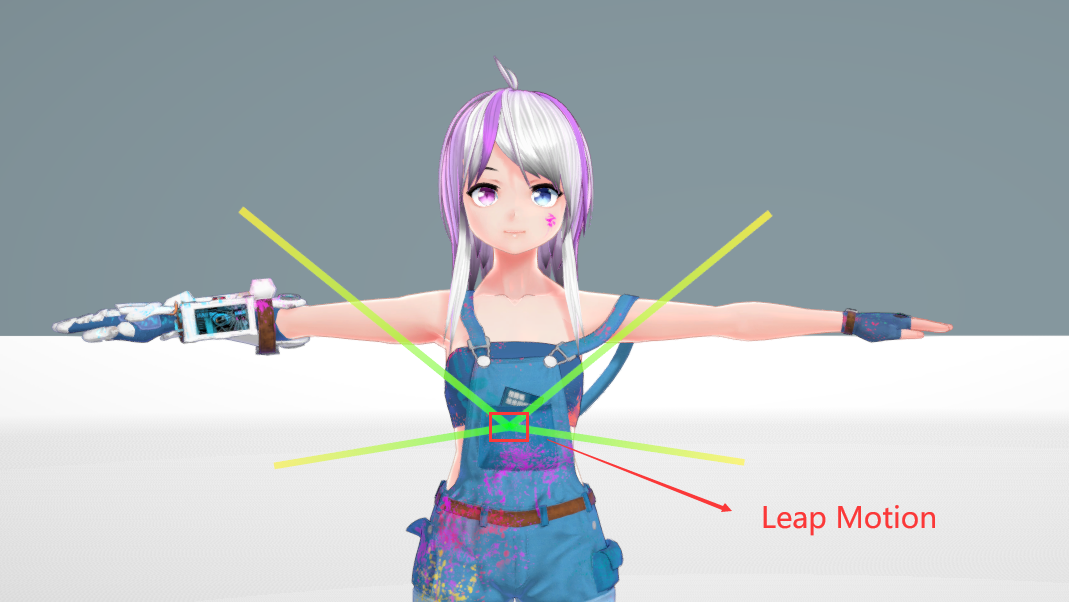
2. Leap Motion offset adjustment
When you enable [Leap Motion capture], as shown in the figure below, a yellow-green Leap Motion adjustment axis will appear, where the intersection of the axes is where Leap Motion is located.
For details, please check the link (video) below

3. Mirror
This function is only applicable to vrm models.
For details, please check the link (video) below

4. Shield the thumb
For details, please check the link (video) below

Thanks [椛暗_Official] for authorizing the pmx model for the video demonstration of this tutorial.
PMX MODEL DL[bowlroll.net]
5 Comments
VUP Official  [author] 12 May, 2022 @ 7:41pm 
calibration? pose edits? What are you referring to?
Regarding the hand movement, you can follow the part 2 of this tutorial, then try again?
Alexer Zoderia 12 May, 2022 @ 12:08pm 
Ok Good news, I got it working, however it doesn't pick up well on my hand movements, even with calibration. Also my pose edits dont load or take so idk what's the deal with that.
Alexer Zoderia 12 May, 2022 @ 11:05am 
Will VUP ever use the new Driver?
VUP Official  [author] 12 May, 2022 @ 1:47am 
I remember the Leap Motion driver for Vseeface is Gemini v5?
But VUP has not upgraded the driver, and still uses the old driver (that is, the driver provided in this tutorial)
If you want Leap Motion to work in VUP, please use the driver from this tutorial
And please uninstall the latest driver(Gemini v5) before installing the older driver
--------
Oh... sorry .. the driver link in this tutorial is blocked by steam
But I put it on pinned comment of this video
https://www.youtube.com/watch?v=IcsnpxKGoyA&list=PL0wy6aiaHa7J4Qwa1fjN9QEJ3Kqu3R-uR
Alexer Zoderia 12 May, 2022 @ 1:23am 
Sorry to bug, but I'm having an issue setting up the Leapmotion. When I pull up the software and look at the device status, I get 1 Red Line and the rest are black, as apparantly it does not detect the device. I've found no solutions for this online, and VseeFace seems to have no issues, as it hand-tracks near-perfectly.

Are there any added steps I need to take to get this working right?