Strike Vector

Strike Vector

Not enough ratings
How to fix the missing "Move Forward" bind
By Umbreon™
This guide will show you, step by step, how to fix the missing "Move Forward" bind setting which you might have lost during remapping your controls in the in-game options menu. It is purely outside the game, only editing configuration files safely.
   
Award
Favorite
Favorited
Unfavorite
About this guide
It seems this guide isn't so useful. You probably can just click the "Reset" button which is VERY hidden at the bottom of the Options window in the interface. The button is right below everything, but it's on the border. But you can still use this if for whatever reason the button doesn't help you with this.

Like the title says, this guide will show you how to edit the configuration file that has the "Move Forward" setting which you might be missing (and are here for this reason).

I made this guide because "rebinding" W and Z and A and C or something like that simply didn't work for me, so I made this for whoever can't get it working. (Also because I failed to see the extremely hidden Reset button)

**This guide assumes you're using the default installation path for Steam.**
STEP 1: Reaching your config files folder
First of all, you will have to navigate through your folders, to Strike Vector's installation folder and into the config folder inside this.

Open the file explorer. It's often by the bottom left of your task bar (the bottom bar on your screen).
Once it's open, Go to "Computer" or "Local Disk (C:)". Double click Local Disk (C:).

From here, go through these folders as following:
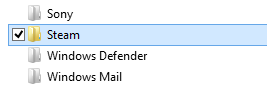
Program Files > Steam > SteamApps > common > StrikeVector > UDKGame > Config

You're now in the required config folder, and can move to Step 2.
STEP 2: Editing the file
Now that you're in the config folder, you will see alot of files with the .ini extension.

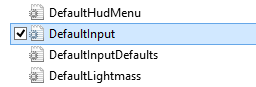
Look for the file that goes by DefaultInput.ini. This is the file you need to edit.

Open the file with Notepad or with your favorite text editor.

You'll see alot of text like if it was in a different language. Ignore it for now.

Press the CTRL+F combination (can also be CTRL+B on some programs) to open the "search" pop-up window.
In here, type GBA_MoveForward | GBA_PostCombustion (you can copy and paste this into the search bar) for it to search. You might need to check the box "Down" for it to actually give you a result.

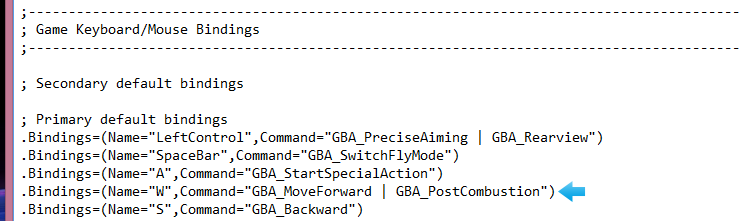
It will direct you to this text line:
.Bindings=(Name="*a button*",Command="GBA_MoveForward | GBA_PostCombustion")
Where *a button* refers to whatever it might say, it can be anything like Z or Q, or even LeftShift.


Make sure this text line goes under the "Game Keyboard/Mouse Bindings" section inside the config file, or else you might be editing something else.

Now that you've found the correct line, click on where it says Name="*a button*" and replace whatever button/bind it might show with W, or whatever you want to be your "Move Forward" AND Post-Combustion button.

It should look like this if you used W:

.Bindings=(Name="W",Command="GBA_MoveForward | GBA_PostCombustion")

If it's like this, we're pretty much done now. Make sure to save the text file!
STEP 3: Finishing up
Make sure you saved the text file. Close it, and go ahead and launch Strike Vector.

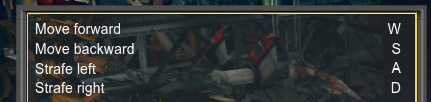
In the in-game options menu you can now see "Move Forward" on the list. If for whatever reason you see multiple binds for the same setting, click any of the two and set it to the button you want that action to be, but do it carefully.


And you're done! You can now use the Move Forward button in Vector Mode freely.
16 Comments
Umbreon™  [author] 6 Feb, 2014 @ 5:54pm 
It's okay, I know how you feel.
[Q7] Ipushiron 6 Feb, 2014 @ 5:15pm 
sorry been getting a little stressed latley i get easily irratated when im stressed / anxious. i been trying to balance so much right now i find it hard not to get irratated
Umbreon™  [author] 6 Feb, 2014 @ 5:05pm 
...Actually, when I was about to upload the screenshot, I found the reset button. It's way too hidden and mixes up with the interface at the bottom... But still no reason to be so rude, you could have only told me where it was.
[Q7] Ipushiron 6 Feb, 2014 @ 3:49pm 
alright send me a screen shot
Umbreon™  [author] 6 Feb, 2014 @ 11:26am 
Yes. It has partial gamepad support.
fataliskain 6 Feb, 2014 @ 10:17am 
can u play this game with gamepad ??
Umbreon™  [author] 5 Feb, 2014 @ 6:33pm 
No need to be rude... I can give you a screenshot if you want. There is no reset button anywhere.
[Q7] Ipushiron 5 Feb, 2014 @ 6:24pm 
ok pull your head out of your ass and use your eyes there is a reset button on the bottom of each catagory of the options menu. but you have to complete everything else in this tutorial. in step 3 it says to rebind the extra move foward to a random unused key. instead of giving it an alternate binding you just have to click reset.
Umbreon™  [author] 5 Feb, 2014 @ 5:25pm 
I haven't seen a "reset to default" button anywhere. Ever.
[Q7] Ipushiron 5 Feb, 2014 @ 1:48pm 
what im talking about is after you do all the stuff in the steam files you launch the game and when you see the two commands that are the same there should be a button in the menu to reset to the default also make sure you are saving the config sheet as well as checking that it is the right code