Dota 2
42 ratings
Dota2 Flex Animation Guide
By Bigpet
An in-depth guide into Flex animations which shows how to open, edit and create face animations for cosmetics in dota2
   
Award
Favorite
Favorited
Unfavorite
WORK IN PROGRESS
this guide is currently incomplete, if you have questions or some helpful additions, leave a comment

There's a new compiler called Crowbar that is able to export flex frames and flex controller from *.mdl files.

Here's a video that contains the guide in video form if you need some help with understanding my descriptions
What are Flex animations?
This guide is all about Flex animations but what are they? The short of it is "It's the kind of animation that dota2 uses to animate faces in the portrait" you can read on for a more detailed explanation but it's only background information.

Most animations in modern computer games are so called "skeletal animations[en.wikipedia.org]" meaning that they are driven by underlying hierarchies of "bones" or "joints". These enable the artists to easier animate body motions than the older vertex animations which moved models point by point and frame by frame (which is not really practical anymore with character meshes upwards of 20000 polygons) and on the programmer side enable easier compression of animations and allow for easier dynamic animations (like setting the foot position correctly onto both sloped and level terrain). The drawback is that the complexity of skin deformations in the face maps rather badly onto the hierarchical "joint" paradigm. That is why for detailed face animations many games (movies use more complex deformer setups but these aren't as well suited for real-time animations) use a form of vertex animations where they create multiple expressions of the face and then blending and mixing multiple expression to create animations. Valve calls this Flex animation but it also goes by "Shape Keys", "Blend Shapes", "Morph Shapes" and similar terms. The specifics about how this form of animations is done in the Source engine read the Valve Developer Wiki entry for the topic.
How to open models with Flex controllers (with the Half-Life Model Viewer (hlmv))
The Half-Life Model Viewer is just as the name indicates merely a model-viewer and is mainly useful for testing and previewing purposes. It's included in the Source SDK. The more recent version from old to new are
  • the Alien Swarm SDK (found under Library->Tools in Steam, free)
  • CS:GO SDK (only available to owners of the game afaik)
  • Source Filmmaker (recommended and what I use)

Extraction of Game files

In order to view the models and their Flex handles in the model viewer you need to extract the dota2 game files with GCFScape and setup the SDK which is described in Cyborgmatt's Blog[www.cyborgmatt.com]. It uses the CS:GO SDK but it works basically the same in the Source Filmmaker though. The only difference is that you start with step 5, install Source Filmmaker then select "Lanch SDK" on startup, step 6 is "Create New Mod or Add Existing Mod", step 7 is creating a new mod under any name you want and then click "Open Game Directory in Explorer" and then extract the *.vpk file into that folder. So it's modified step 5, 6 and 7 then 1,2,3,4 and then the rest.
Originally posted by Note:
Maybe, rewrite the instructions because this is quite confusing

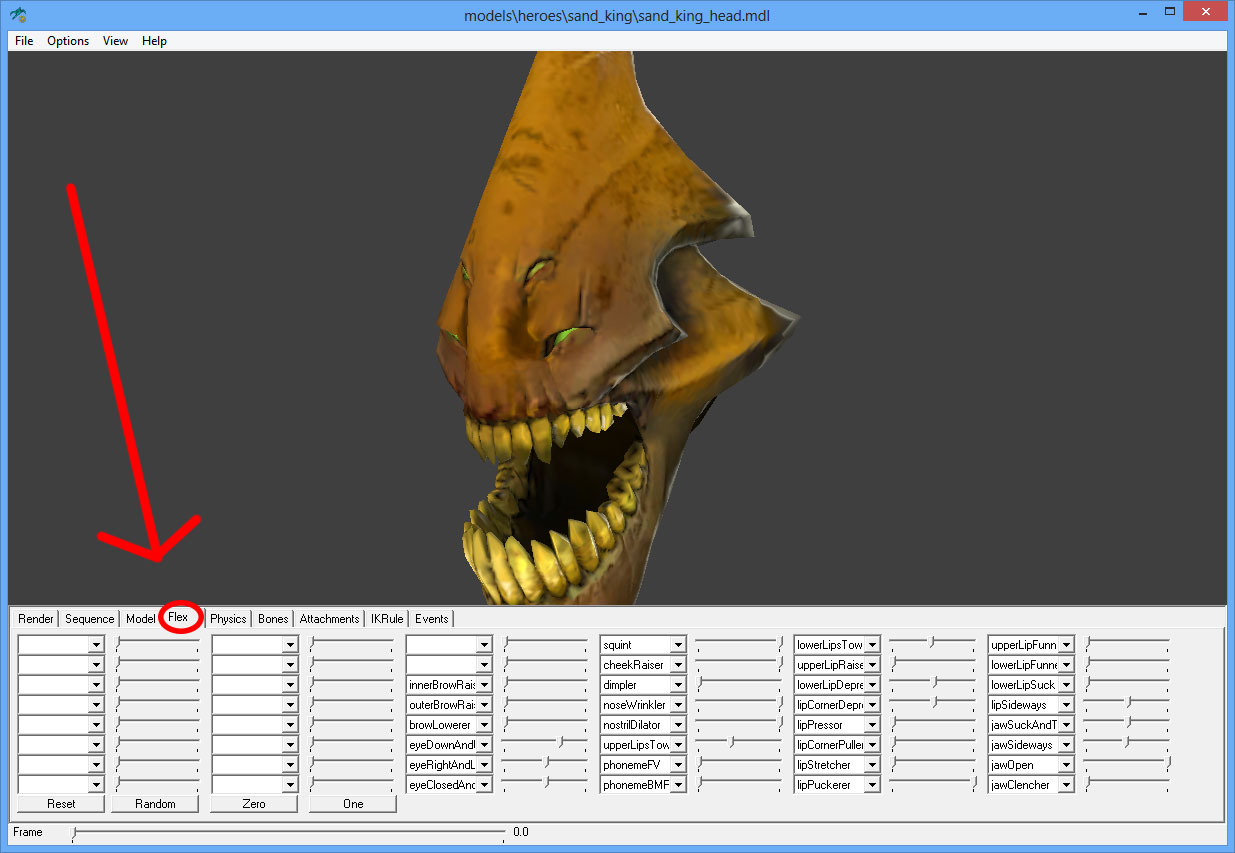
Pic01: Flex tab in hlmvOpening files in hlmv

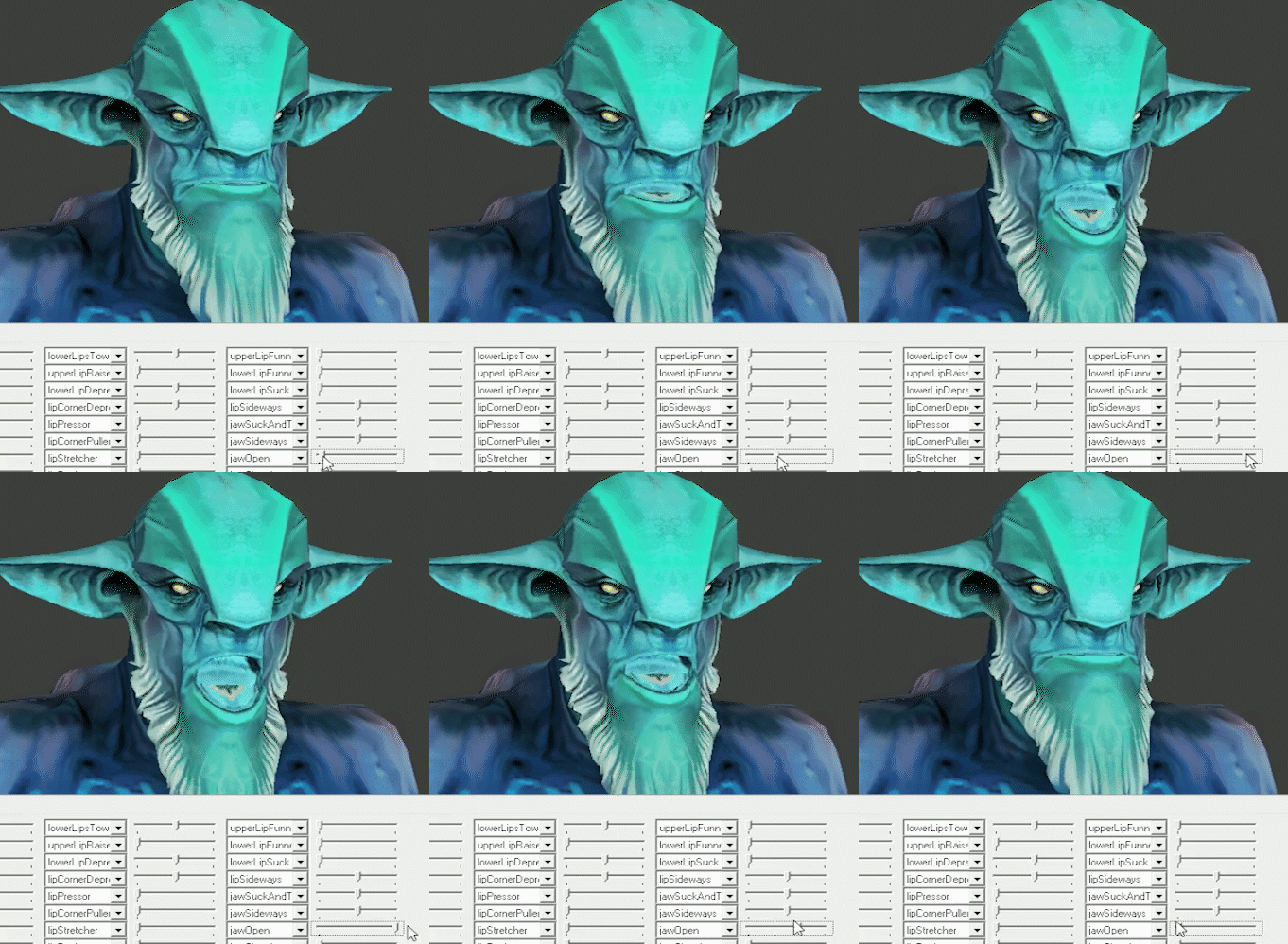
Now that you've set up the SDK open up a model with flex controllers (either base models that include an animatable face like [ROOT]\models\heroes \leshrac\leshrac.mdl or a head slot that includes a face like [ROOT]\models\heroes\sand_king \sand_king_head.mdl). Now switch to the flex tab as indicated in Pic01. If you move the sliders you should see the face change (look up how to navigate hlmv in the wiki if you have trouble aligning the camera to see the face)Pic 02: Flex controller demonstration like shown in Pic02. If it doesn't animate there's multiple settings you can check. You have to use the "File->Load Model ..." or "(Steam) File->Load Model..." options to load the head and not the "Load Weapon" options. Then you have to make sure to uncheck "Software Skin" in the "Render" tab. Because the lod1 models used for the battlefield typically don't have flex animations you have to make sure that in the "Model" tab "Auto LOD" is disabled and the combo box underneath is set to "0".

This can also be used to preview your own models after you compile them into a *.mdl compiler but being able to manipulate flex controllers in hlmv doesn't indicate whether or not they'll work correctly in dota2.
How to open models with Flex controllers (with Maya)
Obtaining the Hero Models

You can download the source model files for heroes that have cosmetics enabled on the Dota Workshop page. These include *.ma, *.fbx and *.smd versions of the models. The *.smd versions don't include any Flex controllers, so we can disregard those. The *.ma files only open correctly if you have the binary Valve Maya plugins installed (they only work up to Maya 2012 and just for the x86 versions). So it's probably best if we use the *.fbx files.

Opening the *.fbx files
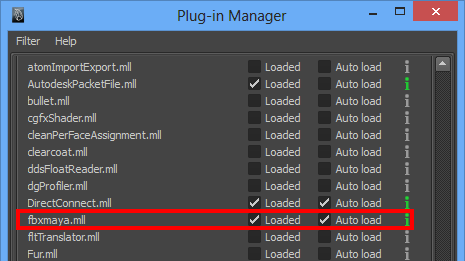
Pic 03: plugins dialog with the fbx plugin highlighted
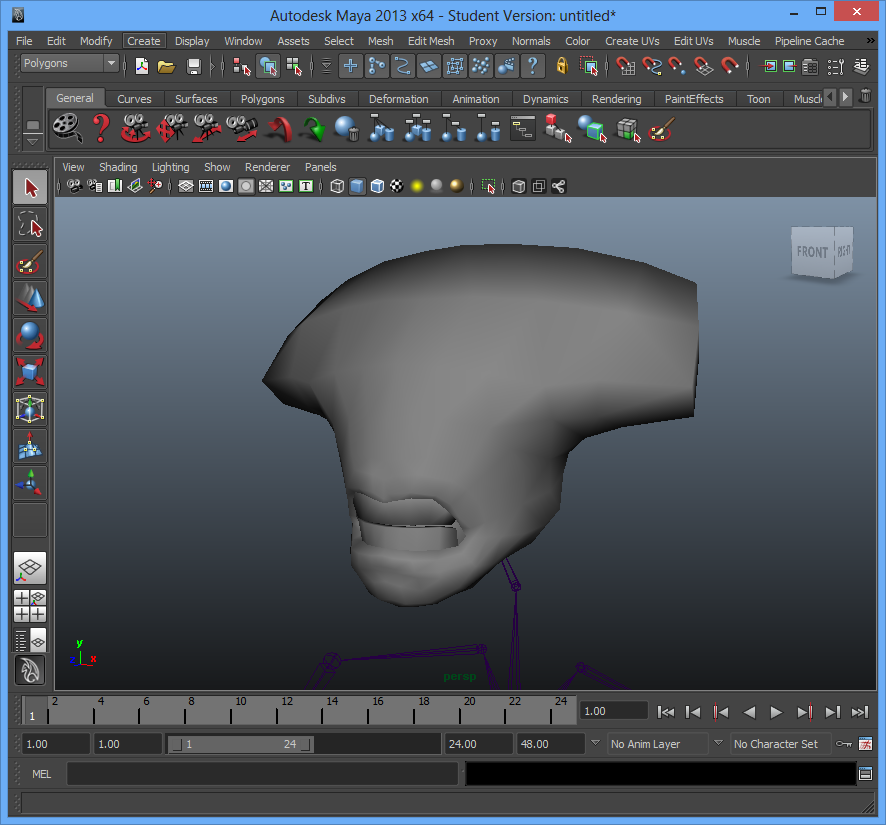
Let's do this for example for Faceless Voids head. After downloading and unpacking the files import them into maya. First, make sure that the *.fbx plugin is loaded (it's included by default but you may need to update it if the import fails). Got to "Window->Settings/Preferences->Plug-in Manager" and make sure there's a check-mark under "Loaded" for "fbxmaya.mll". Onto the actual importing. Go to "File->Import" and open the model file, in this case faceless_void\fbx\fv_head.fbx. If you can't see the FBX file click the option box next to "File->Import" and under "General Options" set "File type:" to "Best Guess" and try again. You might see a warning on import but it should still work, if you don't see it just make sure nothing is selected and press "a" in the view to frame the whole scene.

Viewing the blendshapes

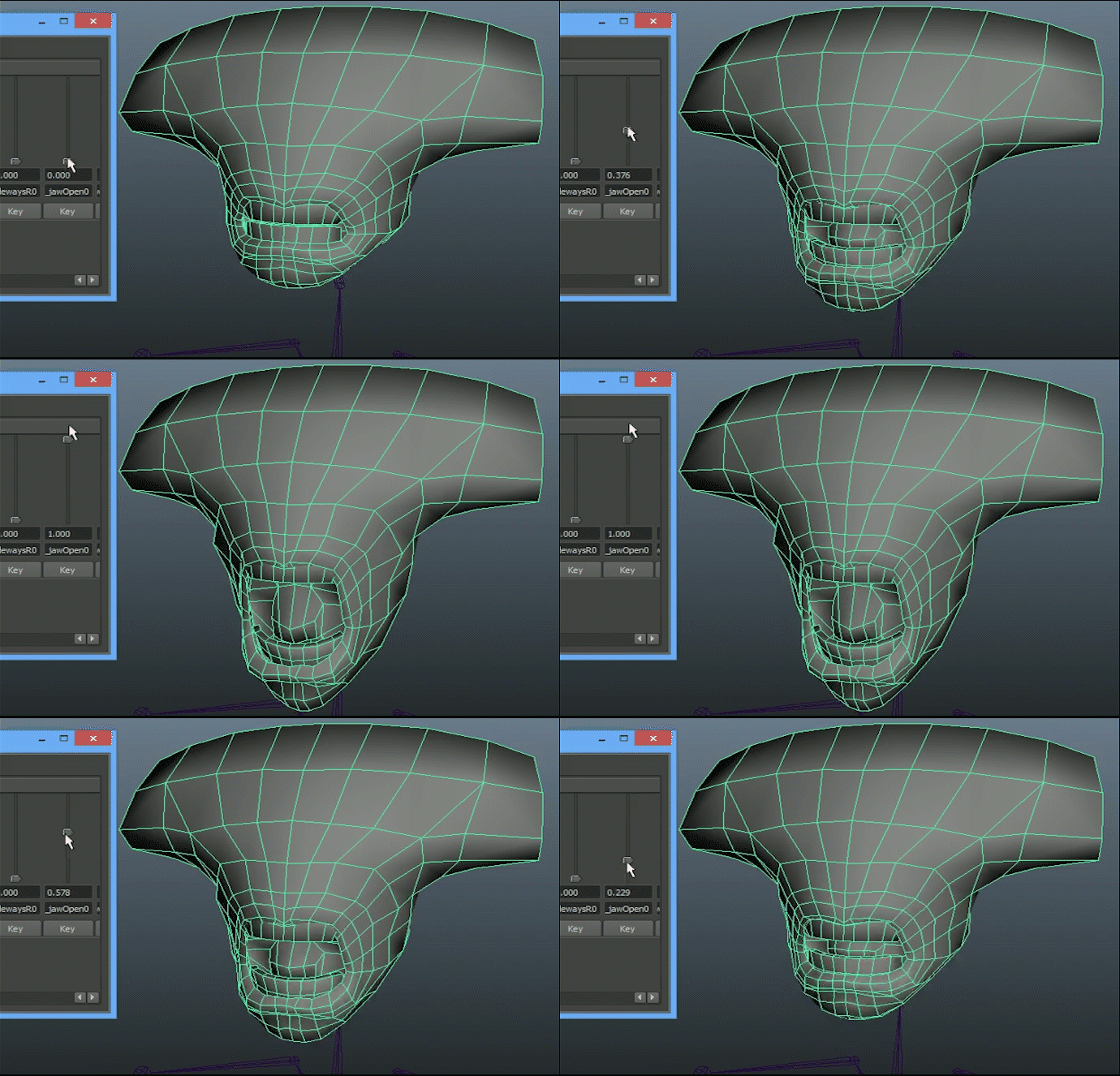
The actual node with the flex controller sliders is included in the fbx file (they're under Extra attributes) but they're non-function in maya. You can however view and manipulate the underlying blend shapes in Maya. (Details about how the targets relate to the flex controllers later)
Originally posted by Note:
Add reference to where it's explained
To see the those sliders just go to "Window->Animation Editors->Blend Shape" and there you can see how the different blend shapes affect the model.

Opening the *.ma files

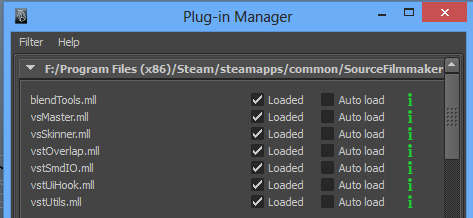
In order to view the *.ma files you need to have the Valve Maya plugins installed. These come with every version of the SDK. In Source Filmmaker these are located in Steam\steamapps\common \SourceFilmmaker\game \sdktools\maya . These require the 32-bit versions of maya and won't work on the 64-bit versions. First make sure that all the valve plugins are loaded in the plugin-manager, as shown in the picture to the right.

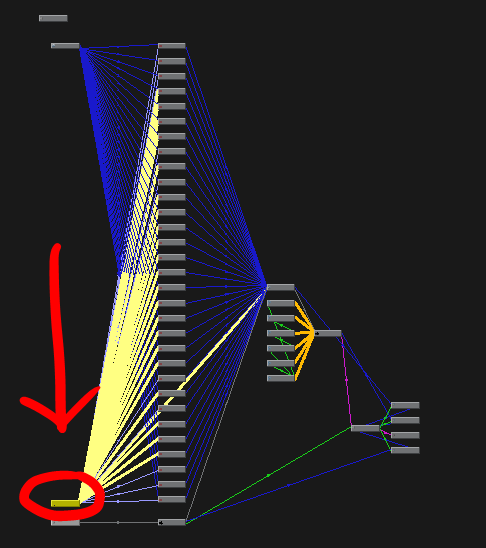
Sadly we are missing the file "PVstFlexSliderNode.py" which is crucial for creating our own Flex controllers. But we can play with the existing Flex controllers. For that you need to locate a node called "FlexSliderNode" you can either find it by name or select the head and open "Window->Hypergraph: Connections" and select the node highlighted in the picture on the right. Then open the Attribute Editor ("Window->Attribute Editor") and look under "Extra Attributes". There we can find all the same Flex controllers that can be found in hlmv. These are simple combinations of the Blend Shapes (+/-/min/max/etc) we saw earlier. You can even see exactly how by selecting the expression nodes connected to this node.
How to open models with Flex controllers (with Blender)
The same notes about obtaining the models as in the Maya section apply. The only difference is that Blender has no native *.fbx importer. The best one I've found is blenderfbx[blenderfbx.render.jp] (doesn't correctly import the skeletal animation but the shape keys work).

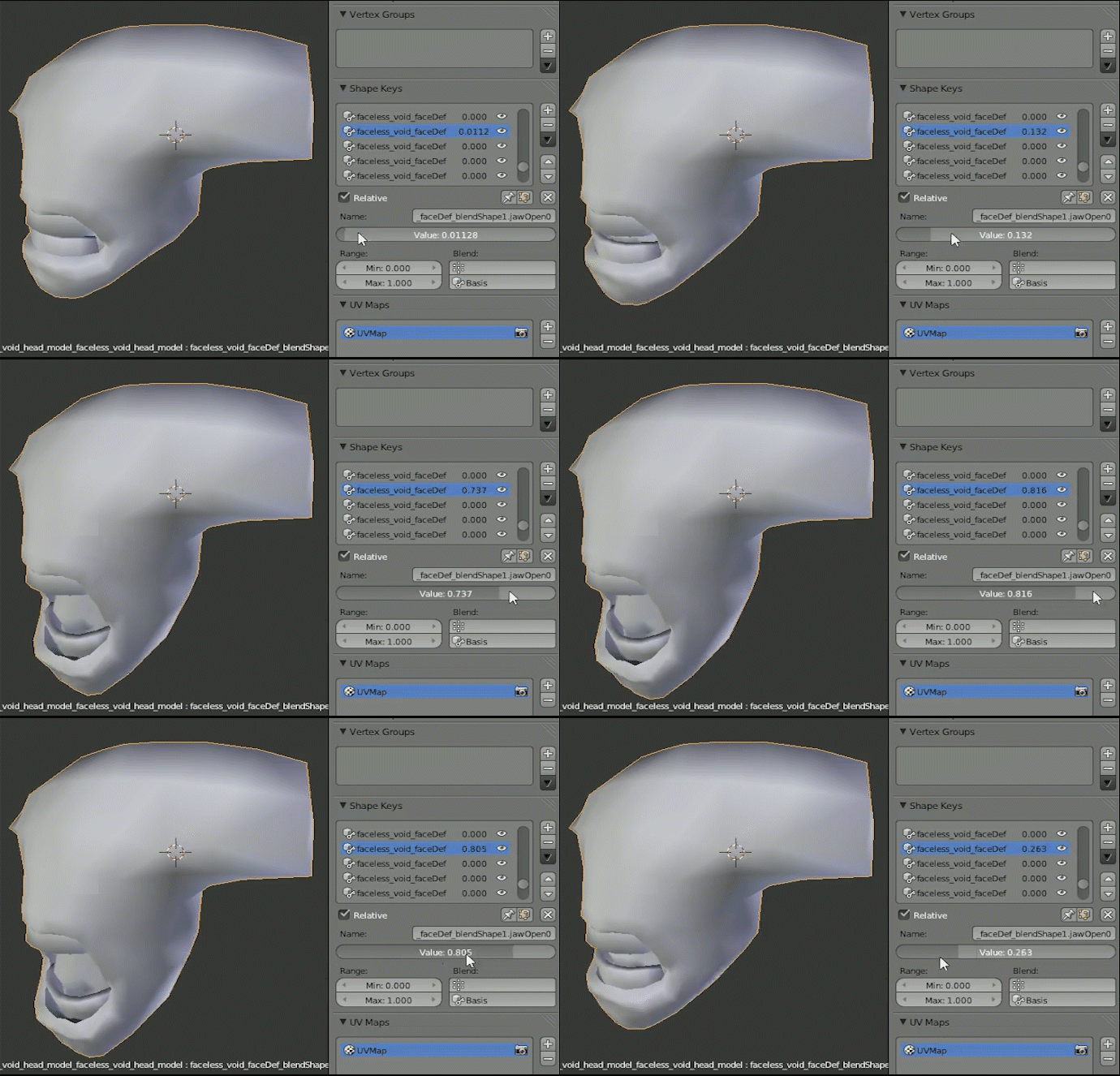
Manipulating the Shape Keys
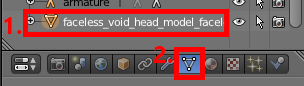
Pic 02: shows the outliner
First select the head model (either by right clicking it in the 3d view or left clicking it in the outliner as shown in Pic 02). Then put the properties panel into "Object Data" mode by clicking on the icon marked with 2. in Pic 02. Now you can see the shape keys in the property panel. You can select them and set their values and observe what changes just as in maya.
How to export Flex Animations (in Blender)
For Blender you need the Blender SMD Tools installed.

The rest of this section is faceless void specific
but can be easily adapted to other models if you extract the names and expressions from either the respective *.ma or *.dmx files.

Create Shape Keys for each Flex Controller source, for faceless void these are:
  • innerBrowRaiser
  • outerBrowRaiser
  • browLowerer
  • eyeUp
  • eyeDown
  • eyeLeft
  • eyeRight
  • upperLidRaiser
  • eyeClosed
  • squint
  • cheekRaiser
  • dimpler
  • noseWrinkler
  • nostrilDilator
  • upperLipsToward
  • lowerLipsToward
  • upperLipsPart
  • lowerLipsPart
  • upperLipRaiser
  • lowerLipDepressor
  • chinRaiser
  • lipCornerDepressor
  • lipPressor
  • sharpLipPuller
  • lipCornerPuller
  • lipStretcher
  • lipPuckerer
  • upperLipFunneler
  • lowerLipFunneler
  • lowerLipSuck
  • lipSidewaysL
  • lipSidewaysR
  • jawThrust
  • jawSuck
  • jawSidewaysL
  • jawSidewaysR
  • jawOpen
  • jawClencher
  • phonemeBMP
  • phonemeFV
  • eyeClosed__eyeUp
  • eyeClosed__eyeDown
  • jawOpen__lipCornerPuller
  • lipPuckerer__lowerLipFunneler
  • lipPuckerer__upperLipFunneler
  • lowerLipRelaxer
  • upperLipRelaxer
You can keep most of them identical to you base mesh but you should change the most expressive ones like "jawOpen", the phenomes and the LipRelaxers. You can also leave out the ones with the double underline "__" inbetween. They are corrective shapes that blend in when both shapes are activehttps://developer.valvesoftware.com/wiki/Flex_animation

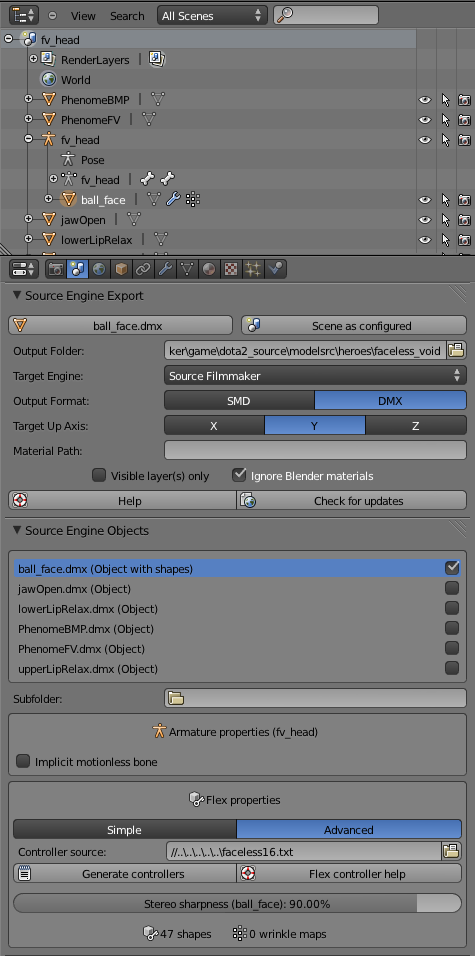
Then go into the scene settings (as displayed in the image) and modify the settings appropriately. This includes:
  • parenting the object under the armature
  • setting an output folder
  • setting "target engine" to "Source Filmmaker" (other settings might work better, haven't tested this extensively)
  • setting "output format" to DMX
  • setting "target up axis" to Y
  • set Flex properties to "Advanced"
  • set Controller source to the source DMX

Setting the controller source to a *.dmx file that is exported directly from the *.fbx or *.ma files produces errors on my PC. Which is why I extracted the relevant subtree for faceless void into its own DMX file here[mega.co.nz] (it's an ascii DMX file so you can open and edit it with a text editor). I however don't know whether the uuid hashes have to be unique across dmx files, so I can't guarantee that this method won't possibly create problems. I can only say that when I tested it, it worked.


Export with seperate SMD and VTA files

This requires you to create ALL the above listed Shape Keys (even renamed copies of the base are acceptable). Then export an *.smd and a *.vta file (set the target up axis to Z now), then download this *.qc file[mega.co.nz] and put it in the same folder and adapt the file-names.
Previewing the results in Dota2
WARNING: I DID NOT WRITE THIS PROGRAM AND JUST FOUND IT, I CAN'T GUARANTEE THAT IT HAS NO VIRUSES

I found this program simply titled https://mega.co.nz/#!Exon3AwK!YkdU91eInkvd8lIKA8blYTII5xpG0-kbyALR0DthMRE that is able to replace game files in dota2 which I used to pack my own compiled *.mdl files into the game

Import the *.dmx file into dota2 with the workshop importer. Then find the files in
F:\Program Files (x86)\Steam\steamapps\common\dota 2 beta\content\dota\models\items\<HERONAME>\<USERID>\<ITEMNAME>
and open the *.qc file. Modify the the "$modelname" name variable with the path to the model you want to replace, if you want to replace the default faceless void head for example the line would be
$modelname "heroes/faceless_void/faceless_void_head.mdl"
. Then compile the *.qc file, I like to use GUIStudioMDL but you can use any StudioMDL interface.

[qoute=Note]WIP[/quote] here's the result of my custom face attempt:
12 Comments
ВЫ АРЕСТОВАНЫ! 3 Jun, 2019 @ 2:39am 
Do you happen to know how to add flex animation to a simple animation? As an example, I can name an immortal hand on pudge's.
Hivoltage 15 Sep, 2017 @ 7:00pm 
None of the flex animations show up in Either Blender Nor Maya. Where can I get an example file that shows them. I have Maya 2013 with the tools nessary for DMX export and I tried Blender (Current version).
Hawf 27 Oct, 2015 @ 9:42am 
Spoke to the dota reborn devs about this subject and the new importer doesn't support morph data at the moment but valve have said they will make blend shape data for items if needed
Bigpet  [author] 27 Oct, 2015 @ 5:30am 
@MickeyMania I have no idea. This is mostly Source 1 stuff and I didn't test if the workshop accepts or integrates items with flex controllers.

There are a couple of Heroes that have dedicated jaw bones to attach items to, but if you're asking about flex stuff then maybe you should ask in the dota2 dev forums (although it seems to not get that many developer answers anymore)
Mickey 26 Oct, 2015 @ 4:04pm 
Is it possible to create workshop submissions that follow the facial animations? Such as a beard or a custom mouth.
OFDetected 18 Apr, 2014 @ 5:33pm 
Hey, great guide. Just a quick addition to it - instead of using that third party replacer app why not just add "-override_vpk" in the startup options of Dota 2 :)
Hawf 6 Apr, 2014 @ 5:49am 
I've been trying to use the same techniques seen here to work on clockwerk, but I can't seem to get it to import properly
vF 4 Apr, 2014 @ 1:50pm 
This is just awesome!! Thank you so much for sharing sir!! :D
Hawf 2 Dec, 2013 @ 7:44pm 
this shall proove helpful
thanks you :)
LetterSkilLs 18 Nov, 2013 @ 2:53am 
nice :)