001 Game Creator

001 Game Creator

53 ratings
Creating a Simple RPG Game(How to use 001 #1)
By Jimmy
This guide will go through the basic steps of creating a simple RPG game with 001 while teaching you various useful things about the engine which can be applied to pretty much any game. If you're just getting started with 001 then this tutorial can help you get on your feet.
   
Award
Favorite
Favorited
Unfavorite
Preparations
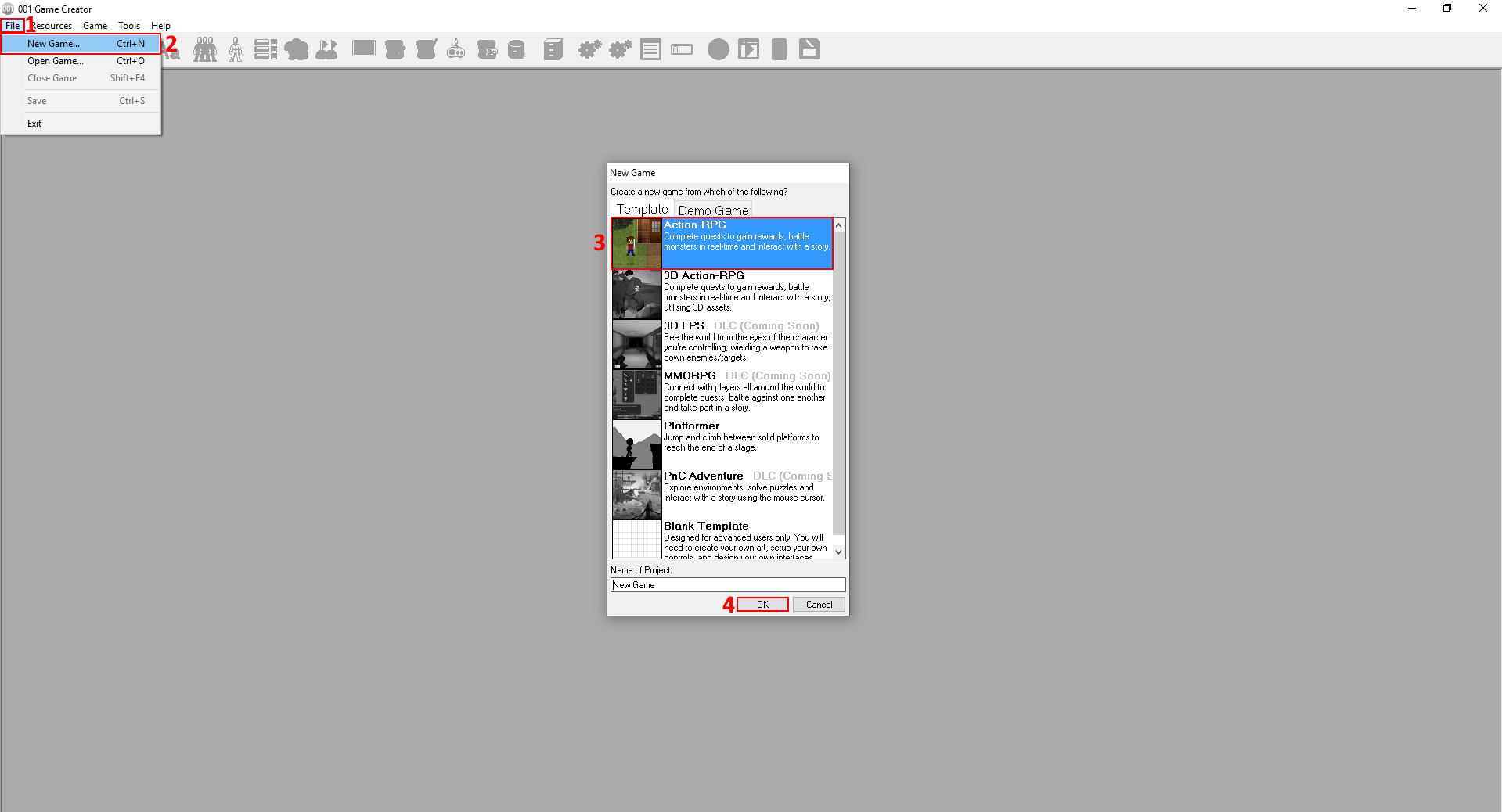
First we need to create a new game to work on. After opening 001, go to File>New Game and select the Action-RPG template. Give it any name you want and click OK.
The Plot
While not mandatory for every game, a plot or story, helps to keep the player hooked to the game. Before anything else we'll have to come up with a plot in order for our development to progress smoothly and not have to think about it while designing a level for example.

For the sake of simplicity, we'll just go with a small in scope storyline. Let's say...

You wake up in the middle of a forest with no memory of your past, just your name(I know, pretty cliché, but it'll do for the time being). There's an inn close by, you can get information from there about some things. The inn keeper tells you to advance deeper into the forest and find a certain herb that might help you recover your lost memory. You make your way deep into the forest and come across a young girl. It appears that your situation and objective are mutual, she too lost her memory and wants to regain it with the herb's help. You are then, presented with a choice, hand the herb over to the girl, or take it for yourself by force.

Well, how about it? Even for something as small as that, it's not too bad of a plot now is it?
Introduction to Map Design
Renaming & Resizing a Map

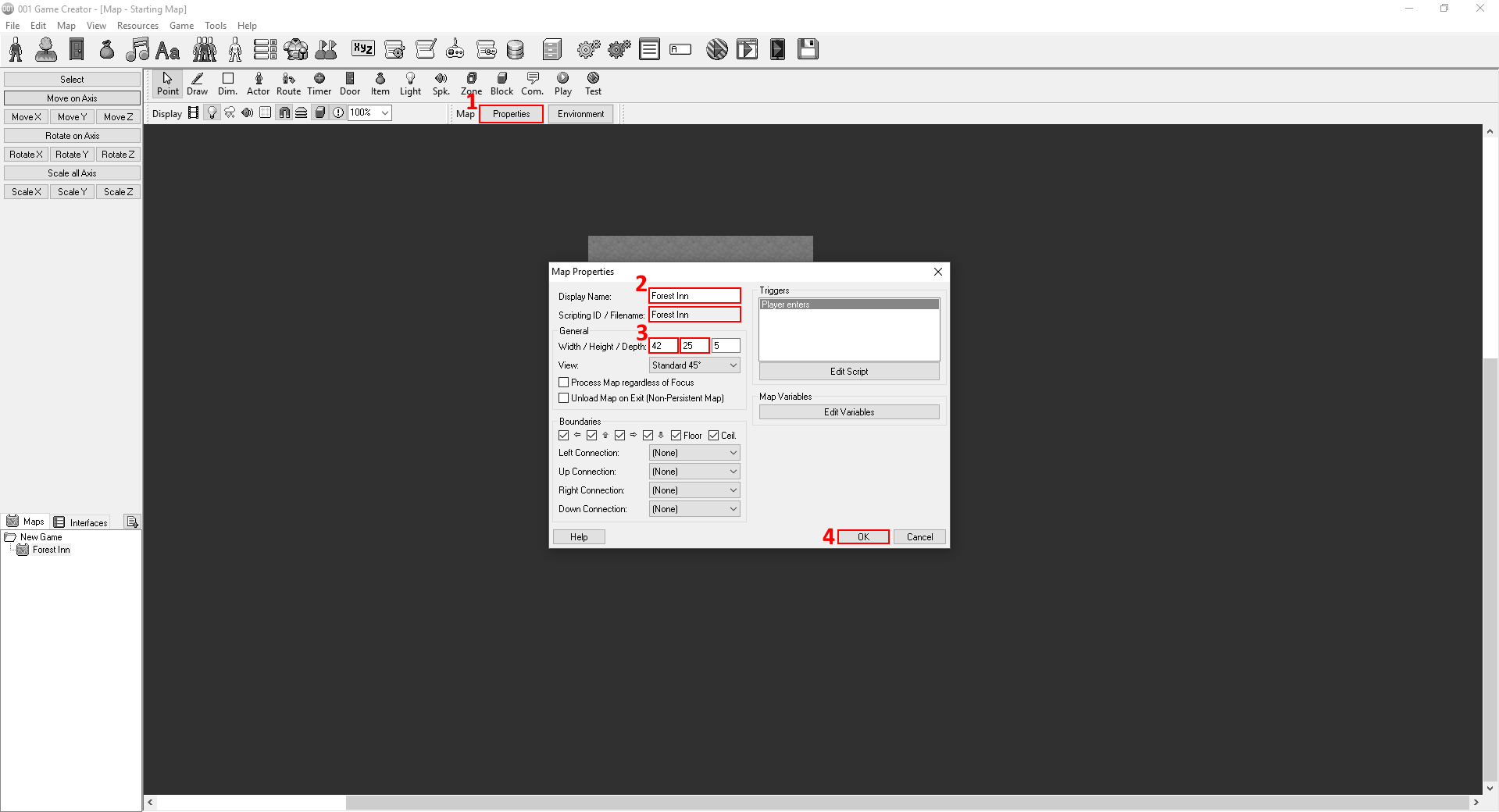
Now it's time to move onto the real stuff. After choosing the template and creating it, a map will appear on the screen. We need to decorate it so that it matches the place described in our plot. First of all, let's rename the Starting Map into something like, Forest Inn. Though not necessary, we'll rename both the Display Name and Scripting ID. Display Name is only useful for identification by the user when going through maps. Scripting ID is only useful for identification by the engine in scripts.
We should also resize the map since it's pretty small at the moment and we can't possibly fit a forest and an inn in that space. Change its Width(X) and Height(Y) dimensions to 42, 25 respectively, then click OK.

WARNING: If you have already created a map and want to rename it, it is recommended that you only change the Display Name. Changing its Scripting ID as well will render all your scripts regarding this map useless as they'll be searching for a map with an ID that does not exist!

Drawing WIth Various Tools(Ground Layer)

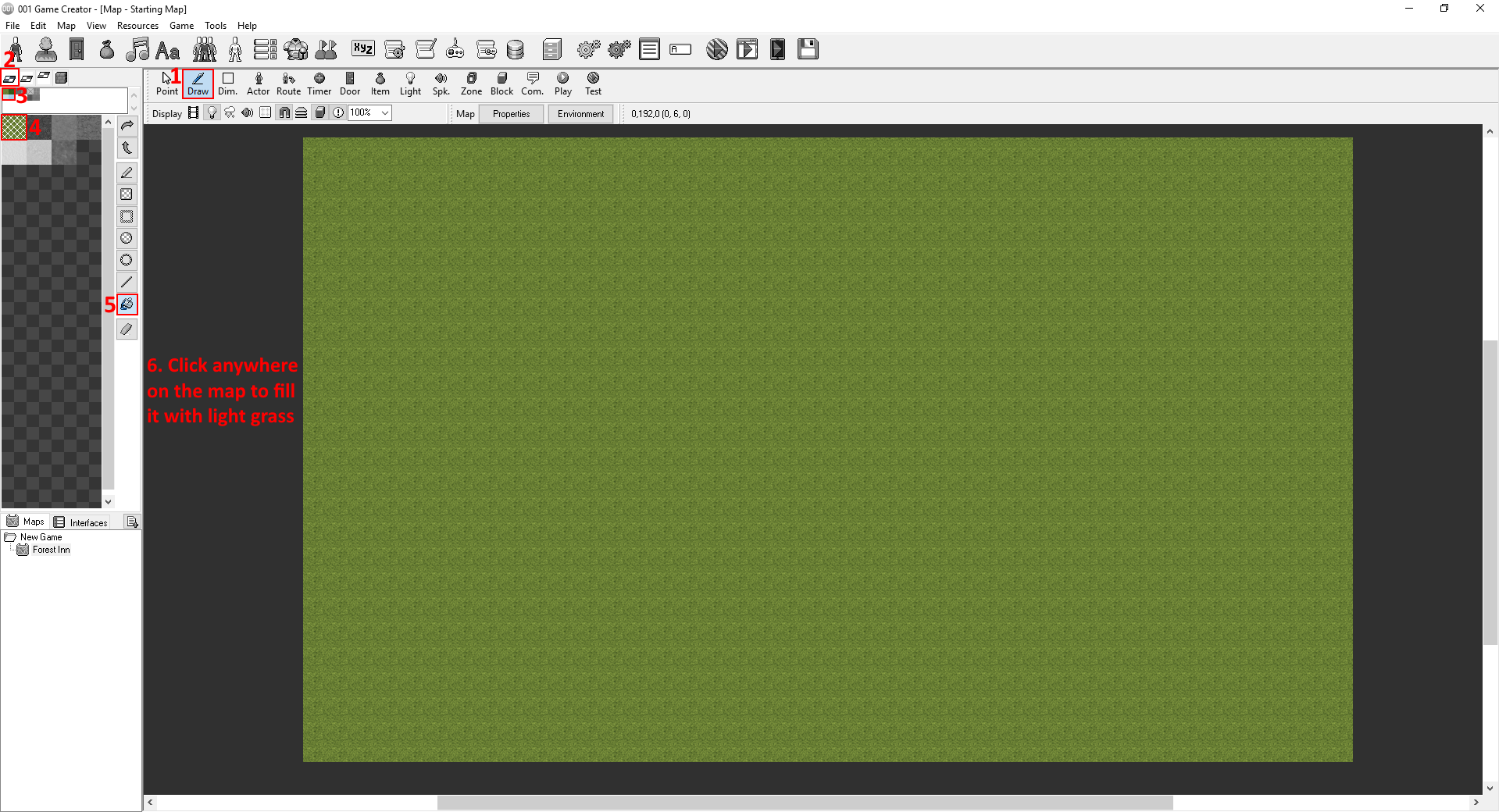
Now choose the Draw tool on the map's toolbar. Select the Ground Layer located to the left on the screen above the tiles, then the Ground Tile-Set and then choose the Light Grass tile. Select the Fill tool and fill the entire map with light grass.

Drawing WIth Various Tools(Wall Layer)

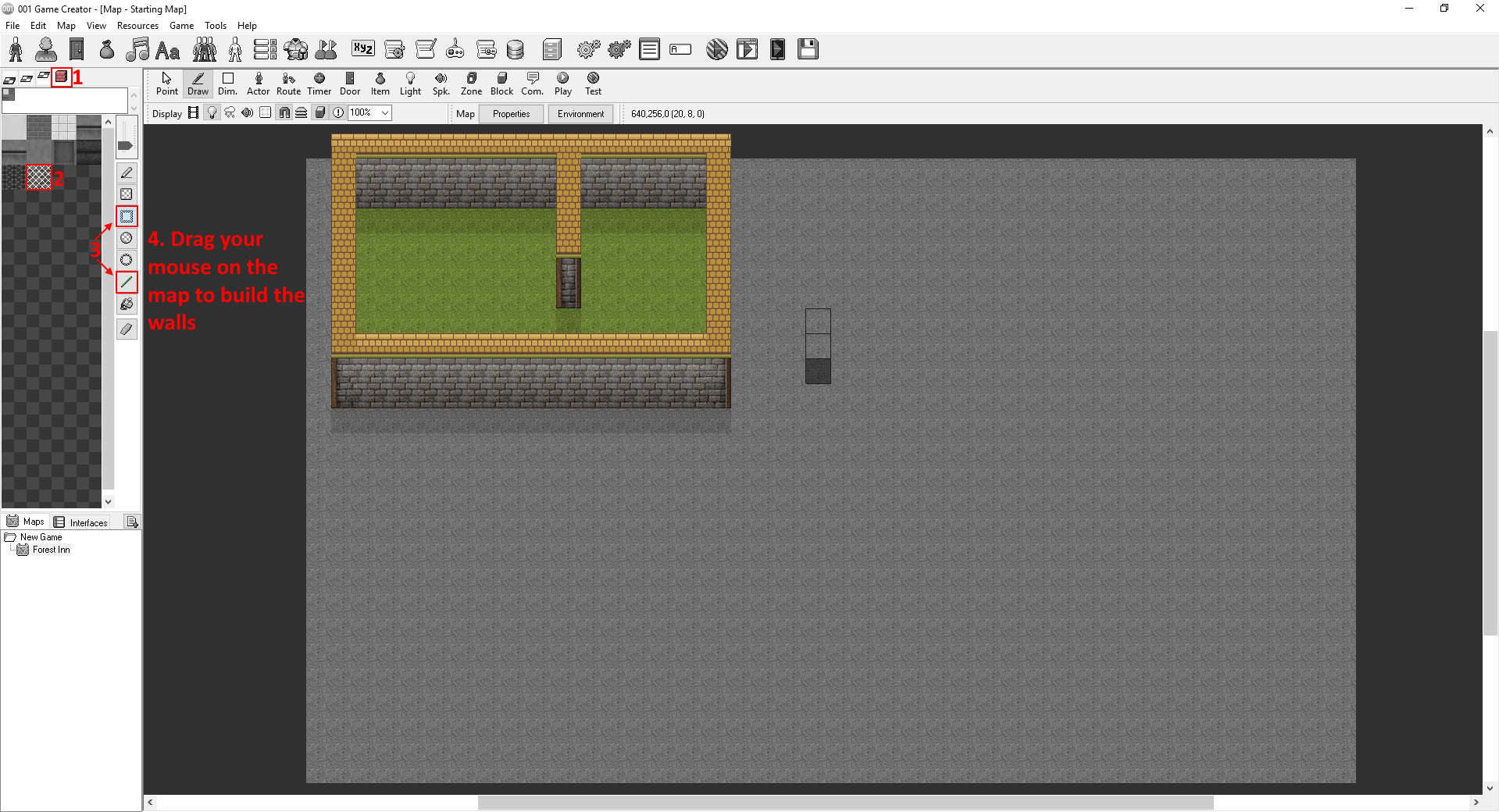
Time to start building the inn. Change to the Wall Layer and select the Brick wall. Now to build the inn, you can choose either the Rectangle or the Line tool to draw the walls.

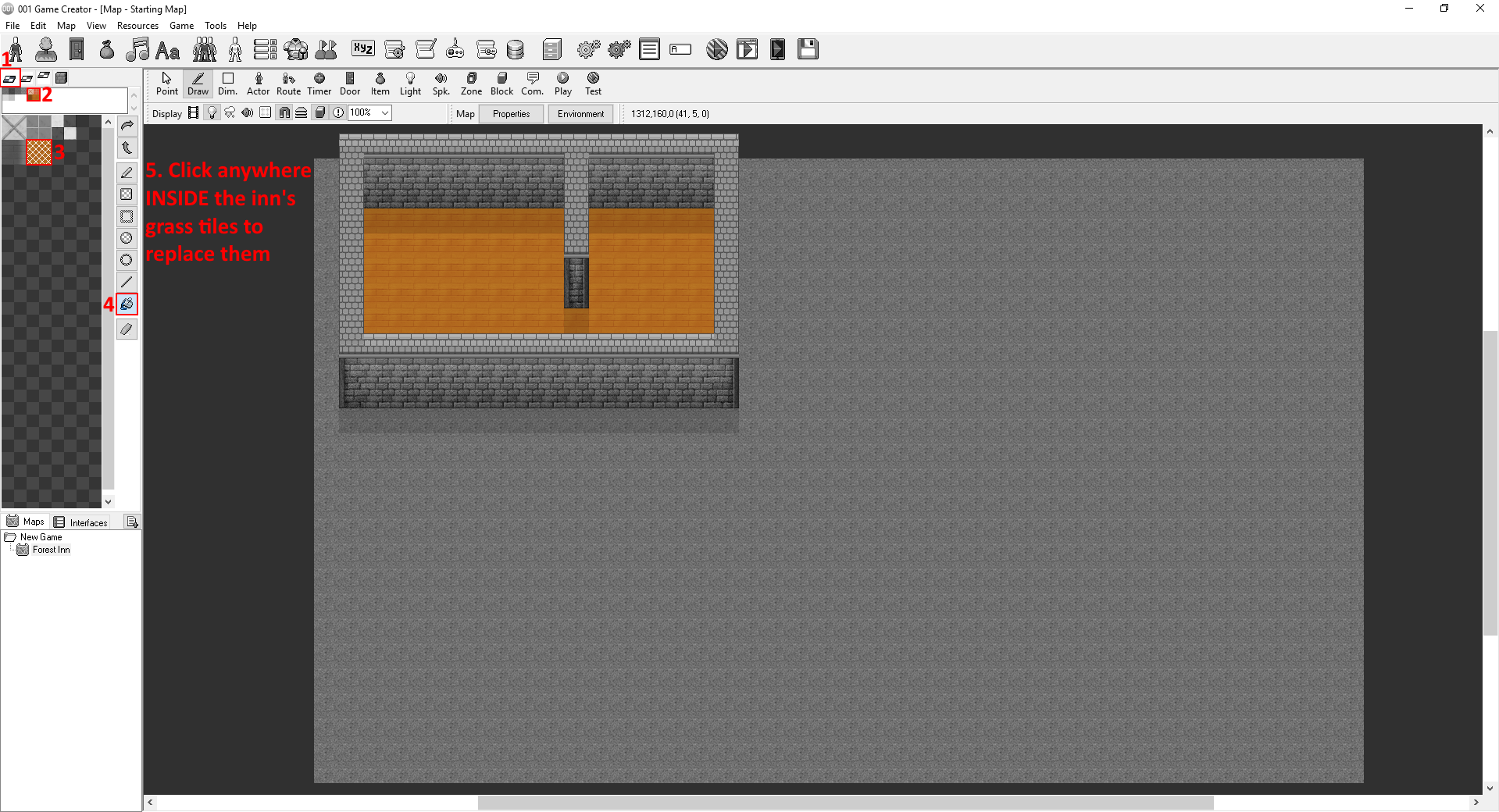
We don't want grass inside our inn now do we? Let's replace it with some wooden floor by going back to the Ground Layer. Select the Tiled Floor Tile-Set this time, pick the Wooden Floor tile, select the Fill tool again to replace the grass tiles inside the inn with the wooden floor.

Drawing WIth Various Tools(Lower Objecets Layer)

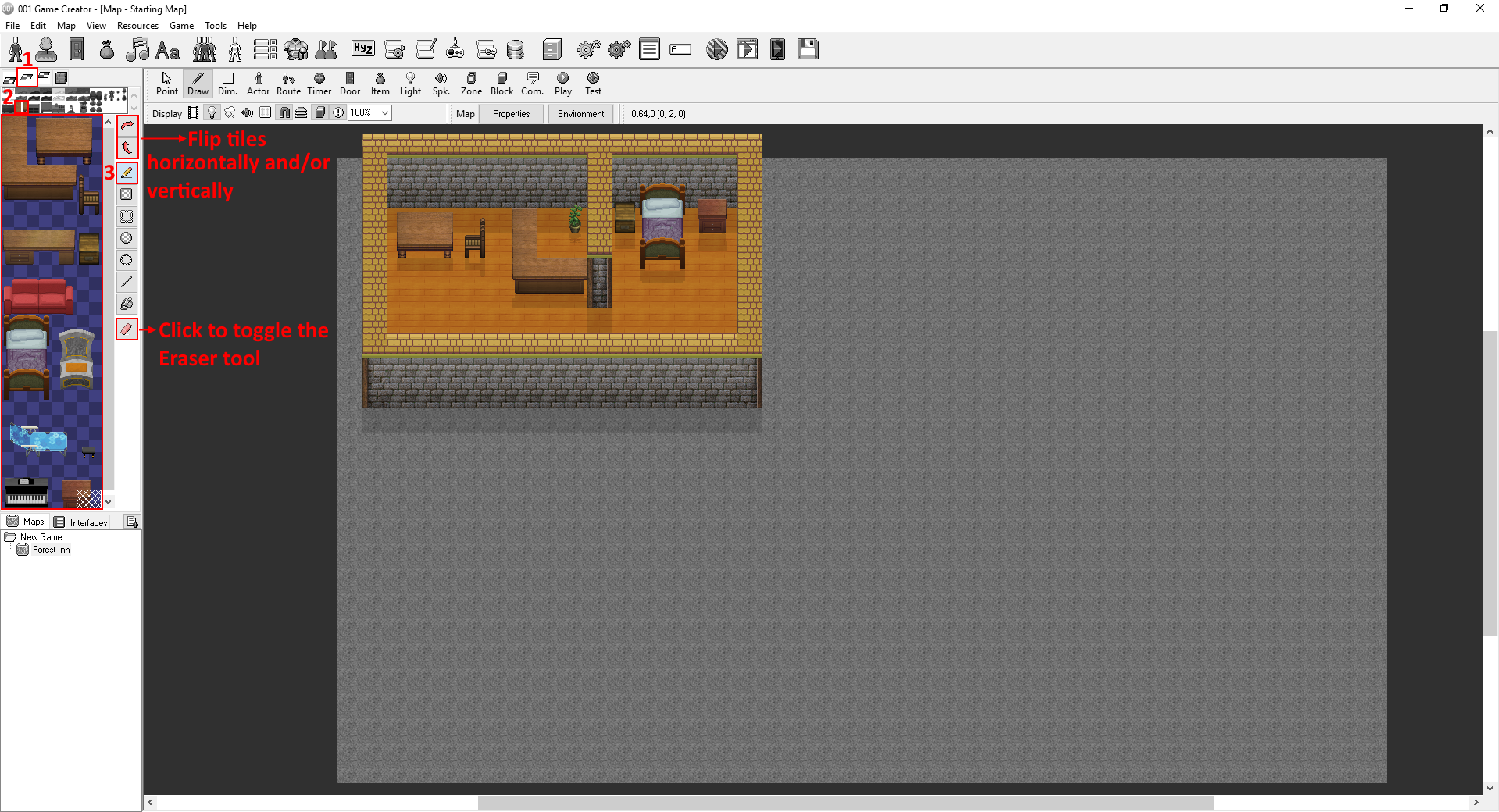
Right now it looks pretty empty, let's decorate it. Switch to the Lower Object Layer and select the Furniture 1 Tile-Set. Decorate things however you like from now on if you don't wanna follow my style(as long as they don't go off topic, it'd be pretty stupid to have an arcade in a medieval game wouldn't it?). Remember to switch back to the Pencil tool!

Placing a Functional Door

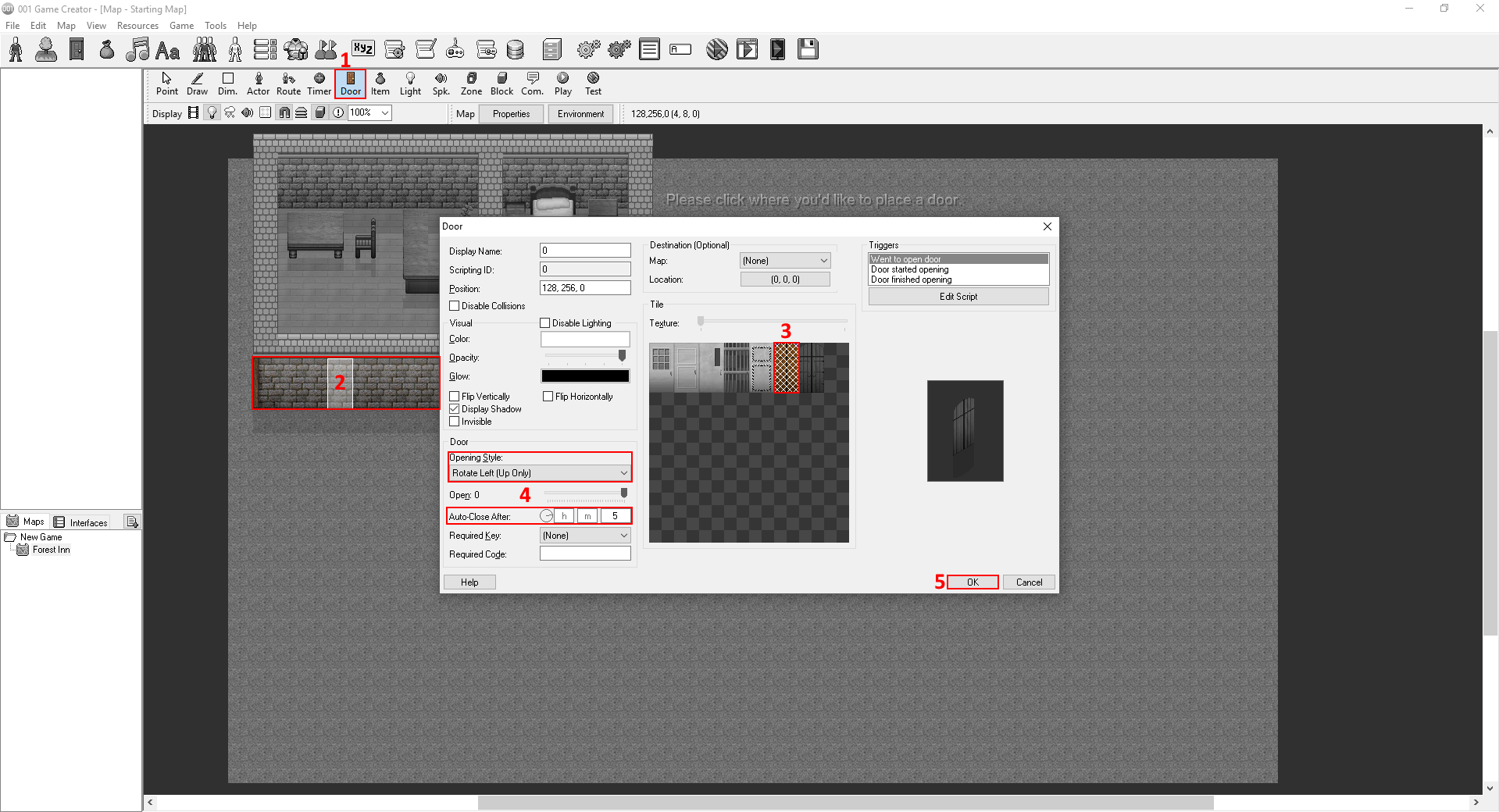
Before we go to decorating the outside, we need to complete our inn by placing a door. To do that, click the Door icon on the map's toolbar and place the door somewhere on the inn's wall. Select the wooden old-looking door and set its Opening Style to Rotate Left(Up Only). Now set the Auto-Close After value to 5 seconds. The opening style and auto-close weren't really necessary but we like to tweak things. After you're done, click OK.

Alright, time to move out and place some trees! Select the Draw tool, then the Lower Objects Layer and choose the Environment Tile-Set. Like I said before, decorate stuff however you want from now on.
Introduction to Visual Scripting
Creating an Interactable Actor

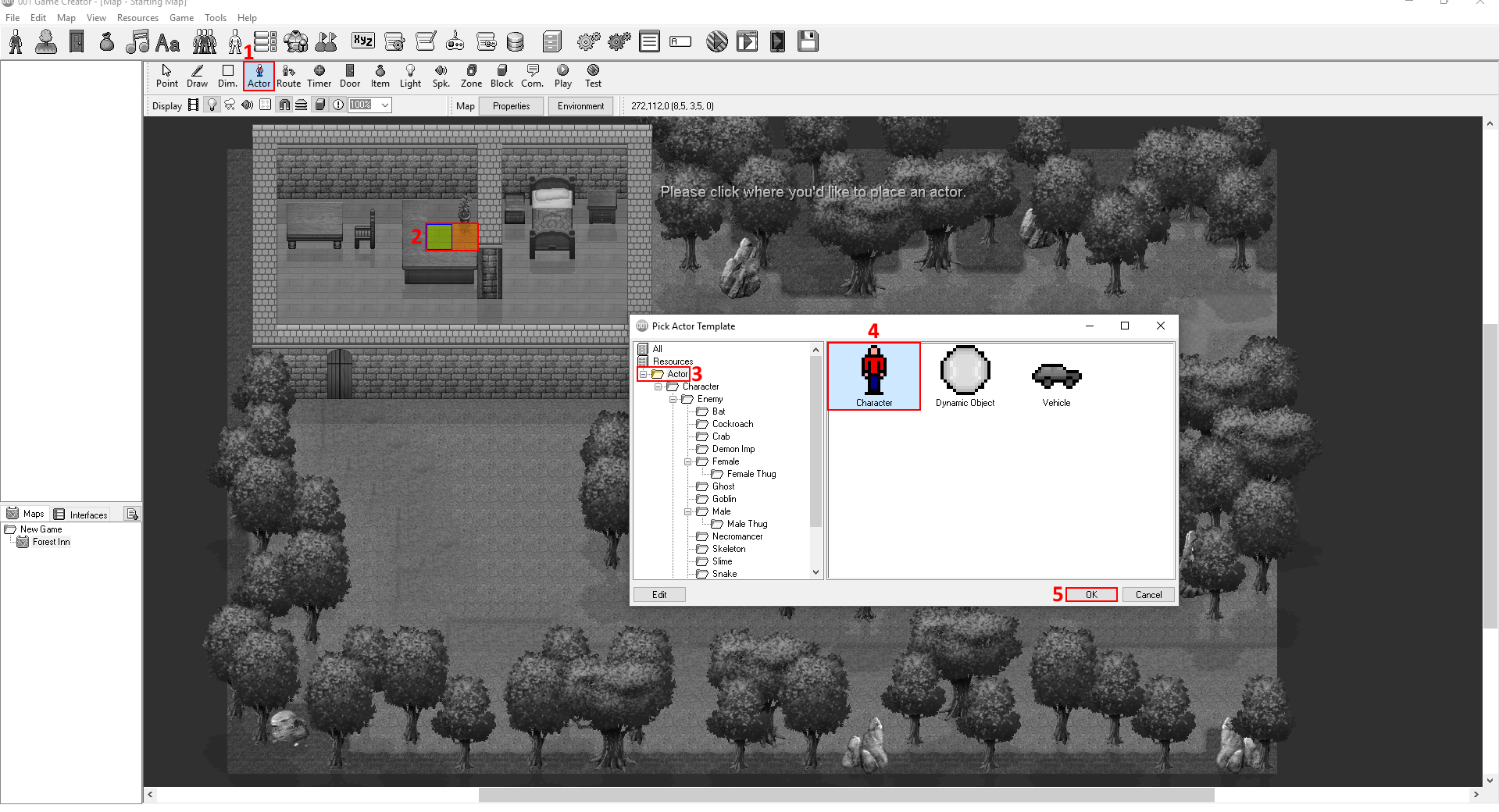
Now we'll create our inn keeper. Click the Actor icon on the map's toolbar and place it somewhere inside the inn. Select the Actor Folder and choose the Character Template.
If you want, change his appearence to your liking. Double click the Talked to/Activated Trigger to create the script.

NOTE: Triggers are like files that store a script which executes when the trigger's condition is met. In our case, it will execute when the player walks up to him and presses the interaction button(Enter by default).

Placing Events & Connecting Them to Make a Script

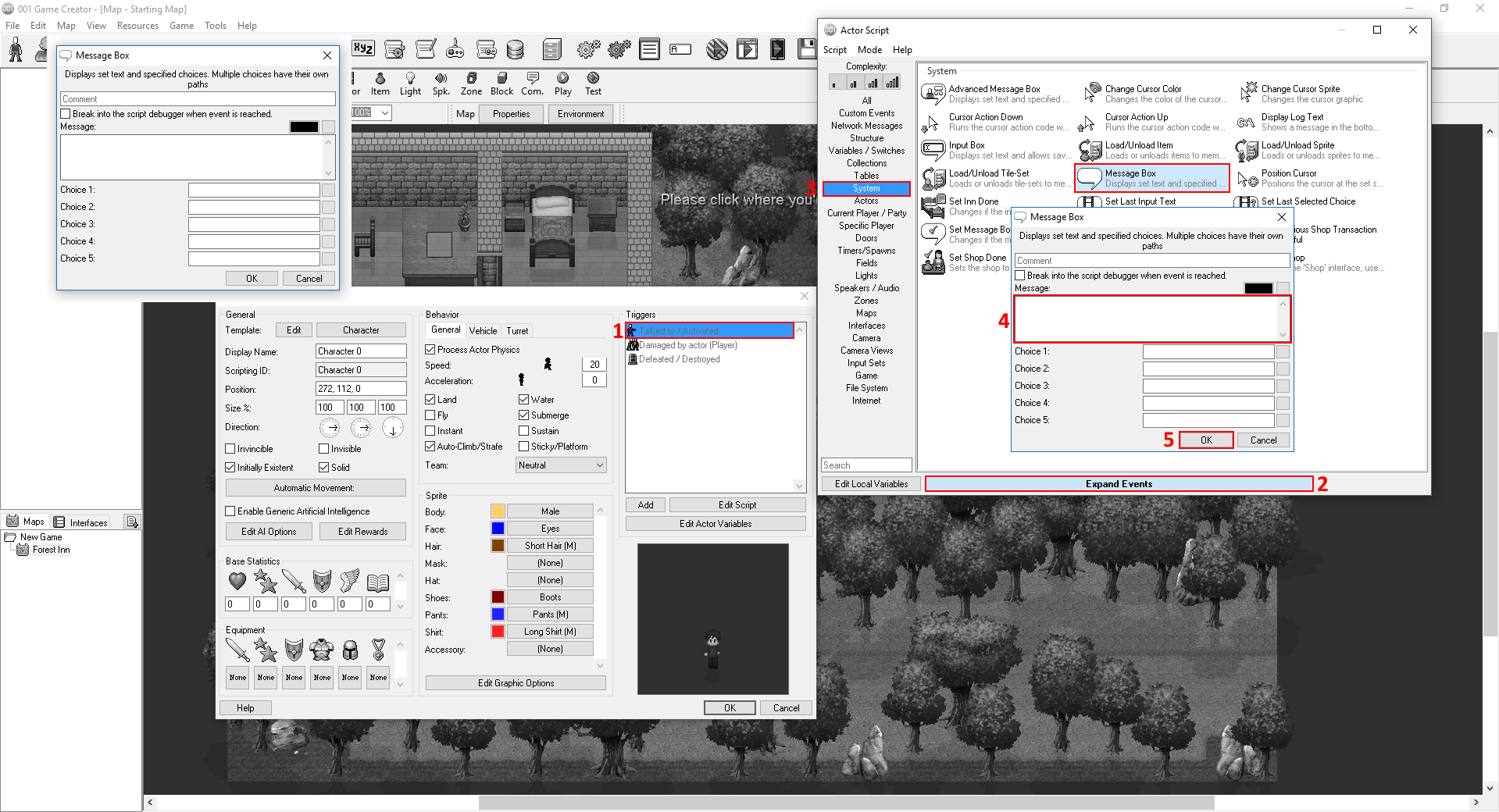
Inside the script, either start typing Message Box or click the Expand Events button.
Select the Message Box Event, click the Message: paragraph box and start typing. Feel free to copy paste my lines if you don't wanna write your own. After you're done with a message box, do the same thing to place another one. You can also double click anywhere on the background to view all the events.

1st Message Box: Inn Keeper: What can I do for you sir? Would you like to rest here perhaps?

2nd Message Box: Hero: No, I just woke up, not to mention I'm not carrying money with me. You see, moments ago I came around outside your inn with no idea how I got there. Not just that but I don't remember anything at all, other than my name.

3rd Message Box: Inn Keeper: Oh my, that sounds like amnesia. In any case, you're pretty lucky you are here. Deep in the forest grows a herb that is said to restore people's lost memories.

4th Message Box: Inn Keeper: I can't guarantee it's true though. If you want go see for yourself. It's better than staying idle waiting for your brain to just remember stuff.

5th Message Box: Hero: Inside the forest huh? Guess I'll go.
Introduction to Identifiers
Creating a Variable & a Switch

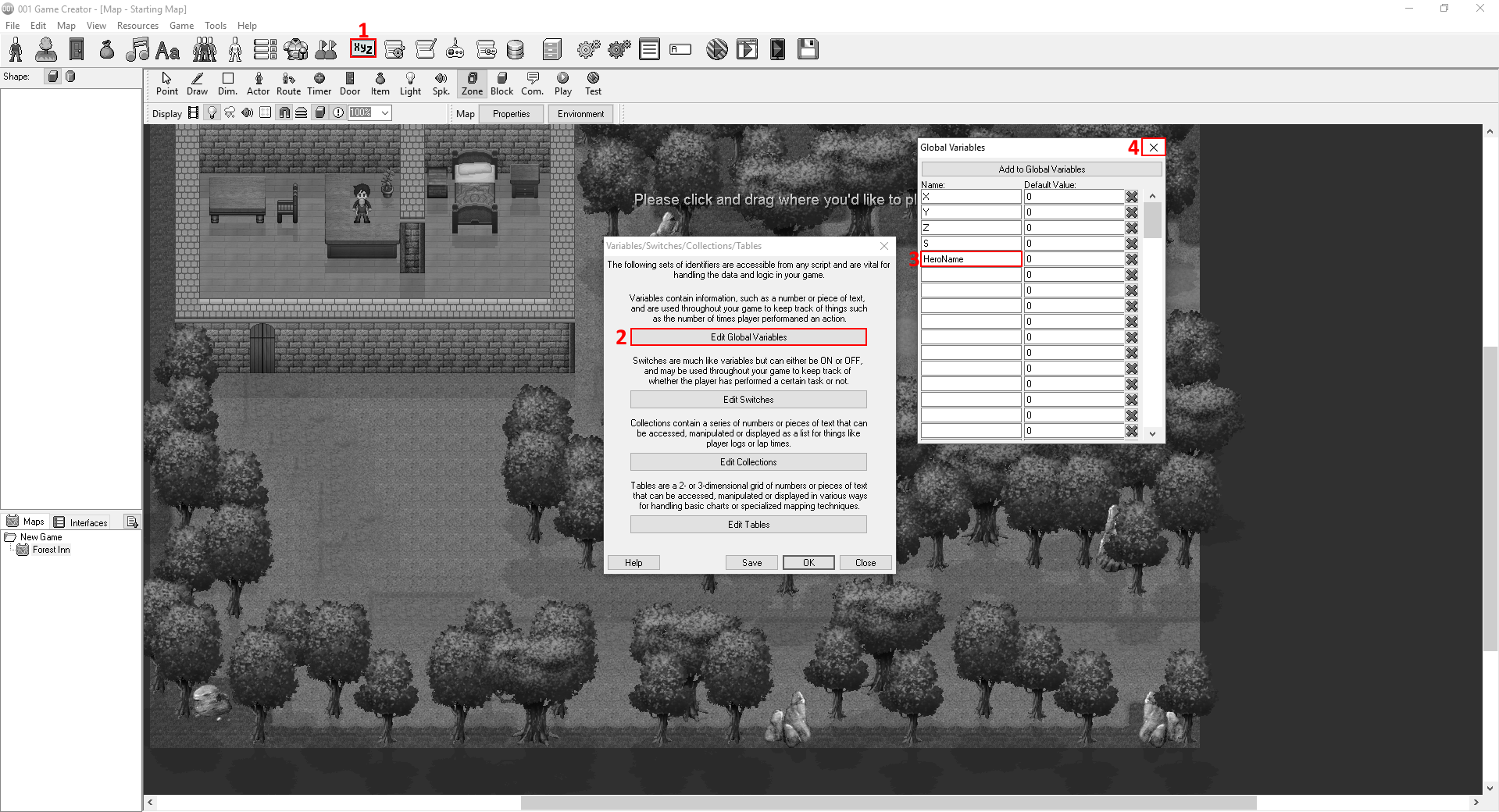
Now the player will have to go visit the forest area. Before we create the forest map, and before we place a Zone which will teleport the player to the other map, let's create a Variable and a Switch. To do that click the Identifiers icon(xyz icon) on the top toolbar. Then go to Global Variables and create a variable called HeroName. Variables and switches are considered existent when they have a name, in other words, you give an empty variable a name to create it.
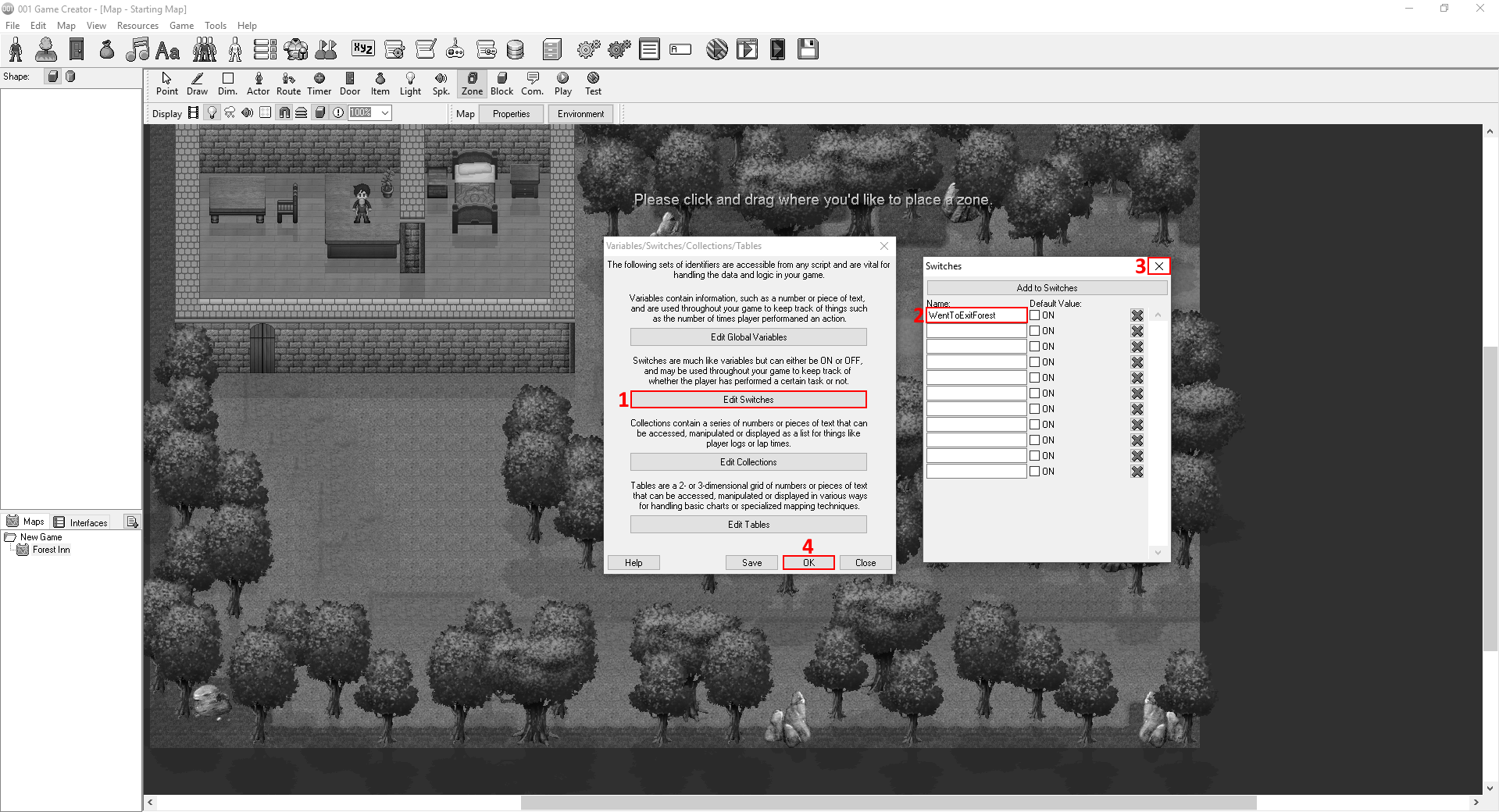
Now create a Switch called WentToForest. Do NOT check the ON checkbox! Now close it and click OK.

NOTE: Identifiers are a crucial component of game development, they are values which hold important data about different things you want to keep track of. Identifiers include Variables, Switches(basically boolean type variables), Collections(one dimensional arrays) and Tables(three dimenasional arrays).

Creating a Zone + Working With Switches

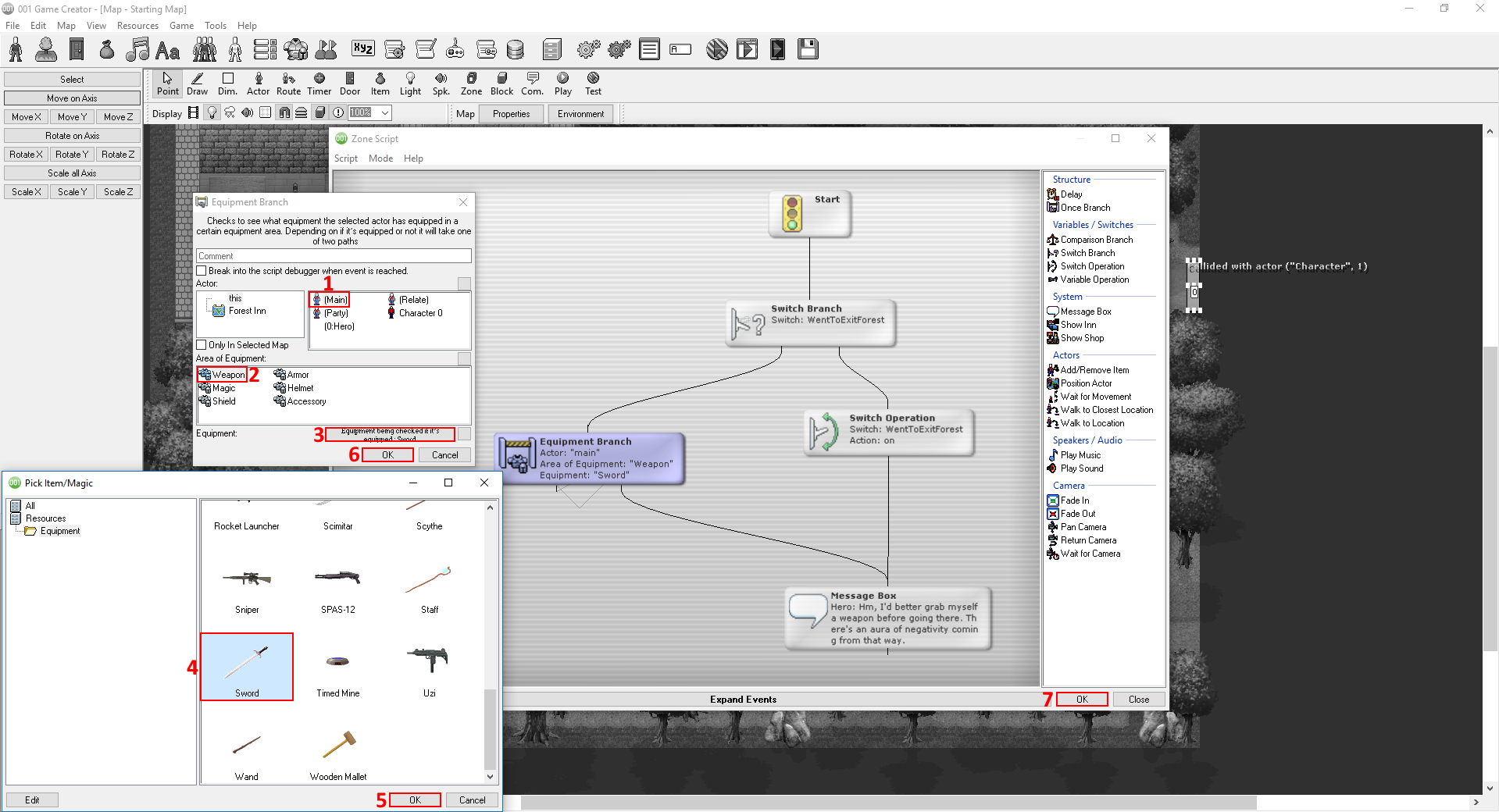
Click on the Zone icon on the map's toolbar a draw the zone where you want the etrance to the forest to be. Double click the Collided with actor(Player) trigger(executes the script when the player touches the zone) and now search for the Switch Branch Event. This event checks to see if the specified switch is turned On or Off, depending on its state, it will either take the left(turned On) or the right(turned Off) path. On its right path, place a Switch Operation Event and set the WentToForest switch to On. After that, place a Message Box and set it's message to something like:

Hero: Hm, I'd better grab myself a weapon before going there. There's an aura of negativity coming from that way.

On the Switch Branch event place an Equipment Branch Event. Set the actor option to Main(refers to the currently controlled party member), the Area of Equipment to Weapon and the Equipment: to Sword. The event we placed now works in a similar fashion the the Switch Branch one. It will take the right path if the player doesn't have the Sword item equipped, or the left path if the Sword item is equipped. Exit the script and save it.
Have a look at the full script here: http://www.engine001.com/script/ruwuMd

Once Branch + Creation of Dynamic Dialogue

Now we'll make some changes on the Inn Keeper's script. Double click the line connecting the Start and first message box, this will allow you to place an event inbetween others. Search for the Once Branch Event. This event ensures that events connected to its left branch will only be executed the first time the event is reached. Every other time it is executed, it will take the right path. On its right path, place a Switch Branch Event that will check the WentToForest switch. On its right path place a message box with the message:

Inn Keeper: What are you waiting for? Your memory's not gonna come back if you just wait doing nothing you know.

On its left path place the same Equipment Branch Event that you place inside the zone's script. On its left path place a message box with the message:

Inn Keeper: What now? You got a sword right? I'm not gonna teach you how to use it as well.

On its right path place the following:

1st Message Box: Hero: Um, actually, I sense hostility coming from the forest. So I was wondering if you could give me a weapon of some sort to defend myself.

2nd Message Box: Inn Keeper: Ah, how thoughtless of me. I'm sorry, I forget for a second where you were about to go.

3rd Message Box: Inn Keeper: Here take this sword. I have another one so don't worry.

4th Message Box: Inn Keeper: Wait, before you go, may I know your name? You said that you remember your name, right?

User Input + Working With Variables

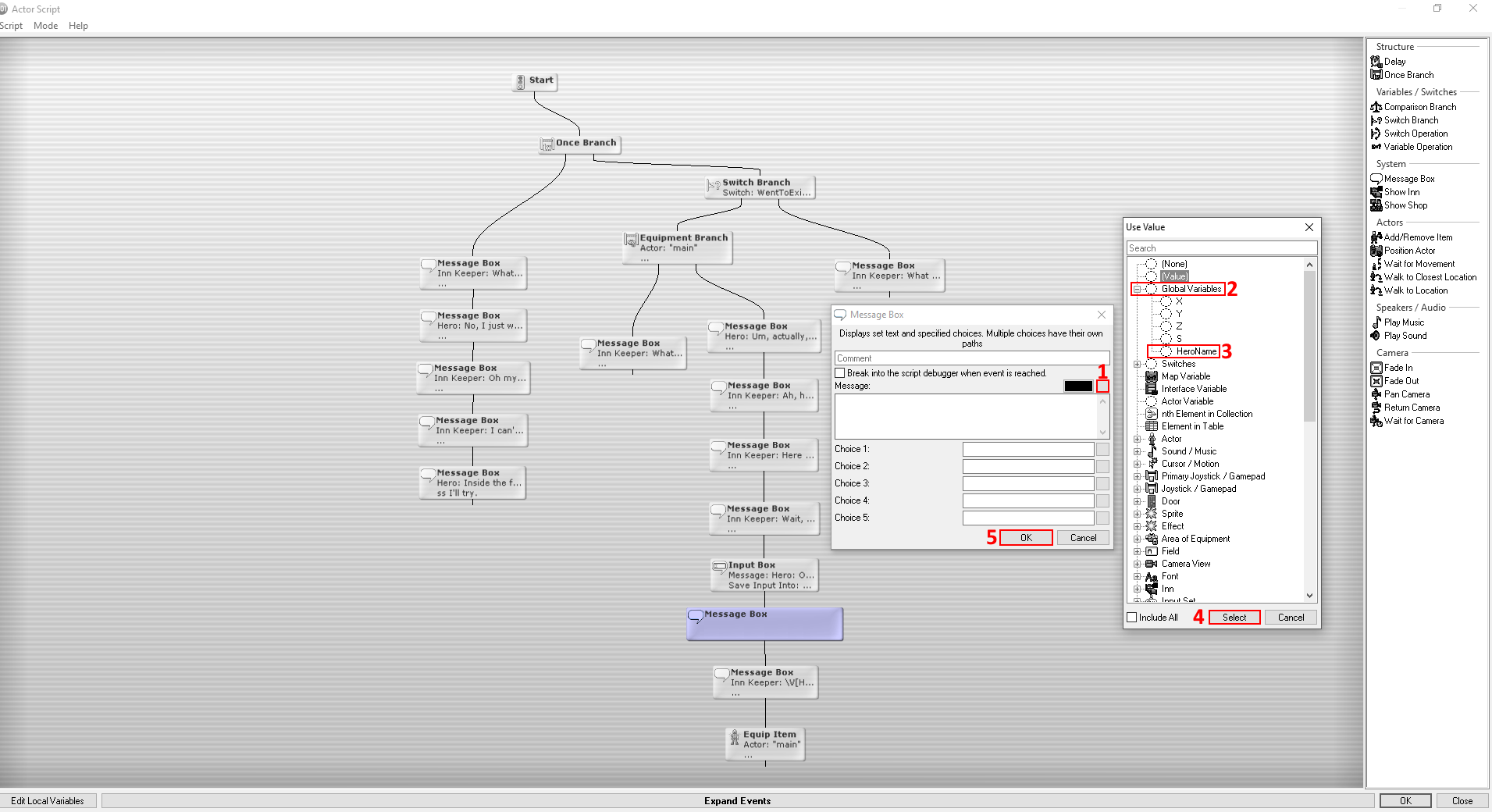
Now, as you probably have already guessed, we will promt the user to give the game's hero a name. We'll do that using the Input Box Event. The event is pretty identical to the message box with the only difference being that you can have the user input a string of text and then save it to a variable. After that, create a message box. Now to call the variable that holds the name the player input you need to click to that little box over the paragraph box, next to the color block. You will then see a bunch of options. Those are different values that hold data about the game's different mechanics. Open the Global Variables sub section and select the HeroName variable.

Edit the message box so it looks something like this:

1st Message Box: \V[HeroName]: That's right! My name is \V[HeroName]!

2nd Message Box: Inn Keeper: \V[HeroName]. That's a nice name. Well then \V[HeroName], go retrieve your memory!

Adding an Item to the Player's Inventory & Equipping it

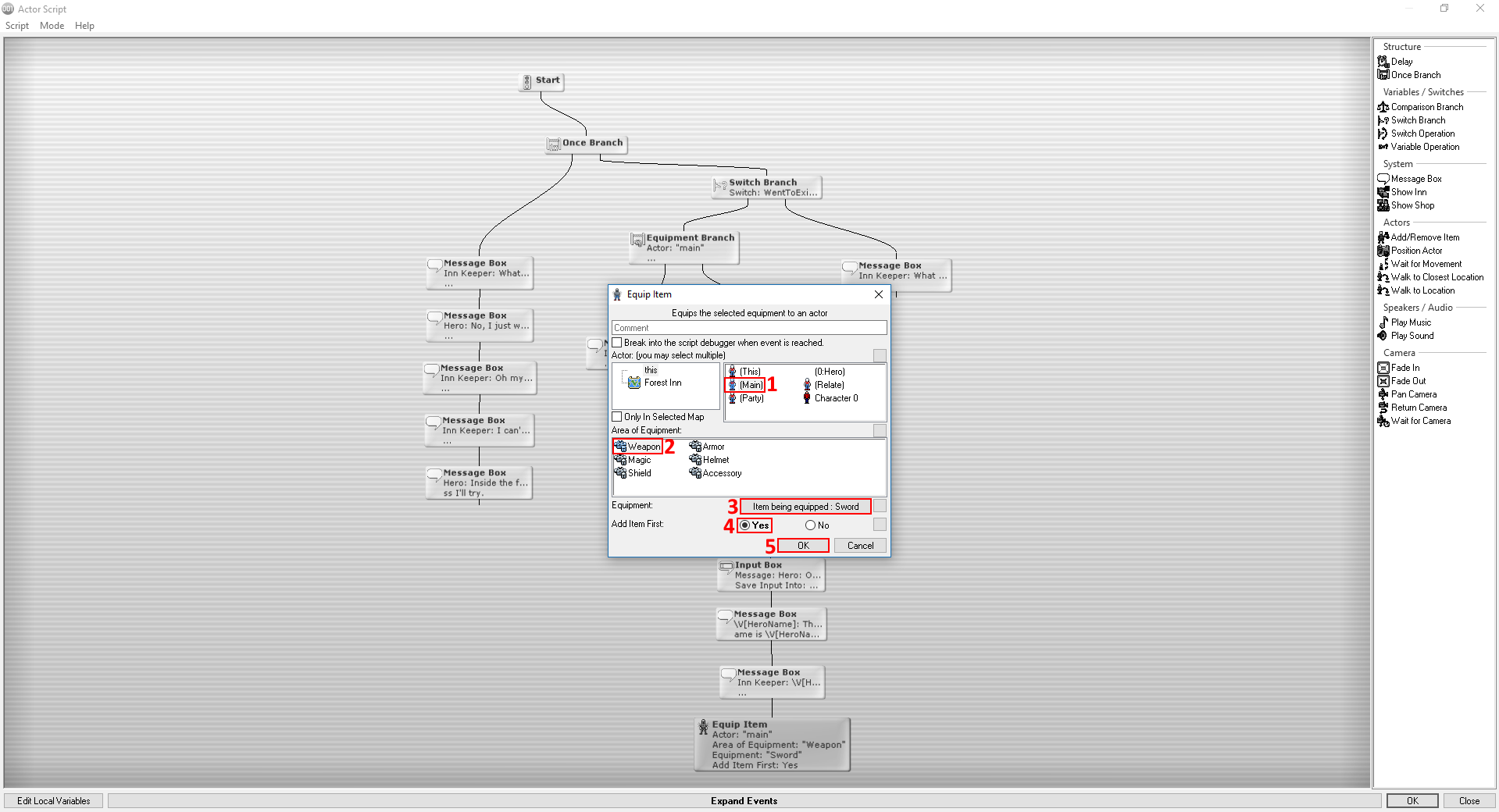
Now it's time to place the final even before moving to the forest. That is the Equip Item Event. Set the actor option to Main, Area of Equipment to Weapon, Equipment to Sword, and make sure to check Yes on the Add Item First option, otherwise the game will try to make the player equip something he doesn't have, resulting in an error.
Have a look at the full script here: http://www.engine001.com/script/Di6VlA

Creating a New Map

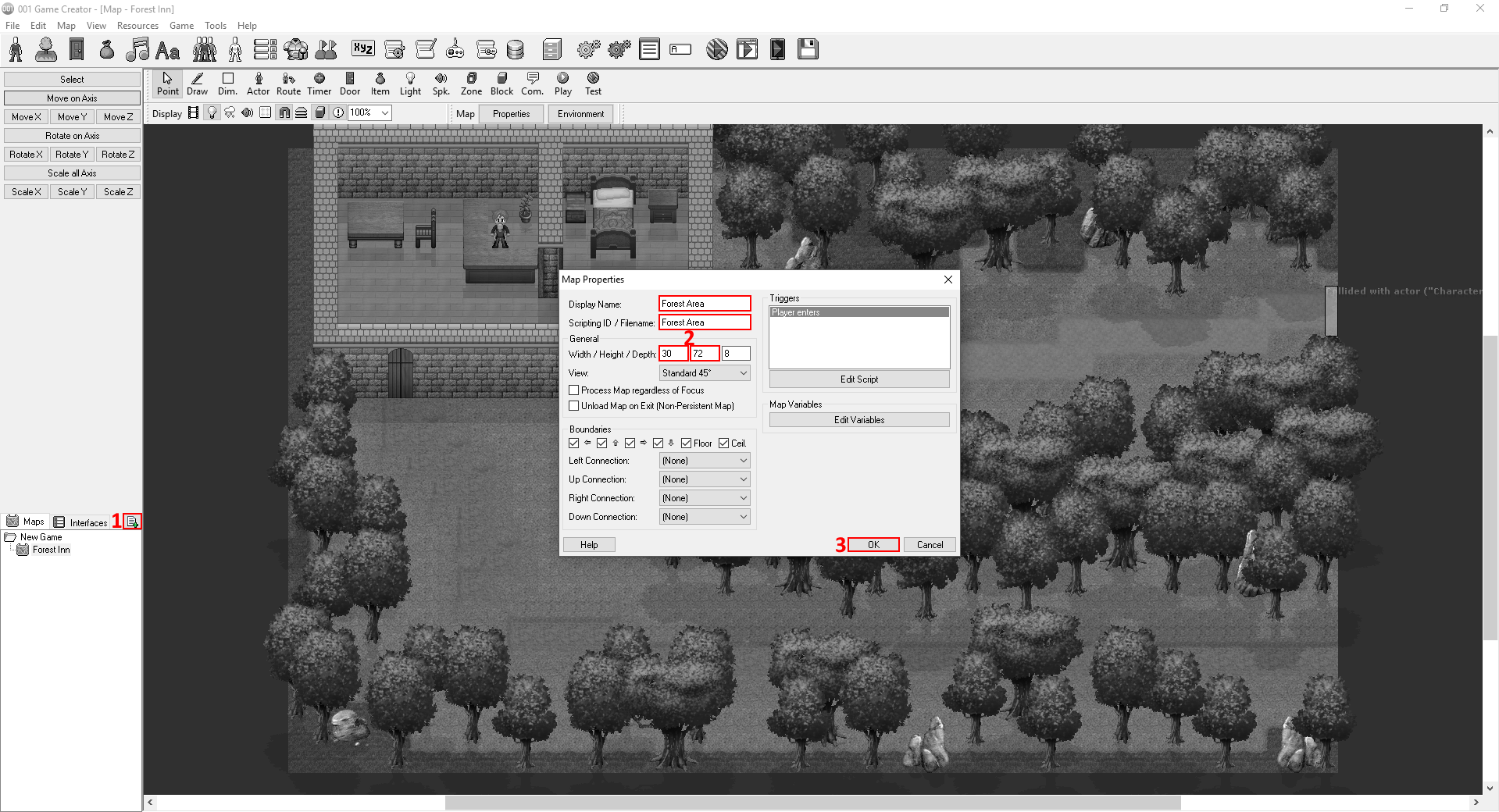
That's it, we're done here. Time to create the forest area. To create a new map, click on the button next to the Interfaces section button on the lower left corner of the screen. Name the map Forest Area and set the dimensions to 30, 72.

Editing the Map's Aesthetic(Lighting & Fog)

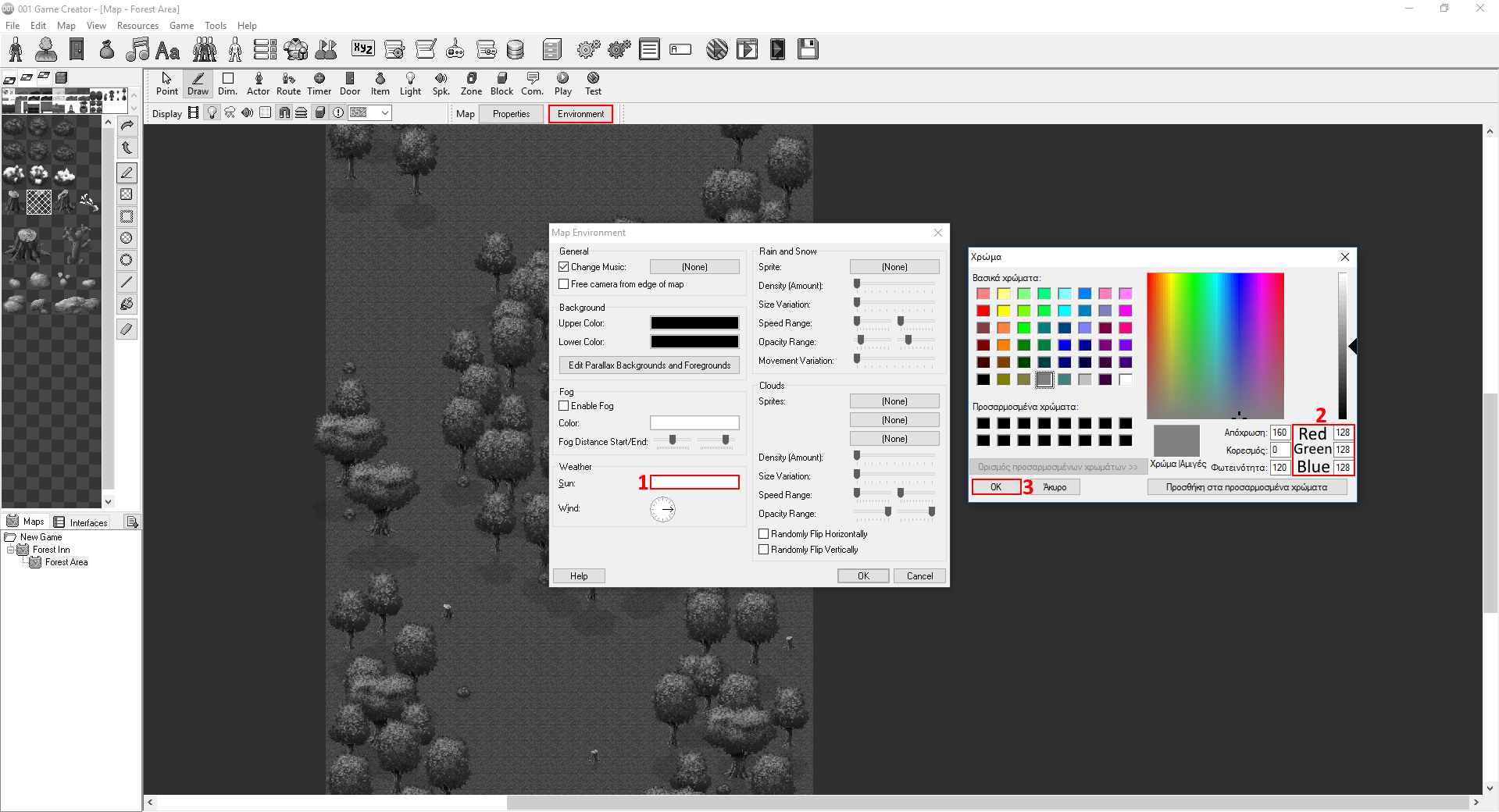
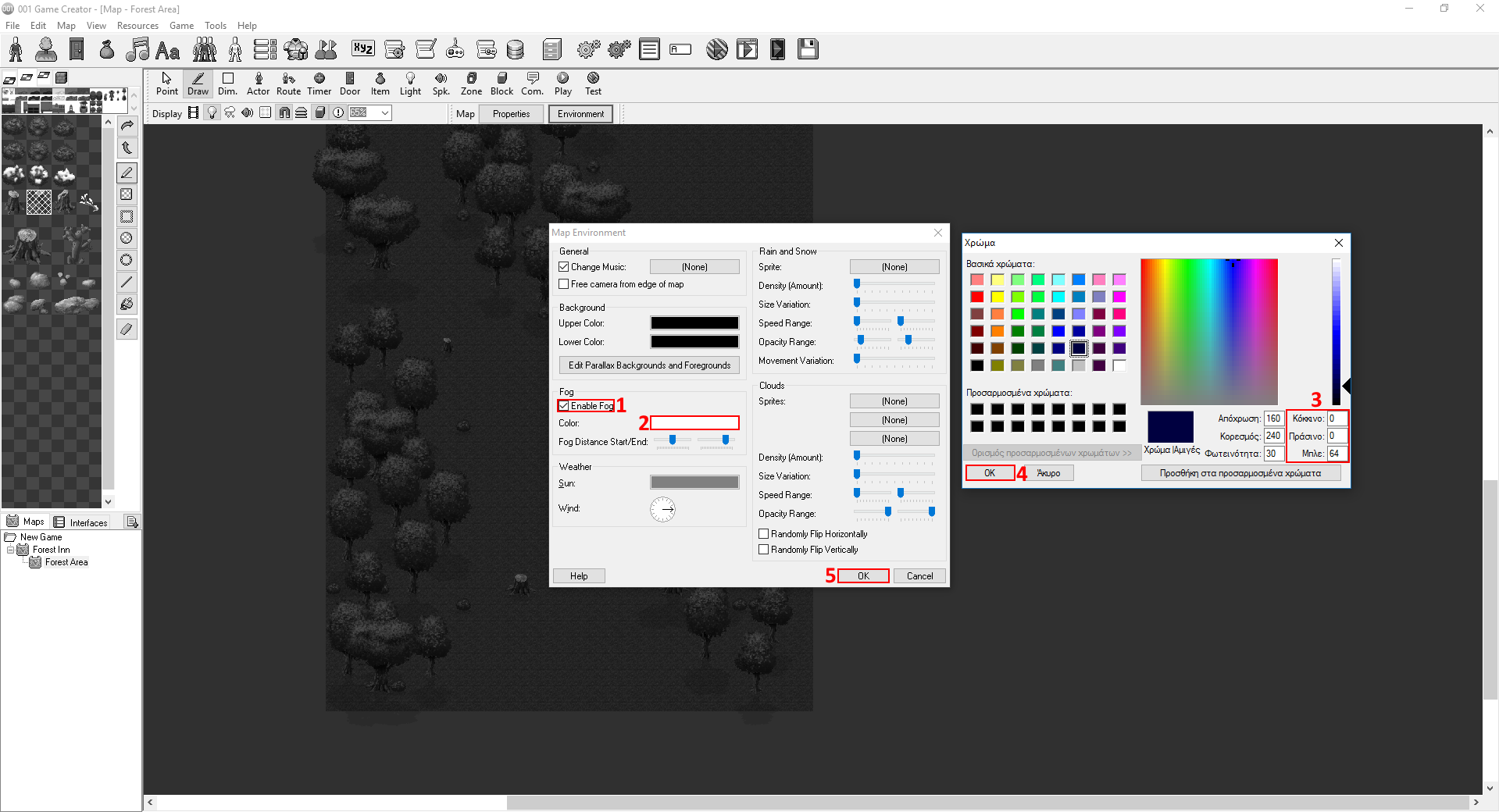
The map we just created will not be the place where you find the girl and the herb. It'll be more of a challenge map, you know, those places that are usually filled with enemies you have to defeat before the main course? You have the freedom to decorate this map however you see fit. We will also change the whole lighting of this place and perhaps place some thick, ominous looking fog. To do that, go to the Environment tab above the map's viewport.
Introduction to Enemies(A.I.)
To challenge the player, we're gonnna place some enemies now, namely spiders and snakes. Follow the same steps when you were creating the inn keeper, except this time, choose the Snake and Spider templates. Before clicking OK, click the Detach Template option. This makes the actor fully unique and customizable in contrast to having him dependant to his template.

Editing Enemies

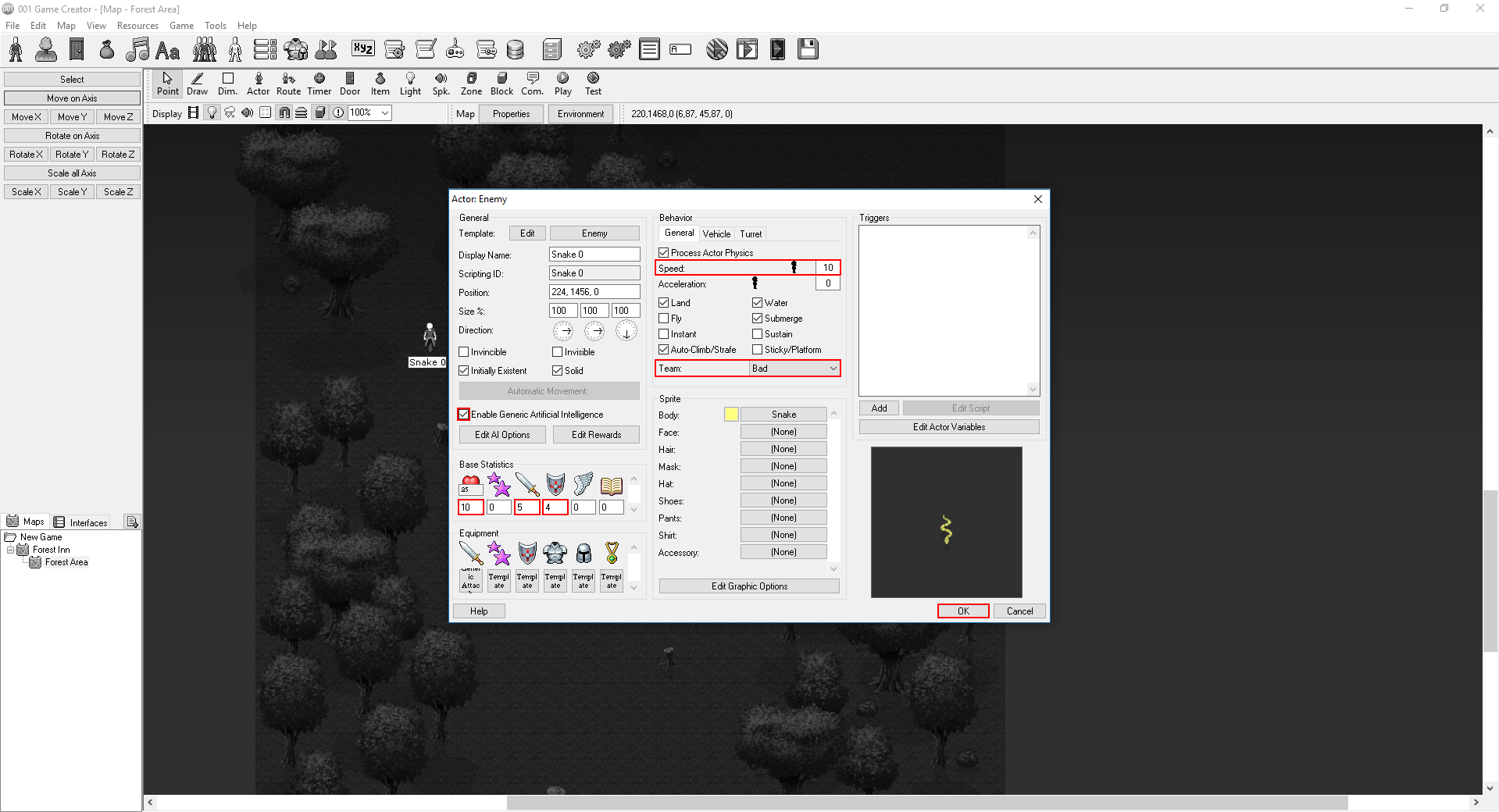
Now edit their stats as you want or do it how I did it below. Make sure to have their Generic Artificial Intelligence enabled and their Team set to Bad.
NOTE: When Generic Artificial Intelligence is enabled, the actor will go after and attack any actor who's team is set to something it doesn't have an alliance with(we'll take a look at teams in another tutorial).
Do the same with spiders. Place as many as you want on the map, as long as you don't make it impossible to defeat. If you want to make a copy of a created actor right click it, click copy, then right click anywhere on the map to paste it, or do it faster with Ctrl+C(shortcut for copy) and Ctrl+V(shortcut for paste).

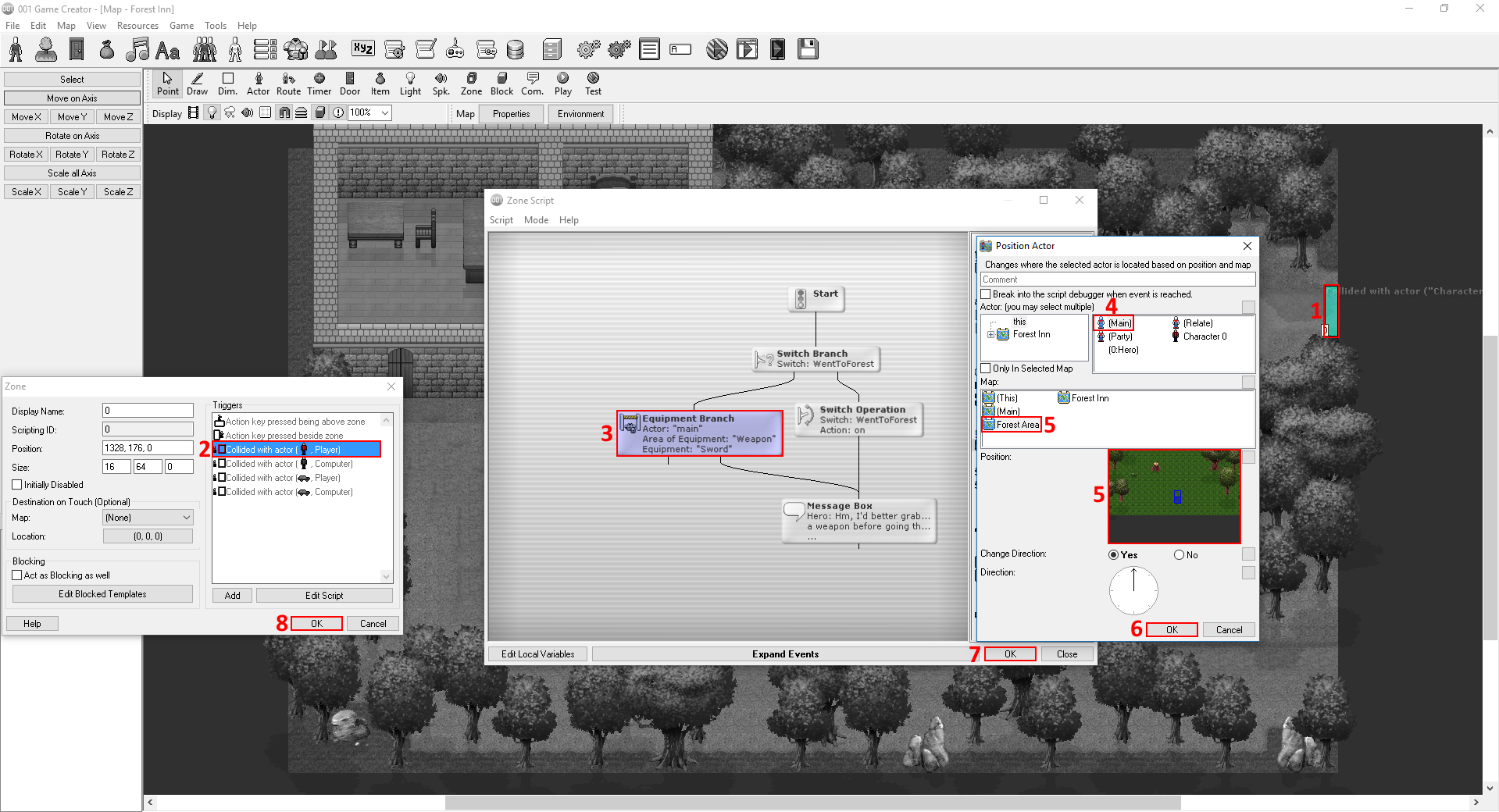
That pretty much fulfills this map's purpose but before we create the final map, we gotta make sure the player is able to come to this one. If you remember, the zone does not contain an event to position the player on this map. Let's head back there to add it. Open the script and select the Equipment Branch Event. Now search for the Position Actor Event. Set the actor option to Main, the map to Forest Area or whatever you named the second map, and if you want make the player change his direction, it's really not that important.
That takes care of that, but before we move to the final part, why not make a cutscene when the game starts?
Creating a Cutscene
Player Positioning Upon Game Start

First of all, go to the Game Settings section by clicking the icon with the grey gears on the main toolbar. Set the Starting Map to Forest Inn if it isn't set already and then set the Starting Location to whatever you want. Just, don't place the player inside a tree or wall ok? That would really suck. Click OK to save the changes.

System Triggers

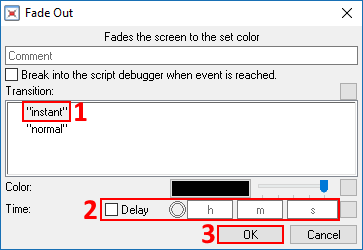
Go to the System Triggers section by clicking the icon with the small gears in front of a paper. Double click the Introduction Trigger to open the script inside. The script inside this trigger will execute when the game starts. The first thing we want to do is hide elements that are not usually in a cutscene, namely the HUD(Heads Up Display). To hide it, search for Show/Hide HUD Event and set it to Invisible. Let's also put a Fade Out Event to make the screen black. Set the Transition to normal and the Delay to 0. Why are we doing that? Because we want the screen to instantly turn black, not make a smooth transition from fully transparent to dark, to pitch black.

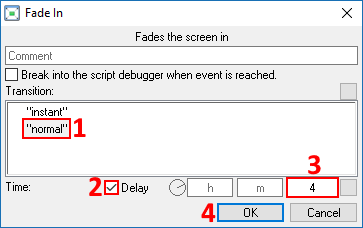
Now we'll place a Fade In Event. This event does the exact opposite of the fade out event. Set the transition to normal, the time to 4 seconds, and check the Delay checkbox. That exists in many events and it pauses the script from progressing until the event is complete. In our case, the script will unpause when the screen fully fades in(4 seconds).

Time for some dialogue again.

1st Message Box: Hero: Ugh, my head hurts. What is going on?

2nd Message Box: Hero: Where am I? Who am I? Why can't I remember anything?

3rd Message Box: Hero: I need answers. There's an inn over there, maybe I can learn something.

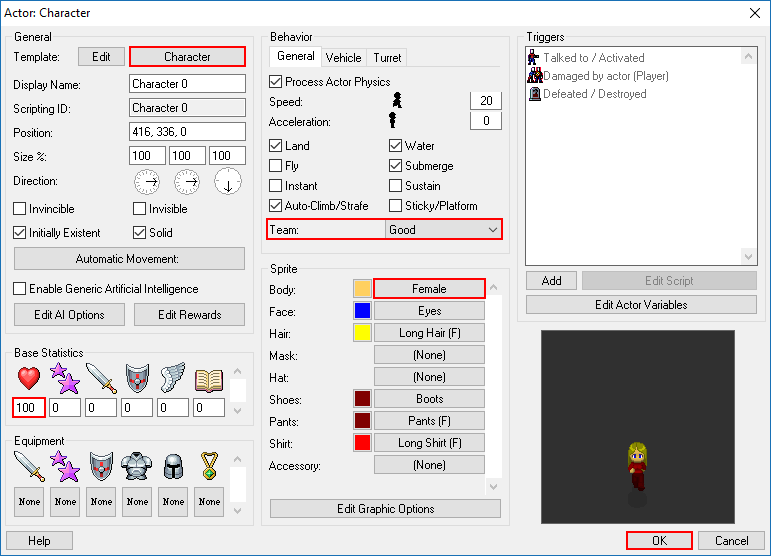
And after that we'll make the HUD appear again using the same event that we used to hide it. We're done with our first cutscene. Create a new map and call it Final Forest. It will be a relatively small map so set it's dimensions to 30, 36. Again, decorate however you like, just make sure to create a place where the herb and the girl will be. Place an actor, set the template to Character and copy my settings below(you're free to edit her appearance).

Before we create the cutscene where the player meets her, we need to make the player to be able to enter this map. That's right, we'll use the Position Actor Event again inside the Collided with actor(Player) trigger of a zone. Now to make the cutscene.

Map Trigger: Player Enters

Head back to the Final Forest map and open its Properties, double click the Player Enters trigger. This trigger executes once the player enters the map. First of all, we'll hide the HUD like we did at the beginning.

Walk to Location Event

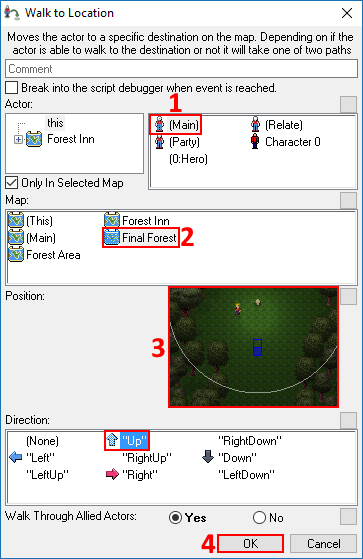
We will now use the Walk to Location Event to make the player walk up to where the herb and the girl will be.

The even has two branches, the left one is executed when the actor succesfully arrives at their destination, and the right one that is executed if the actor fails to walk to its destination(something solid is obsctructing its path). Assuming you don't have many obstructions from the start of the map to where the player will walk to, you don't need to mess with the right branch. Now here comes the dialogue.

1st Message Box: \V[HeroName]: Who are you?

2nd Message Box: Girl: Me? Oh, I'm sorry but, you see, I don't remember anything of my past, not even my name.

3rd Message Box: Girl: This is why I am here. I want to use this herb to recover my memory.

4th Message Box: \V[HeroName]: Well looks like we're on the same boat, except that I happen to know only my name.

5th Message Box: \V[HeroName]: \V[HeroName]. Nice to meet you.

6th Message Box: Girl: ...

7th Message Box: \V[HeroName]: What is it?

8th Message Box: Girl: Um, do you also happen to be here to use the herb?

9th Message Box: \V[HeroName]: (Oh yeah, that's right, I came here to recover my memory. What am I gonna do though, she lost her memory too. Should I let her take it, or take it for myself?)

Message Box With Choices

10th Message Box: What do you want to do?
Choice 1: Let the girl use the herb.
Choice 2: Take it for yourself.

The script for the first choice will basically be talk about the girl thanking the boy and blah blah blah, you get the idea, it's up to you how you want to end it if this choice is taken. Now for the second choice, why don't we spice things up a bit by having the girl and our hero fight each other? First put a message box with something like, "Sorry but I need it more". "No, I won't let you have it that easily." and that sort of stuff. After you're done with the dialogue, you'll have to prepare the battle. First you need to bring the HUD's state back to visible, then use the Equip Item Event to give the girl(whose scripting ID will be "Character 0" if you haven't changed it) a sword. Remember to check Add Item First!

Team Chaning + Enabling Actor A.I.

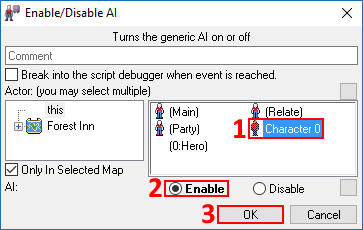
Now we need to make her capable of attacking the player. To accomplish that, we need to change her Team which is currently set to Good, to Bad using the Change Team Event. That's not enough though, she won't attack the player because her AI is turned off. We need to enable it using the Enable/Disable AI Event.

Here's how the final script should look like: http://www.engine001.com/script/z7UeKj

We're still not done. You need to create a script inside the Defeated/Destroyed trigger of the girl. That trigger executes once the actor's HP stat reaches 0. Once you open it, create a script similar to this: http://www.engine001.com/script/qrIjSn

Party Death System Trigger

Ok now we need to do the same for the player. We'll do that in a System Trigger. Open the system triggers section from the main toolbar and double click the Party Death trigger. Inside it you will find an Advanced Message Box Event that says GAME OVER. After it, place a Fade Out Event, with Delay checked and a time of 3 seconds. Then search for the Restart Game Event. That's it, our game's pretty much ready.
Introduction to GUI(Graphcial User Interface) Design
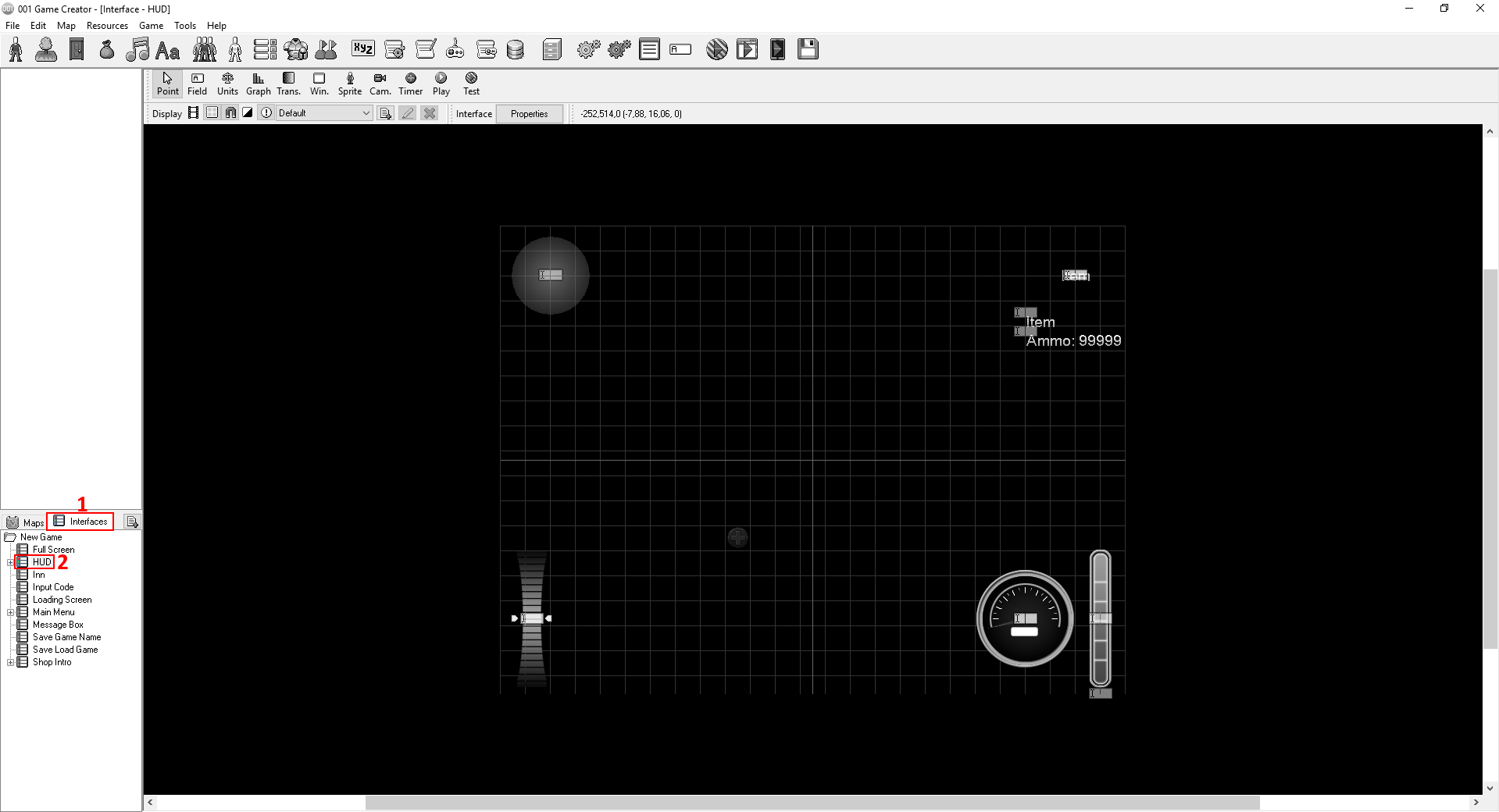
While we're done with the game, meaning its fully functional, we should apply some final touches. Let's change the HP gauge. Right now it doesn't look really good, instead of a pie graph we'll make a bar graph. Head over to the HUD interface.

Changing a Graph Field

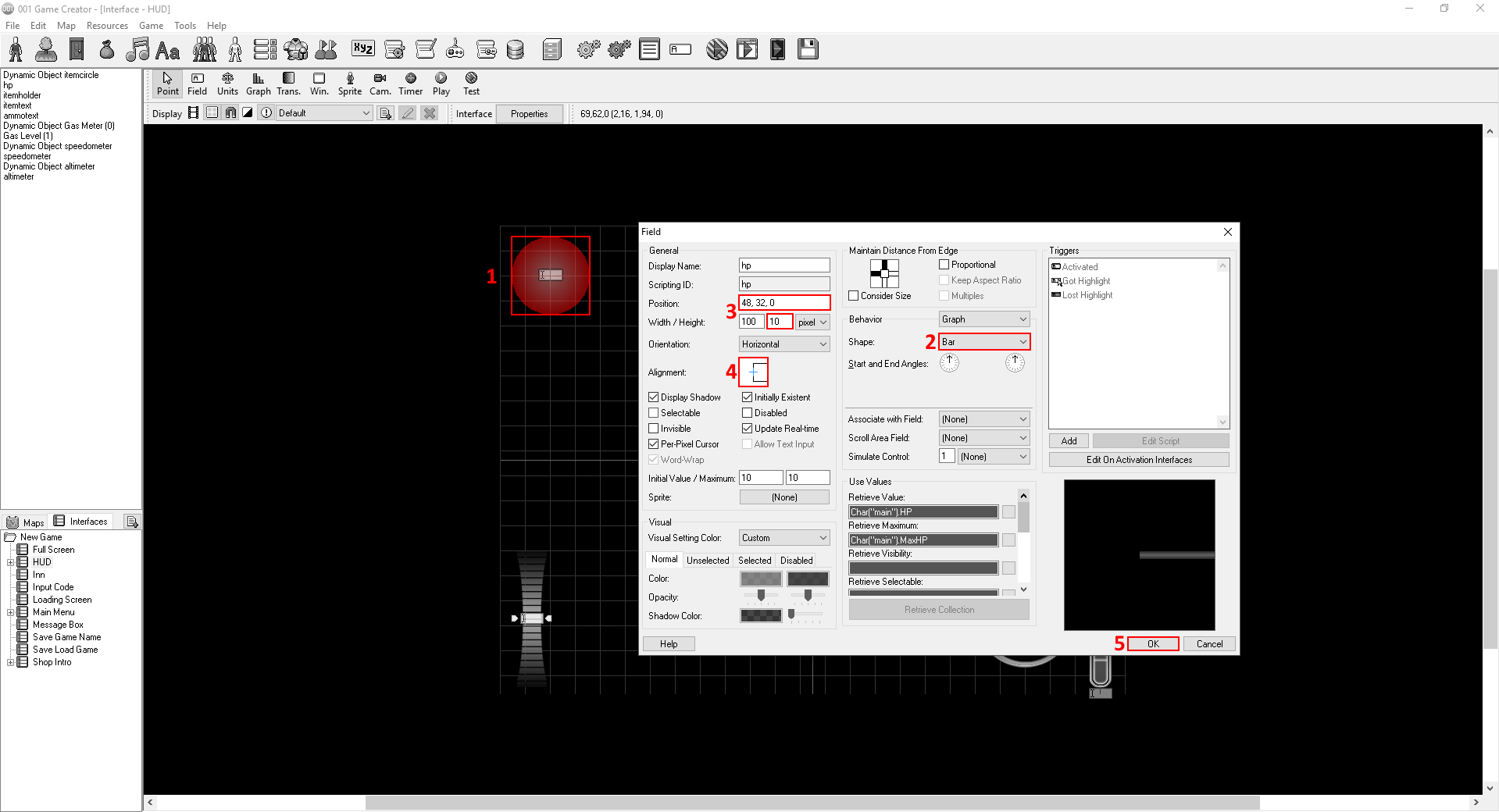
Now double click the red circle(currently the HP gauge represented in a pie graph) and make the changes you see below.

Alignment Option

The Alignment option determines how the Field will align to the interface. For bar graphs, it determines where the bar will deplete from. If we left it in the center, the bar would deplete from both it's sides, now that we set it to right, it will only deplete from its right side.

Creating a Field

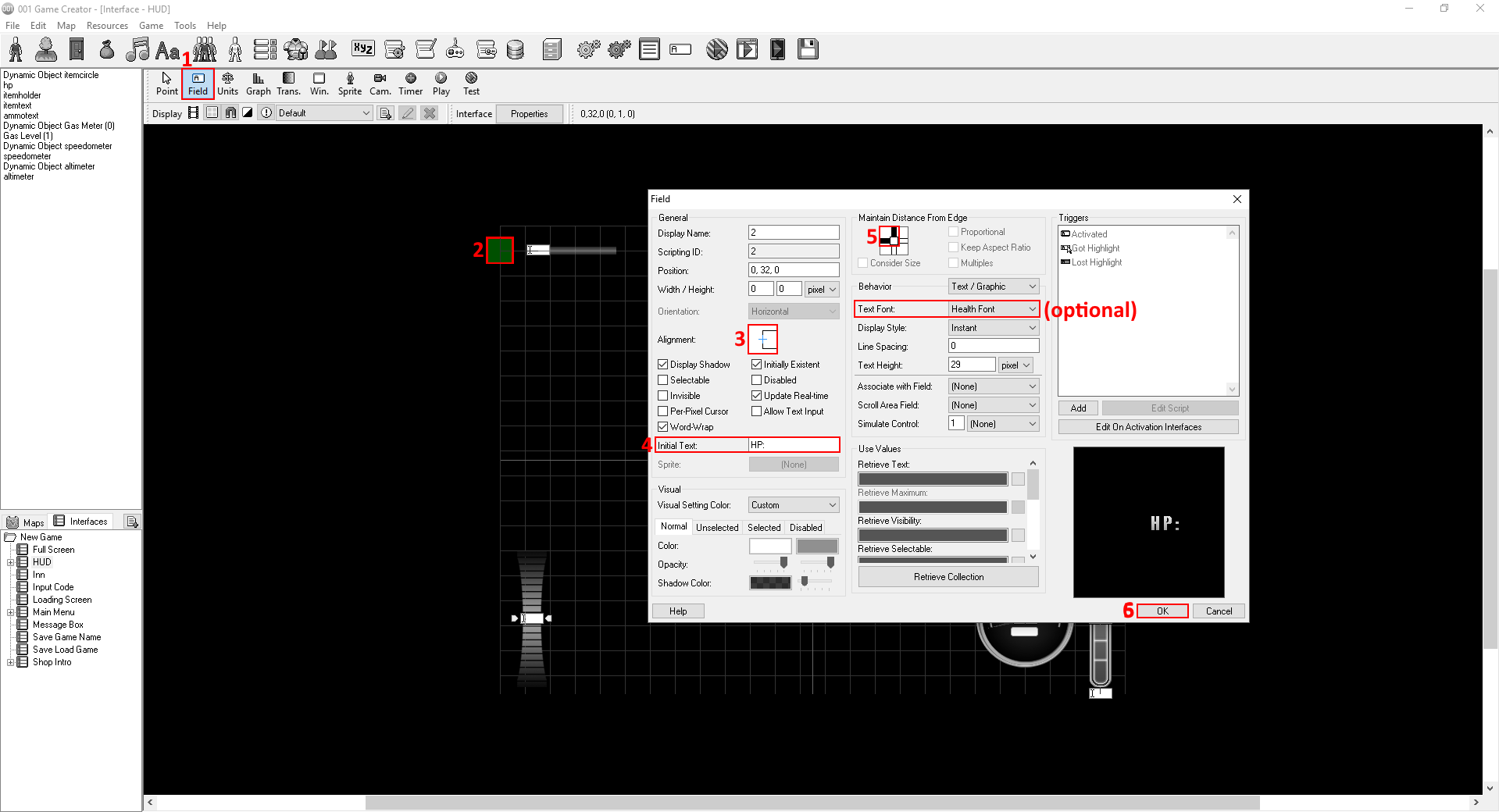
Now why don't we add an HP: text? To do that we need to create a new Field by selecting the field icon on the interface's toolbar. Now click to the left side of the HP bar to place it.
.
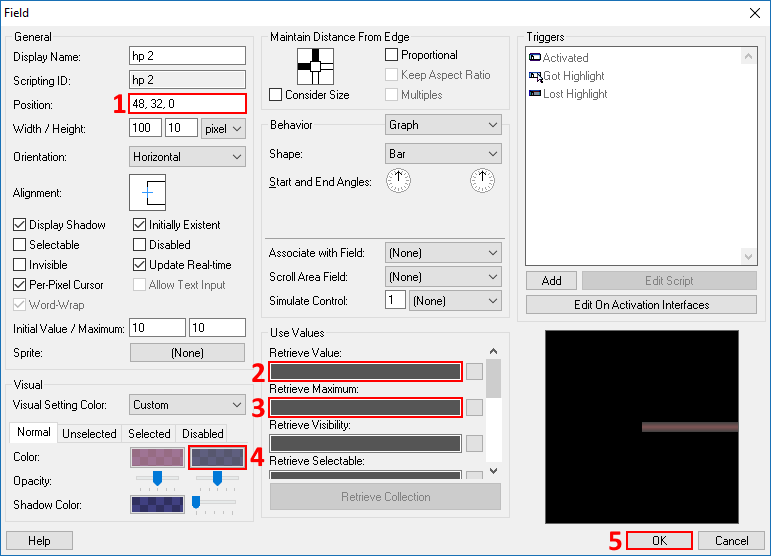
One final touch and we're done. Copy the HP bar field and paste it anywhere on the interface. Double click to edit it. Replicate the settings below.

If you don't understand what we just did, we basically created a static background for our hp bar by changing it's secondary color to grey, erasing its Retrieve/Retrieve Maximum values so it doesn't move along with the hp bar and placing it in the same position as the hp bar. But it seems to overlap it so it doesn't quite act like a background, we can fix that by right clicking the field selecting Move>to Back.

That's it. Phew, what a long tutorial, sorry if I was exhausting. This is my first ever tutorial so I may have not been very clear/fun to learn and stuff, let me know in the comments what you think, what I could have done better, what I shouldn't do and of course, any question you have.

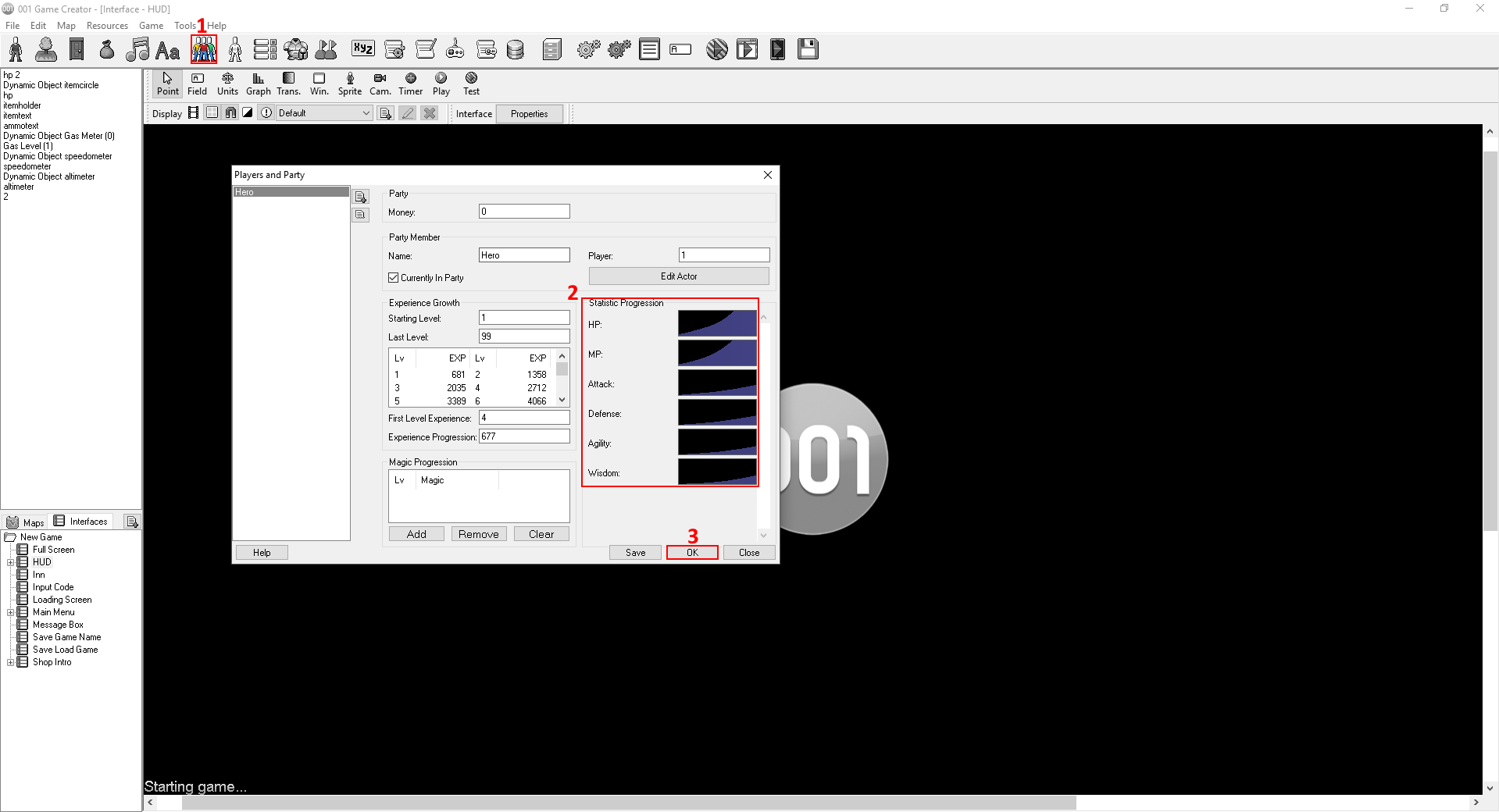
Oh and something else, I promise this is the last, the game may be kinda unbeatable since our hero has a maximum HP stat of 17. Unless you already figured out how to change the player's stats, have a look below.
7 Comments
birbilis 2 Oct @ 1:42am 
nice. Note tables are probably two dimensional arrays, not three dimensional that the text says
Caleb Wesker / St.Hugo 10 Jun, 2021 @ 2:37pm 
Very good guide. Although in the current version, your guide still works just fine. Many thanks.
Fae Lynn 20 Feb, 2019 @ 10:16pm 
This is a fantastic guide. Thank you so much for doing this! I look forward to working through your next one.
Elucidus 13 Sep, 2018 @ 8:58pm 
Great guide, you explained almost everything. And I recommend you copy and paste the message box text, because I ended up using hte wrong slash. :) Took me a bit to figure that out. I will work on the next tutorial tomorrow.
*Mirza*313* 16 Jul, 2018 @ 4:57pm 
really great work man, thanks a lot ^_^
this engine have lack of enough tutorials, i hope more people contributes for creating inter & advance tut
Juicy 24 Jul, 2017 @ 1:28pm 
Really well made,great work !
AngryTsundere 30 Apr, 2017 @ 8:24am 
Finally finished this after working through the night! Great tutorial, especially for your first one.