Grand Class Melee 2

Grand Class Melee 2

50 betyg
GCM2 Job & Ability Modding Guide
Av Drixxel
Get started modding job & ability data for GCM2 and create your own custom classes! This guide presents all the info you'll need to edit preexisting class data and build new classes from scratch.
   
Utmärkelse
Favorit
Favoritmarkerad
Avfavoritmarkerad
Welcome to GCM2 Modding!
Welcome to the Official GCM2 Job & Ability Modding Guide!

Have a great idea for a new class? Want to tweak an ability into OP splendor or nerf it into oblivion? Care to completely reshape the structure and flow of the class tree? The choice is yours and anything goes with the launch of Grand Class Melee 2's Steam Workshop!

What you'll need:
  • Spreadsheet software (Microsoft Excel, OpenOffice Calc, LibreOffice Calc, etc.)
  • GCM2 Mod Uploader tool (found in the 'Tools & Resources' folder of your GCM2 Steam installation directory)
  • OPTIONAL: Image editing software (Photoshop, GIMP, GraphicsGale, etc.)

Let's get started!
Introduction to .GCM and .GCFX Files
Whether a big change or a tiny tweak, any modding we'd like to do to GCM2's class data means getting familiar with .GCM and .GCFX files. For the purposes of this guide, when we refer to a CLASS we're specifically describing the pairing of a job (ex. Squire) with its inherent ability (ex. Durable). Together, a job & ability form a class.

The starting point for every single job & ability found in the Grand Class Melee 2 base game is the hugely important default.gcm located in 'Content/Data' of the GCM2 installation directory. Within default.gcm are job names, job sprite assignments and class paths, as well as the majority of definitions that make abilities function such as cast times, cooldowns, triggers, etc.

For more elaborate abilities, the extra details are addressed in the neighboring file projectiles.gcfx where the specifics of traveling objects (ex. Scorch), melee techniques (ex. Whirlwind) and everything else (ex. Dukkha) get set. To keep things clear and simple, the term EFFECT will be used to collectively describe the types of entries going into a .GCFX file.

Before we begin, it is very important that the default.gcm and projectiles.gcfx files located at 'Grand Class Melee 2\Content\Data' never be changed!

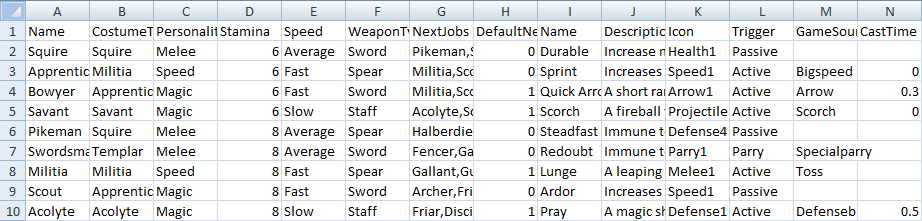
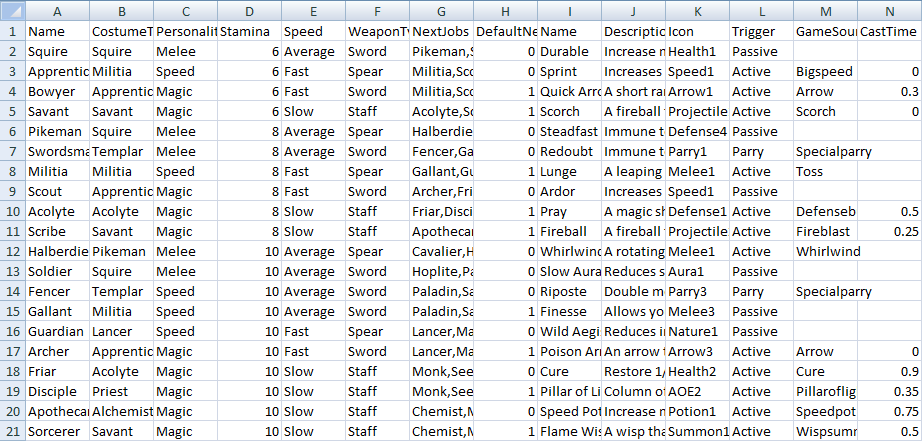
Here's what we can expect to see if viewing default.gcm with our choice of spreadsheet software:


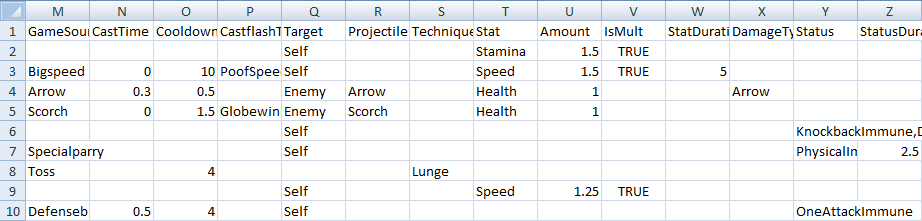
Not counting the column headers, each row of a .GCM file is dedicated to a single class. As seen in the example screencap above of default.gcm, row 2 is everything Squire, row 3 is all Apprentice, row 4 describes the Bowyer, etc. An ability shares the same row as the job its inherently assigned to so where job data ends at column H, ability data begins at column I and continues to column Z

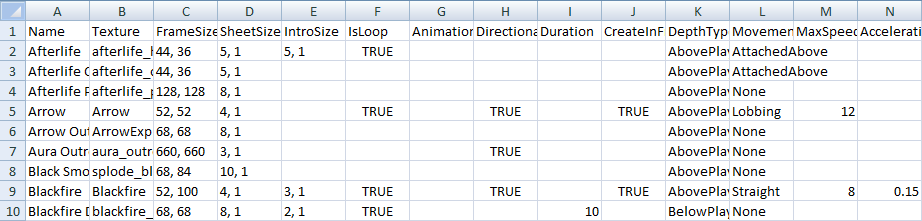
Here's a look at projectiles.gcfx with our choice of spreadsheet software:


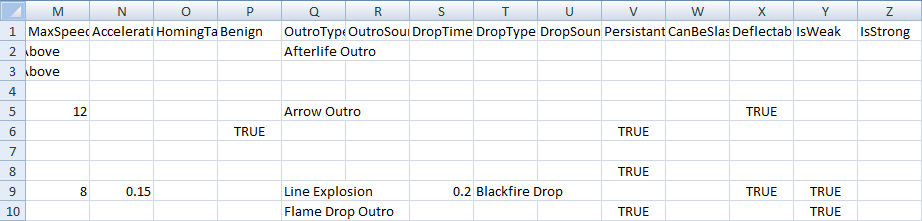
Very similar to the one-class-per-row structure of a .GCM file, each row of a .GCFX file is dedicated to a single effect. Since not all abilities require the spawning of blazing fireballs or oversized weapon slashes, an effect is treated as an optional extension of an ability's behavior. It's best to think of .GCFX files as helper files for .GCM files since many abilities are 100% defined in our .GCM files alone.
Jobs & .GCM Files
Let's work through the JOBS side of a .GCM file column by column and explain what everything means!

Name
This is used whenever the job is identified in-game. The text for class names scales in size based on its length in characters. Do your best to stay under 13 characters long to ensure readability throughout the game.

CostumeType
This attaches a character sprite to the job. While the names assigned to the various costume types are mostly current, some have been carried forward from legacy designs. For a full list of available costume types, please refer to the 'Modfile Master List'

Personality
This sets the behavior for any bot playing as the job. In general, this affects the AI's enthusiasm for close quarters combat ('Melee'), tendency to stay at range ('Speed') and proficiency at spamming abilities ('Magic').

Stamina
This sets the starting max health for the job in half-heart increments. ex. A stamina of 6 equals 3 hearts, a stamina of 10 equals 5 hearts, etc.

Speed
This sets the starting speed for the job, spanning 'Very Slow', 'Slow', 'Average', 'Fast' and 'Very Fast'.

Weapon Type
This decides the melee weapon to be wielded by the job. While purely cosmetic in nature, choices include 'Sword', 'Spear' and 'Staff'. For a full list of available weapon types, please refer to the 'Modfile Master List'

NextJobs
This determines the future jobs in the tree that a given job points to. While the default GCM2 tree deliberately restricts any job to 2 future choices, there's no limit as to how many entries the NextJobs field may include as long as the job names are case-sensitive and comma separated.

DefaultNext
When more than one job is named in NextJobs, DefaultNext decides which one is first shown to the player at the next inter-round. This begins counting from 0. ex. If NextJobs lists 3 jobs as in 'Pikeman,Swordsman,Milita', entering a value of 2 under DefaultNext will set 'Militia' as the default next job.
Abilities & .GCM Files
Next, let's look at the ABILITIES side of a .GCM file column by column and explain what everything means!

Name
This will be used wherever the ability is identified in-game. Like job names, text for ability names scales according to the length in characters. Do your best to keep ability names under 16 characters long to ensure readability throughout the game.

Description
This will be used wherever ability info is displayed in-game. Unlike job & ability names, ability description text does not scale. To ensure readability throughout the game, the description should not exceed 70 characters in length. An ability description longer than 70 characters may not display properly during the inter-round.

Icon
This associates a small graphic with the ability used as a quick identifier in the HUD and on the player column during the inter-round. For a full list of available icons, please refer to the 'Modfile Master List'

Trigger
This determines the method for casting the ability. An important distinction is between 'Passive' and 'Active' triggers, with 'Passive' triggers permanently auto-applying the ability without any input required from the player and 'Active' triggers requiring a button press for the ability to cast. For a full list of available triggers, please refer to the 'Modfile Master List'

GameSound
This assigns an audio sample to the ability that plays when the ability is triggered. For a full list of available game sounds, please refer to the 'Modfile Master List'

CastTime
This sets the time in seconds that the player must remain stationary in order to cast the ability. Setting CastTime to 0 results in an instant cast ability. ATTENTION: For an ability to be castable, it requires values for CastTime and Cooldown.

Cooldown
This sets the time in seconds that a player must wait for the ability to become available to cast again. A Cooldown of 0 means the ability will be refreshed immediately following the previous use. ATTENTION: For an ability to be castable, it requires values for CastTime and Cooldown.

CastflashType
This chooses a cosmetic sprite animation to spawn over the player upon successfully casting the ability. For a full list of available castflashes, please refer to the 'Modfile Master List'

Target
This determines who can be affected by the cast ability, whether 'Self', 'All' or 'Enemy'.

Projectile
This connects the casting of the ability with the spawning of an effect. The effect's behaviors and characteristics will be defined later in a .GCFX file. For a full list of available effects, please refer to the 'Modfile Master List'

Technique
This connects the casting of the ability with a special melee effect. As with projectiles, techniques are defined elsewhere in a .GCFX file so it's enough to correctly name the desired effect in this column. For a full list of available techniques, please refer to the 'Modfile Master List'

Stat
This sets the player stat affected when the ability collides with its target. Choices include 'Stamina', 'Speed', 'Attack' and 'Health'. It is important to distinguish between 'Stamina' and 'Health', as 'Stamina' refers to a player's maximum possible hearts and 'Health' refers to a player's current number of hearts not exceeding the ceiling set by their 'Stamina'. If separated by commas, an ability may affect multiple stats. ex. 'Health,Speed'

Amount
This determines the strength of the ability's stat effect. While there's no maximum possible value, the number entered must be greater than 0.

IsMult
This decides whether the ability's effect on a stat as defined by Amount is multiplicative rather than additive. ex. If IsMult is set to 'TRUE' for an ability affecting 'Speed' with an Amount of '3', the player's base speed will be multiplied by 3.

StatDuration
This sets the length of time in seconds that the ability's stat effect stays active, with an entry of 0 indicating a permanent stat effect.

DamageType
This is a special identifier used to classify damage dealt by the ability. In the base game, this is currently being used exclusively to differentiate arrow damage from other projectiles.

Status
This applies a status to the target of the ability and operates as something of a catch-all whenever an ability requires unique behavior. Multiple statuses can be applied by an ability assuming the list of statuses are comma separated and case-sensitive. For a full list of available statuses, please refer to the 'Modfile Master List'

StatusDuration
This sets the length of time in seconds that the ability's status remains active on its target, with an entry of 0 indicating a permanently applied status.
Effects & .GCFX Files
Now that we've gone over the bulk of the categories driving GCM2's jobs & abilities, EFFECTS are the last major section for us to cover.

Whenever an ability needs to spawn a special sprite effect, such as a fireball, we provide extra information to the game by way of a .GCFX file. Setting up the particulars of the effect's animation, how the effect spawns on the battlefield and how players are able to interact with the effect are all decided here. Since the effects of GCM2 cover a wide spectrum, there are many columns of a .GCFX file that may be safely left blank depending on the intended behavior of the effect.

Let's take a look at a .GCFX file column by column and explain what everything means!

Name
This is the effect's identifier, used to associate the effect with the ability intended to cast it. The name provided here will be used on the accompanying .GCM file under the Projectile column for the associated ability.

TextureName
This is the case-sensitive filename of the .PNG spritesheet associated with the effect. Be sure to exclude the file extension, GCM2 doesn't need the '.png' here or anywhere.

FrameSize
This defines the X and Y dimensions, in pixels, of a frame of animation for the effect. Frame size is uniform across a spritesheet so every frame of an effect's animation should fit within the stated frame size. Sheets are read left to right, top to bottom.

SheetSize
This describes the X and Y dimensions, in frames, of an effect's primary animation. An effect's primary animation can occupy multiple rows of its spritesheet. ATTENTION: The maximum dimensions of a spritesheet are 2048 pixels wide by 2048 pixels tall, textures larger than these specs will be rescaled to 2048x2048!

IntroSize
This describes the X and Y dimensions, in frames as defined earlier by FrameSize, of an effect's intro animation. An effect's Intro animation frames are always located on a separate row below its primary animation on the spritesheet.

IsLoop
This specifies whether the effect's primary animation repeats for the lifespan of the ability. A blank in this category applies the default of 'FALSE', meaning the animation will play only once before despawning or triggering its outro (see OutroType below).

AnimationSpeed
This sets the speed, in milliseconds, per frame of animation for the effect. A blank in this category will apply the default of 40ms.

Directional
This decides if the effect's sprite spawns on the battlefield oriented in the direction faced by the caster. A blank in this category applies the default of 'FALSE', meaning the effect's sprite will not be affected by the caster's orientation.

Duration
This sets the lifespan, in seconds, of the effect starting from the instant it spawns. Many effects do not require a value for Duration, such as projectiles intended to despawn on collision with a player or anything intended to despawn once its animations finish playing.

CreateInFront
This decides whether an effect spawns immediately in front of the caster. This is useful for Directional 'TRUE' projectiles and any effects intended to spawn at the hands of the caster. A blank in this category applies the default of 'FALSE', meaning the effect will spawn directly on top of the caster's current position.

DepthType
This determines the layer on which the effect spawns relative to the caster. Choices include 'Below Player' (layering under player sprites), 'Above Player' (layering above the player sprites) and 'Player' (layering like a player sprite against obstacles and other players on the battlefield).

MovementType
This decides the movement behavior of the effect once it spawns, allowing effects to travel like lobbing arrows, to orbit around a player, to stretch across the battlefield like beams, etc. For a full list of available movement types, please refer to the 'Modfile Master List'

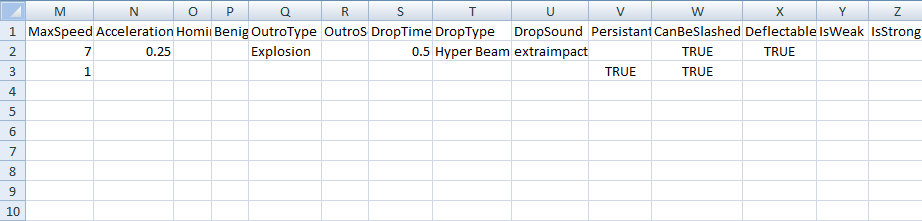
MaxSpeed
This sets the maximum speed that an effect travels in pixels per update. As a ballpark reference, a value of 10 would make a projectile travel at a speed roughly on par with an arrow whereas a value of 1 would slow a projectile down to approximately the speed of Whitespark.

Acceleration
This sets the rate of acceleration of an effect's travel up to its maximum speed in pixels per update. A blank in this category assumes that the effect begins traveling at its maximum speed from the moment it spawns. Ideally, the value for an effect's Acceleration should be less than its MaxSpeed.

HomingTarget
This sets the target for homing-type effects. For a full list of available targets, please refer to the 'Modfile Master List'

Benign
This decides if the effect is harmless when colliding with its target player. A blank in this category assumes 'FALSE', meaning contact with the effect's sprite will pass whatever damage or status the ability carries to the target player.

OutroType
This specifies a new & separate effect to spawn at the time of the original effect's despawn. Unlike intro animations which can share spritesheets with primary animations, outro animations live on separate spritesheets and require distinct entries on the .GCFX file. A whole new effect, not just a cosmetic outro animation, may be spawned via OutroType.

OutroSound
This associates the despawning of an effect with a specific audio sample. A blank in this category assumes that no audio sample will play when an effect despawns. For a full list of available game sounds, please refer to the 'Modfile Master List'

DropTime
This sets the interval, in seconds, that an effect will spawn drop effects at its current position. A blank in this category assumes the effect will not spawn drop effects, an entry of '1' means the effect will spawn a drop effect every second, and so on.

DropType
This assigns an effect to an ability's drop interval. Similar to how OutroType requires that a separate effect be named, the entry for DropType will point to a separate effect on the .GCFX file.

DropSound
This associates the spawning of drop effects with a specific audio sample. A blank in this category assumes that no audio sample will play when the drop effect spawns. For a full list of available game sounds, please refer to the 'Modfile Master List'

Persistant
This determines if the effect despawns on collision with a player. A blank in this category applies the default of 'FALSE', meaning the effect despawns on contact.

CanBeSlashed
This makes it possible for the effect to be destroyed via melee attack. A blank in this category applies the default of 'FALSE', meaning melee attacks do not despawn the effect.

Deflectable
This makes an effect vulnerable to deflections by melee attacks of a player equipped with 'Steadfast' status, whereby the ability becomes hijacked and friendly targets are no longer immune. In general, Deflectable only applies to traveling projectiles. A blank in this category applies the default of 'FALSE', meaning the effect cannot be deflected by 'Steadfast'-equipped players.

IsWeak
This decides if an effect is despawned when colliding with an effect bearing IsStrong status. A blank in this category applies the default of 'FALSE', meaning the effect will persist on the battlefield even if it makes contact with an IsStrong effect.

IsStrong
This determines if an effect can annihilate on collision any effects carrying IsWeak status. A blank in this category applies the default of 'FALSE', meaning the effect cannot annihilate IsWeak effects.
Managing Mods
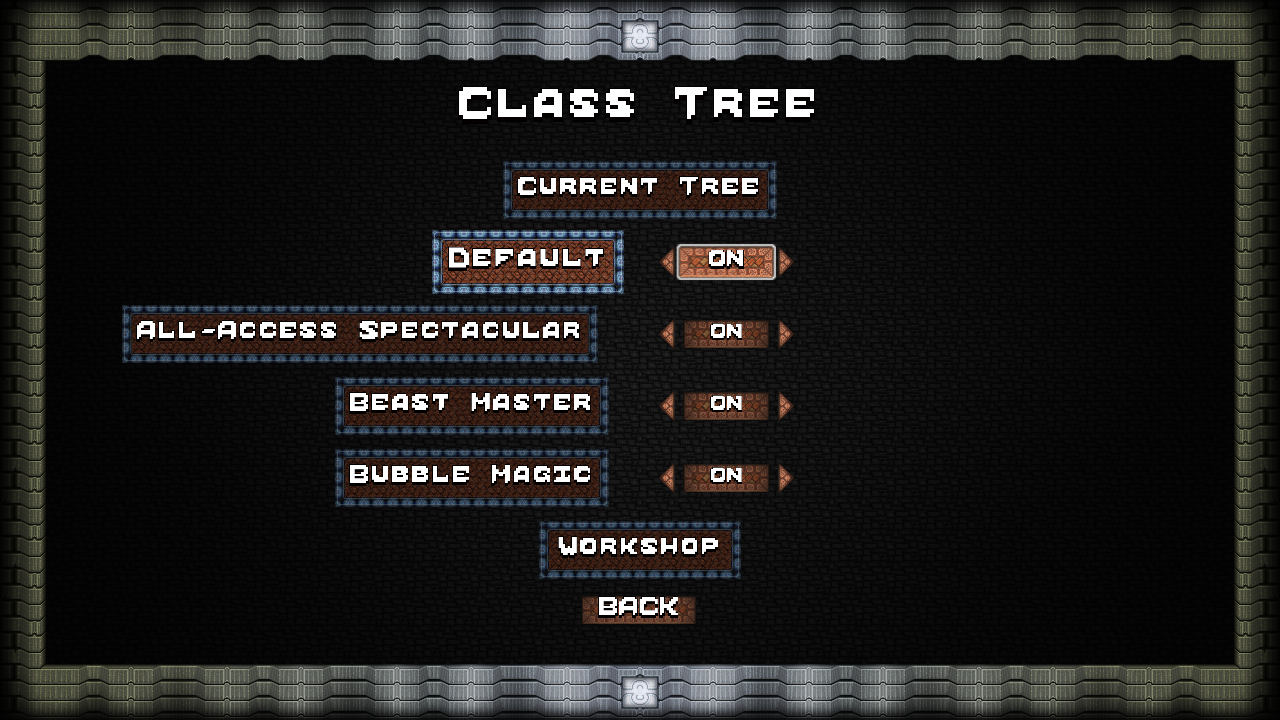
As mod files are subscribed to from the Workshop, the game will generate a list of all available class tree mods on the 'Class Trees' screen accessible via the options menu. For testing a mod before it's been shared on the Workshop, though, we'll be putting our files in GCM2's 'Content\Data\Custom' folder and everything inside that folder is treated as a single mod named 'Custom'.

The GCM2 Workshop may be quickly accessed through the Steam Overlay via the 'Workshop' button of the 'Class Trees' screen. Any mods subscribed to while GCM2 is running will require that the game be restarted before appearing in the 'Class Trees' mod list.


If 'Default' is turned OFF, the game will ignore all the base game's class data. This setting should be used if the mod files to be loaded are intended as a total replacement of the GCM2 class tree.

ATTENTION: Turning 'Default' and all other mods to off will prevent any game mode from being launched.


Now that we know how to load class tree mods, let's move on!
Editing Class Data
Having familiarized ourselves with the job & ability characteristics available for tweaking in the game's .GCM & .GCFX files, let's get into the process of how to start customizing!

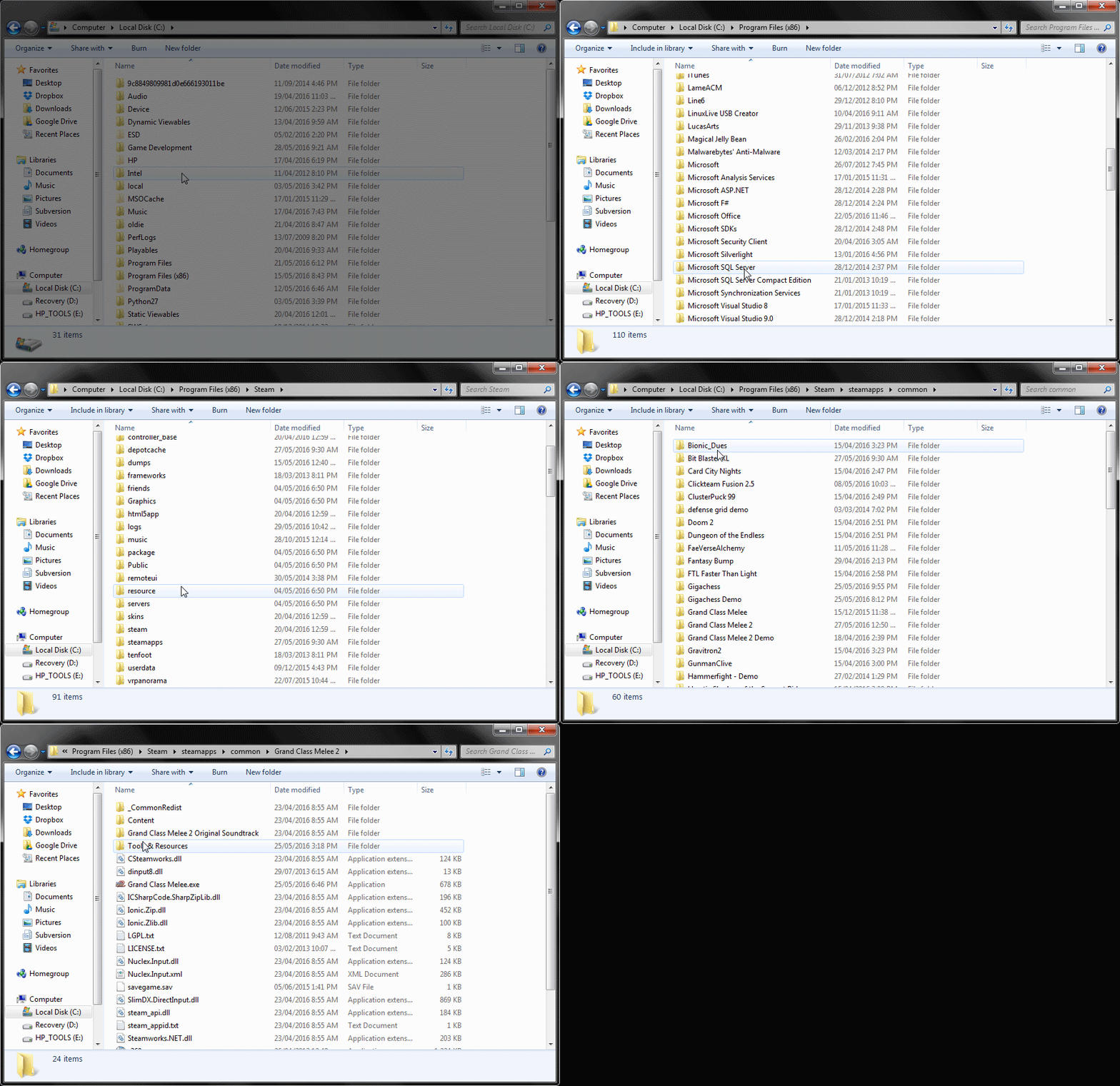
We'll begin by navigating to our Steam GCM2 installation directory, likely to be found at 'C:\Program Files (x86)\Steam\steamapps\common\Grand Class Melee 2' for standard Steam installs. Within the GCM2 installation directory, we're first going to explore the 'Tools & Resources' folder, and from there, the 'Templates' folder. We'll find 4 files inside 'Templates': sample.gcfx, sample.gcm, template.gcfx and template.gcm.


Using our choice of spreadsheet software, let's open sample.gcm to get things started. It will look like so:


As we can see, sample.gcm is a perfect copy of default.gcm and contains all of the base game job & ability data available to us for customizing. Unlike default.gcm, we can safely interact with sample.gcm without any risk of bricking the game.

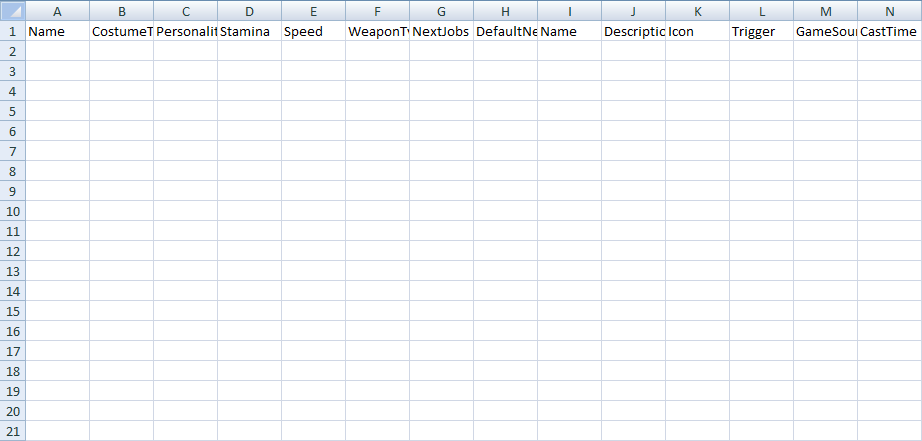
With sample.gcm still open, let's also open template.gcm using our choice of spreadsheet software. It will look like so:


Naturally, template.gcm is intended as a clean slate for us to start working on a class tree mod. The file is empty apart from the helpful column headers found in the first row.

We recommend copying over class data from sample.gcm to template.gcm and making changes to it there. Depending on the scope of the mod we have in mind, it may not be necessary to include every job & ability contained in sample.gcm in our new .GCM file. By choosing to include entries only for the classes we're planning to make customizations to rather than copying over everything from sample.gcm regardless of whether we're going to touch it or not, our new .GCM file will be smaller (kilobyte-wise) and less likely to cause compatibility issues with other user created mods.

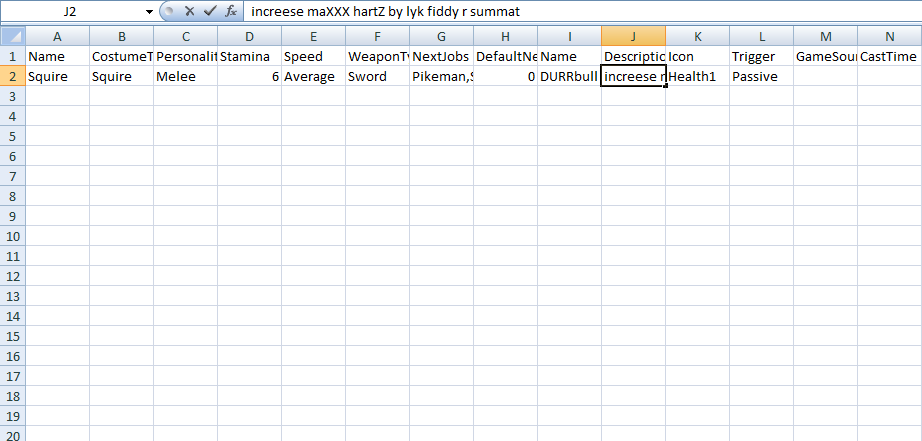
To help introduce us to the whole process, we're going to work through the steps of a simple class mod. Starting in sample.gcm, let's copy the complete contents of row 2 (all the data for the Squire class) and then paste it into the first blank row of template.gcm. From here, let's make some small alterations to Durable's name and description, like so:


From here, we're ready to save our work. We want to 'Save As' and it's very important that the file be saved in tab-delimited text format. The process for doing so will depend on our spreadsheet software of choice; there may be a drop-down menu labelled 'Save as type' near the field where we enter a file name, an 'Other Formats' button available in the expanded 'Save As' menu or something similar. Upon giving our work a file name (we're going with 'skwyur' for this example) and saving in tab-delimited text format, the extension of our new mod file will have been changed to .TXT. We'll need to restore that to .GCM in order for the mod file to be readable by the game.

In order to edit file extensions, we first need to be able to view them. The steps to make file extensions visible varies by operating system. Google "how to view file extensions in [insert OS + version here]" to find some clear instructions!

To quickly test our introductory class tree mod, we can copy over our new .GCM file to the 'Content\Data\Custom' folder of our GCM2 installation directory. We've chosen to place our mod file into the 'Custom' folder rather than the 'Steamworks' folder because the latter is exclusively reserved for mods subscribed to from GCM2's Steam Workshop.

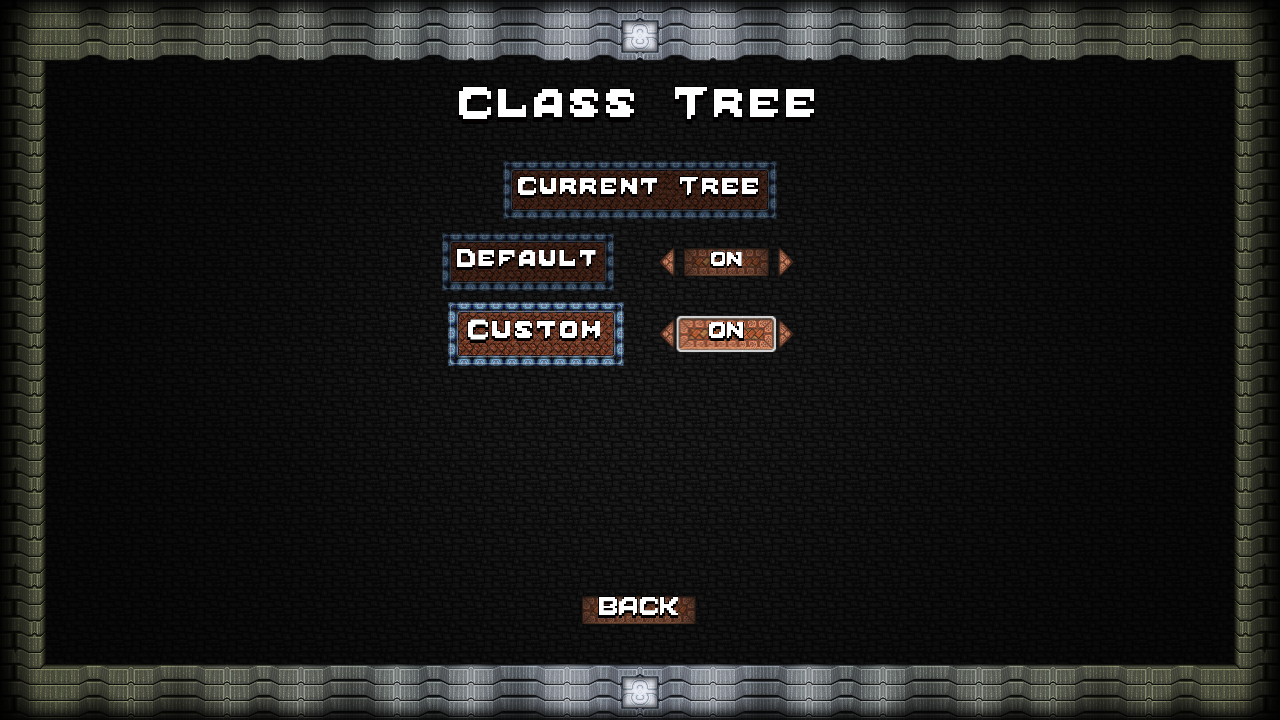
With our new .GCM file copied over into 'Content\Data\Custom', we're ready to test our simple mod in-game! Upon navigating to the 'Class Trees' screen through the options menu, we should see this:


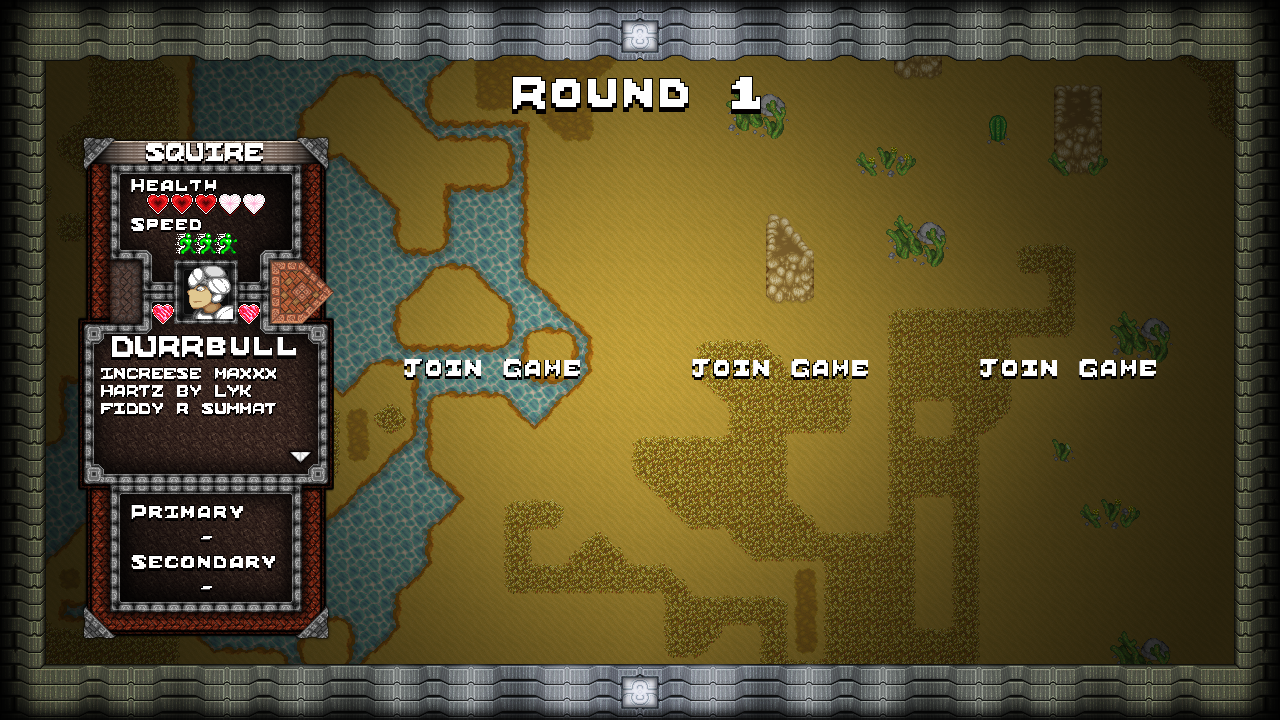
We can easily confirm that the mod files are loaded by either viewing the class tree or starting a local battle and viewing the class data there, like so:


Success! We've edited a GCM2 class and tested our mod in-game. While we obviously kept things extremely simple by editing only the ability name and description for the Squire class, deeper edits can be performed by following this same process.

An important thing to keep in mind when editing the name of a class with a custom .GCM file (ex. 'Squire' to 'Skwyur') is that this will create a new slot for that class on the class tree when the mod is loaded. If we'd like to change any of the default class names, it would be best to copy the complete contents of sample.gcm into our template and then turn 'Default' to OFF at the 'Class Trees' screen when preparing to play the mod.

To summarize the steps for editing class data:
  1. Open either sample.gcm or sample.gcfx and copy the entries we'd like to edit over to the corresponding .GCM or .GCFX template file
  2. Save our edited class data in tab-delimited text format and restore the file extension from .TXT back to .GCM
  3. Copy our new mod file(s) to 'Content\Data\Custom'
  4. Launch GCM2 and navigate to the 'Class Trees' screen to ensure our new mod file(s) are readable by the game
ATTENTION: Attempting to run GCM2 with any active .GCM or .GCFX file open will prevent the game from launching, be sure to save & close all work before testing!
Adding Classes & Importing Graphics
Now that we've seen a little of what's possible with class customization, let's move on to full-fledged class creation!

We can create whole new standalone classes and merge them seamlessly into the class tree almost as easily as editing what's already there in the base game. Just like in the previous section where we copied over an entry from sample.gcm and edited the ability name and description for the Squire, we could have gone further and changed the job name, too, which would have added our Skwyur as a separate class. That wouldn't offer much in the way of fun, however, since the Squire & Skwyur would play identical to one another. We really ought to change the Skwyur's ability into something different in order for it to be considered worth playing, so let's go ahead and do exactly that!

ATTENTION: Sprites in GCM2 are double-sized before being imported into the game. All completed spritesheets should be scaled up 2x from their original dimensions using nearest neighbor resampling. If our custom graphics appear extremely small or unusual in-game, it's likely that they haven't been scaled up!

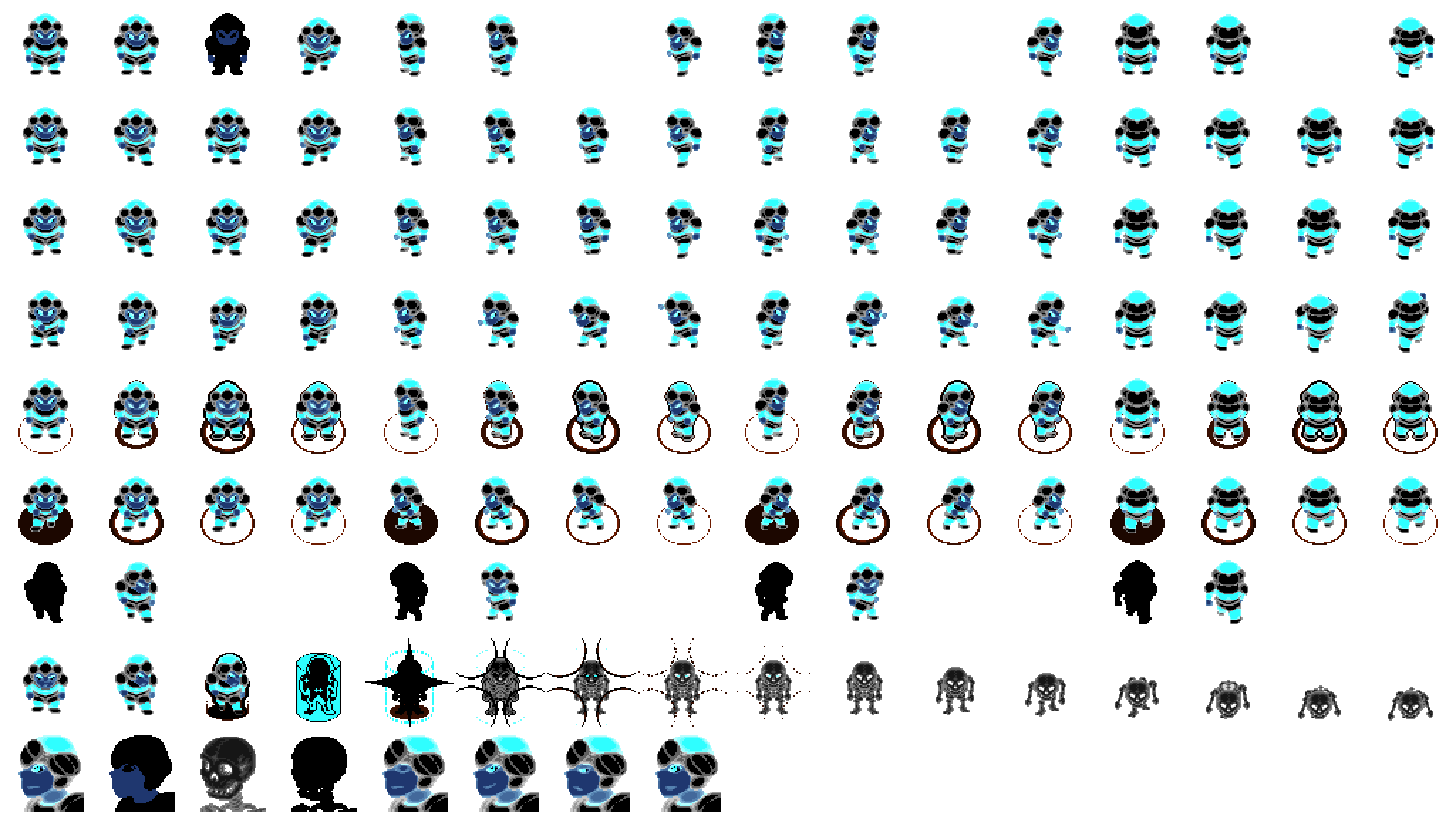
We can choose from any of the job sprites already in the game to represent our Skwyur, but instead, let's import a custom sprite. All of the sprite assets used in GCM2 are available for editing in the 'Tools & Resources' folder, giving a great place to start. In our case we've taken the Squire base sprite and crudely inverted its colors so that it's unmistakably "new". We've saved this palette-inverted sprite as skwyur.png.


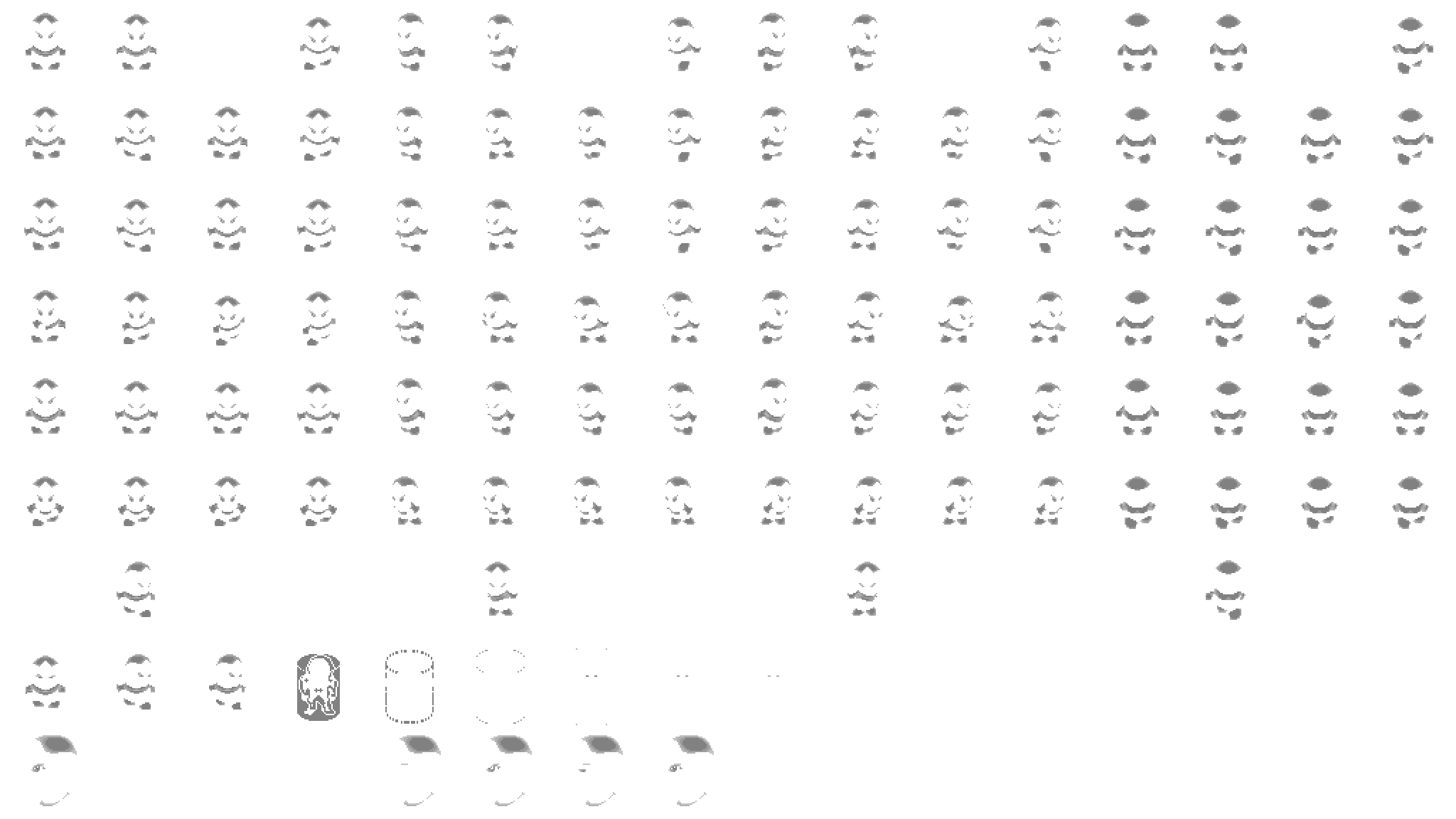
All of the team coloring that happens in GCM2 relies on a greyscale layer specially tailored for each job sprite. If we want our Skwyur to be eligible for dynamic recoloring to match an assigned team, we need to prepare one additional image called skwyur_greyscale.png. Since the greyscale layer will be placed on top of the base sprite, it should only include the parts of a job's costume intended to be recolored. As we can see below, skwyur_greyscale.png is mostly transparent empty space with only the top of the helmet, the eyes, the midriff and thighs included for recoloring.


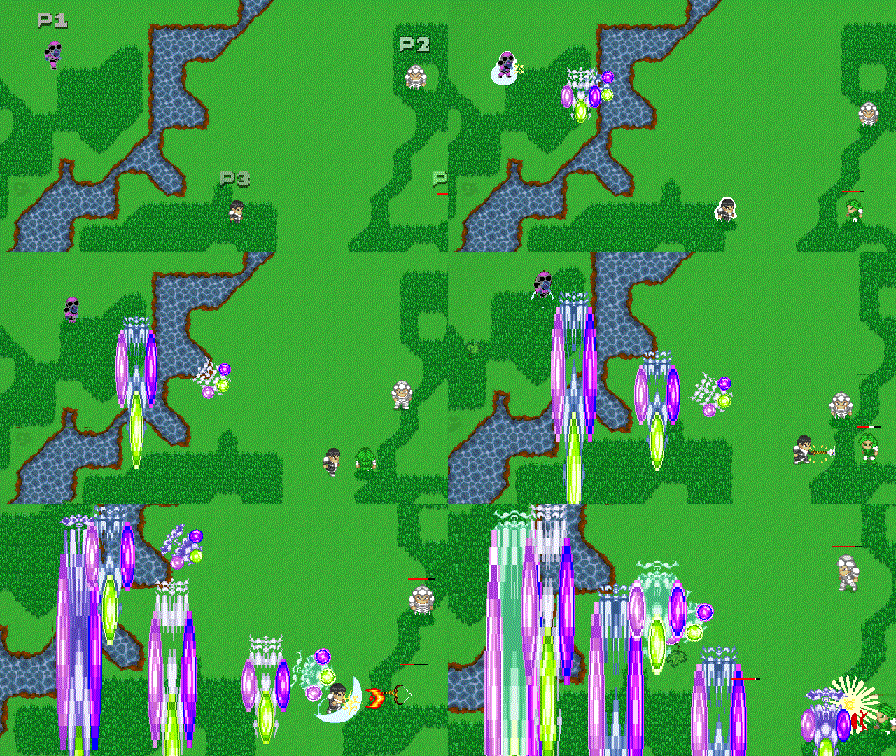
To differentiate our Skwyur from the rest of the classes in GCM2, we're going to alter its class data and construct an ability unlike anything in the base game. By applying the right set of behaviors, we can make a wandering projectile that shoots slow-moving persistent beams. We're going to dub this not-at-all-OP ability 'Hyper Gleam'.

It's time again to open skwyur.gcm in our spreadsheet software of choice and make some changes!

On the JOBS side of skwyur.gcm:
  1. Change Name from 'Squire' to 'Skwyur'
  2. Change CostumeType from 'Squire' to 'skwyur'
  3. Change Personality from 'Melee' to 'Magic'
  4. Change Stamina from '6' to '10'
  5. Change WeaponType from 'Sword' to 'Staff'
  6. Change Speed from 'Average' to 'Very Slow'
  7. Change NextJobs from 'Pikeman,Swordsman' to 'Scout,Acolyte'
  8. Change DefaultNext from '0' to '1'

On the ABILITIES side of skwyur.gcm:
  1. Change Name from 'Durable' to 'Hyper Gleam'
  2. Change Description from 'Increase maximum hearts by 50%.' to 'A homing orb kite that shoots permabeams of itself. NOT OP.'
  3. Change Icon from 'Health1' to 'hypergleam_icon'
  4. Change Trigger from 'Passive' to 'Active'
  5. Change GameSound from blank to 'Fireblast'
  6. Change CastTime from blank to '0.1'
  7. Change Cooldown from blank to '0.25'
  8. Change Target from 'Self' to 'Enemy'
  9. Change Projectile from blank to 'Hyper Gleam'
  10. Change Stat from 'Stamina' to 'Health'
  11. Change Amount from '1.5' to '1'
  12. Change IsMult from 'TRUE' to blank
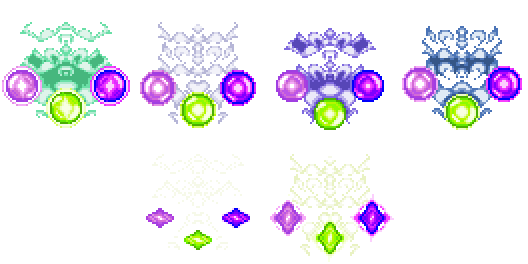
As we can see, there are a couple of things we're pointing our .GCM file towards that don't exist yet, namely 'hypergleam_icon' and the Hyper Gleam projectile itself. For the Hyper Gleam, we're starting with a sprite variant of the Trigleam called trigleam_baby.png not currently assigned in the base game. To match our grossly recolored Swkyur, trigleam_baby.png has been run through a similar nasty inversion and been renamed to hypergleam.png.


If we're choosing not to use one of the base game's ability icons, a custom icon can be as easy as any image in .PNG format with dimensions up to 54x54. A small graphical representation of the ability itself tends to work best. In the case of our Hyper Gleam, we've crudely shrunk a frame of animation down to be 54 pixels across and saved it as hypergleam_icon.png. Whatever name we give our icon graphic is what we provide (minus the .PNG extension) in our .GCM file under Icon.


Now that we have our .GCM file completely changed over and all of our custom art assets ready, it's time to create a .GCFX file that's going to make the Hyper Gleam work!

Using our spreadsheet software of choice, we'll want to start by opening template.gcfx found in the 'Templates' folder within 'Tools & Resources'. From there, we have a number of entries to make!


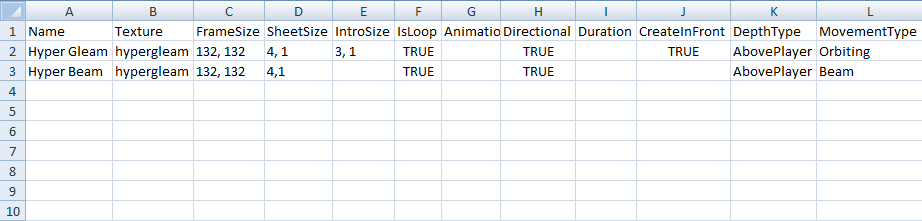
By filling out our new .GCFX file as seen above, we've defined an orbiting projectile attack that tracks enemy targets and drops an invincible beam ('Hyper Beam') every half second. We could have made the Hyper Gleam drop any effect found in the GCM2 base game, but since we're already here and customizing to such a degree, we may as well go all the way! The Hyper Beam uses the same sprite as the Hyper Gleam but an important distinction is the change in MovementType from 'Orbiting' to 'Beam'.

Let's go ahead and save our custom .GCFX file as hypergleam.gcfx (in tab-delimited text format, of course!). This completes everything we'll need to get testing!

We're going to place the following files into the 'Data\Custom' folder:
  • skwyur.gcm
  • skwyur.png
  • skwyur_greyscale.png
  • hypergleam.gcfx
  • hypergleam.png
  • hypergleam_icon.png
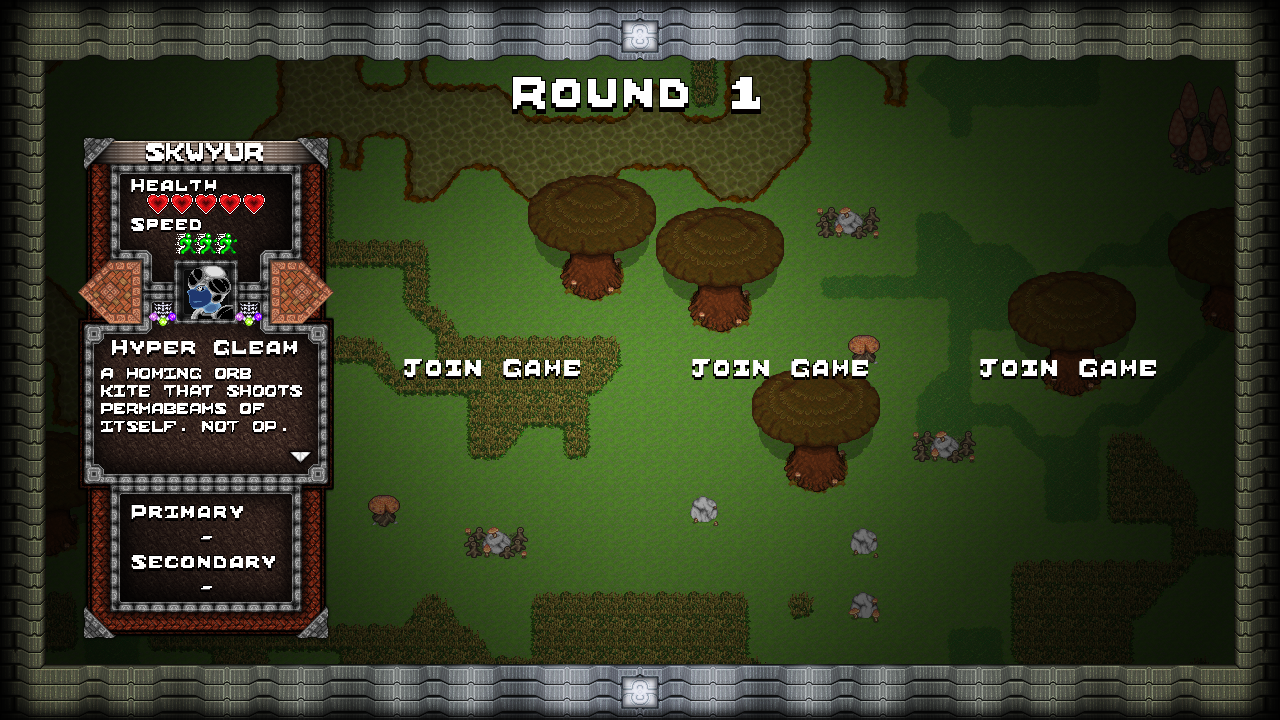
With all six of those modfiles in the right place, we can launch GCM2 and see if our Skwyur has been incorporated into the class tree!


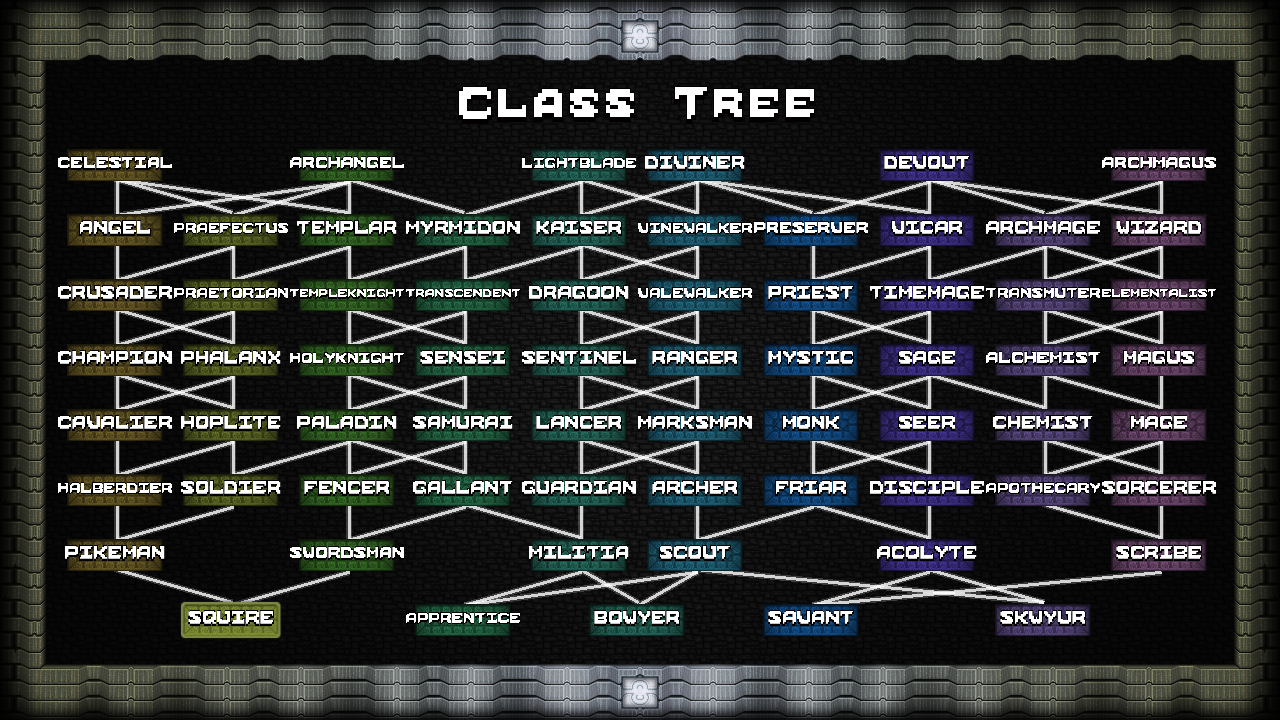
And it has! If we wanted to place the class higher in the tree, all we'd need to do is add some entries into our .GCM file to customize the NextJobs listing for some of the GCM2 base classes. Unless they're being pointed to in the NextJobs list of one or more classes, GCM2 will place all new classes in the starting round.


Let's bask in the glory of a perfectly balanced ability :D


Want to play this sample mod? Subscribe to it on the Workshop! :)
http://steamproxy.com/sharedfiles/filedetails/?id=694882113
Uploading Mods
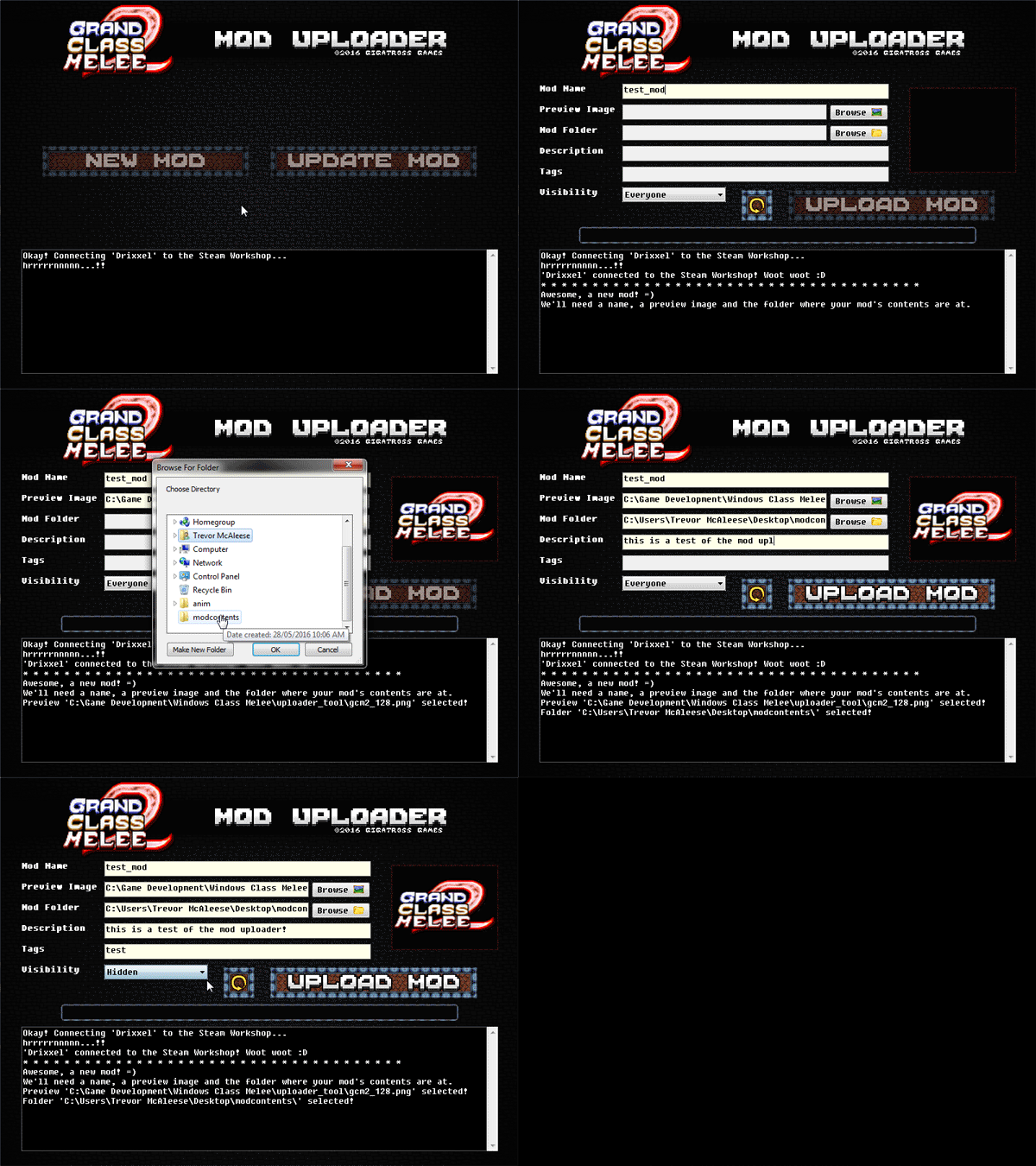
The mod uploader tool located in the 'Tools & Resources' folder of your GCM2 installation directory makes sharing our class tree mods with the Steam community as simple and streamlined as possible! Once we're ready to upload our new mod files, we need merely perform the following:
  1. Place all .GCM, .GCFX and .PNG mod files to be uploaded into a single dedicated folder
  2. Prepare a preview image in .PNG, .JPG or .GIF format (16x9 images work best)
  3. Sign in to the Steam client and launch the GCM2 Mod Uploader tool
  4. Click the 'New Mod' button
  5. Fill in all fields, most importantly 'Mod Name', 'Preview Image' & 'Mod Folder'
  6. Click the 'Upload Mod' button


The mod uploader will package all of our files into a .ZIP before sending them off to the workshop. A history of all uploaded files will be left alongside the uploader tool in the 'Tools & Resources' folder.

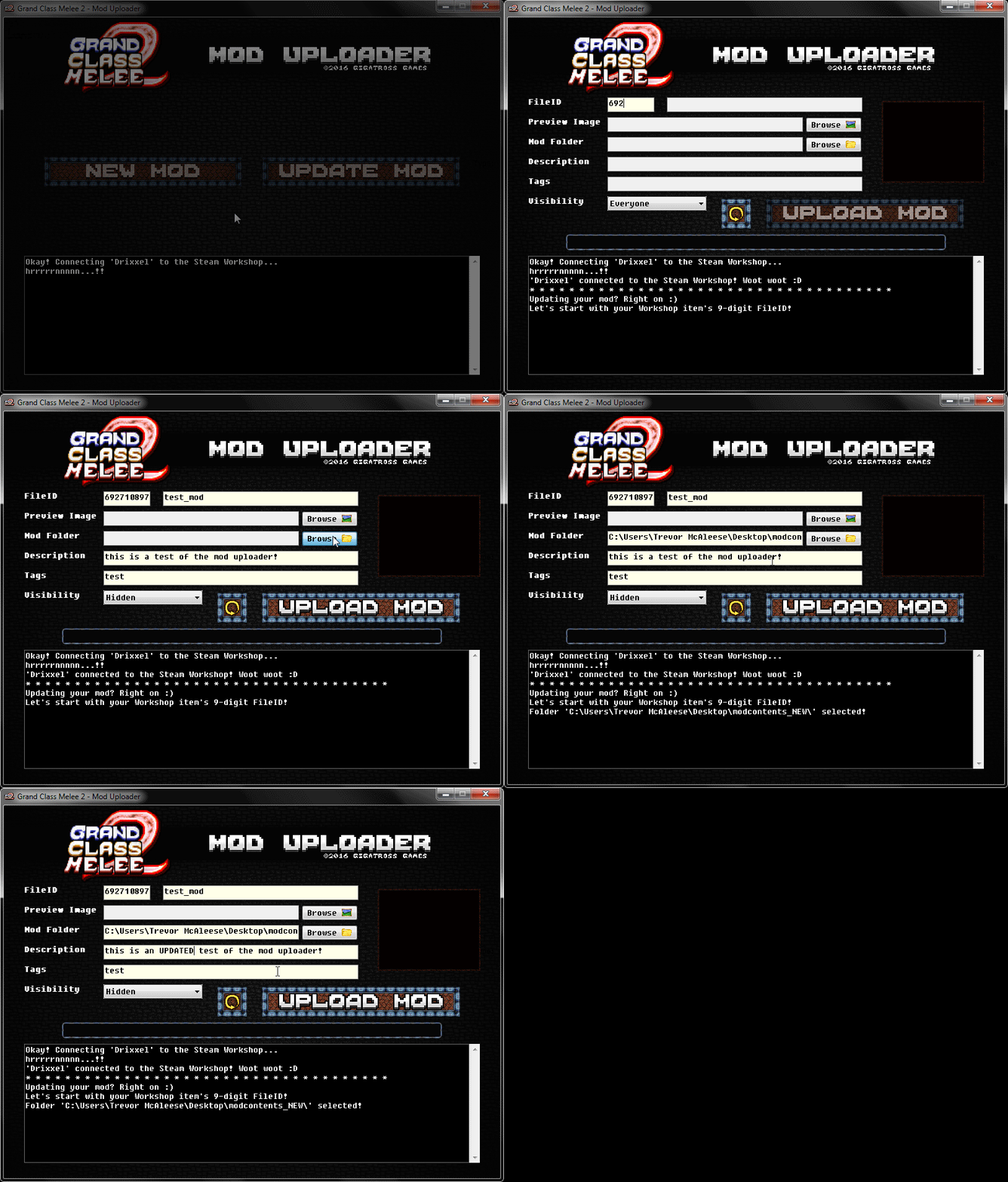
Updating a previously uploaded GCM2 mod is as easy as the following:
  1. Retrieve the 9 or 10 digit itemID of the mod (easily found at the end of the URL of the Steam Workshop item's page)
  2. Sign in to the Steam client and launch the GCM2 Mod Uploader tool
  3. Click the 'Update Mod' button
  4. Fill in any fields to be updated (PRO TIP: the mod name can only be changed through the Steam Workshop site)
  5. Click the 'Upload Mod' button


ATTENTION: Due to a bug in the extension that powers interactions with the Steam API, the tool may refuse to launch on Windows XP machines. Please report any issues on the community forums!
FAQ & Troubleshooting Tips
Mod data not loading? Be sure to save all your .GCM and .GCFX files in tab-delimited text format!

Sprites appearing teeny tiny in game? Remember to double-size all job & ability spritesheets! (use nearest neighbour scaling for best results)

Custom graphics not displaying at all? Make sure their spritesheets are no larger than 2048x2048!

GCM2 hangs when attempting to launch? Close any .GCM or .GCFX files open in spreadsheet software!

Classes not pointing to the right NextJobs? Check case-sensitivity and spelling in the .GCM file!
Modfile Master List
When completing a .GCM or .GCFX entry and referring to content found in the base game, it's important that the correct enumerators be used so the .GCM & .GCFX files may be read without error. See below for a master list of everything available in the base game that may be used for our custom jobs & abilities.

Personality:
  • Melee
  • Magic
  • Speed

CostumeType:
  • Acolyte
  • Alchemist
  • Apprentice
  • Archangel
  • Archer
  • Archmagus
  • Celestial
  • Devout
  • Diviner
  • Lancer
  • Lightblade
  • Magus
  • Militia
  • Pikeman
  • Priest
  • Samurai
  • Savant
  • Soldier
  • Squire
  • Templar

Speed:
  • VerySlow
  • Slow
  • Average
  • Fast
  • VeryFast

WeaponType:
  • angelblade
  • bigrod
  • claymore
  • diamondrod
  • fineblade
  • hornedge
  • jewelsword
  • katana
  • pike
  • pokerstaff
  • poleblade
  • rockstaff
  • scimitar
  • sharkrod
  • sharprod
  • Spear
  • Staff
  • Sword
  • thickspear
  • trident

Trigger:
  • None
  • Passive
  • Active
  • Hit
  • Strike
  • Death
  • Slash
  • Parry

AbilityIcon:
  • Arrow1
  • Arrow2
  • Arrow3
  • Arrow4
  • Beam1
  • Beam2
  • Beam3
  • Nature1
  • Nature2
  • Nature3
  • Defense1
  • Defense2
  • Defense3
  • Defense4
  • Defense5
  • Defense6
  • Defense7
  • Health1
  • Health2
  • Health3
  • Speed1
  • Speed2
  • Aura1
  • Aura2
  • Aura3
  • AOE1
  • AOE2
  • AOE3
  • Time1
  • Time2
  • Melee1
  • Melee2
  • Melee3
  • Melee4
  • Melee5
  • Melee6
  • Air1
  • Warp1
  • Misc1
  • Misc2
  • Parry1
  • Parry2
  • Parry3
  • Parry4
  • Projectile1
  • Projectile2
  • Projectile3
  • Projectile4
  • Projectile5
  • Projectile6
  • Potion1
  • Potion2
  • Potion3
  • Summon1
  • Summon2
  • None

CastflashType:
  • None
  • BlubblerFortitude
  • BlubblerSpeed
  • BlubblerStrength
  • GlobeWink
  • Litcolumn
  • Poof
  • Shimmershell
  • Waterfall
  • WaterWink

EffectType:
  • None
  • FireTrail
  • HallowedBlow
  • HolyAura
  • aura_outro
  • HealingAura
  • SlowAura
  • SpeedBuff
  • Slowmove
  • slowmove_outro
  • Dukkha
  • dukkha_outro
  • living_fire_orb
  • living_fire_splode
  • flame_wisp_guy
  • blackfire_drop
  • flame_wisp_drop
  • flame_wisp_drop_outro
  • Kai_bomb
  • Scorch
  • Fireball
  • Psionicbolt
  • Fireblast
  • Arrow
  • Trigleam
  • Blackfire
  • WreathOfFlame
  • Flare
  • GroundPound
  • GroundPound_takeoff
  • LumaPillars
  • Lunge
  • WhiteSpark
  • PitchArrow
  • Poison_Arrow
  • soul_strike
  • BowMuzzleFlash
  • castflashes
  • castflash_ContinualPoof
  • castflash_GlobeWink
  • castflash_WaterWink
  • castflash_Waterfall
  • castflash_Poof
  • castflash_Shimmershell
  • castflash_Blubbler
  • castflash_Litcolumn
  • castflash_Halfshell_loop
  • castflash_Shimmershell_loop
  • castflash_Shimmershell_outro
  • castflash_Spikeshell
  • castflash_Spikeshell_loop
  • castflash_Poof_stuck
  • MuzzleFlash
  • Shadow
  • Shift
  • Whirlwind
  • GreaterWhirlwind
  • dune_grassmove
  • dune_watermove
  • dune_leaf
  • mire_grassmove
  • mire_watermove
  • mire_leaf
  • wood_grassmove
  • wood_watermove
  • wood_leaf
  • ruin_grassmove
  • ruin_watermove
  • ruin_leaf
  • ArrowExplosion
  • PoisonArrow_splode
  • Explosion
  • GroundExplosion
  • KaiBeamExplosion
  • LineExplosion
  • kai_bomb_splode
  • Kaibomb_death
  • pol_outro
  • RoundExplosion
  • Flare_outro
  • ShadowblastExplosion
  • SlowExplosion
  • SmokeExplosion
  • SmokeyGroundExplosion
  • splode_blacksmoke
  • splode_directional
  • splode_greysmoke
  • splode_ice
  • splode_ice_big
  • splode_whitesmoke
  • TriangleExplosion
  • WhiteFireExplosion
  • wof_outro
  • glint_gemini
  • glint_hex
  • glint_miniburst
  • glint_miniflash
  • glint_minisplash
  • glint_warpring
  • glint_horzslice
  • glint_vertslice
  • ParryGlint
  • PitchArrowExplosion
  • KaiBeam
  • WhiteFire
  • Shadowblast
  • afterlife_halo
  • afterlife_outro
  • afterlife_poof
  • Powerups
  • ThreeArrow

Technique:
  • None
  • Whirlwind
  • Lunge
  • Leap
  • Jump
  • HallowedBlow
  • GreaterWhirlwind

Stat:
  • Stamina
  • Speed
  • Attack
  • Health
  • None

Status:
  • None
  • Wildsnare
  • HalfKnockback
  • SlowAura
  • SlowedByAura
  • DamaingAura
  • Subduction
  • Cooldownfinish
  • Shift
  • KnockbackImmune
  • Deflect
  • PhysicalImmune
  • Stun
  • Selfstun
  • Dukkha
  • ReflectDamage
  • SlowImmune
  • DoubleAttackSpeed
  • DamageQuarterMagical
  • WeatherImmune
  • PoisonImmune
  • Resurrect
  • FastAttack
  • WildWalker
  • OneAttackImmune
  • Halftime
  • Cantturn
  • NoDamage
  • Heroism
  • HealingAura
  • Lifeground
  • WildAegis
  • ArrowImmune
  • ThrustImmune
  • ClockShock

DamageType:
  • Magic
  • Physical
  • Thrust
  • Arrow
  • None

DepthType:
  • Terrain
  • BelowPlayer
  • Player
  • AbovePlayer
  • Canopy
  • HUD

MovementType:
  • None
  • Straight
  • Lobbing
  • Wandering
  • Input
  • Homing
  • Orbiting
  • Following
  • Attached
  • AttachedAbove
  • AttachedInfront
  • AttachedBelow
  • Beam

GameSound:
  • None
  • Afterlife
  • Arcanemind
  • Arrow
  • Back
  • Bigblow1
  • Bigspeed
  • Bigwhirlwind
  • Blackfire
  • Castlong
  • Castshort
  • Death
  • Defensebuff1
  • Deflect
  • Dreamsoul
  • Eternalwarrior
  • Eyeforaneye
  • Fireblast
  • Flare
  • Fortitudepotion
  • Grass
  • Hallowedblow
  • Holyhit
  • Immunityting
  • Kaibeam
  • Land
  • Move
  • Parry
  • Phase
  • pumpkinsmash_01
  • Pillarheal
  • Projectilefizzle
  • Resurrect
  • Scorch
  • Select
  • Shadowblast
  • Shout
  • Shatter
  • Smallspeed
  • Snap
  • Spear1
  • Spear2
  • Spear3
  • Specialparry
  • Speeddebuff
  • Speedpotion
  • Staff1
  • Staff2
  • Staff3
  • Strengthpotion
  • Struck1
  • Struck2
  • Sword1
  • Sword2
  • Sword3
  • Toss
  • Trigleam
  • Virtue
  • Water
  • Whirlwind
  • Whitefire
  • Wispflame
  • Dukkha
  • Whitespark
  • Cure
  • Wispsummon
  • Wispdie
  • Soulstrike
  • Pitchboom
  • Livingfire
  • Tangle
  • Kaibomb
  • Kaiboom
  • Pillaroflight
  • halogone
  • extraimpact
  • rbWood
  • rbDune
  • rbMire
  • rbRuin

Target:
  • Self
  • Friendly
  • Enemy
  • All
  • None
4 kommentarer
Drixxel  [skapare] 27 apr, 2017 @ 7:52 
Hi gagadoliano! Cheers for the question, Notepad will definitely work for editing the .GCM & .GCFX templates but it might make it a bit tough to maintain the correct spacing between categories. Rather than starting with the totally blank templates, it might be easier to work with the .GCM & .GCFX files from a pre-existing mod, or even make copies of the base game's "default.gcm" and "projectiles.gcfx" so that you have a functioning example of where everything needs to be placed and then go through and remove or replace entries as needed. Also, you'll want to make sure that word wrap in Notepad is turned off or the files are going to look like a big misaligned mess.

If there's anything I can help with here, just let me know! :)
gagadoliano 27 apr, 2017 @ 5:16 
Can I edit the .GCM and .GCFX templates with notepad(or any software that's not a spreadsheet software)?
Drixxel  [skapare] 31 maj, 2016 @ 16:32 
Hi Spike Berd! It looks like the tab-delimited text format of the .GCM file isn't being read properly. When you go to open the .GCM file, is the program offering you a choice between fixed-width and delimited data types or anything like that? If not, maybe try dragging and dropping the .GCM file directly into a blank spreadsheet and see if that makes a difference. Let us know how it goes! :)
Spike Berd 31 maj, 2016 @ 16:20 
https://gyazo.com/1a7a375bb8cad47019055e0c84703f9a For some reason, this is what happens when I open up the .gcm Why is this?