Garry's Mod

Garry's Mod

135 beoordelingen
How to change your HUD ( Color & Font )
Door Leutner
Since thousands of people asked me how to get this HUD, I thought why not make a guide.
This will finally show you how to get the amazing HUD from the mod SMOD.
[/b]I MADE A GUIDE BECAUSE IT DOESN'T WORK WITH WORKSHOPPER.EXE!!!
   
Prijs
Toevoegen aan favorieten
Toegevoegd aan favorieten
Verwijderen uit favorieten
Quick Preview
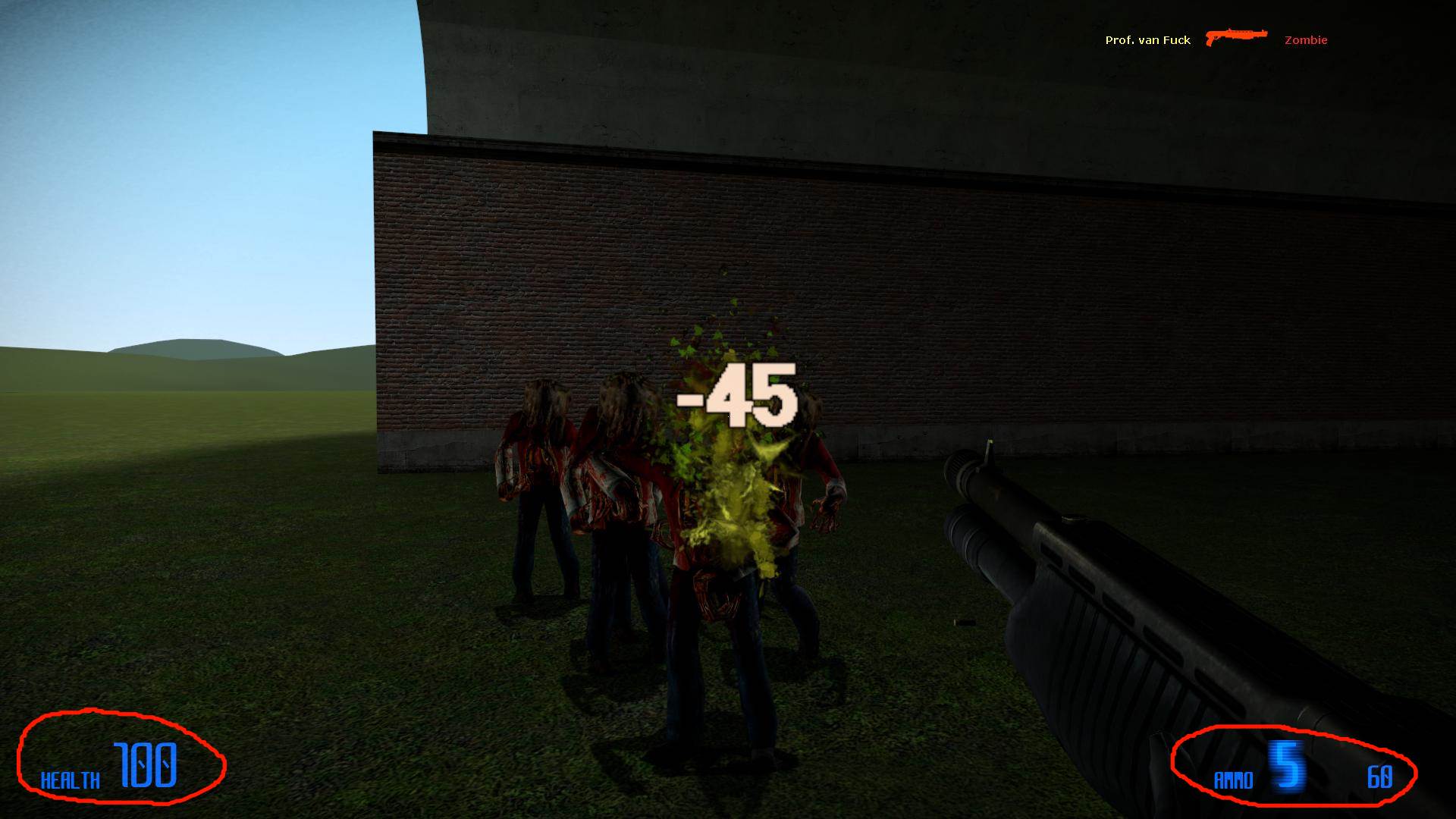
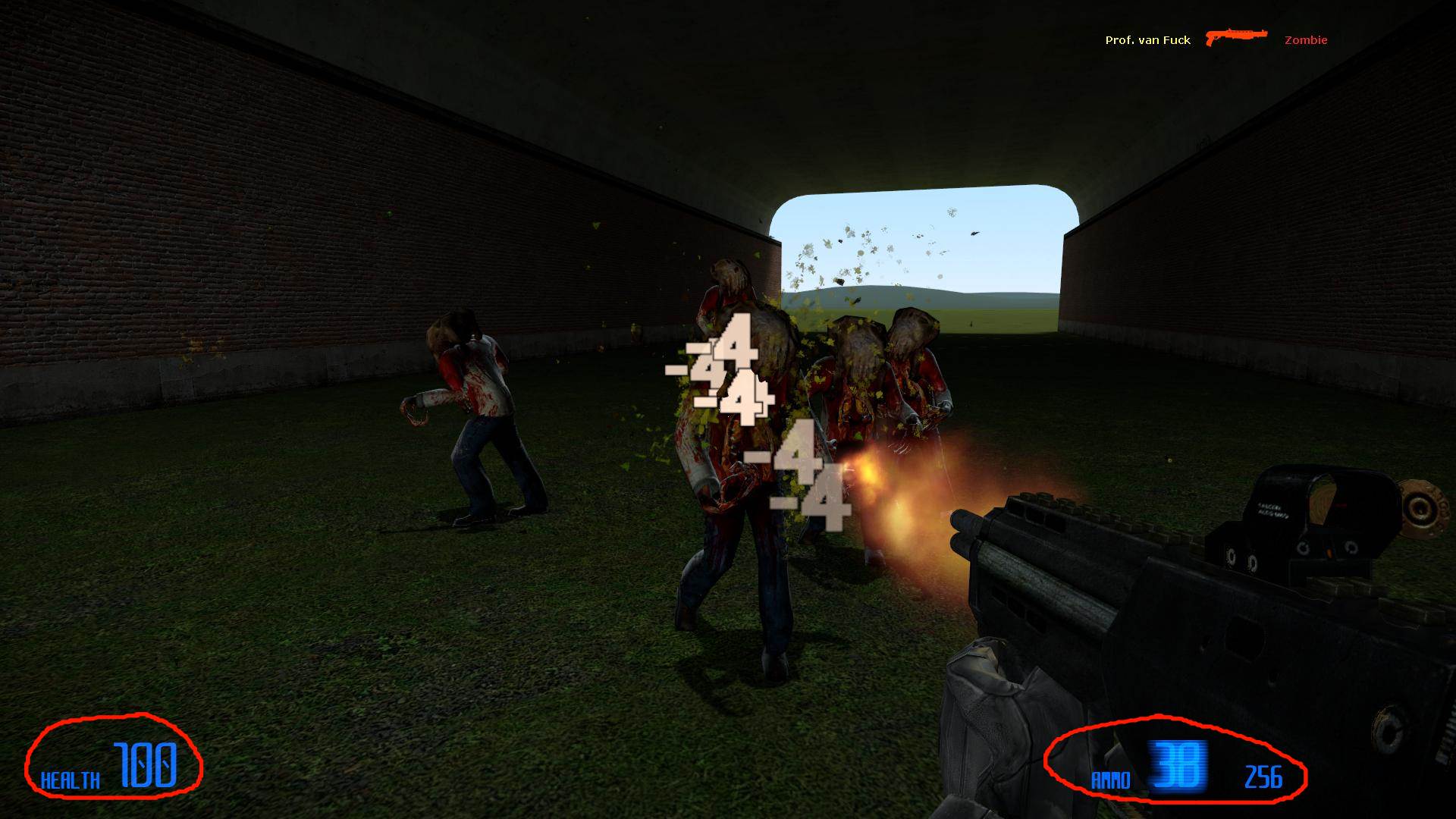
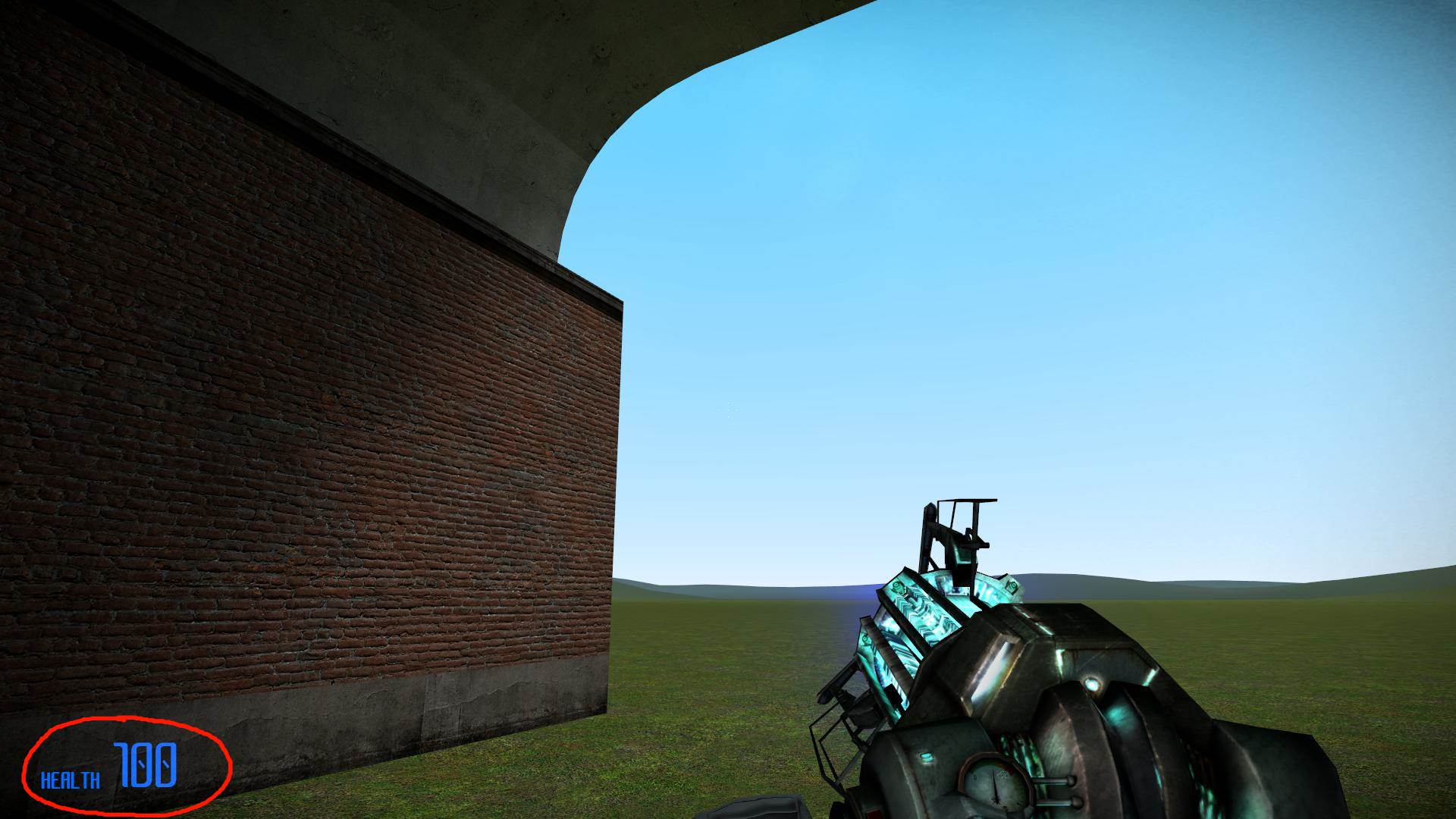
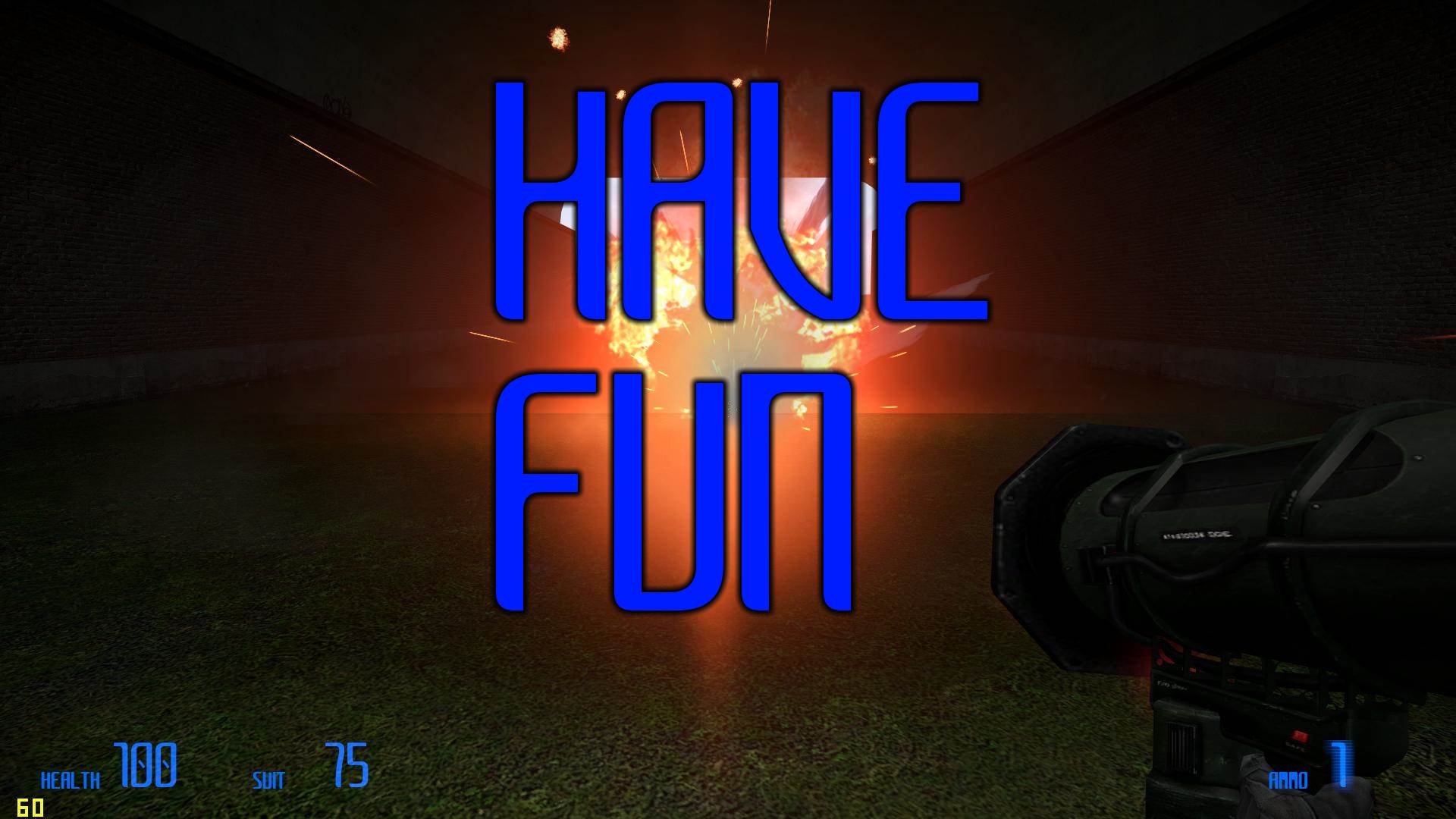
The SMOD themed HUD is a blue, modern & futuristic looking HUD based on the mod 'SMod'.


This is what the original SMOD hud looks like:

Quick Preview
IMPORTANT
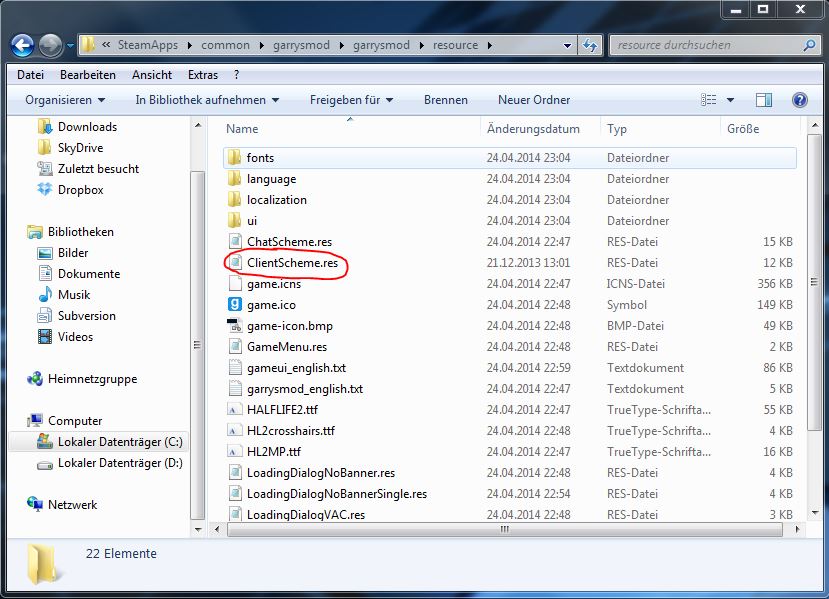
WARNING: Before you start editing, create a Backup / Copy of the 'ClientScheme.res'.
Find it here:


In case you want the default themed HUD back.
1. Downloading Font
Before we start editing, make sure you have the SMOD font installed on your hardrive.
Download it here: https://www.dropbox.com/s/1hrmsncdear91h9/smodfont.zip
Once you've open the .zip file, simply doubleclick on it and install the font.

Done, you got the font.
2. Editing
Once you got the font installed, let's edit your HUD.
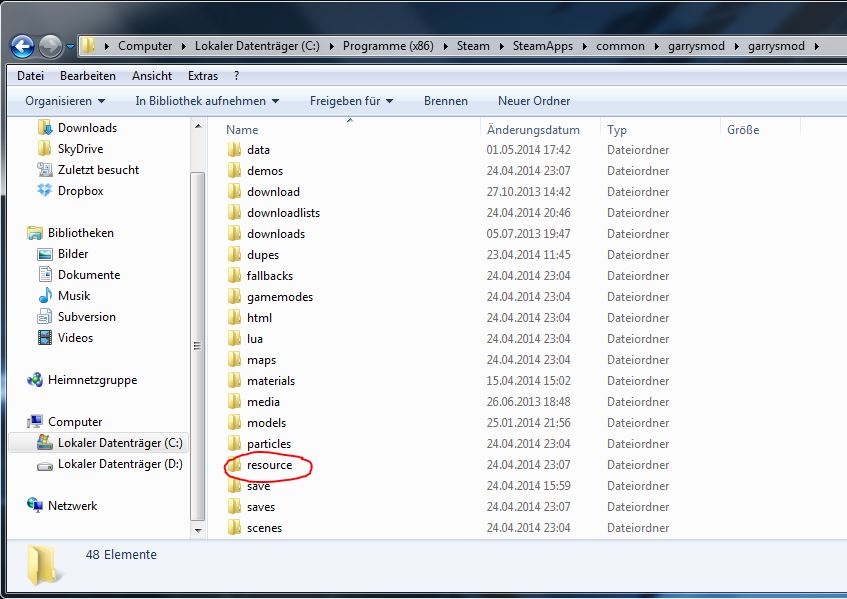
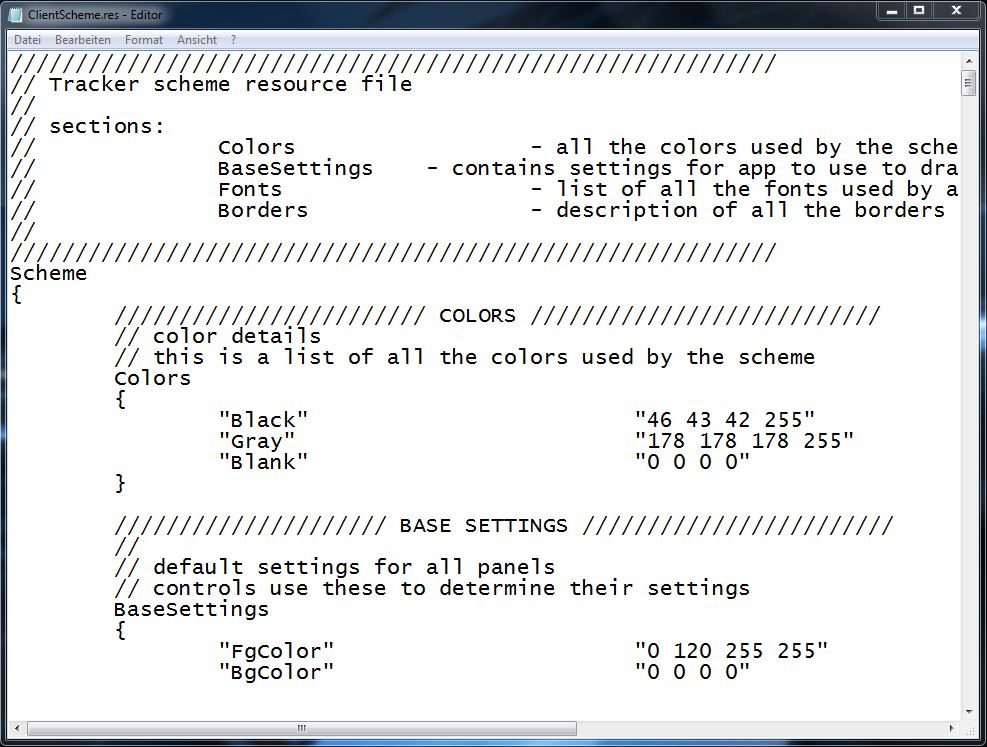
First, go to your garrysmod directory and open the 'resource' folder


Now look for the 'ClientScheme.res' and open it via Editor


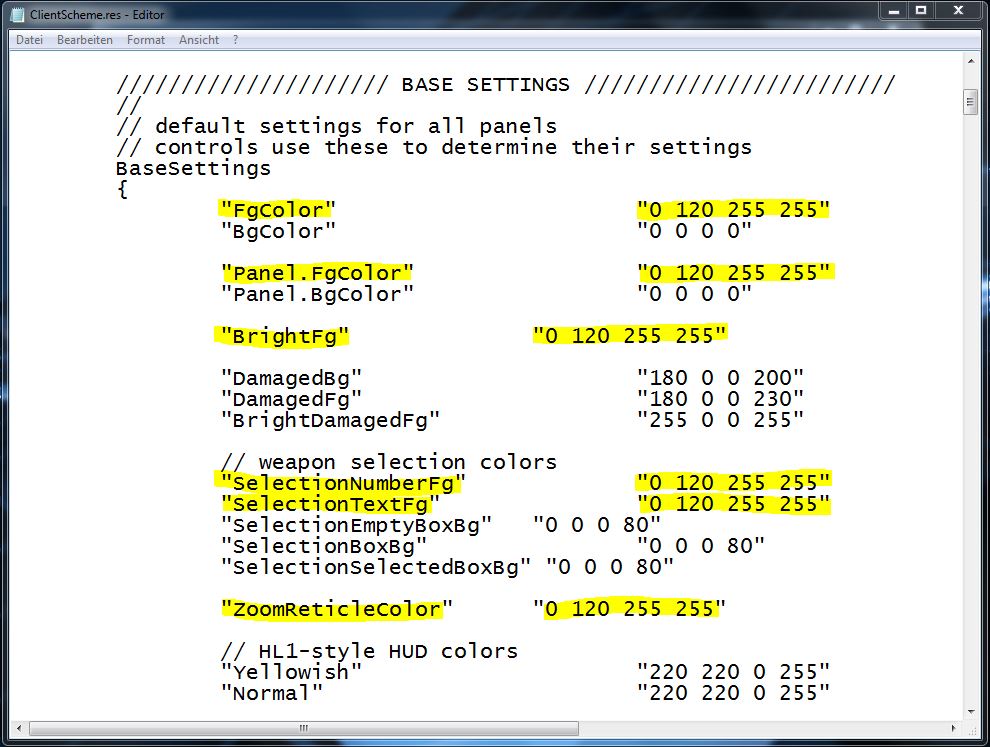
Now scroll down to the 'Base Settings' and edit the Color Codes I marked:


"FgColor" "0 120 255 255" -- This will make the HUD blue
"Panel.FgColor" "0 120 255 255" -- Not sure what this is...
"BrightFg" "0 120 255 255" -- Not sure what this is...
"SelectionNumberFg" "0 120 255 255" -- Color of the number when you choose weapons
"SelectionTextFg" "0 120 255 255" -- Text color when you choose weapons
"ZoomReticleColor" "0 120 255 255" -- Color when you zoom with the HEV suit

So now the HUD color will be entirely blue.
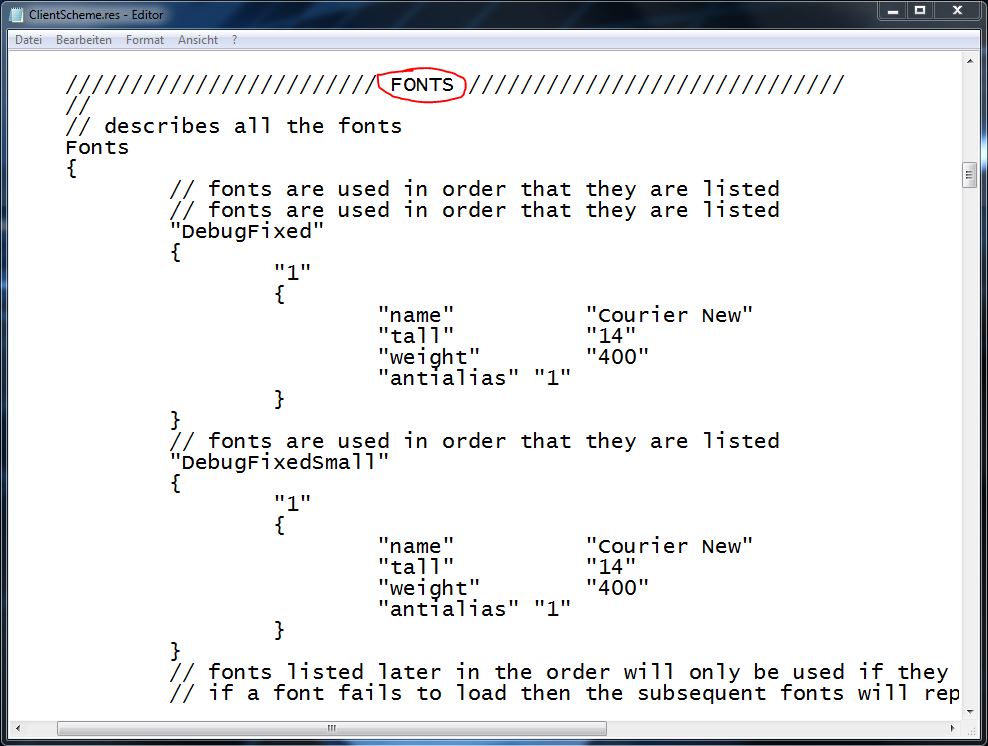
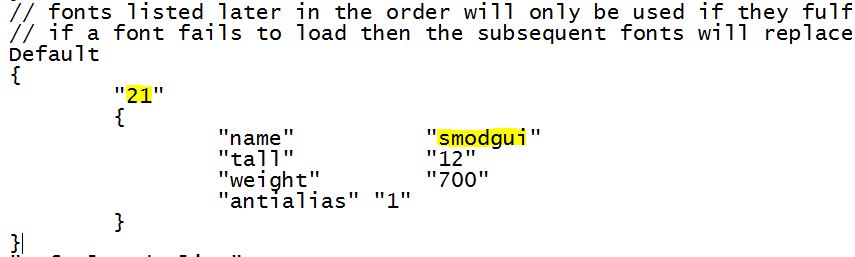
But don't forget to change the font of your HUD. Continue scrolling down until you see 'FONTS'.


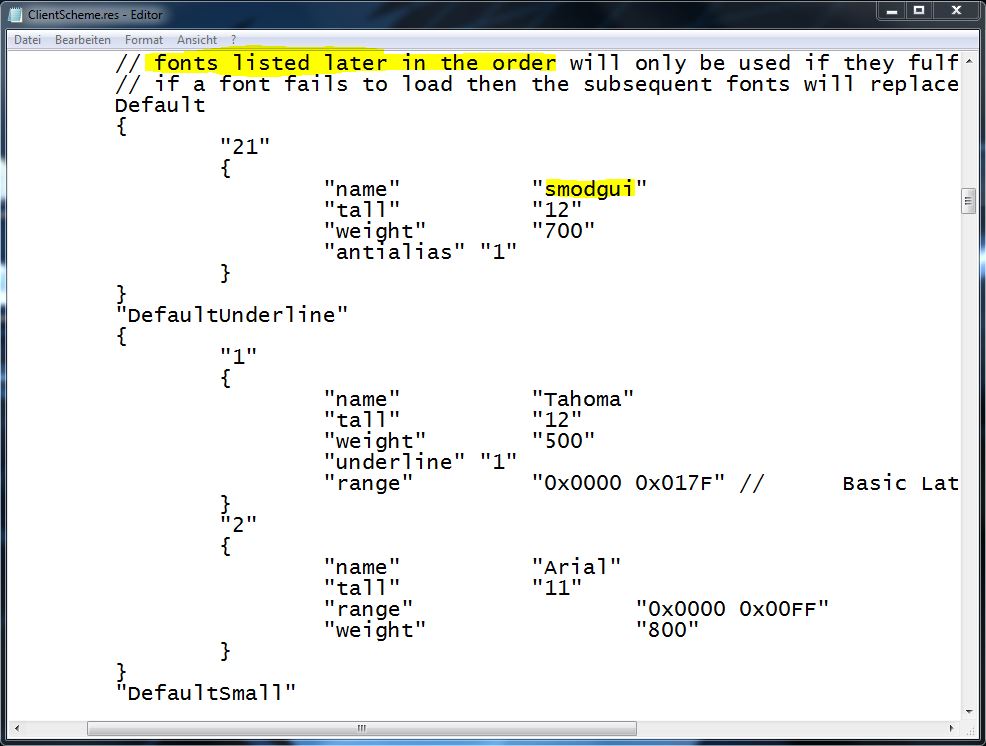
Again, scroll down a little bit 'til you see this text "fonts listed later in order... "


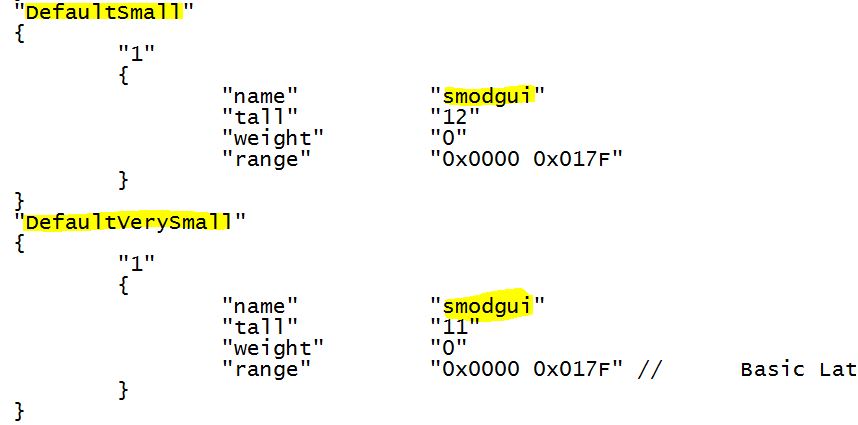
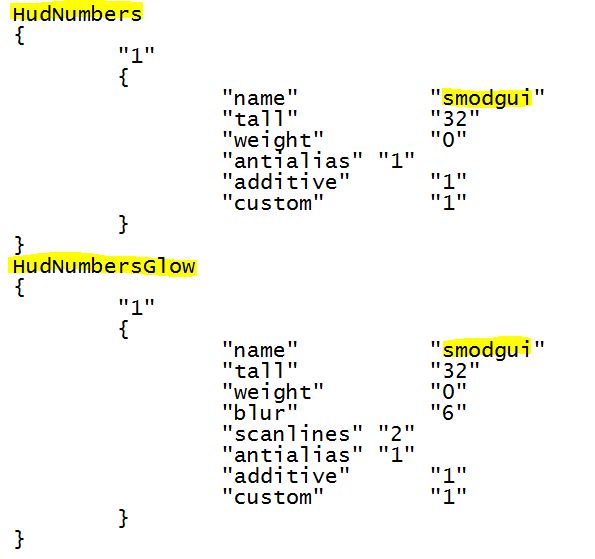
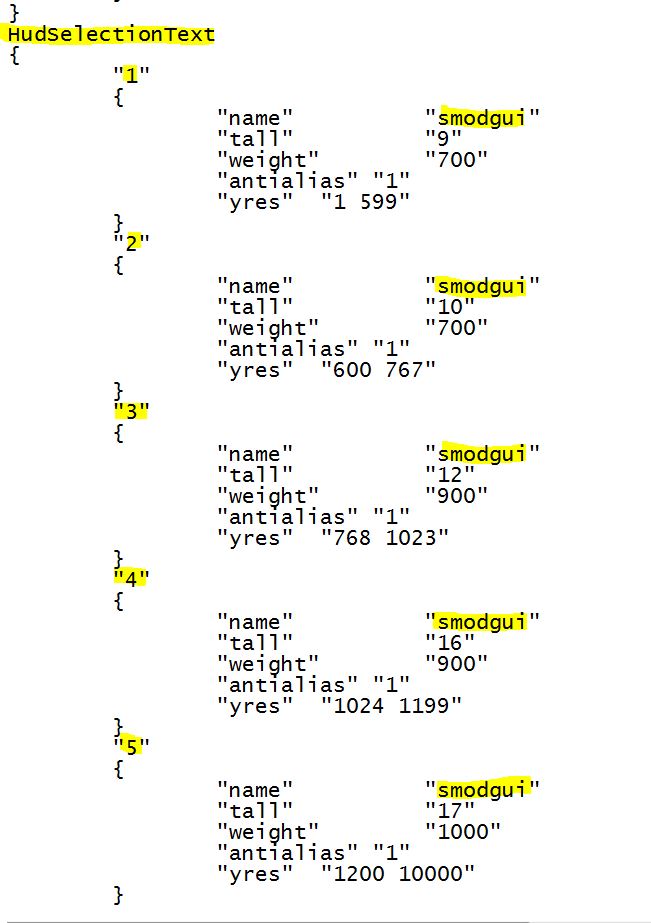
Now, replace the fonts ,shown on the images, with 'smodgui'. This is the font you will see in game.


And finally


Done. We got the SMOD font.


3. Done
That's it!

Once you carefully followed the 2 Steps, your new HUD should be ready.
Launch GMod and your tuned up HUD hopefully will show up.


90 opmerkingen
Otari 21 jan 2023 om 21:44 
There's a bit of yellow when you switch weapons. How do you change that color?
thecraftianman 5 okt 2022 om 17:18 
"0 0 128 0" doesn't work because the transparency is getting set to 0, making the color fully invisible. Do "0 0 128 255" instead for full opacity.
SpartanZed 19 aug 2022 om 16:53 
I tried making an Opposing Force HUD using the colors "0 0 128 0", and instead of green almost everything is blank.
mel gibson's oldest soldier 20 mrt 2022 om 18:50 
how do i change back to default
Brock 30 nov 2021 om 21:02 
link is dead
WereFurr 12 jul 2021 om 20:34 
I had a big smooth brain moment. You can change the reticle colors under "// HL1-style HUD colors"
But I thought that was just for reference, like the colors listed at the top, so that it could be imput with the name of the color instead of the numbers.
WereFurr 12 jul 2021 om 15:24 
Where would I have to look to change the crosshair color? I thought this would do it but it looks like the crosshair color is determined somewhere else.
Vyra 24 nov 2020 om 12:55 
You can still download the font from gamebanana.
free 30 mrt 2020 om 22:50 
link dead